
Click any picture to see it full size.
In this guide, the red box in each picture shows what to click. Numbers show the order.
The browser extension saves logins for you, fills them in, and lets you search your passwords from any web page. For how to use it day to day, see Creating a Password Entry and Changing a Password.
Install the extension
-
Go to psono.com/download. Find your browser (Chrome, Firefox or Edge) and click its Install extension button. Safari isn't supported.
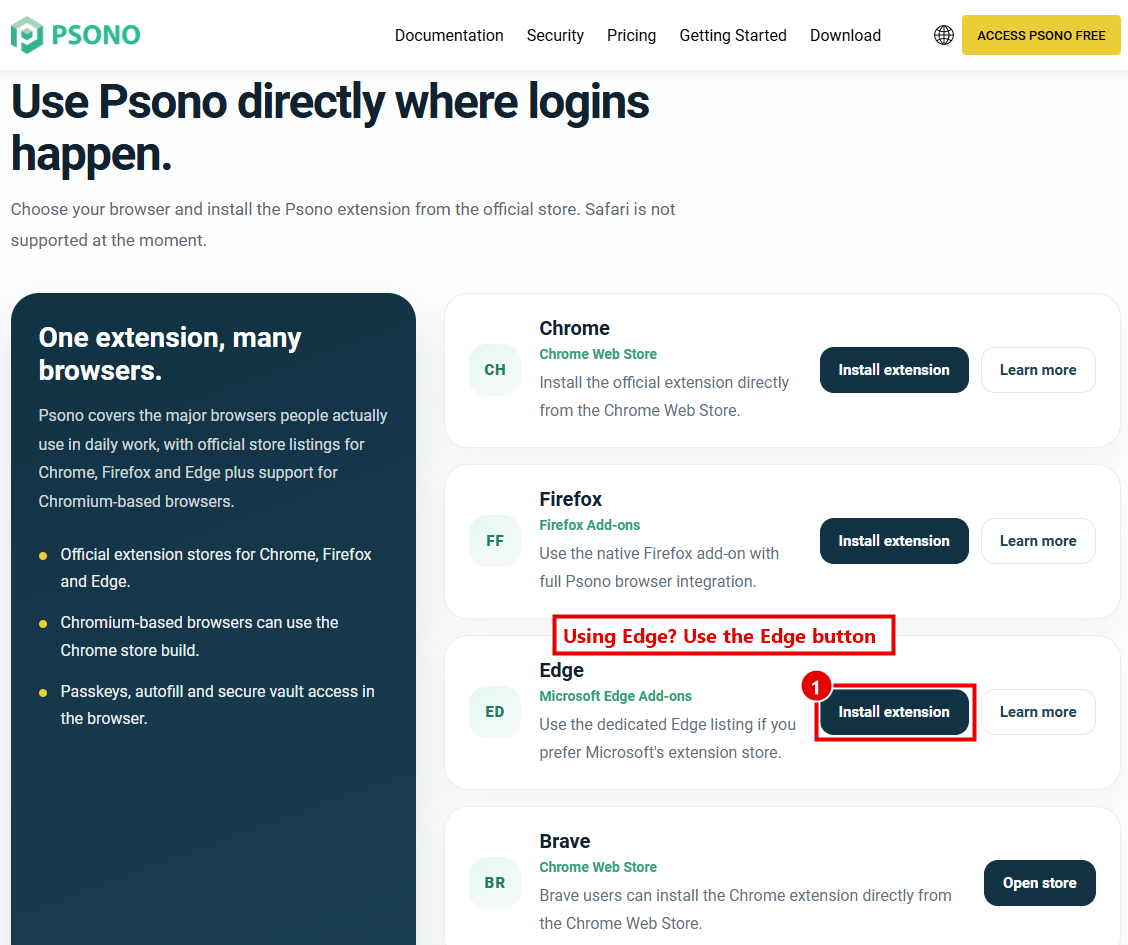
-
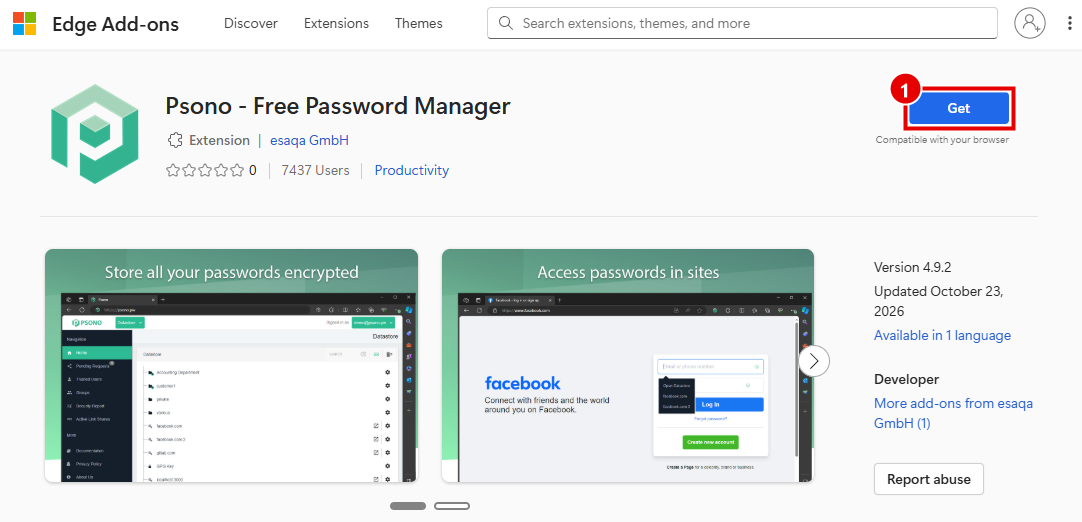
Your browser's extension store opens. Click Get (Edge) or Add to Chrome (Chrome), then confirm with Add extension.
Pin the Psono icon
Browsers hide new extensions behind a puzzle piece icon at the top right. Pin Psono so its icon is always there:
-
Click the puzzle piece icon at the top right of your browser.
-
Click the pin next to Psono - Free Password Manager.
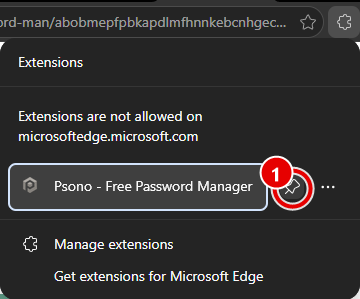
The green Psono icon now stays in your toolbar.
Sign in to the extension
You'll need the Psono Server URL from your Quick Reference Document.
-
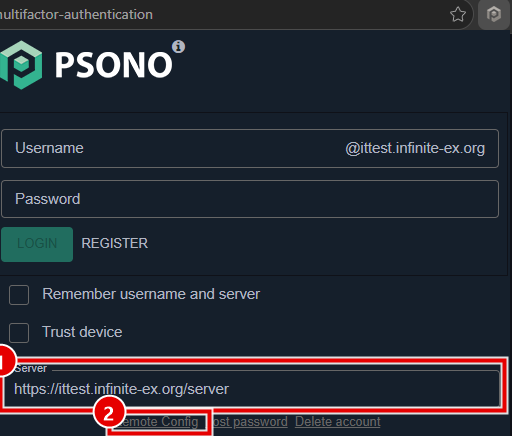
Click the Psono icon in your toolbar. The extension's sign-in page opens. At first it's set up for the public Psono service: the username ends in @psono.pw, and the Server box at the bottom says
https://www.psono.pw/server.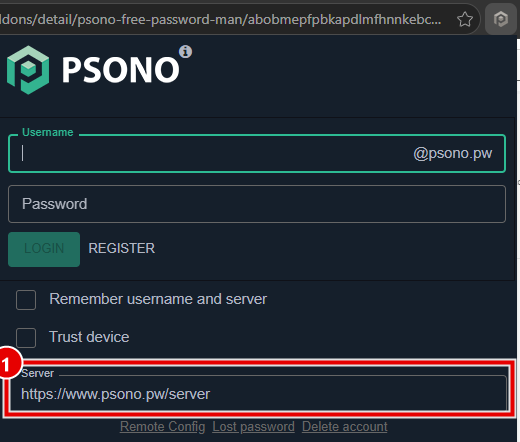
-
Click in the Server box, delete what's there, and type your Psono Server URL (1). Then click Remote Config under the box (2). The Username box changes to show your company's part after the @.
-
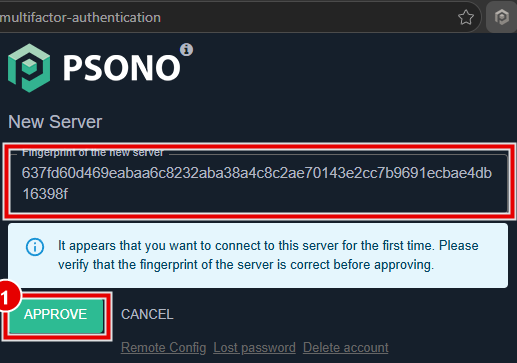
Psono shows New Server. Check that the fingerprint matches the Psono Fingerprint in your Quick Reference Document, then click Approve (1). If it doesn't match, click Cancel and contact us.
-
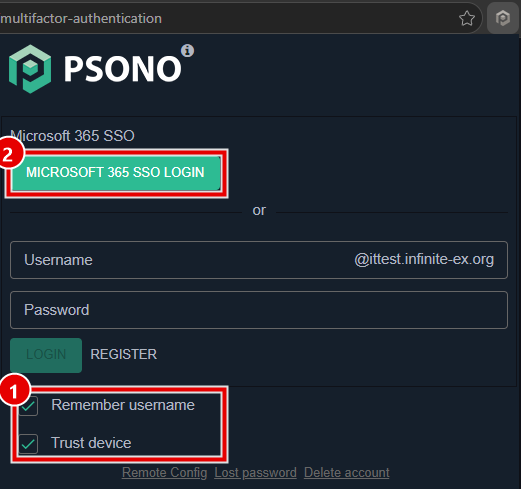
On your own computer, tick Remember username and Trust device (1), so you don't have to do this again. Then sign in: click your company's SSO button (2) if you have one, or type your username and password and click Login.
Making a password for a new website
When you're signing up for a new website, Psono can make a strong password for you:
-
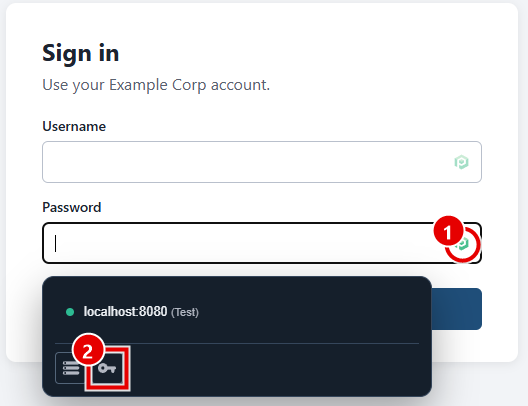
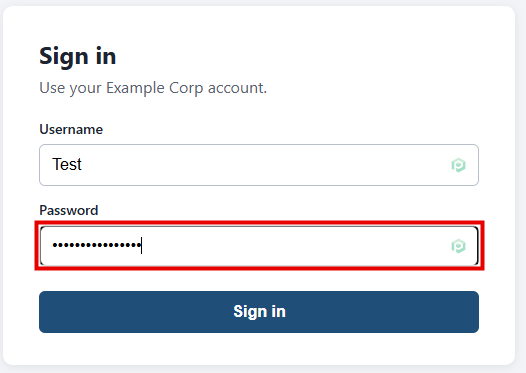
On the website's sign-up page, click in the Password box and click the green Psono icon in it (1). In the list that drops down, click the key button (2).
-
Psono fills a strong password into the website's password box.
-
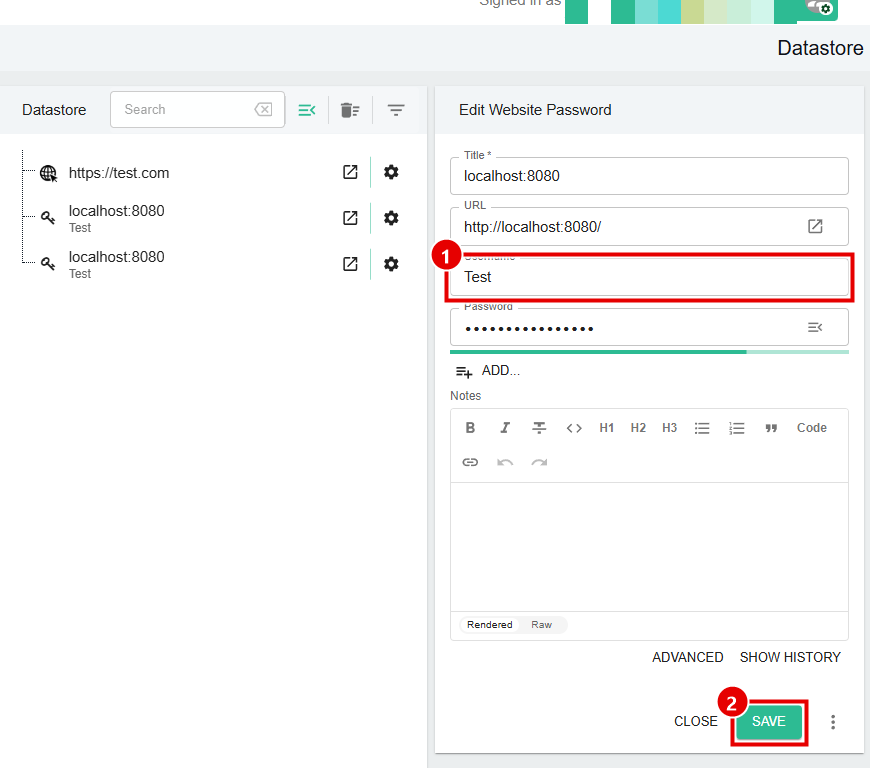
At the same time, your Psono Datastore opens with a new entry for the website, showing the password it made. If the Username box is empty, type the username you're using for this website (1). Then click Save (2).
-
Go back to the website's tab and finish signing up.
Only use this for brand-new accounts. To change the password of a website you already have in Psono, follow the routine for changing a password. Otherwise you'll end up with two entries for the same website.
Bookmarks
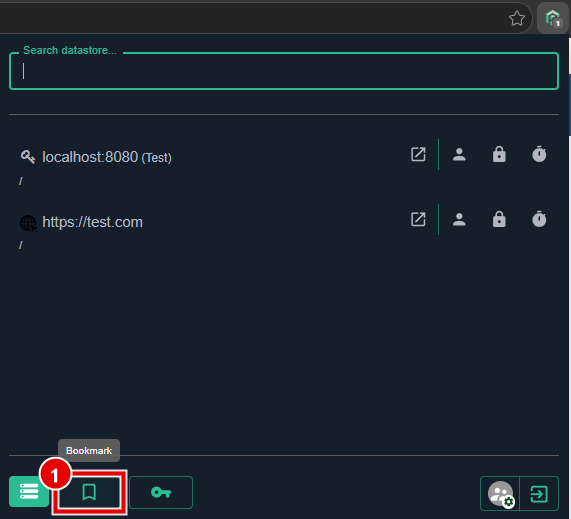
The bookmark button at the bottom of the toolbar popup (1) saves the page you're on as a Bookmark in Psono. It's handy for web pages you need often, such as a supplier's order portal.
Stuck on a step? Email support@the-it-connection.com or call 815-526-3600 and we’ll walk you through it.