
Click any picture to see it full size.
In this guide, the red box in each picture shows what to tap. Numbers show the order. The pictures were taken on an Android phone; iPhone screens look similar.
Install the app
Open the Play Store (Android) or App Store (iPhone), search for Psono, and install it.
Let Psono fill in passwords
The first time you open Psono, it offers to fill in passwords in other apps and websites on your phone. This is optional but recommended.
-
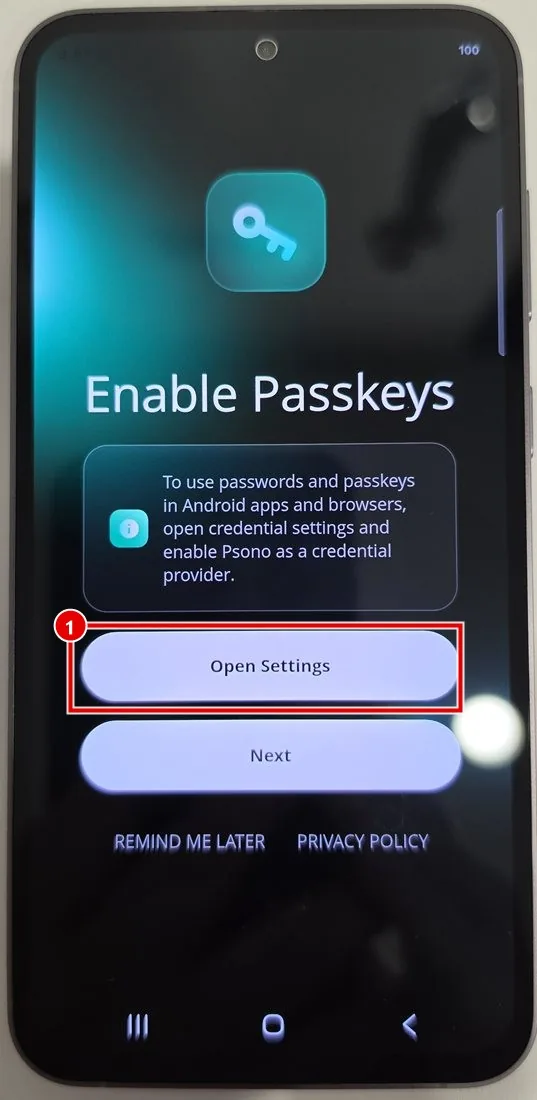
On Enable Passkeys, tap Open Settings. (Tap Remind me later to skip this for now.)
-
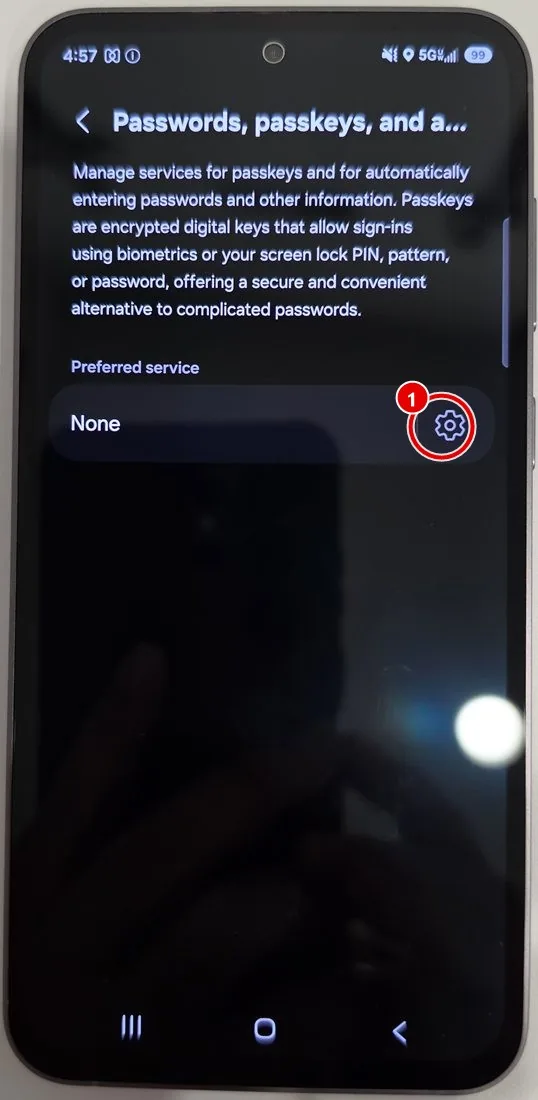
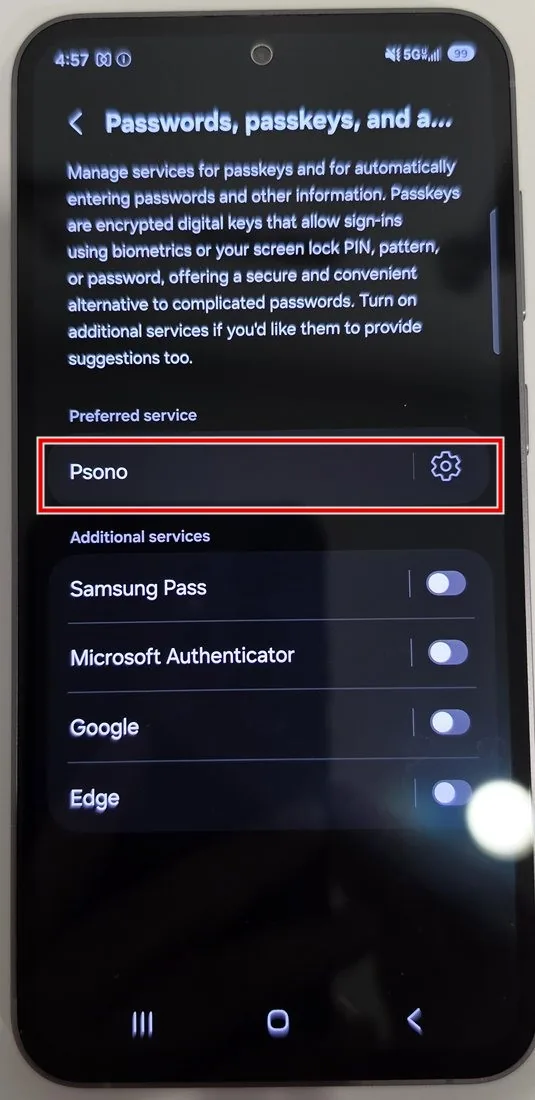
Your phone's Passwords, passkeys, and autofill settings open. Tap the gear next to Preferred service.
-
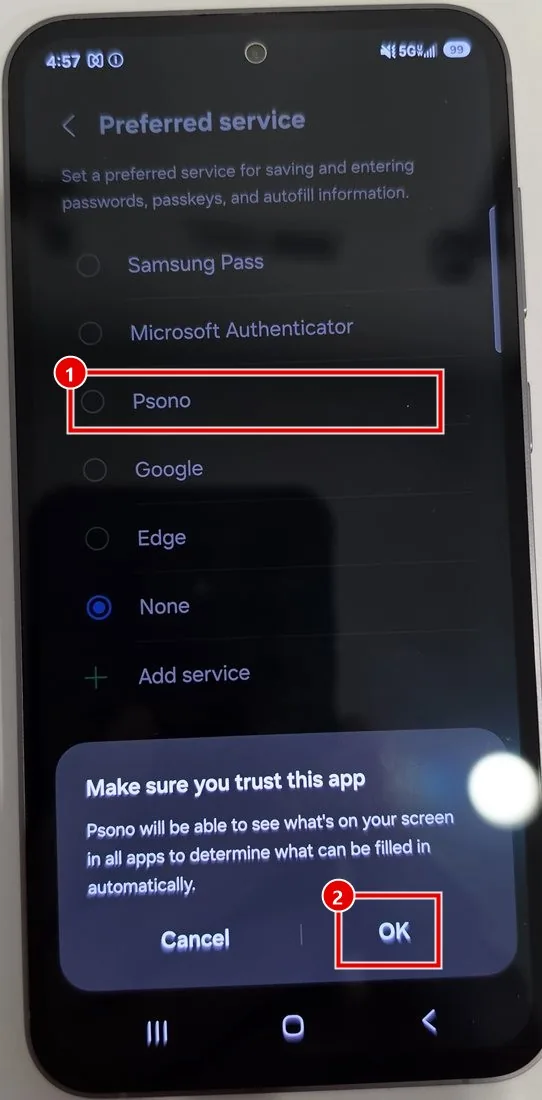
Tap Psono (1). Your phone asks Make sure you trust this app. Tap OK (2).
-
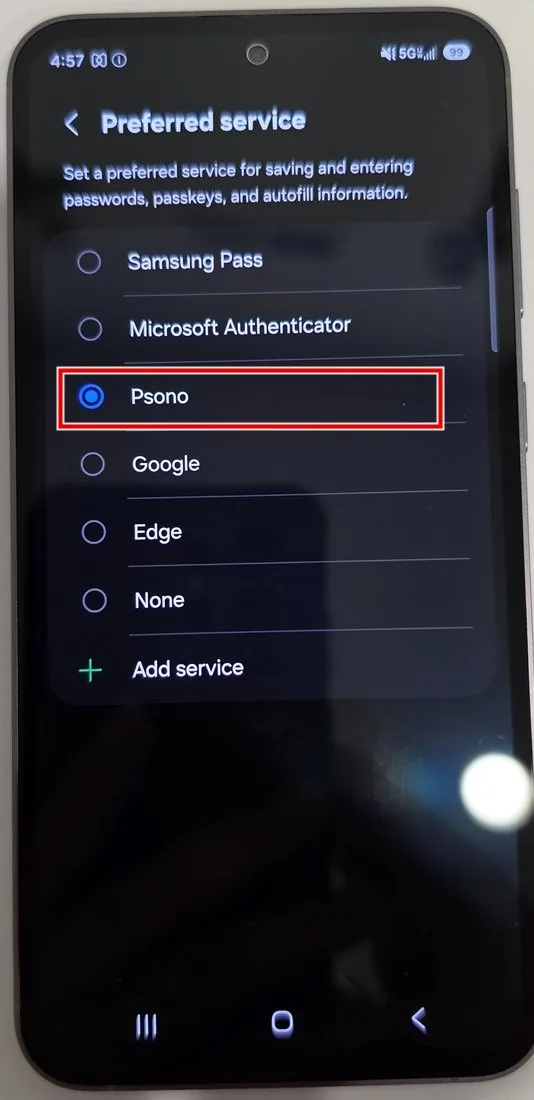
Psono is now ticked.
-
Go back. Preferred service now says Psono. Go back again to return to the Psono app.
-
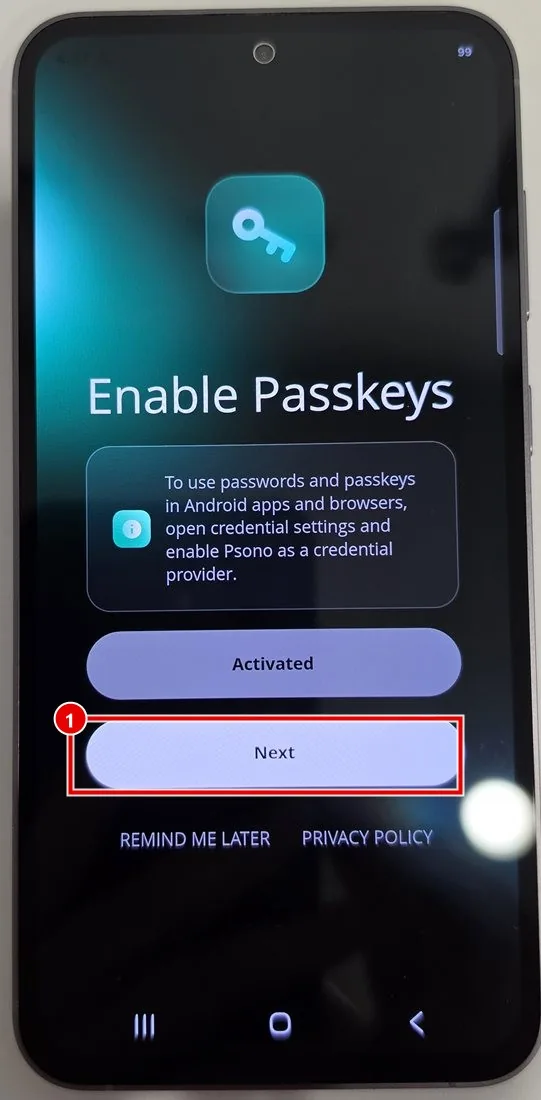
The button now says Activated. Tap Next.
These setting names come from a Samsung phone. Other Android phones may word them a little differently.
Connect the app to your company's server
-
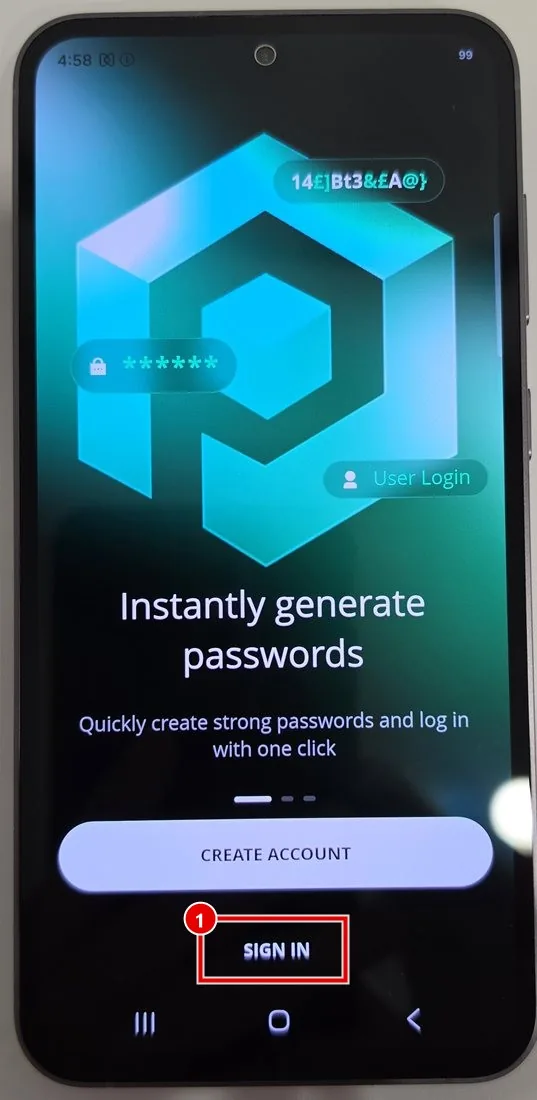
On the welcome screen, tap Sign In. (Don't tap Create Account.)
-
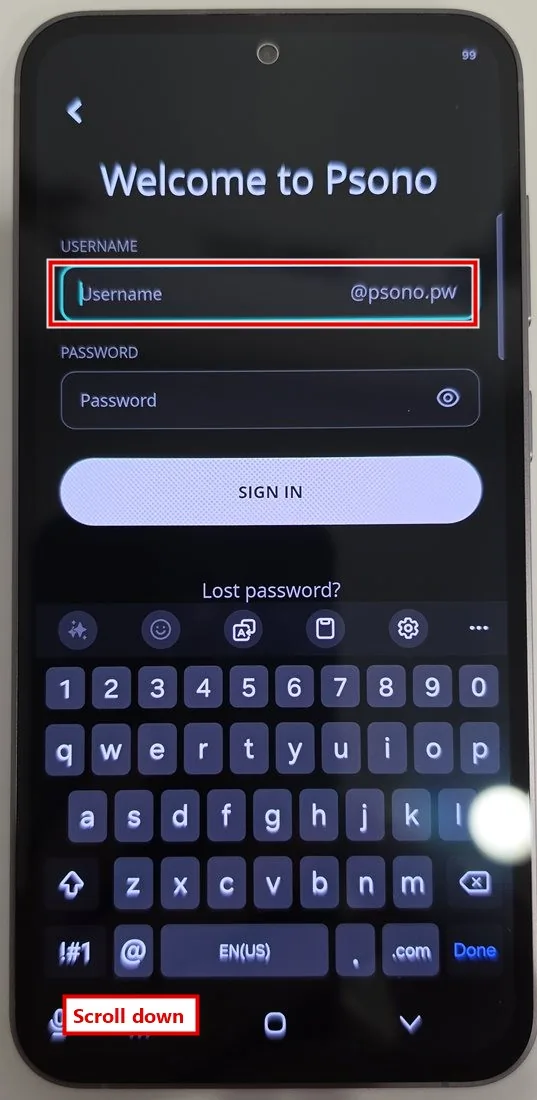
The sign-in screen is set up for the public Psono service at first: the username ends in @psono.pw. Scroll down.
-
Connect the app to your company's server in one of these ways:
-
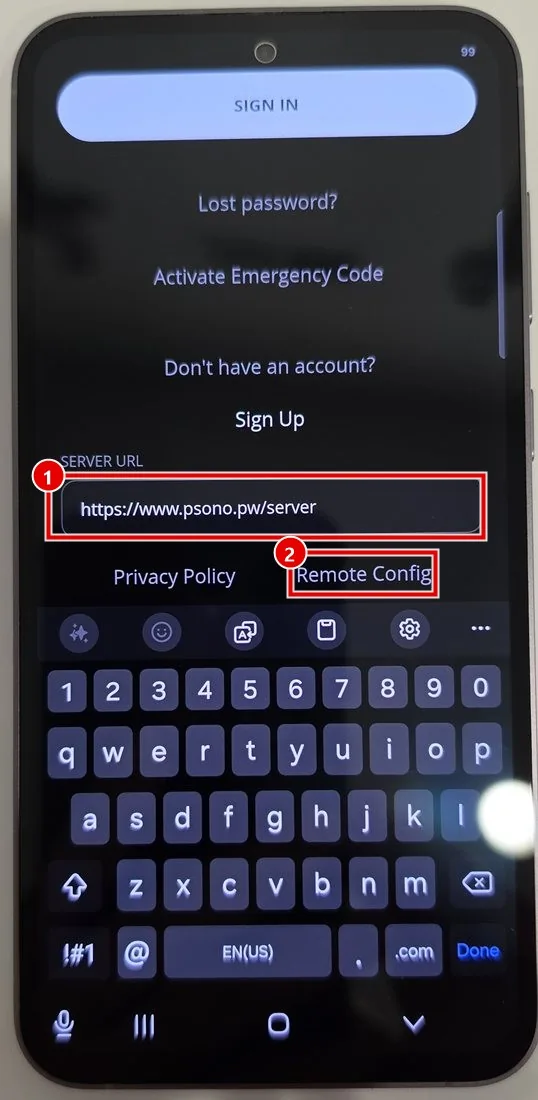
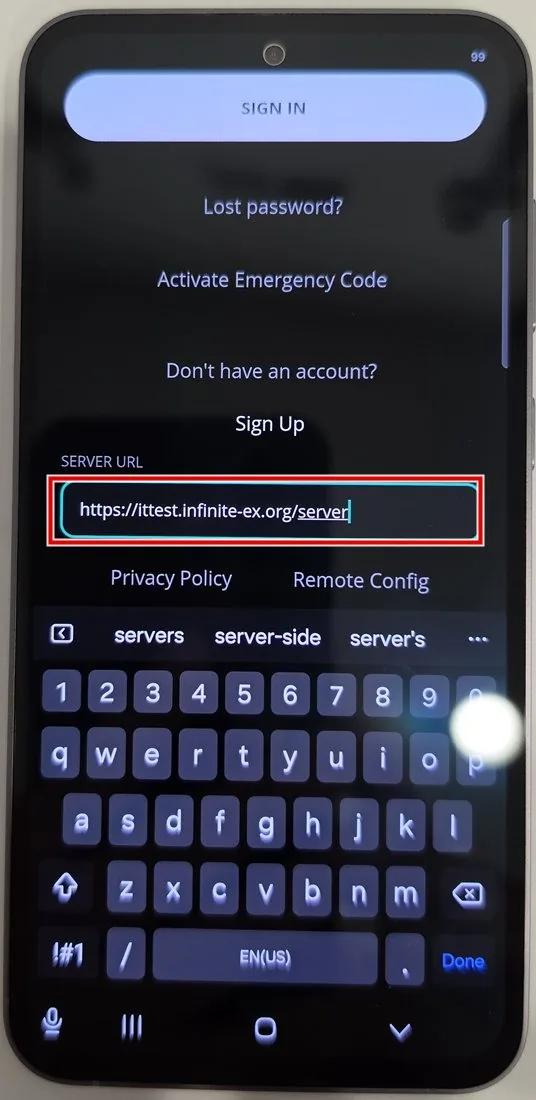
Type it in: tap Server URL (1), delete what's there, and type your Psono Server URL from your Quick Reference Document.
-
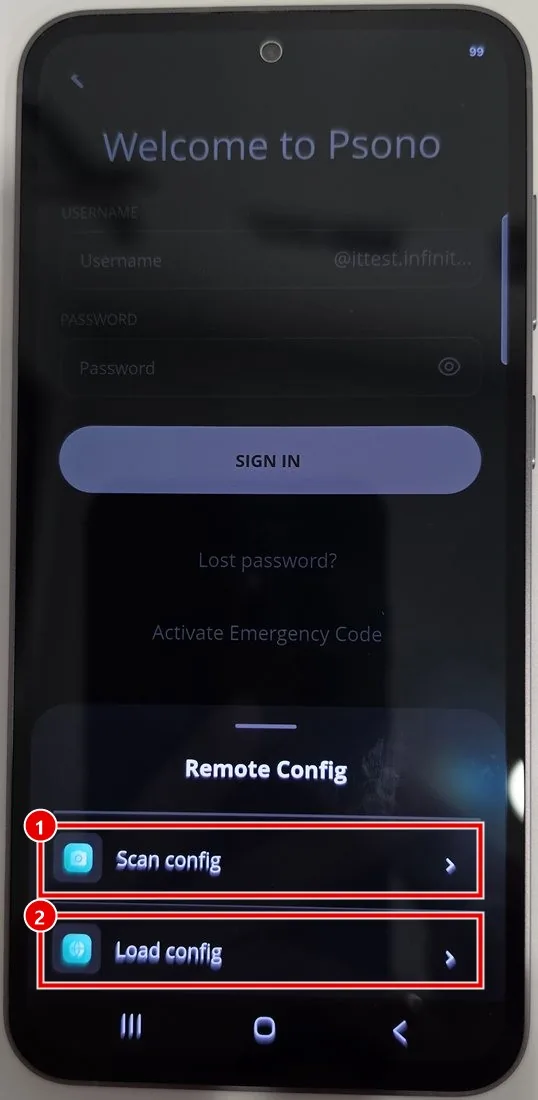
Or scan it from your computer: tap Remote Config (2 in the picture above), then Scan config (1). On your computer, sign in to Psono, click your name at the top right, choose Account, and click QR Client Config. Point your phone at the QR code on the screen.
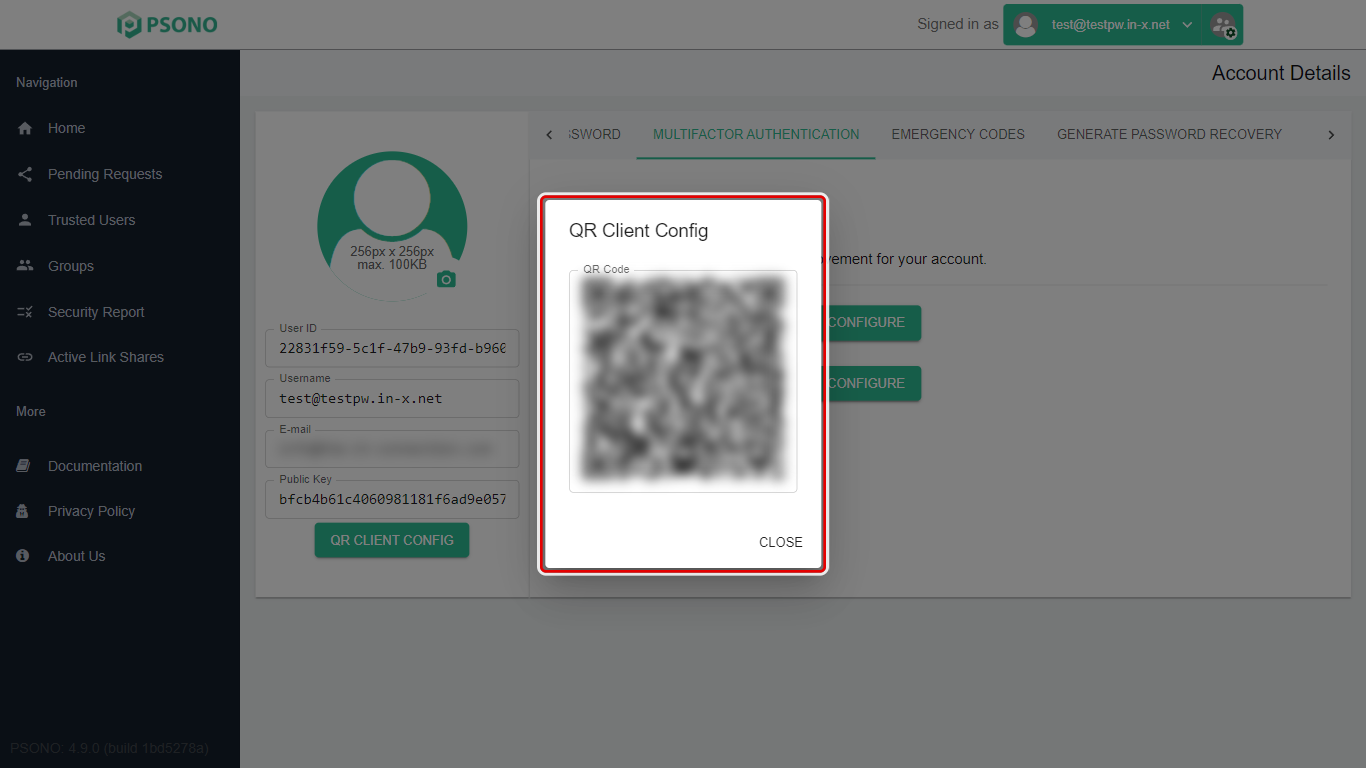
(The QR code is blurred in our picture. Yours will be clear.)
-
Sign in and choose a PIN
-
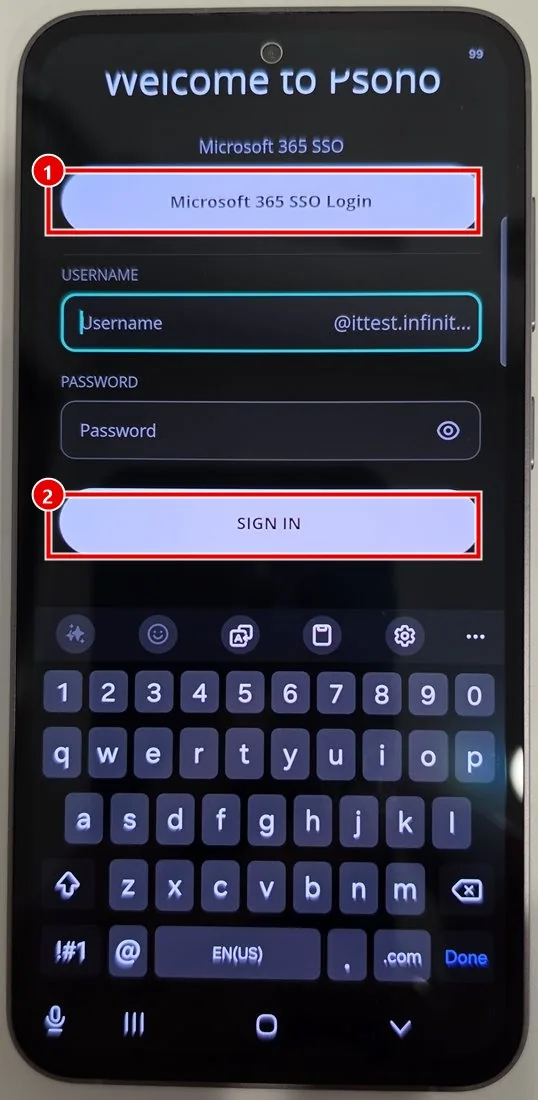
Scroll back up. The username now ends in your company's part after the @. Sign in:
- If you see your company's SSO button (for example Microsoft 365 SSO Login), tap it (1) and sign in with your normal work account.
- Otherwise type your username (only the part before the @) and your Psono password, and tap Sign In (2).
-
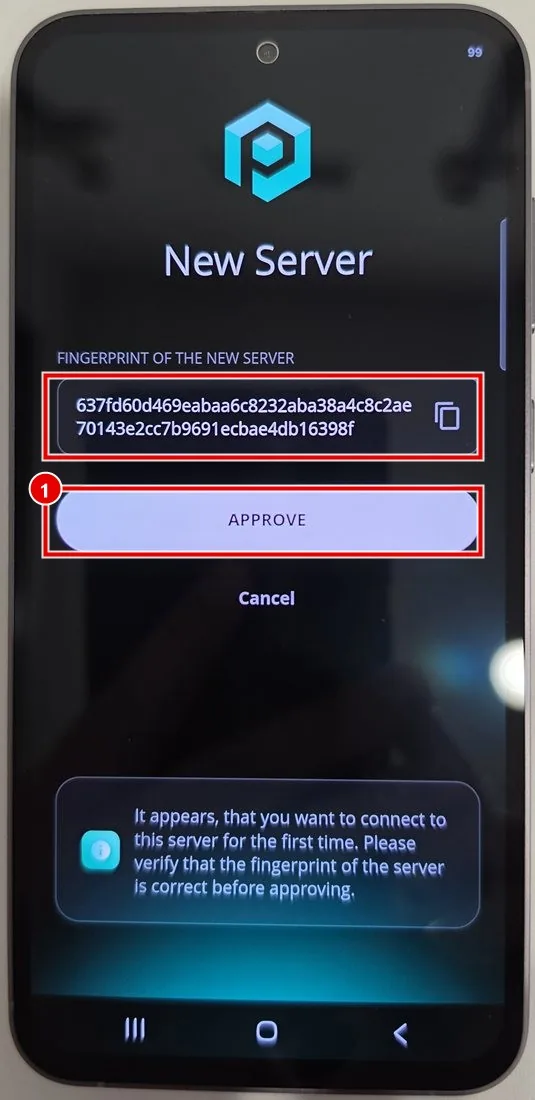
The first time, Psono shows New Server. Check that the fingerprint matches the Psono Fingerprint in your Quick Reference Document, then tap Approve (1).
-
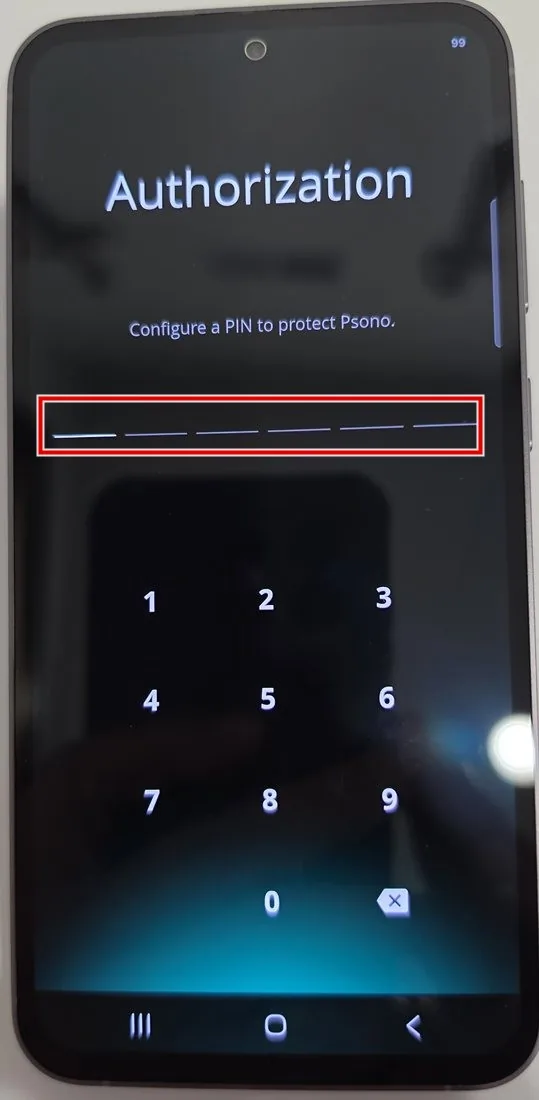
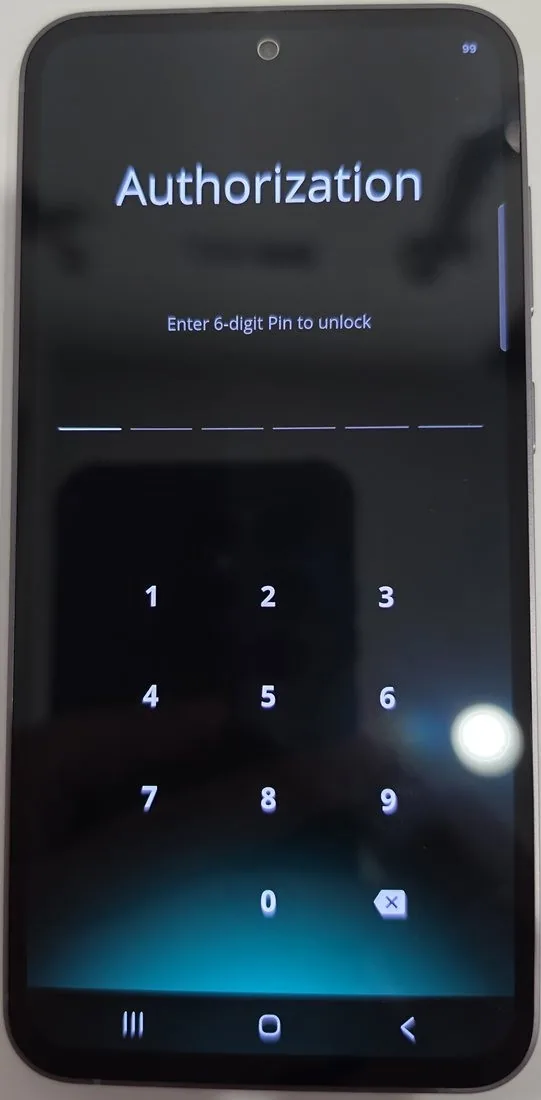
Choose a 6-digit PIN to protect the app, and type it.
-
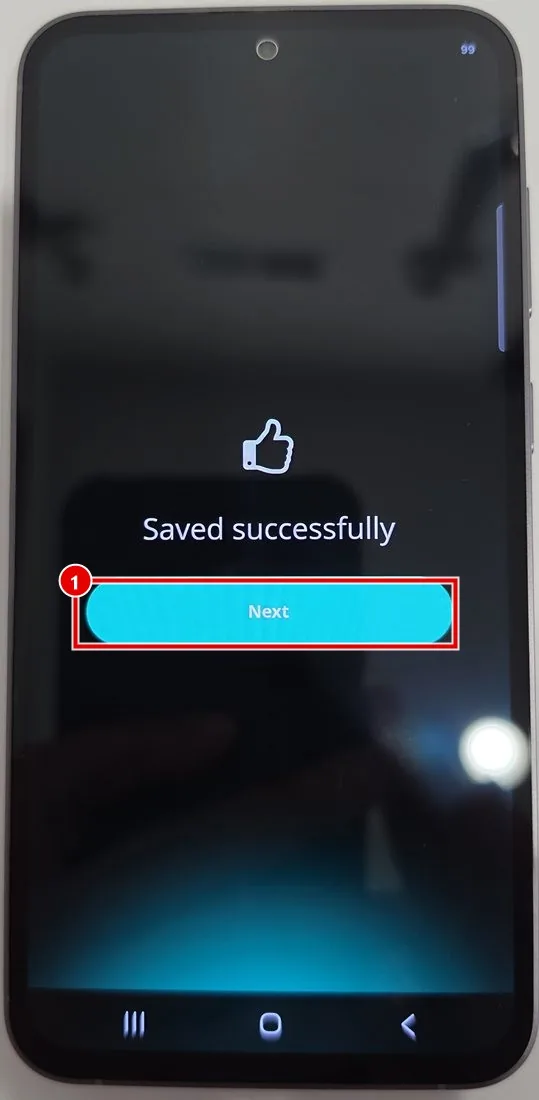
Psono shows Saved successfully. Tap Next.
-
From now on, you unlock Psono on your phone with this PIN.
Finding and using your passwords
-
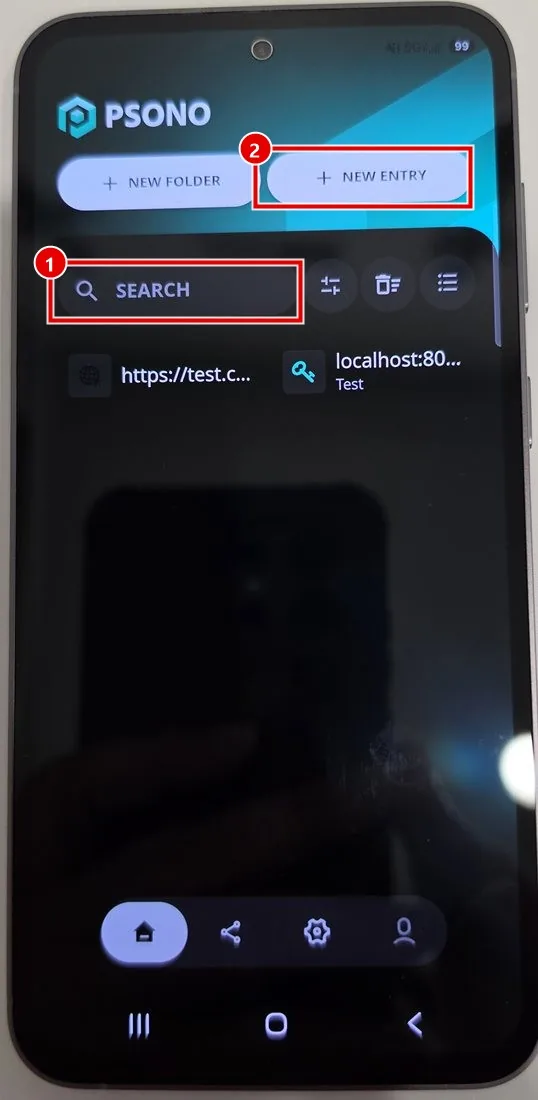
Your passwords and folders are listed, the same as on your computer. Tap Search (1) to find one. You can also add new entries here (2).
-
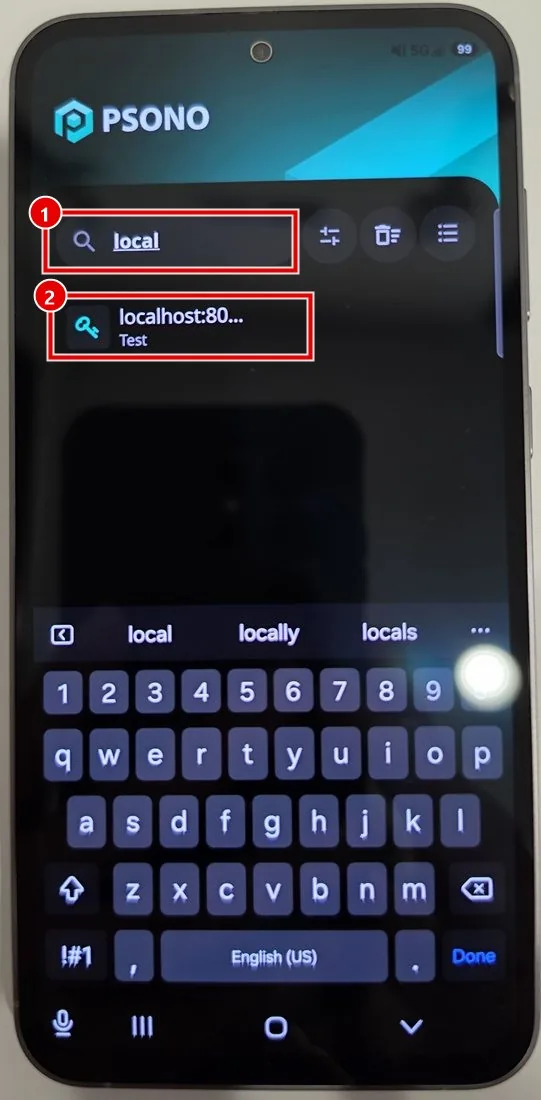
Type part of the name, then tap the entry.
-
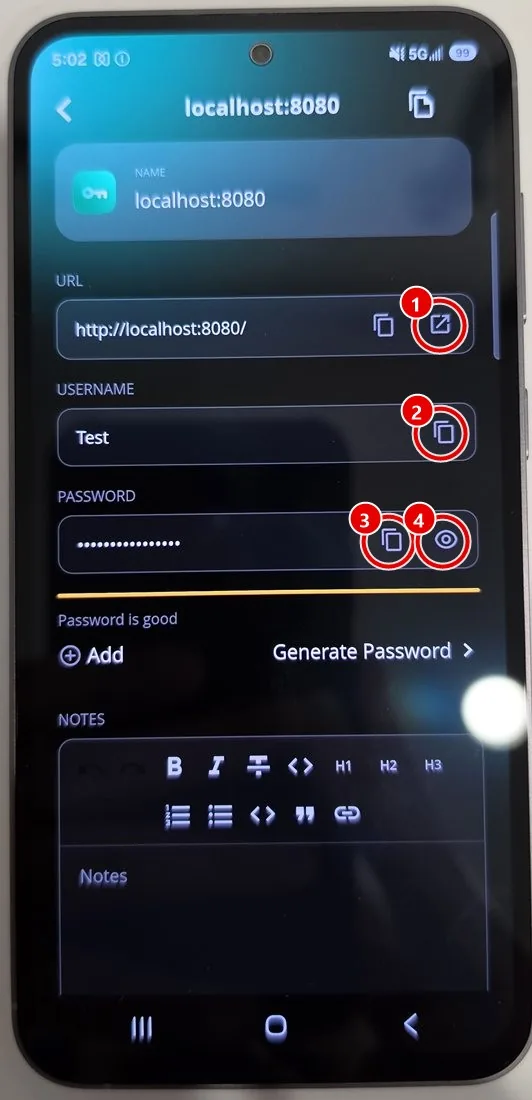
The entry opens. Use the buttons on the right:
- (1) Opens the website.
- (2) Copies the username.
- (3) Copies the password.
- (4) Shows the password.
-
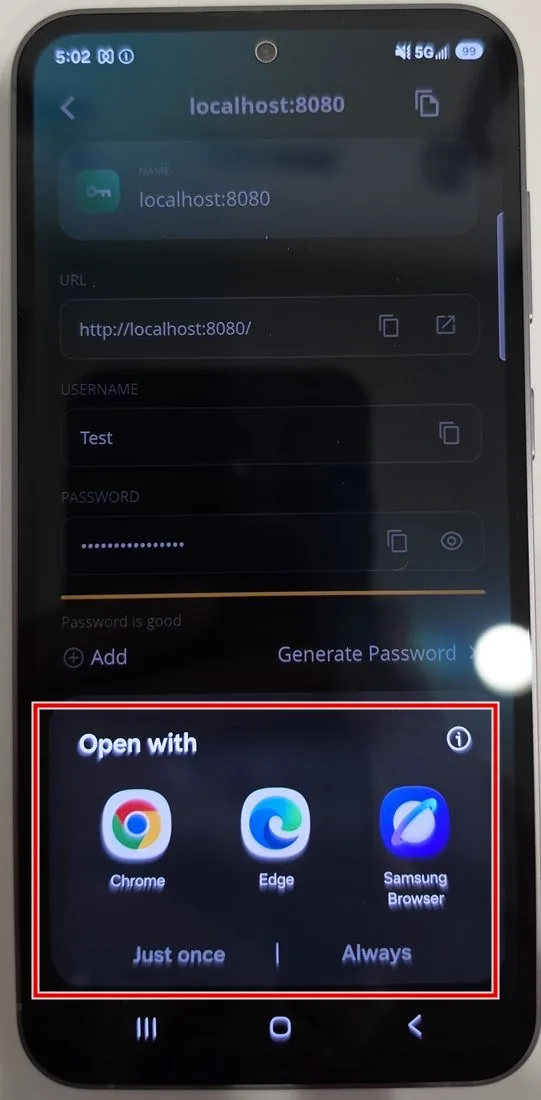
If you open the website, your phone may ask which browser to use. Pick one.
Copying and pasting into another app
If Psono doesn't fill in a login for you, copy and paste it:
- In Psono, copy the username (or password).
- Switch to the other app without closing Psono. Use your phone's recent-apps button.
- Tap the box you want to fill. Your keyboard may offer to paste straight away. If not, press and hold the box and tap Paste.
- Switch back to Psono and do the same for the password.
Using Psono for sign-in codes (TOTP)
Psono can replace an authenticator app such as Microsoft or Google Authenticator. When a website shows a QR code to set up 6-digit sign-in codes:
-
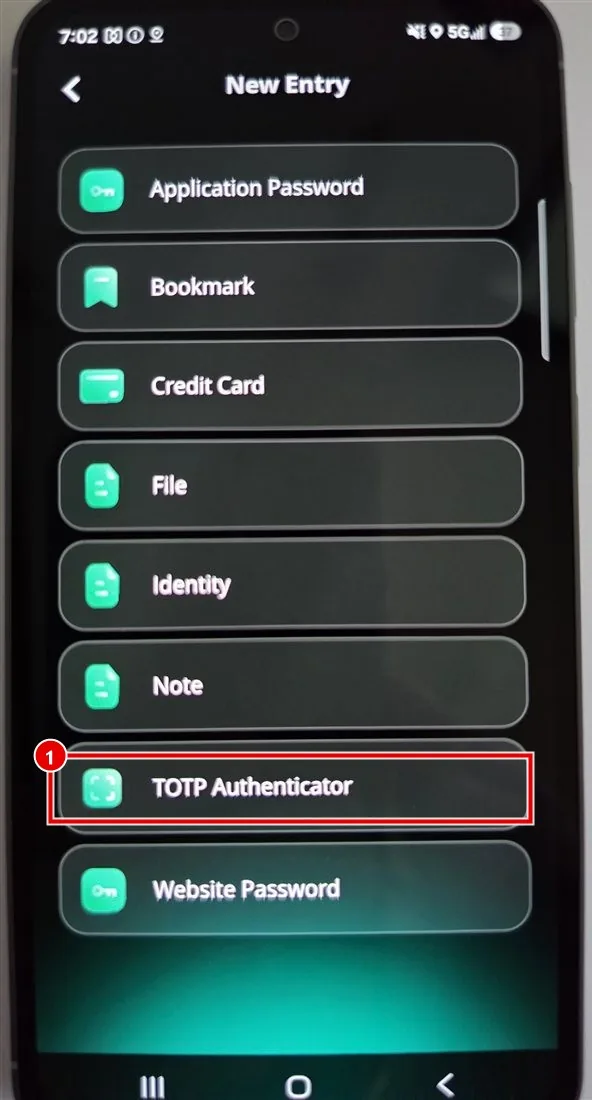
In Psono, add a new entry and choose TOTP Authenticator (1).
-
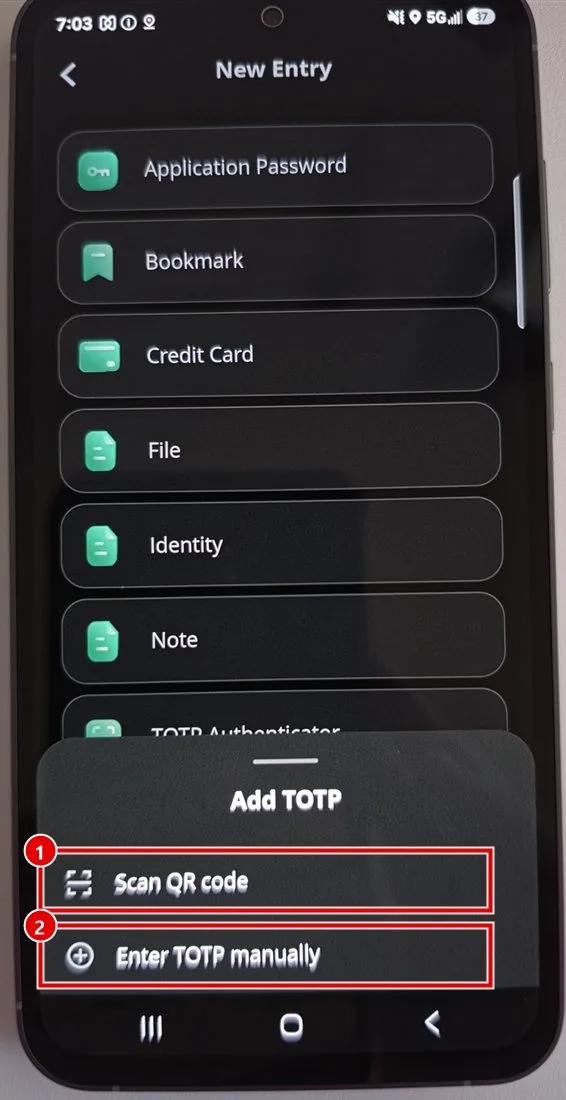
Tap Scan QR code (1) and point your phone at the website's QR code. If you can't scan it, tap Enter TOTP manually (2) and type the setup key the website shows instead.
-
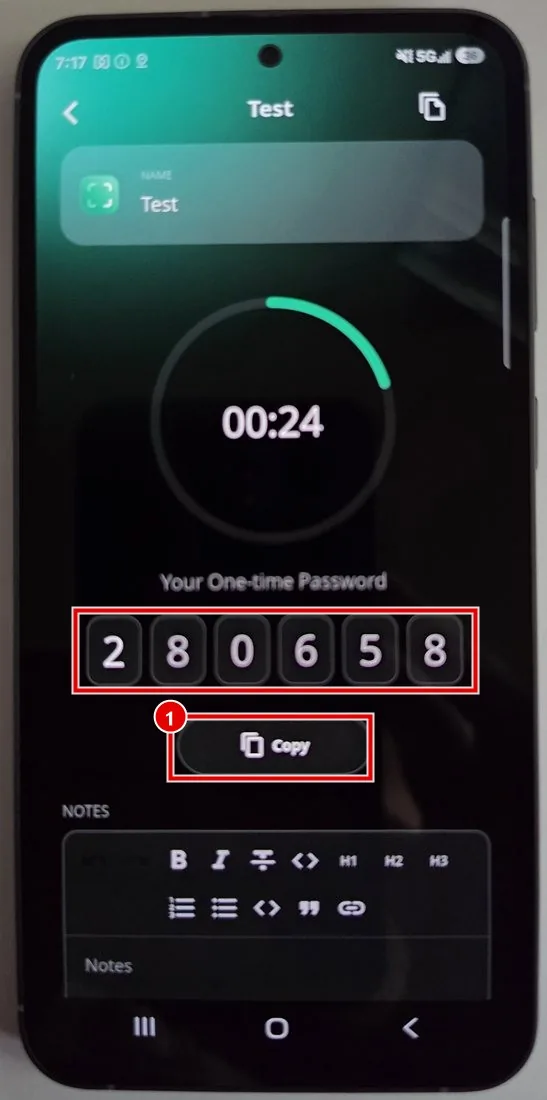
Save the entry. When you open it, it shows the current 6-digit code and how long it's valid. Tap Copy (1) to copy it.
The code is also available on your computer in the Psono website and browser extension. See Adding a sign-in code (TOTP) to an entry.
Stuck on a step? Email support@the-it-connection.com or call 815-526-3600 and we’ll walk you through it.