
Click any picture to see it full size.
In this guide, the red box or circle in each picture shows what to click. Numbers show the order.
Read this first
Changing a password is where people most often get into a muddle with Psono. Follow the routine below exactly and it's easy.
Don't use the extension's "Generate Password" button to change a password. It makes a brand new entry instead of updating the one you already have. You end up with two entries for the same website and won't know which password is right. Always make the new password in your Datastore, inside the existing entry, as shown below.
Psono sometimes notices a password change by itself and asks whether to update the password in Psono. If it does, click Yes. But it doesn't always notice, so don't rely on it. Use the routine every time.
Changing a website password: the routine
In short:
- Open the website's change-password page and fill in your current password with Psono.
- Open your Psono Datastore.
- In the website's entry, generate a new password and Save it.
- Back on the website, fill in the new password with Psono and finish the change.
Step 1: Open the website's change-password page
-
Sign in to the website and go to its "change password" page.
-
Click in the Current password (or "Old password") box. Click the small green Psono icon inside the box, then click the website's entry in the list that drops down. Psono fills in your current password. It works the same way as on a sign-in page; see On a sign-in page.
Step 2: Open your Datastore
-
Click in the New password box, then click the green Psono icon in it (1). In the drop-down, click the Open Datastore button, the stack-of-lines icon at the bottom left (2). Don't click the entry here, because that would only fill in the old password again.
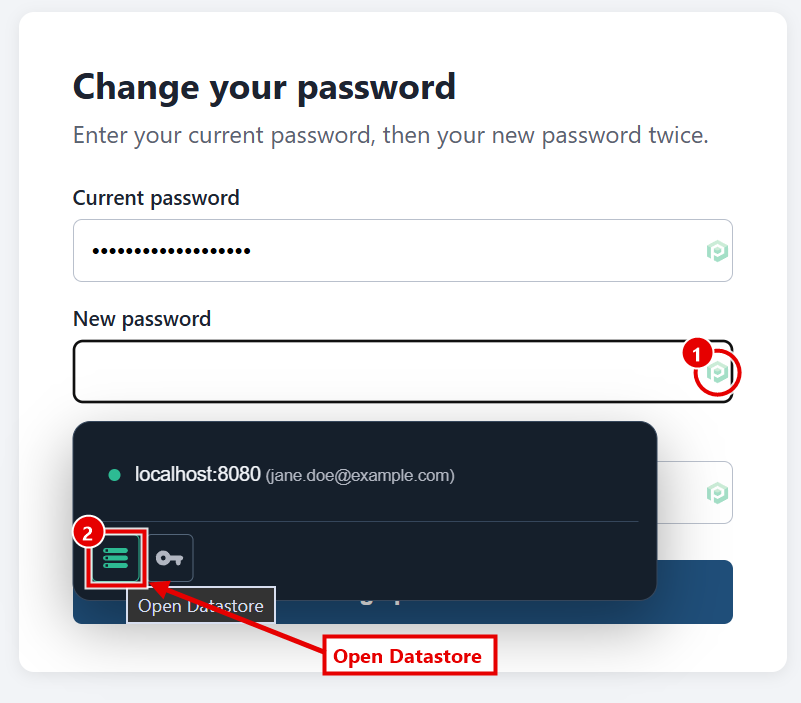
Your Datastore opens in a new tab. Leave the website's tab open; you'll come back to it.
Step 3: Make the new password in Psono and save it
-
In the Datastore, find the website's entry (the Search box helps) and click it. Its details open on the right. Click the menu button (≡‹) at the end of the Password box (1), then click Generate password (2).
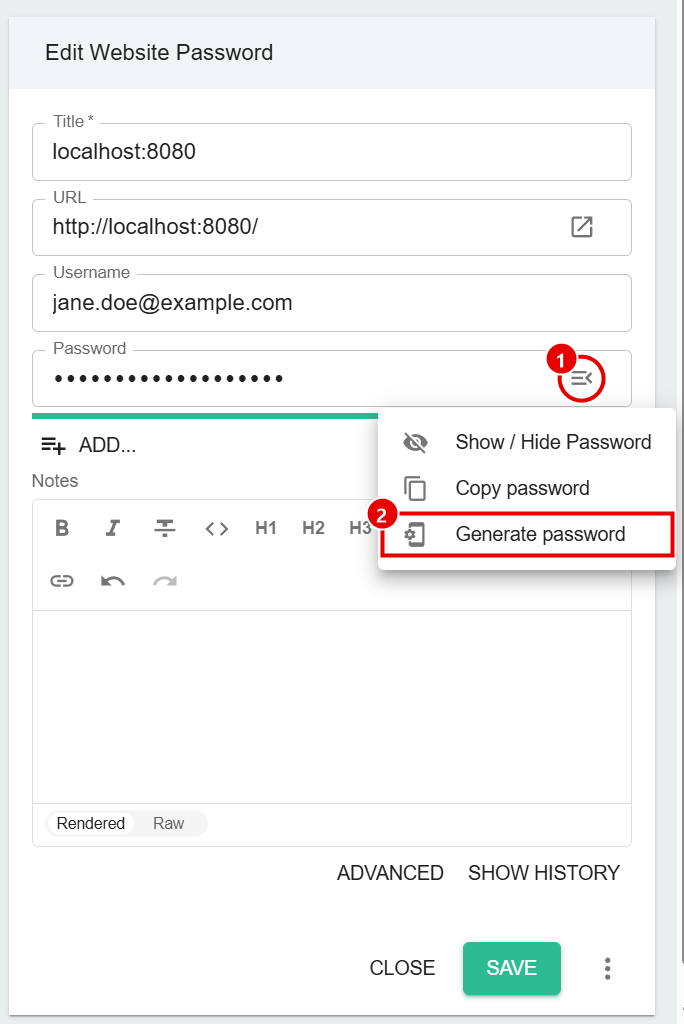
-
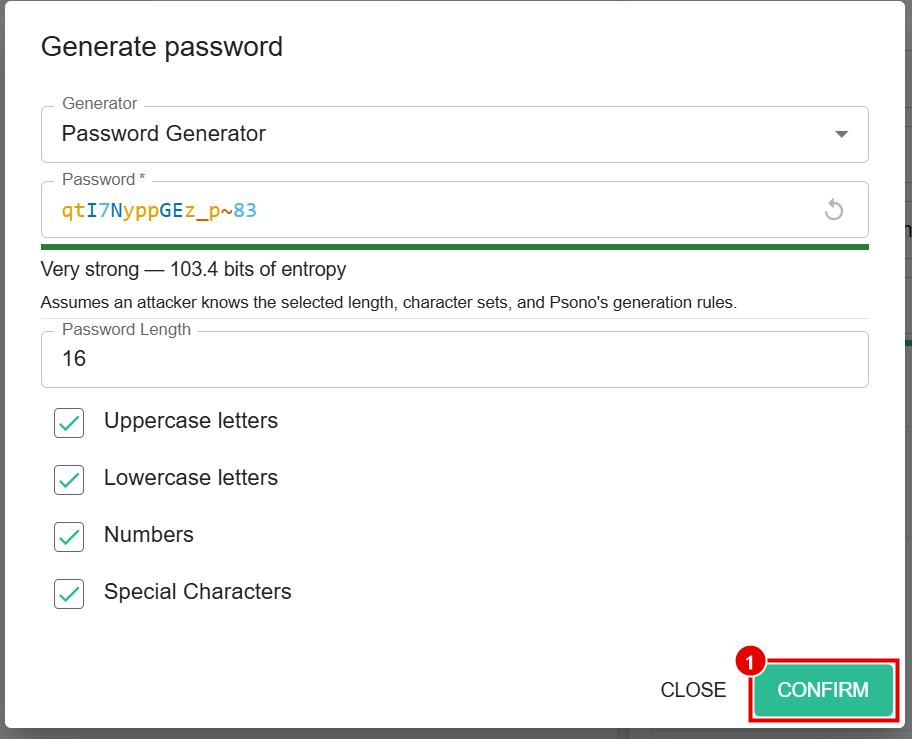
Psono suggests a strong password. If the website has password rules (for example "no symbols"), change the settings. See The password generator, step by step. Then click Confirm.
-
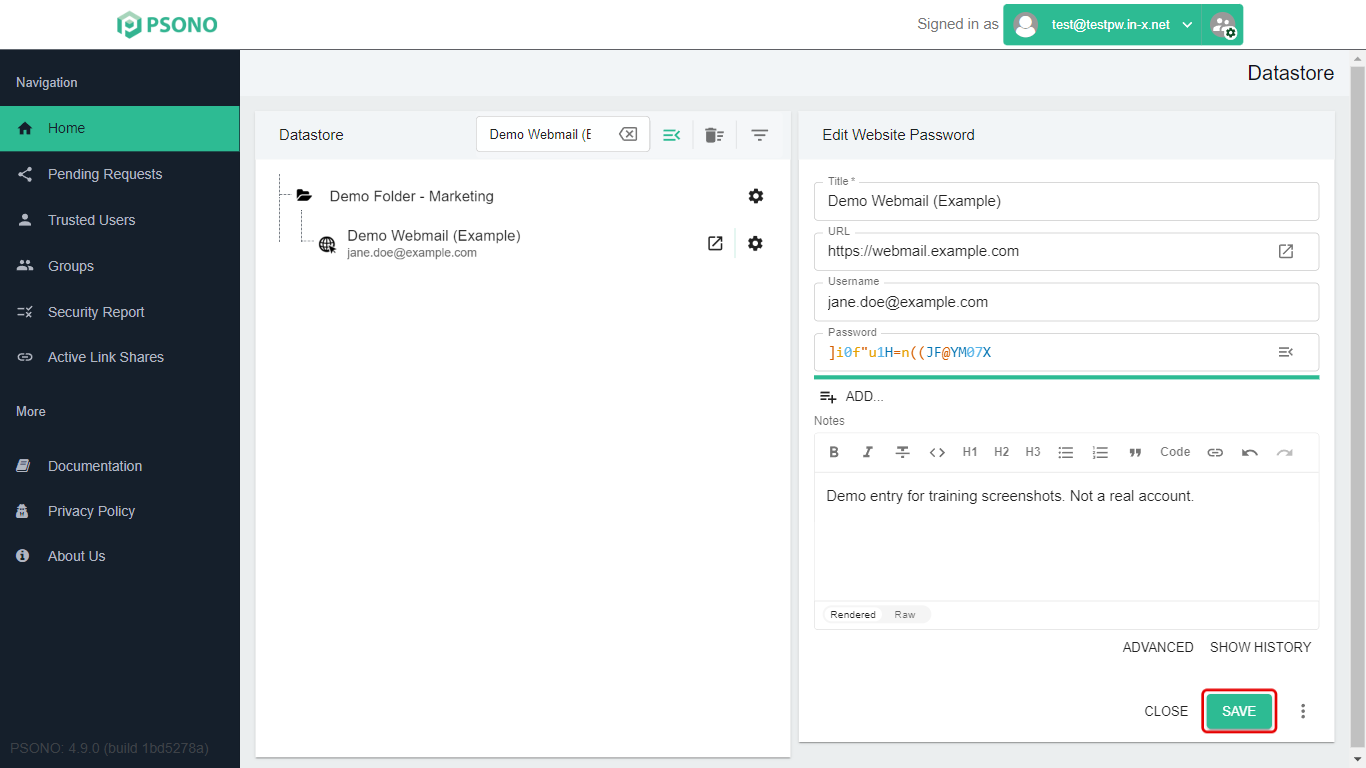
Click Save. Don't skip this: if you don't save, the website gets the new password but Psono keeps the old one.
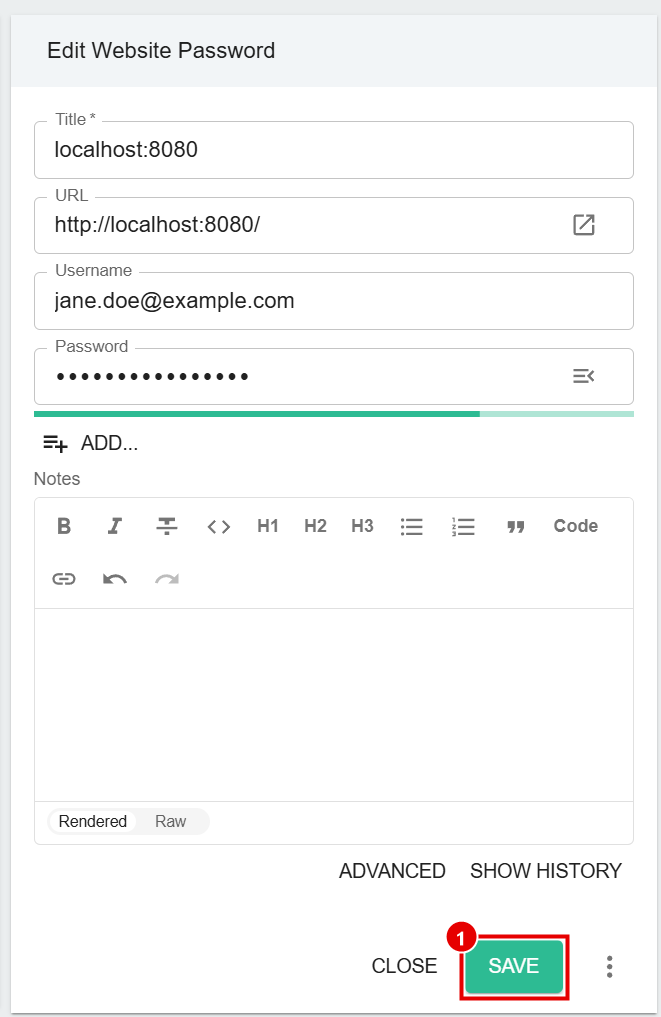
Why save in Psono first? That way the new password is safely stored before the website starts using it. If the website then refuses the change, open the entry and click Show History to get the old password back.
Step 4: Put the new password into the website
-
Go back to the website's tab. Click in the New password box, click the green Psono icon, and click the website's entry. Psono now fills in the new password you just saved.
-
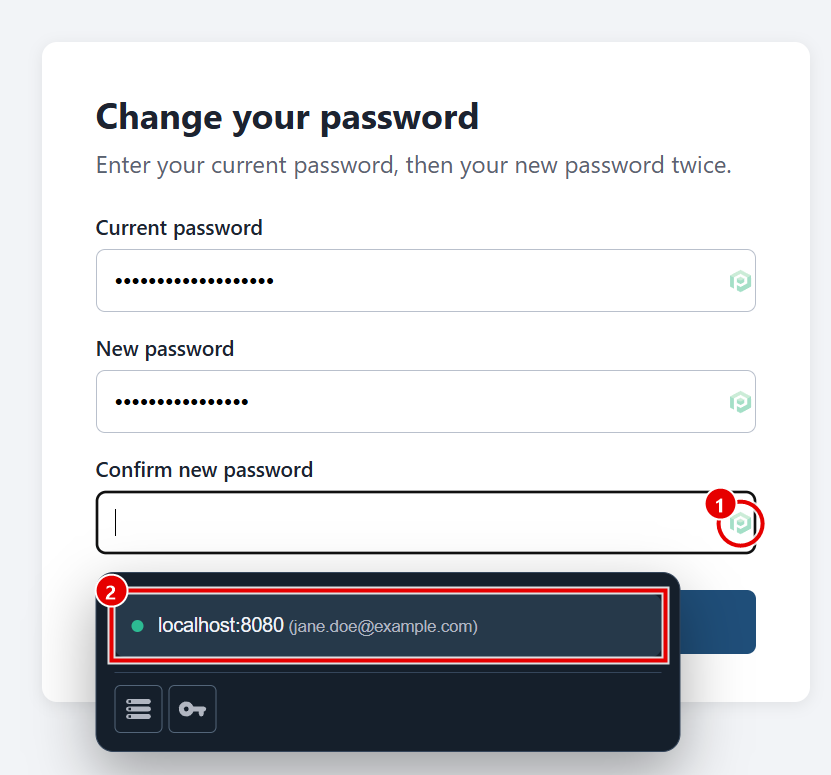
Do the same in the Confirm new password box (it may be called "repeat" or "re-type"): click the Psono icon (1), then the entry (2).
-
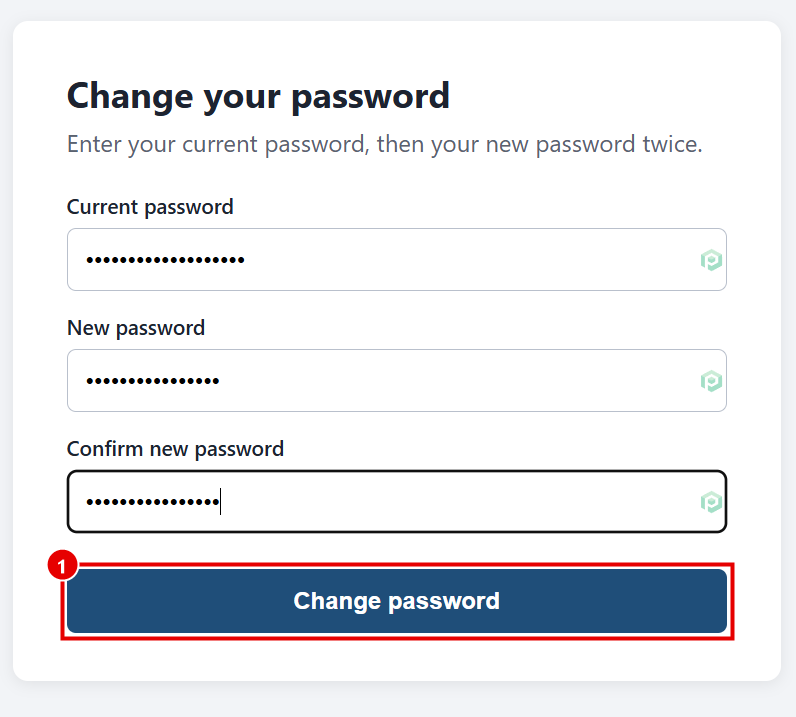
Click the website's save or change button (1).
-
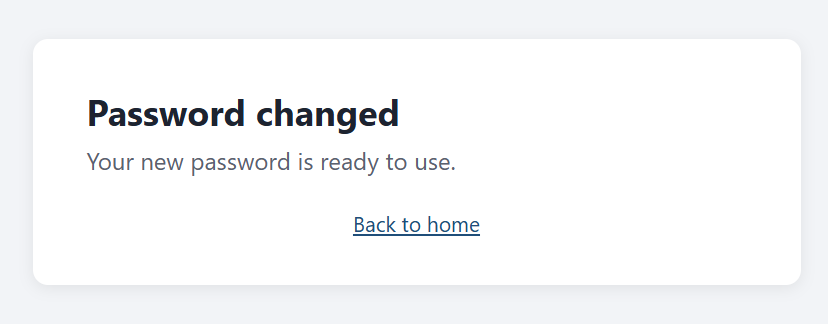
The website confirms the change.
-
Check it worked: sign out of the website, then sign back in using Psono to fill in the password. If it works, you're done.
The password generator, step by step
This section shows each part of the Datastore's password generator in detail.
Open the entry
-
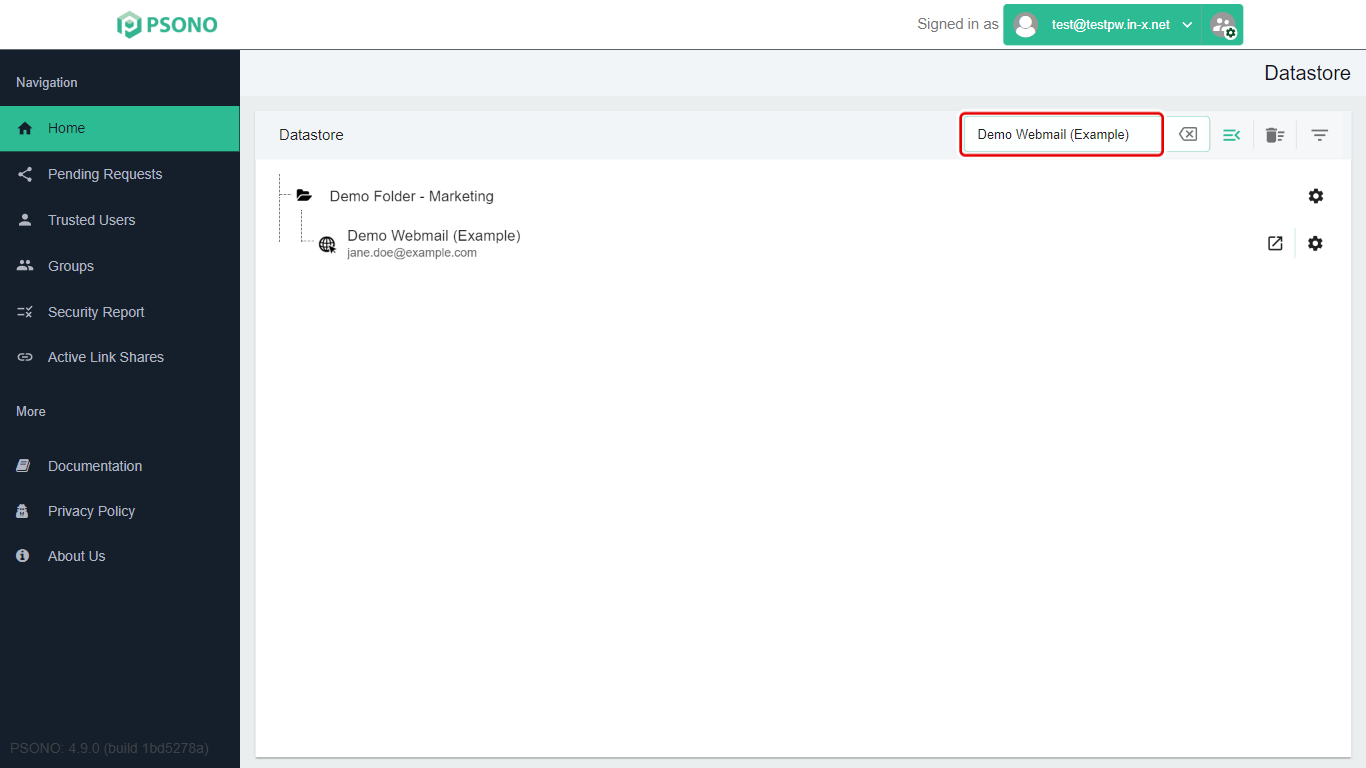
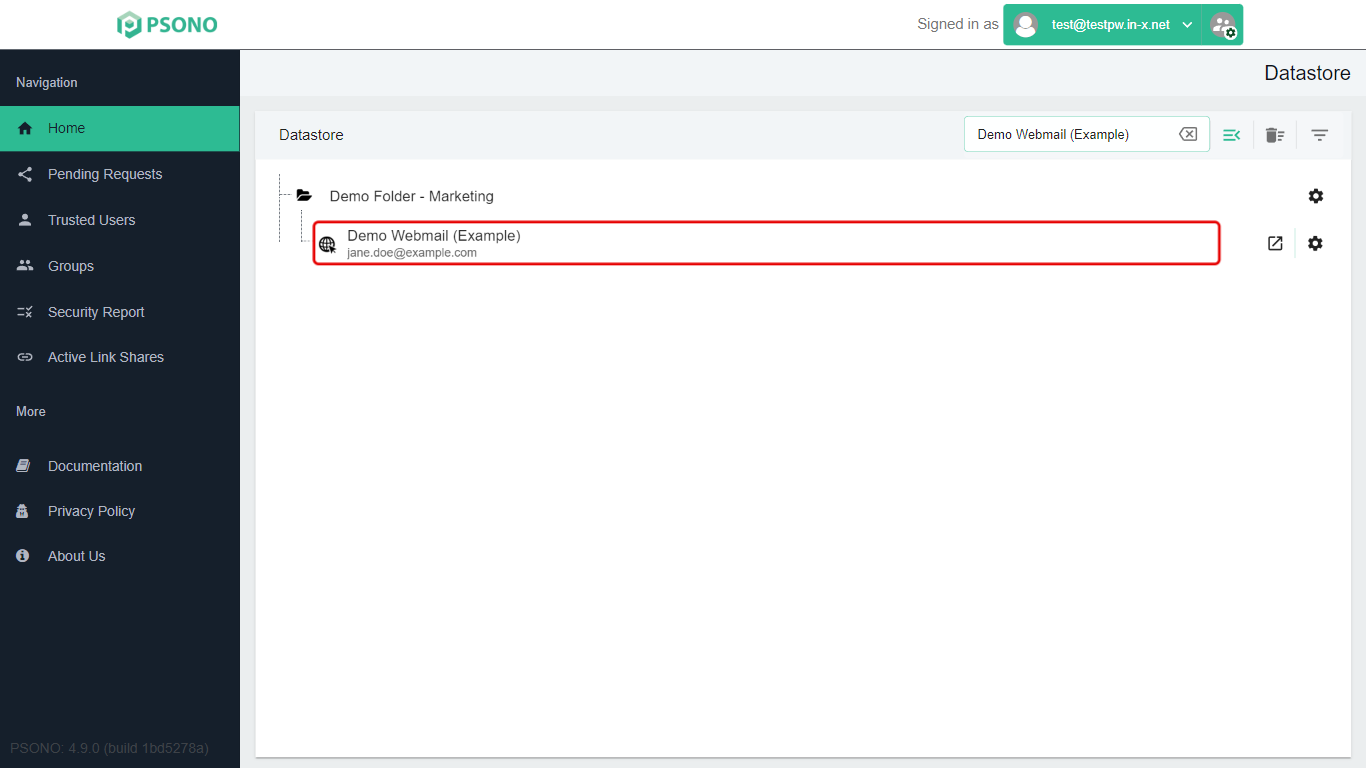
On the Datastore page, type part of the entry's name in the Search box.
-
Click the entry's name.
-
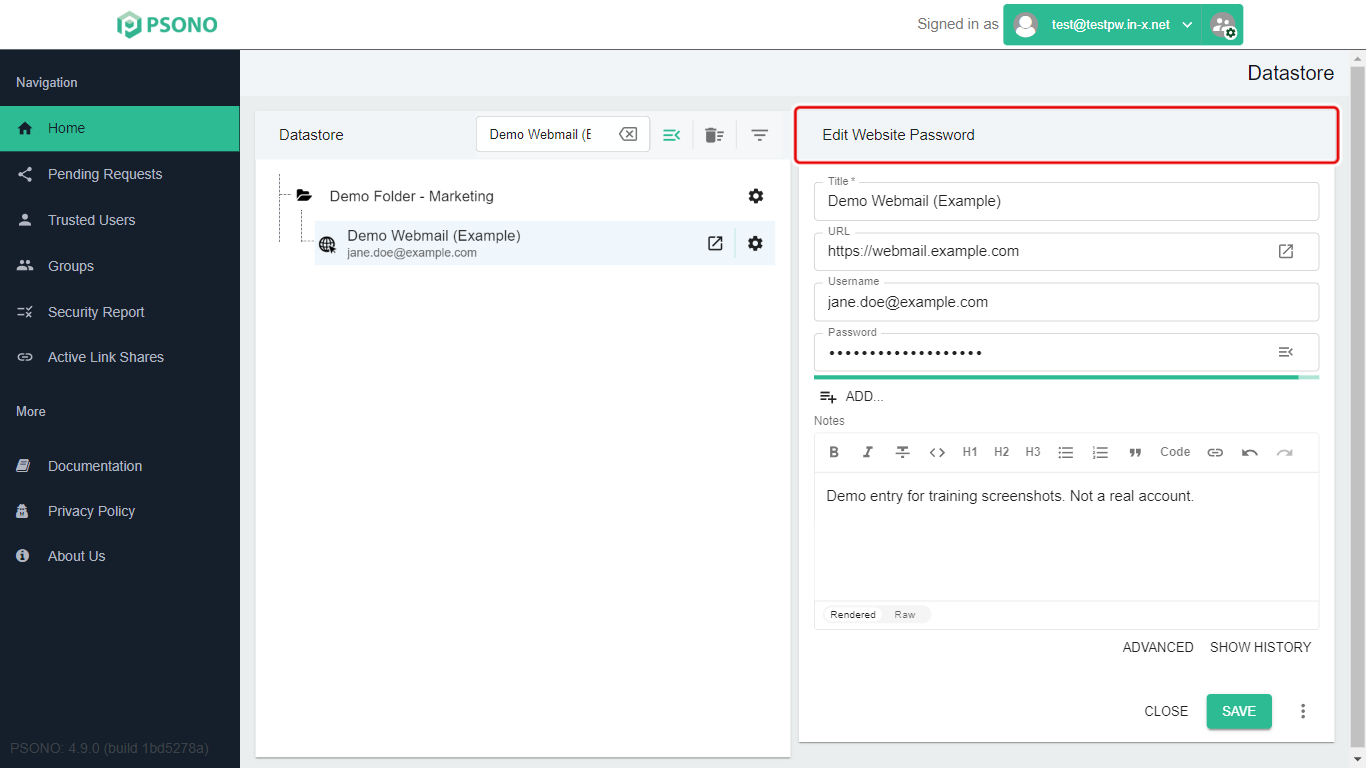
The entry's details open on the right side of the screen, under the heading Edit Website Password.
See the current password
-
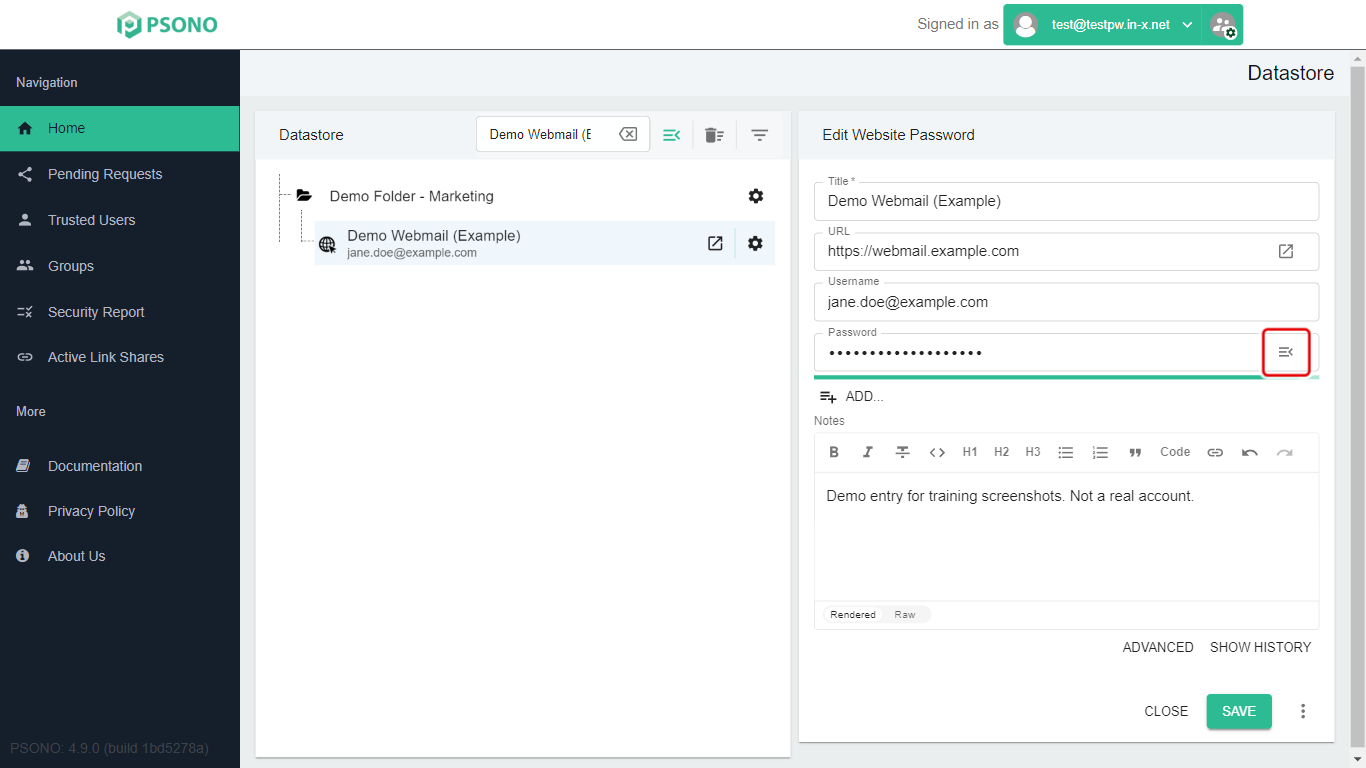
Click the menu button at the right end of the Password box. It looks like three lines with a small arrow (≡‹).
-
Click Show / Hide Password.
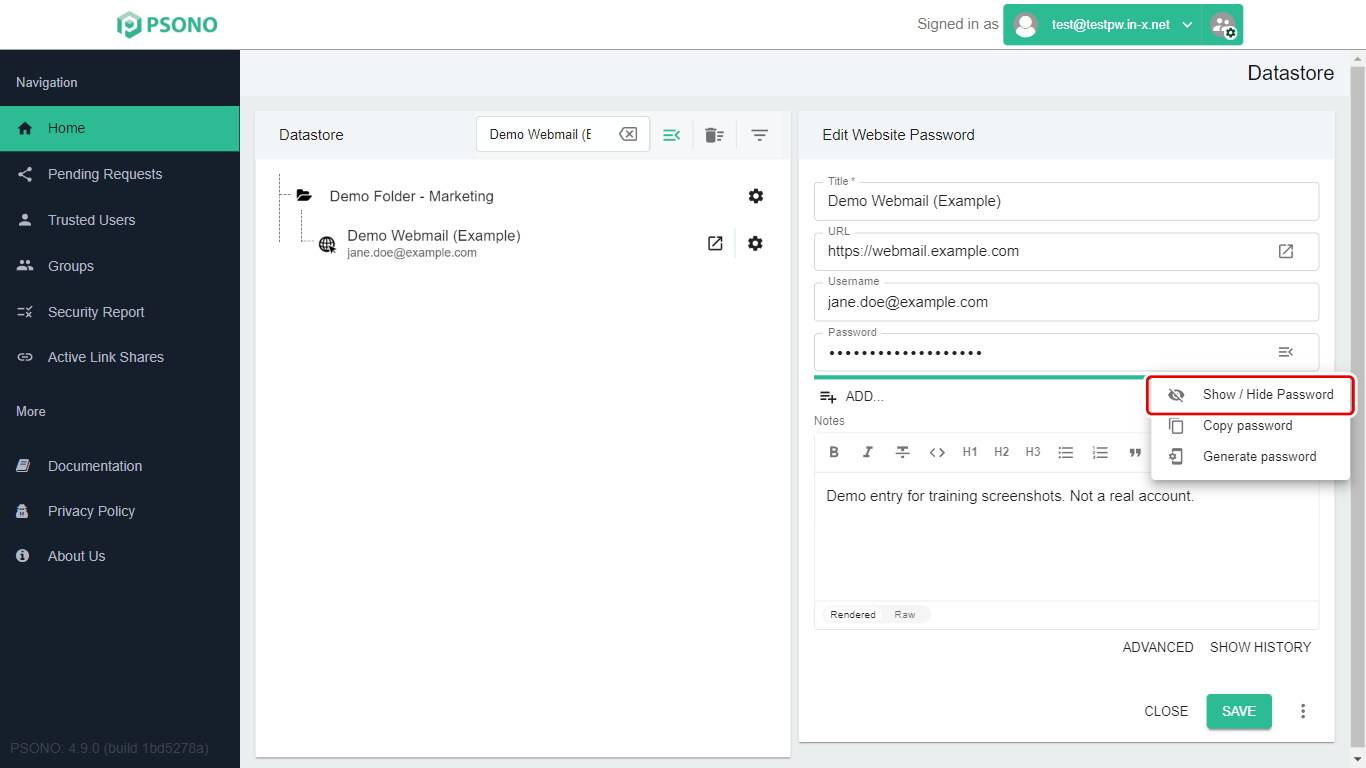
The password now shows as text. Do the same again to hide it.
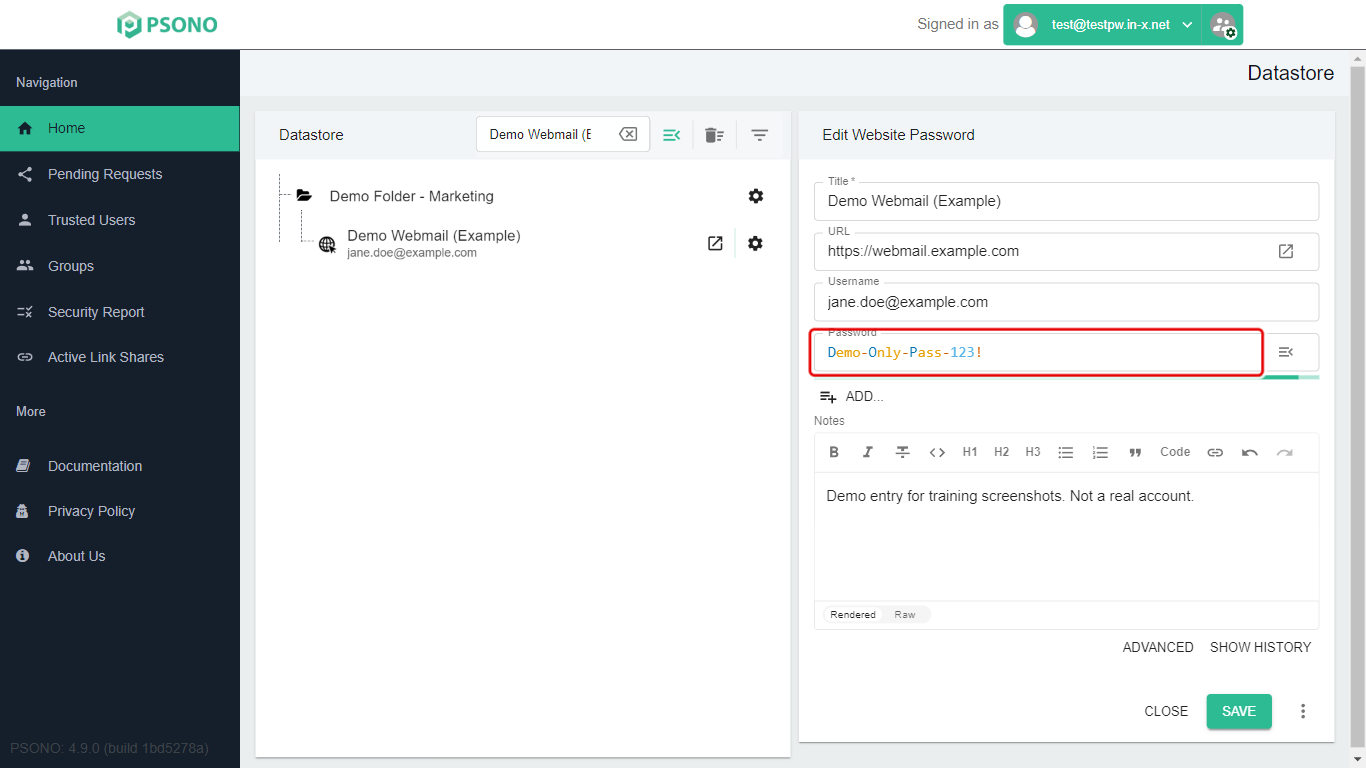
The same menu has Copy password, which copies it so you can paste it somewhere.
Make a new password
-
Click the menu button (≡‹) at the end of the Password box again.
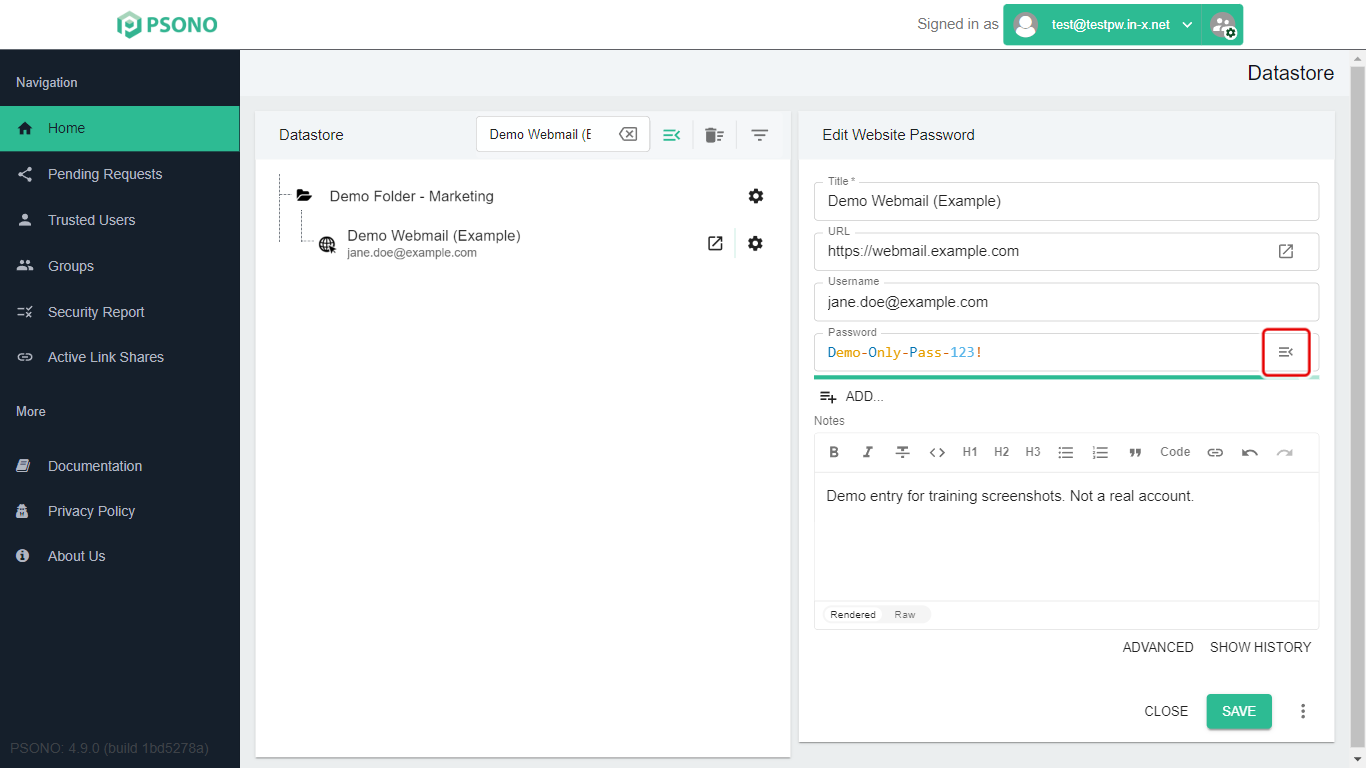
-
Click Generate password.
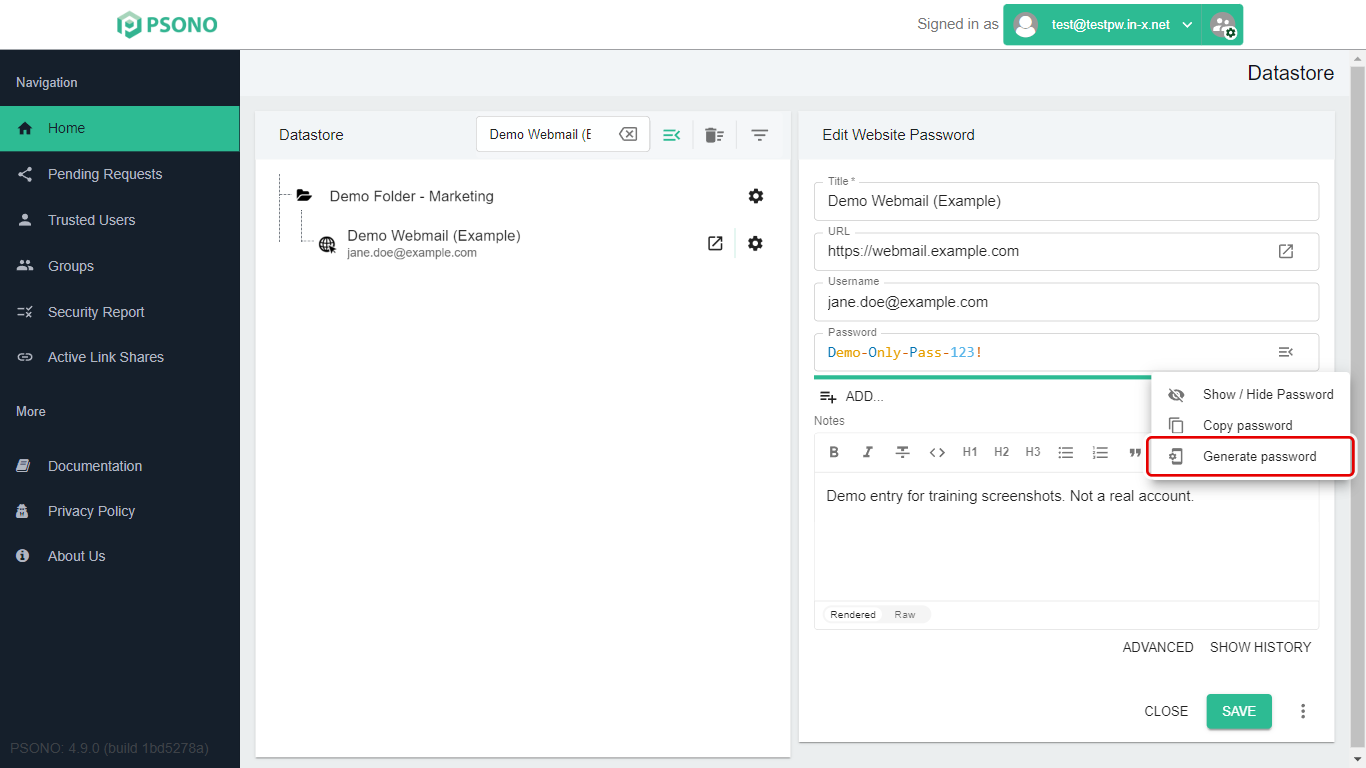
-
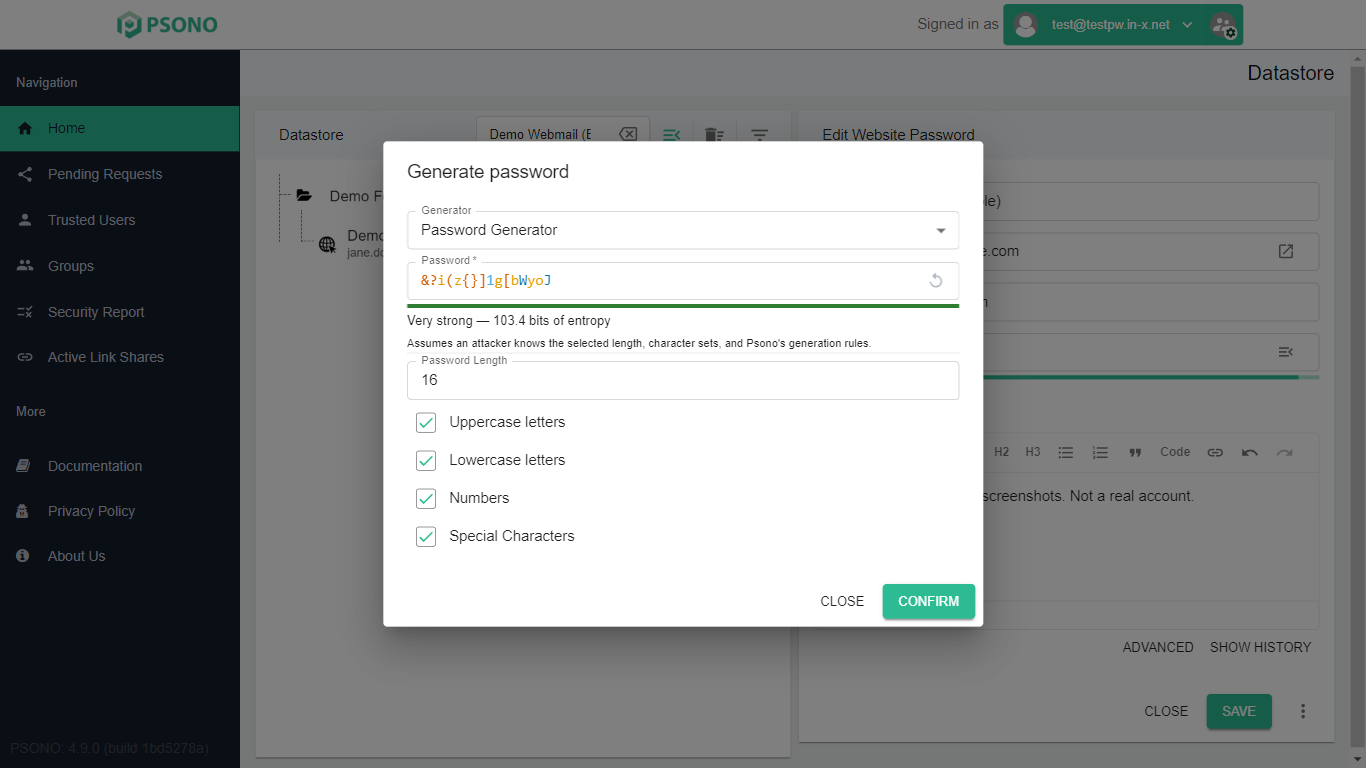
The Generate password window opens with a suggested password already filled in. The green bar and text under it show how strong the password is.
-
Optional: change the settings if the website has rules about passwords.
-
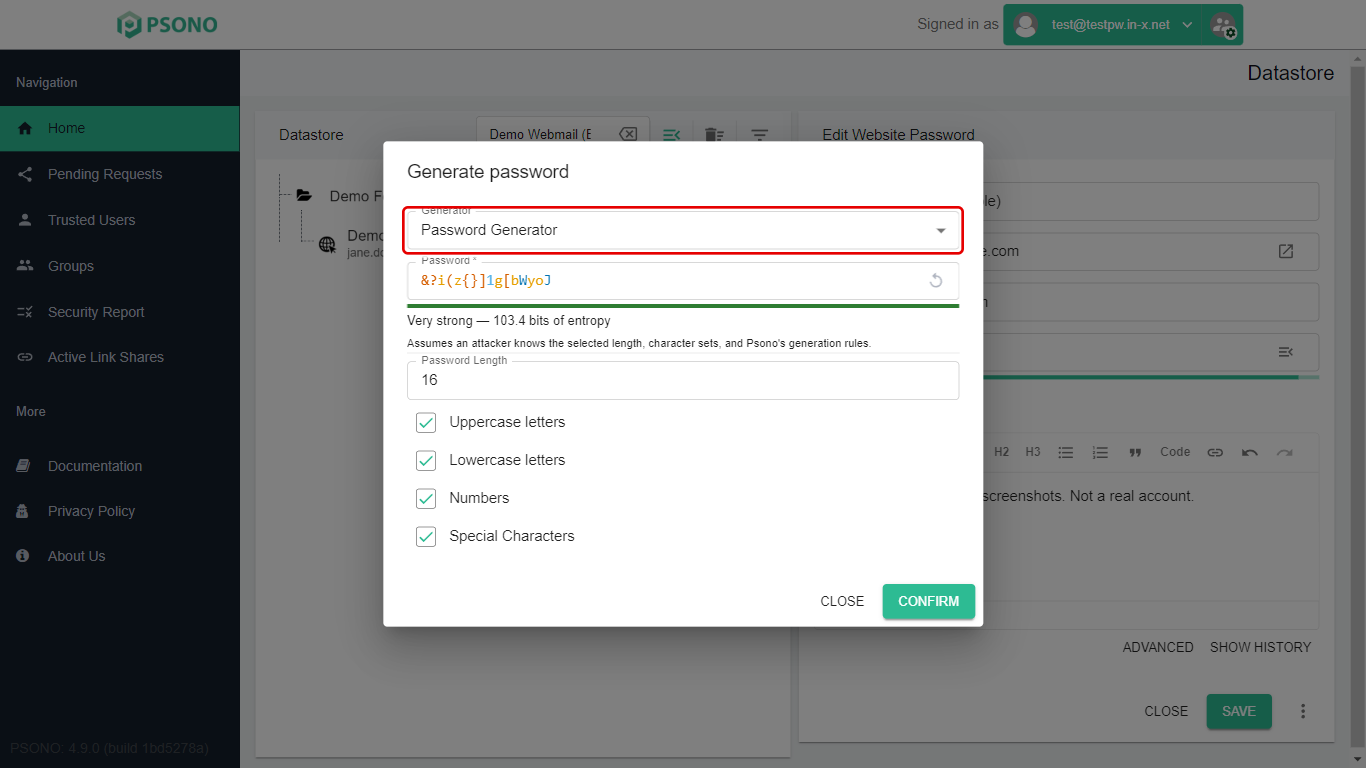
Generator: leave this as Password Generator. (Passphrase Generator makes a password from several random words instead.)
-
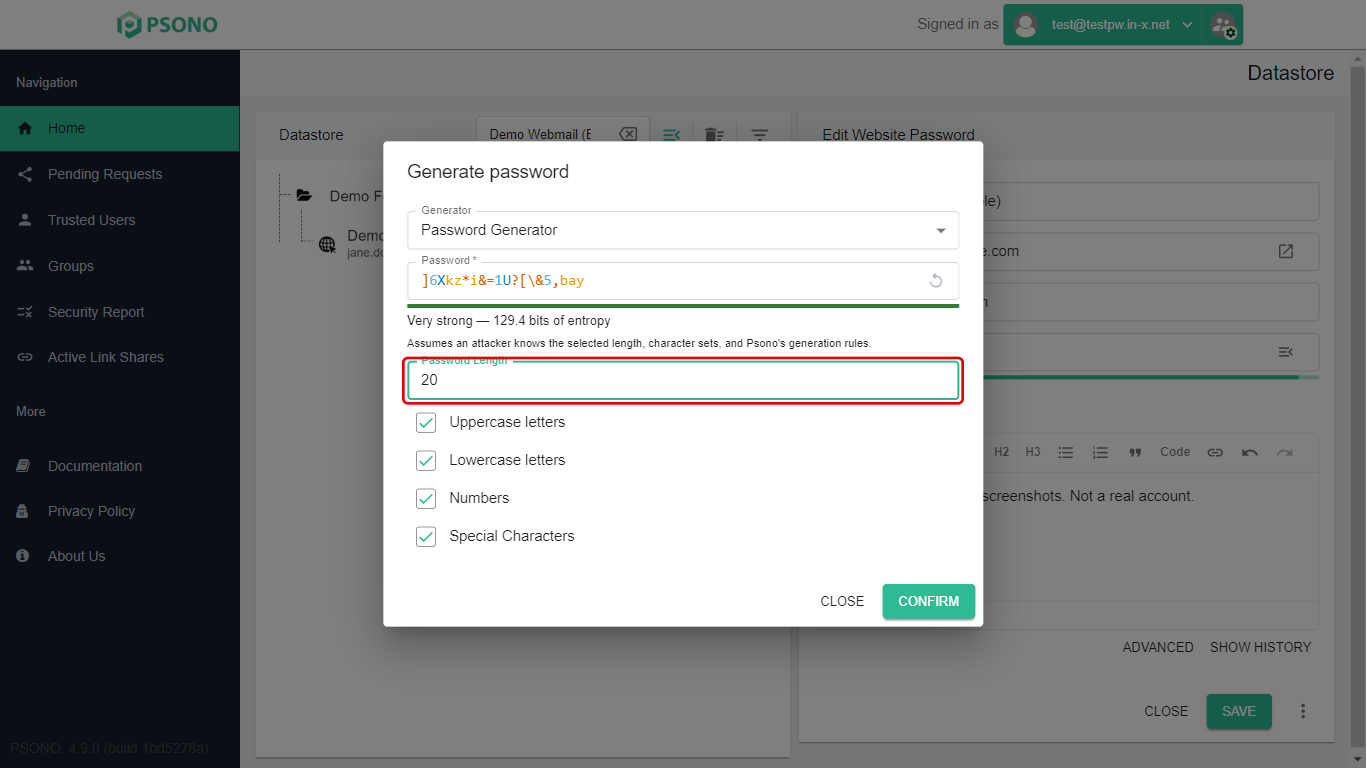
Password Length: how many characters. Longer is stronger. It starts at 16; our example uses 20.
-
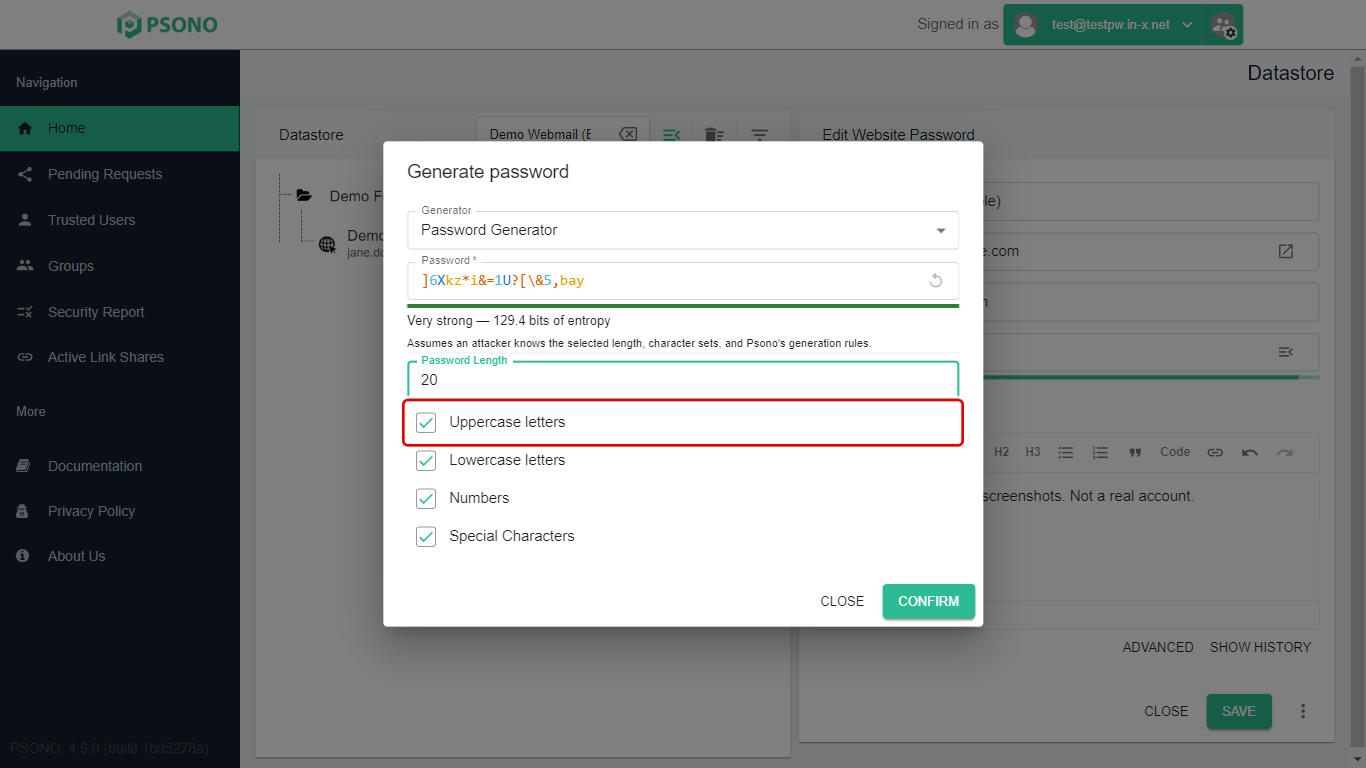
Uppercase letters (A–Z): tick to include them.
-
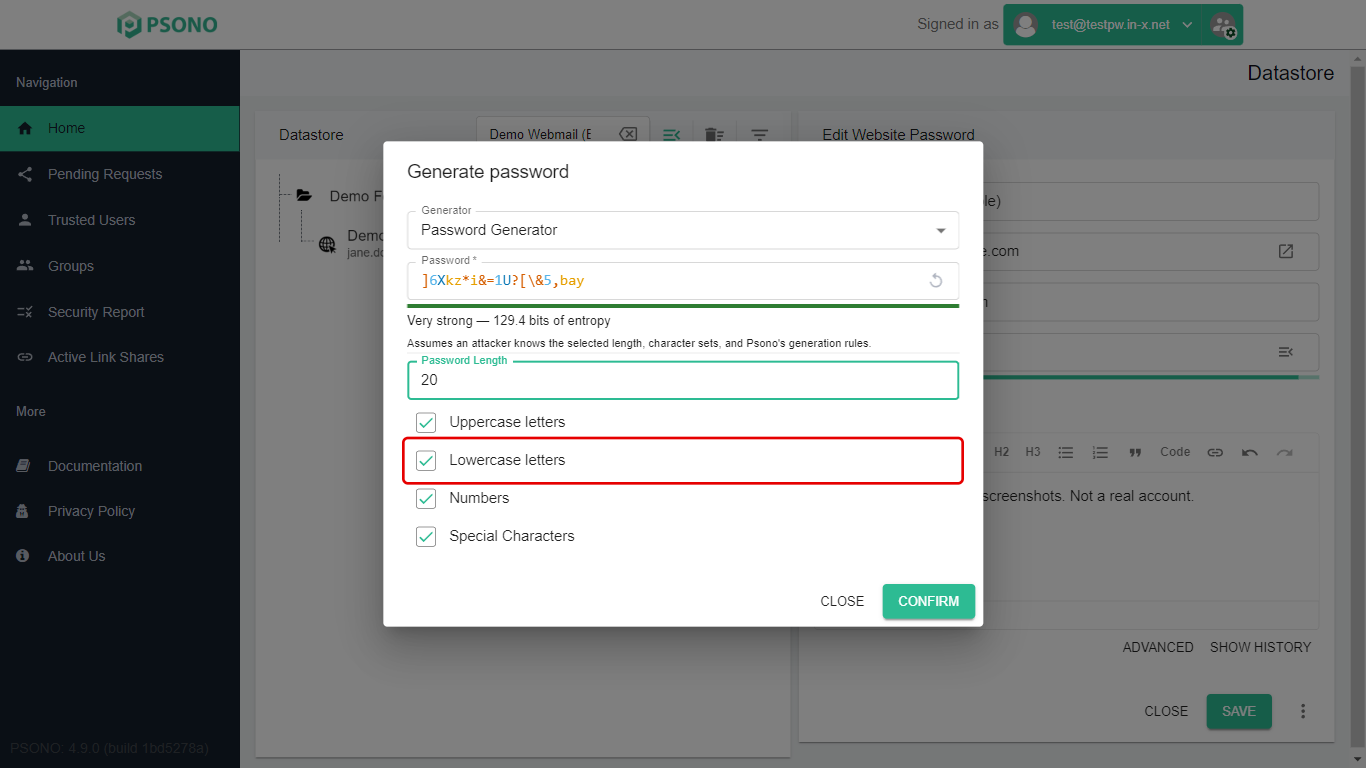
Lowercase letters (a–z): tick to include them.
-
Numbers (0–9): tick to include them.
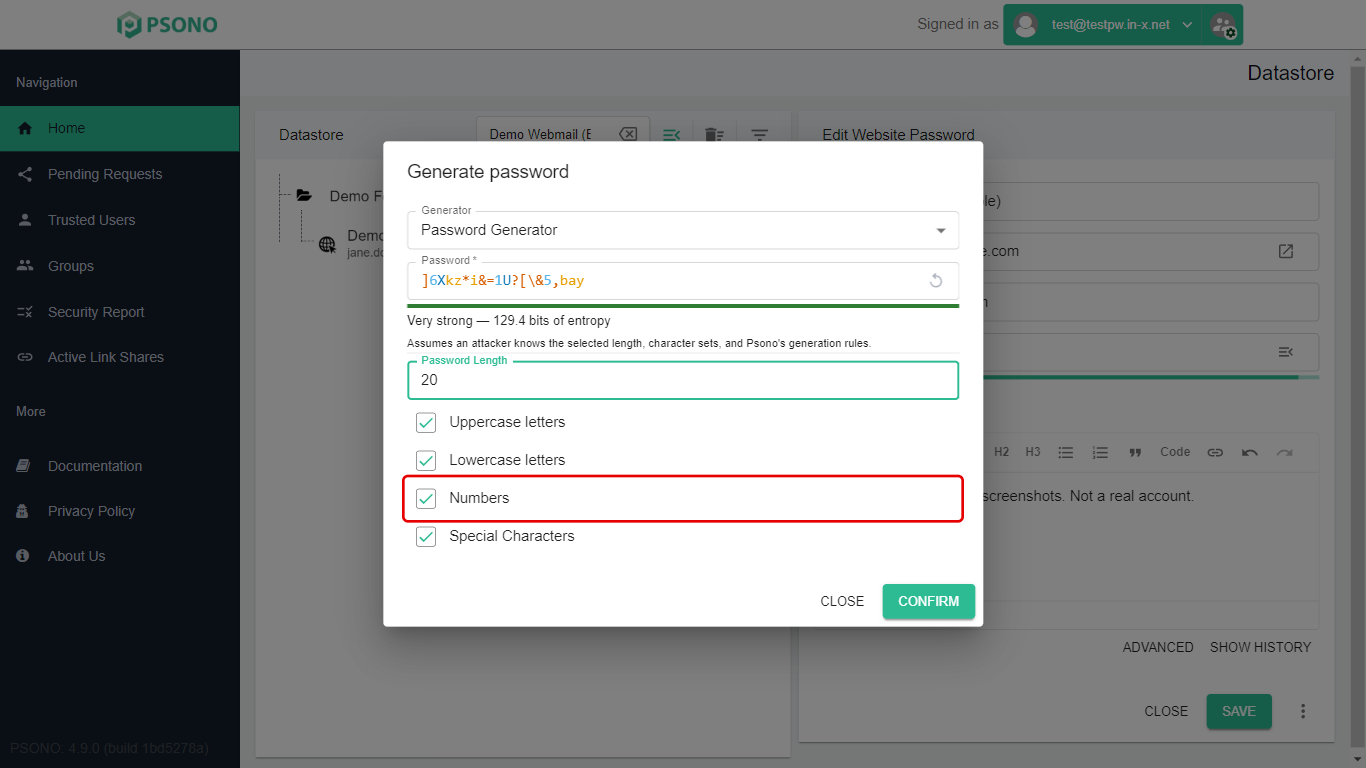
-
Special Characters (such as ! # %): untick this only if the website doesn't allow symbols.
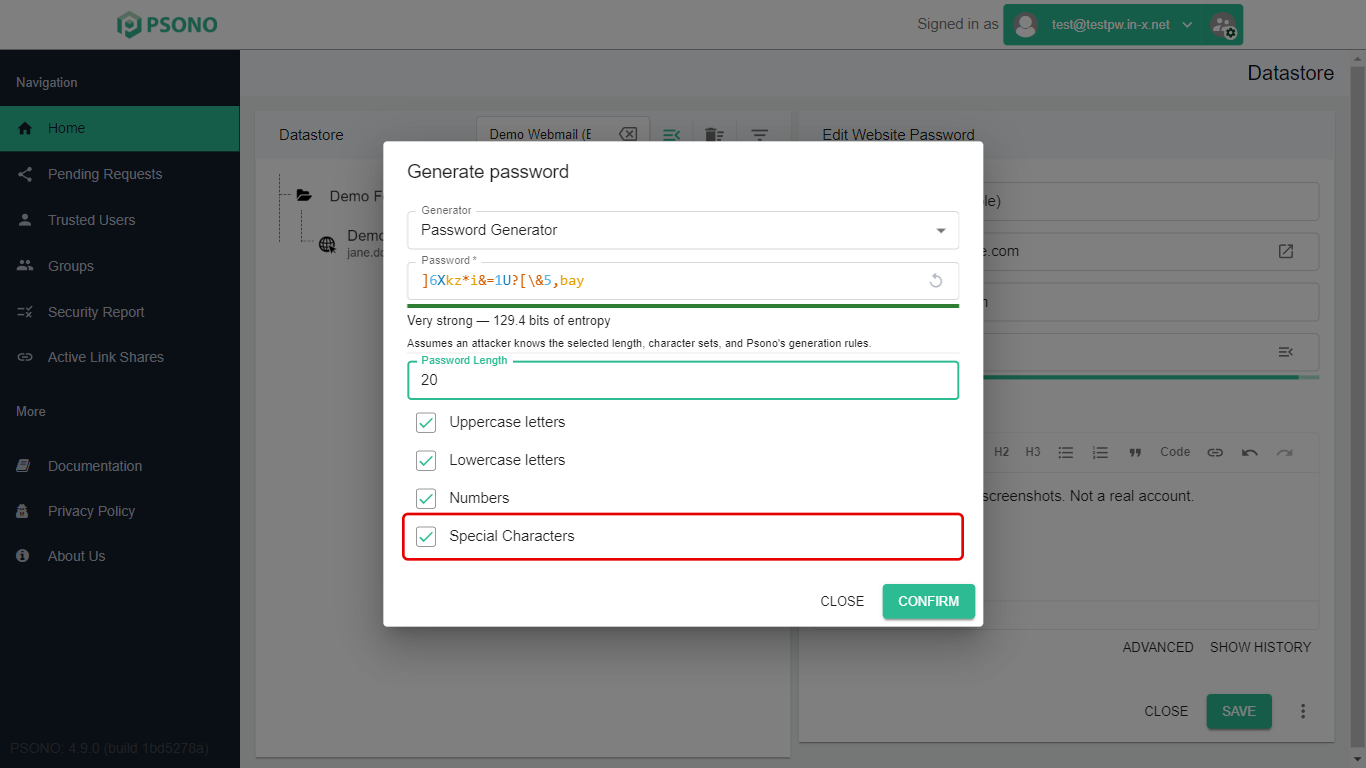
-
-
To get a different suggestion, click the circular arrow at the right end of the Password box in this window.
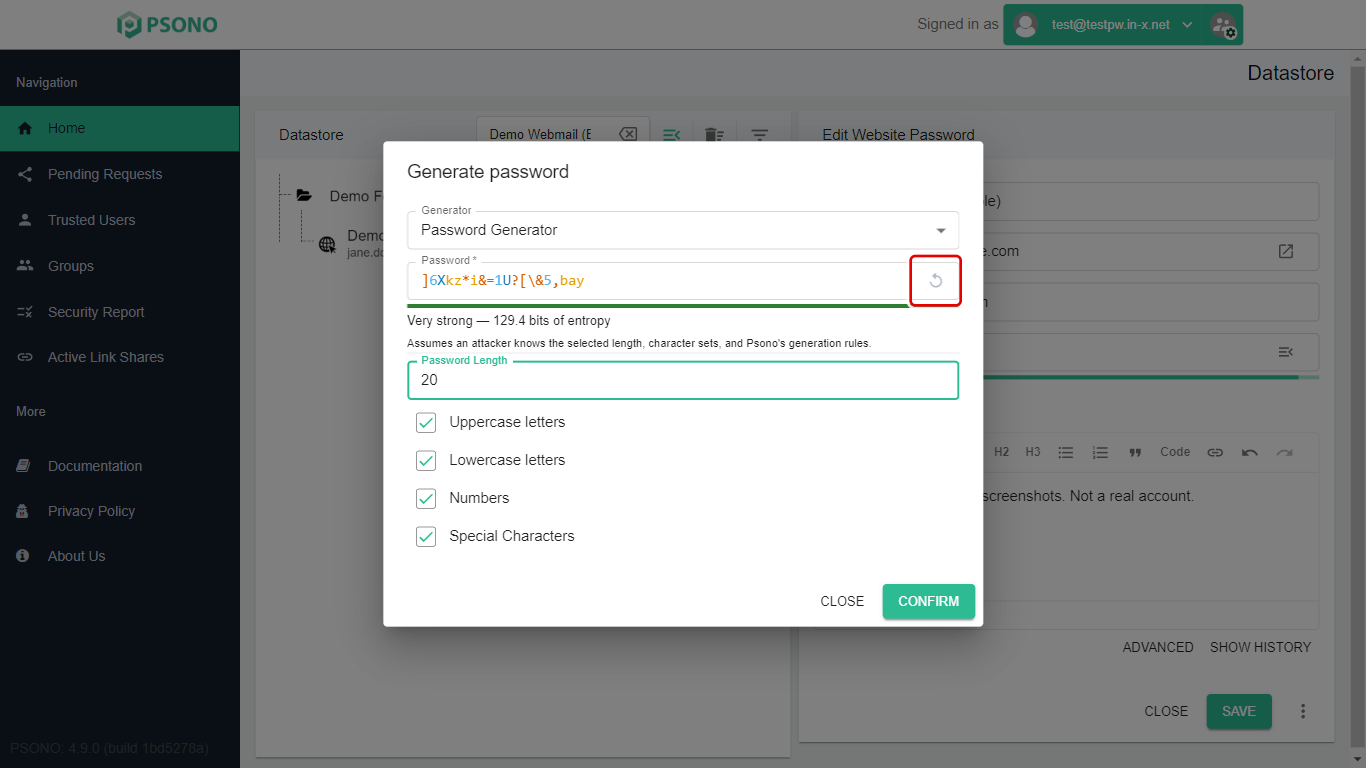
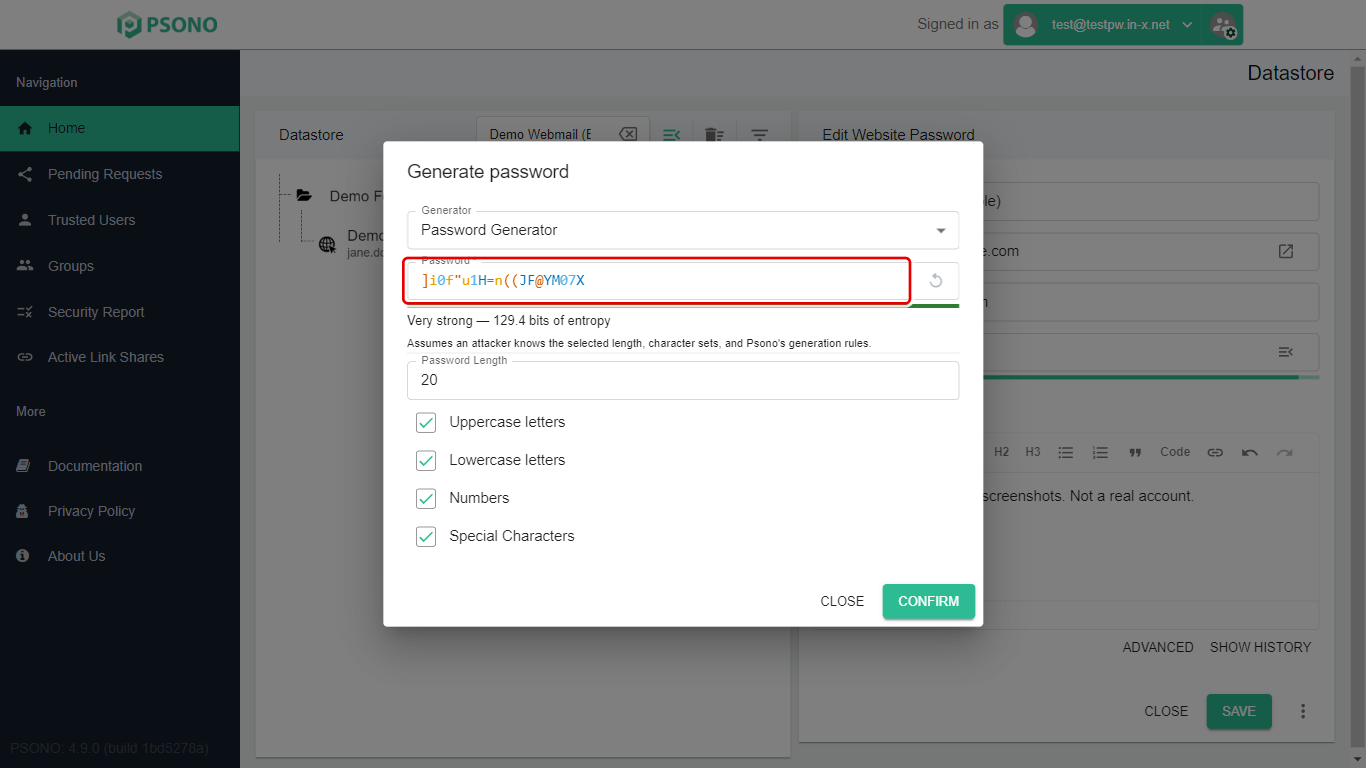
-
Click Confirm.
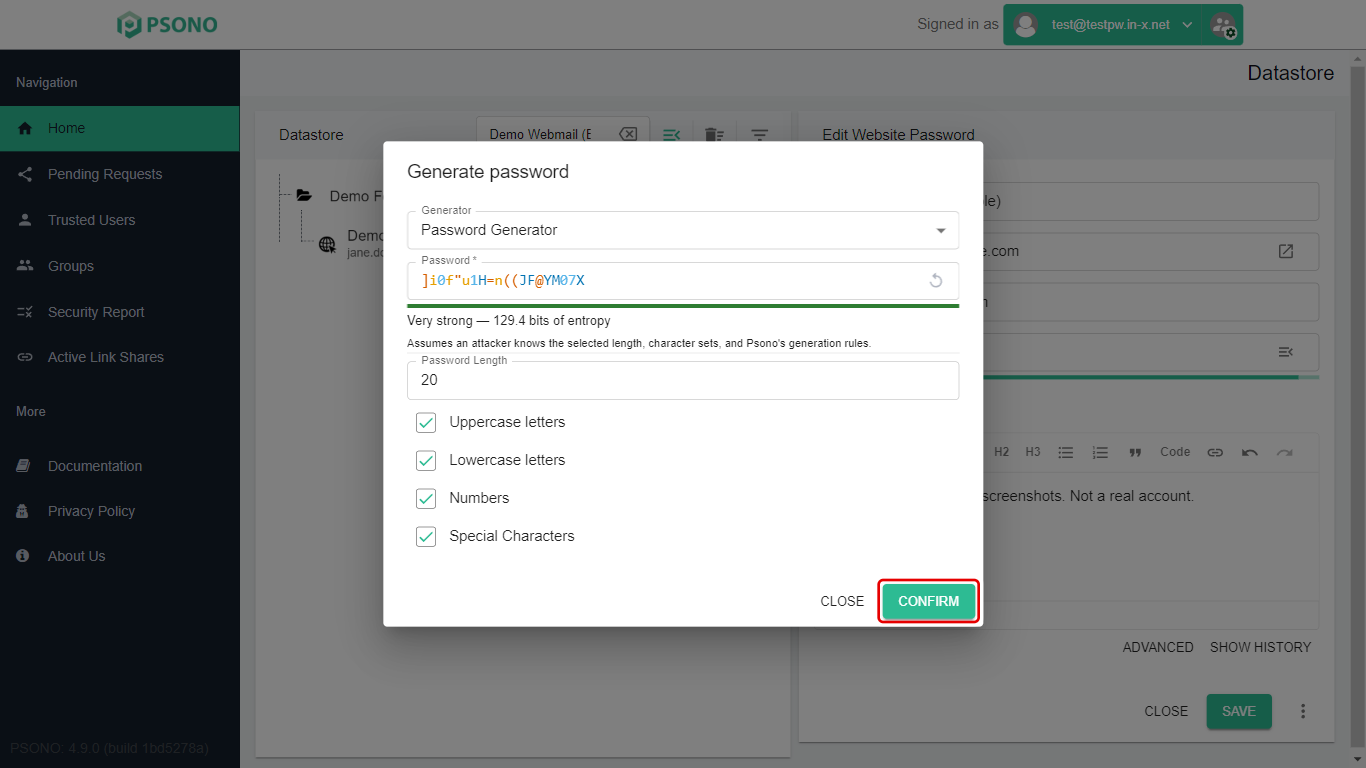
The new password is now in the Password box. It is not saved yet.
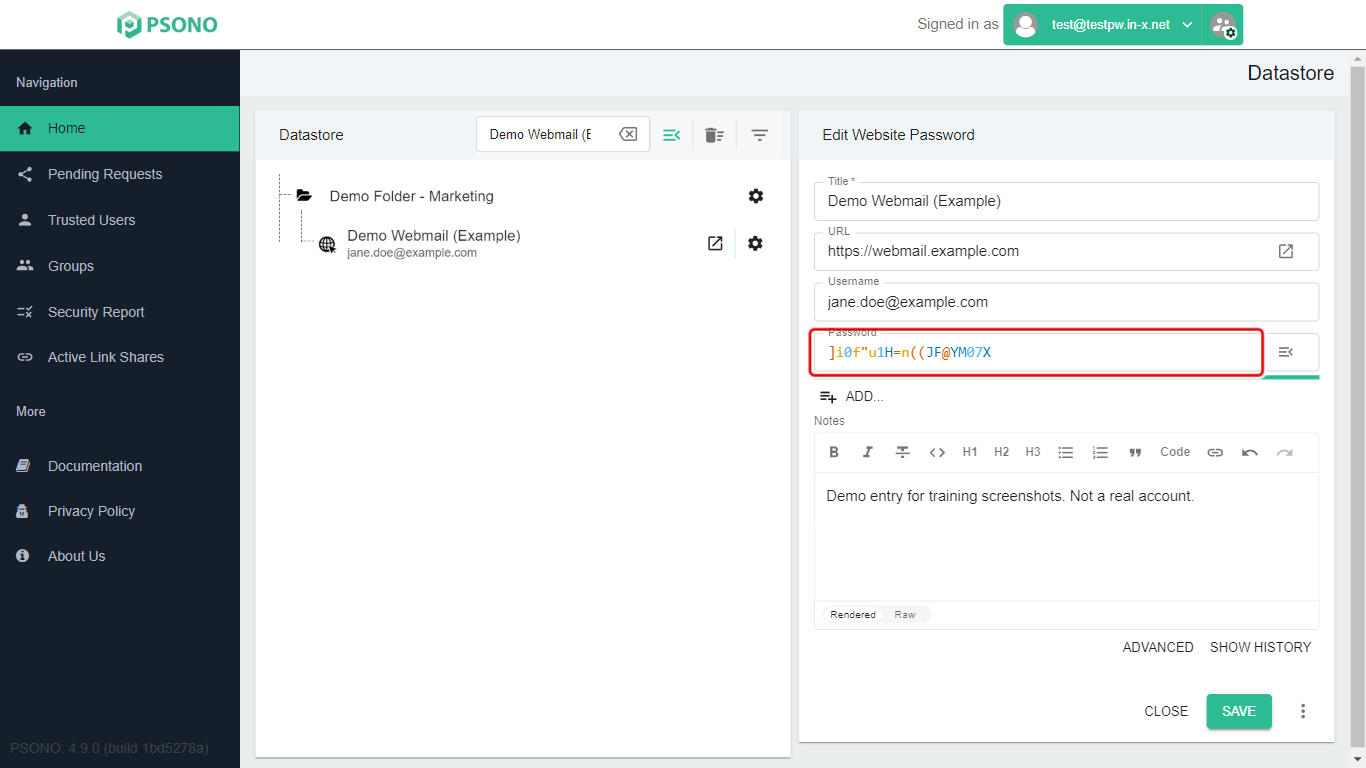
Save your change
-
Click Save.
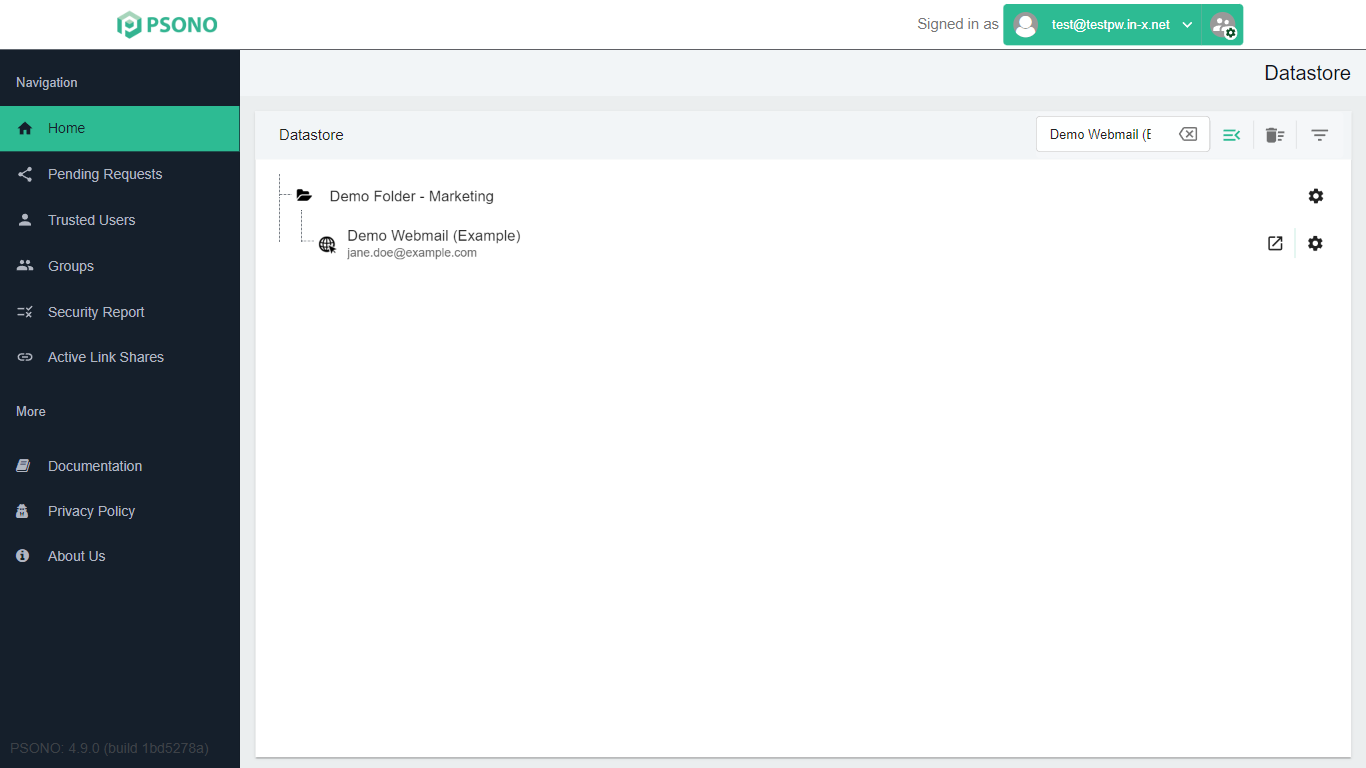
If you close the entry without saving, Psono may ask The entry has been modified. Click Return to go back and save, or Discard to throw the change away.
Typing a password yourself
If you were given a password, for example a temporary one from IT, open the entry, click in the Password box, delete the old password, type the new one, and click Save.
Filling in passwords with the browser extension
On a sign-in page
-
Click in the website's Password box. A small green Psono icon shows at the right end of the box. Click it (1).
-
A list of matching logins drops down. Click the one you want (2). Psono fills in the username and password.
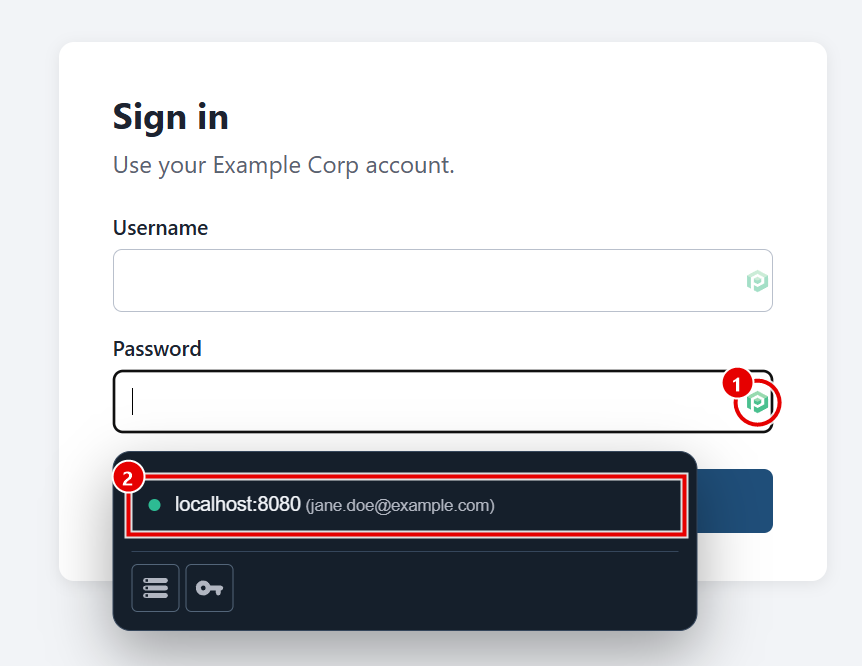
The Psono icon isn't always obvious. Look for the small green P shape at the right end of the username or password box.
Open a website and sign in from the toolbar
-
Click the Psono icon in your browser's toolbar and type part of the website's name in Search datastore… (1).
-
Click the arrow icon on the entry's row (2). Psono opens the website and fills in your login.
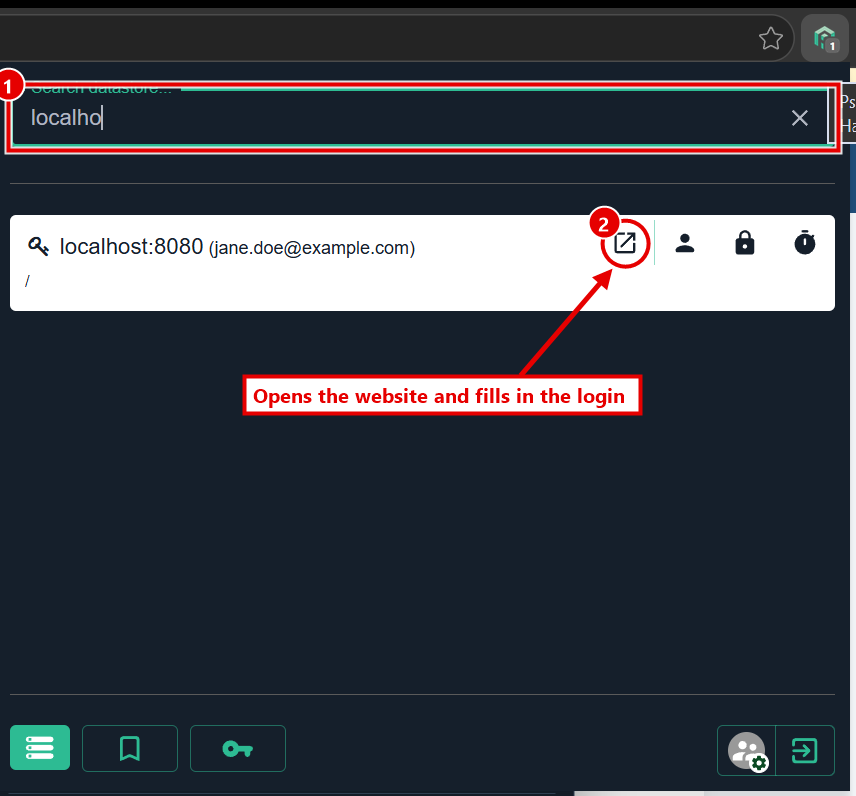
Only the arrow icon fills in for you. Clicking the entry's name doesn't. If you're already on the website's sign-in page, use the green Psono icon in the password box instead (see above).
The toolbar popup
Click the Psono icon in your browser's toolbar (1) to open the popup.
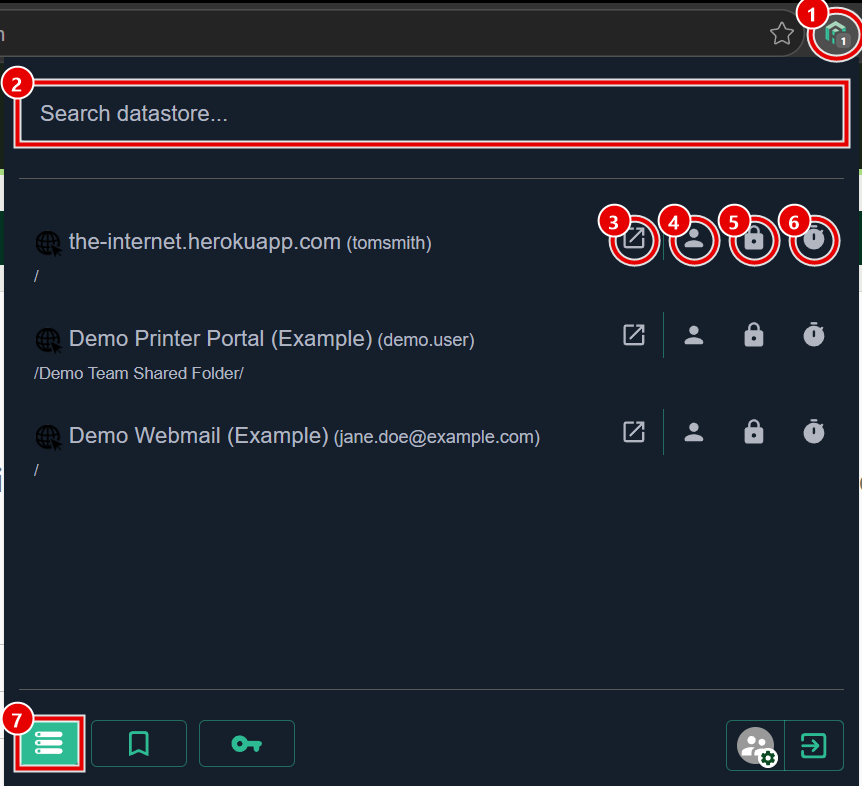
| # | What it does |
|---|---|
| 1 | The Psono icon in the browser toolbar. Click it to open this popup. |
| 2 | Search datastore…: type part of a name or website to find an entry. |
| 3 | Opens the website and fills in your login. This is the only popup button that fills in for you. |
| 4 | Copies the username. |
| 5 | Copies the password. |
| 6 | Copies the 6-digit sign-in code (TOTP), for entries that have one. You can add a sign-in code to any website entry: open the entry and use Add.... |
| 7 | Open Datastore: opens the full Psono website. |
The key button at the bottom of the popup generates a password for a new entry. Don't use it to change an existing password (see Read this first).
Stuck on a step? Email support@the-it-connection.com or call 815-526-3600 and we’ll walk you through it.