
Click any picture to see it full size.
In this guide, the red box in each picture shows what to click.
When someone shares something with you in Psono, it doesn't show up straight away. You have to accept it first. There are two kinds:
- A single password someone shared with you: accept it under Pending Requests.
- A folder shared with your team: accept the group invitation under Groups.
Sign in
-
Go to your company's Psono page. The address is in your Quick Reference Document.
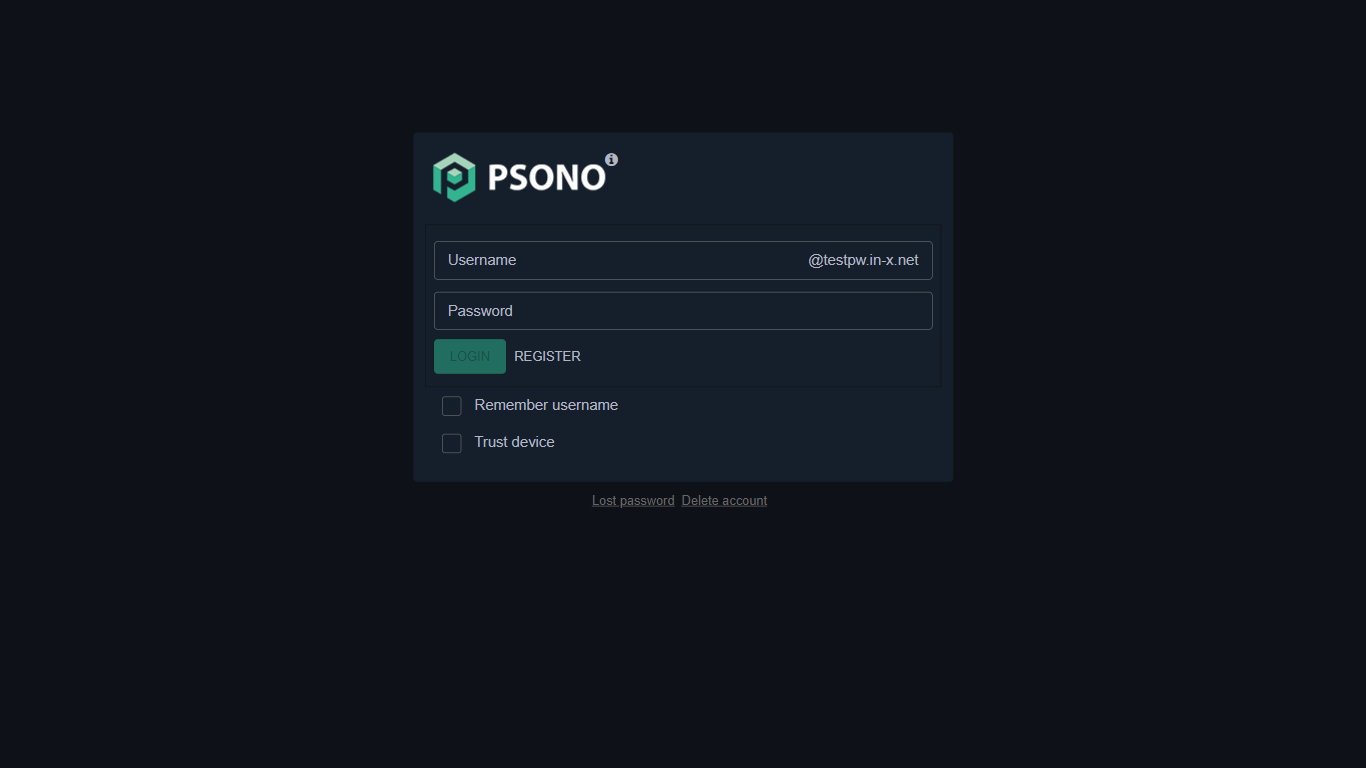
-
Type your Username. If the box already shows the part after the @ (your company's domain), type only the part before it.
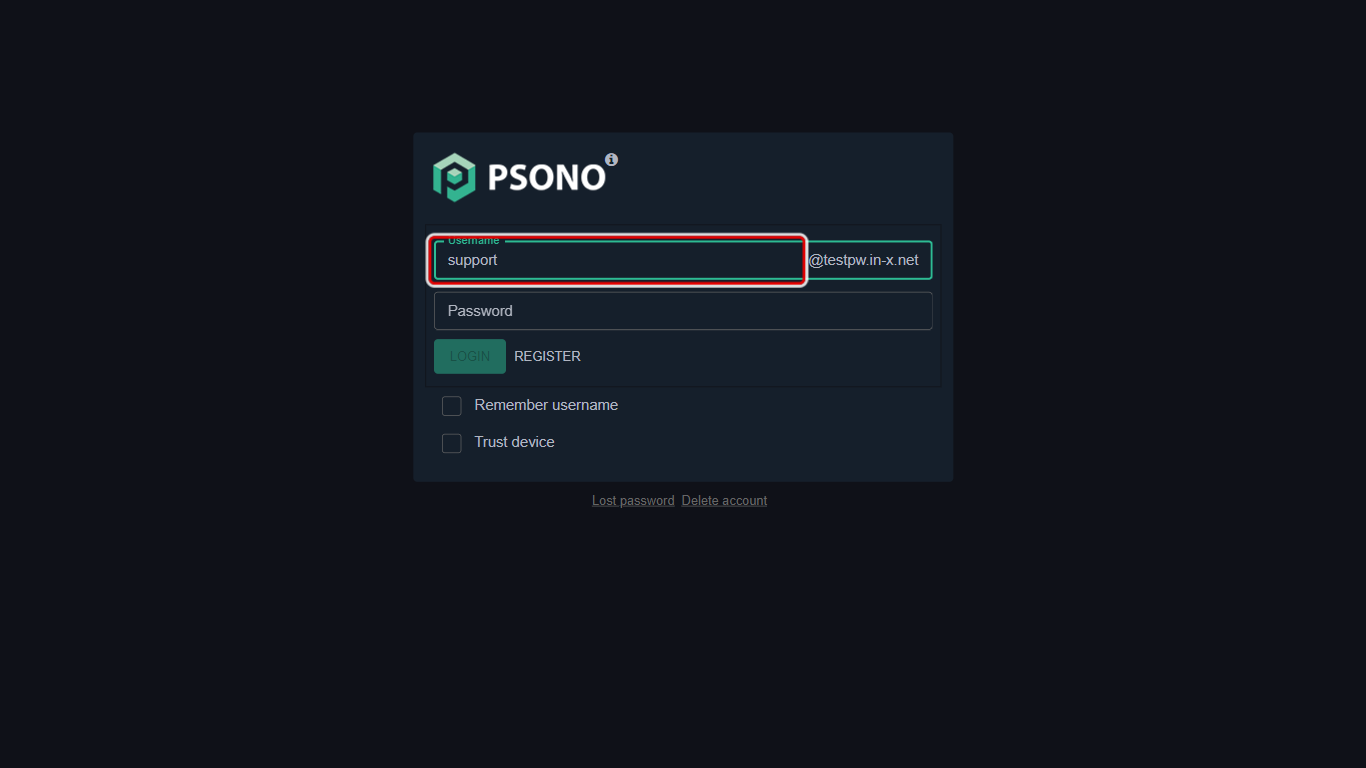
-
Type your Password.
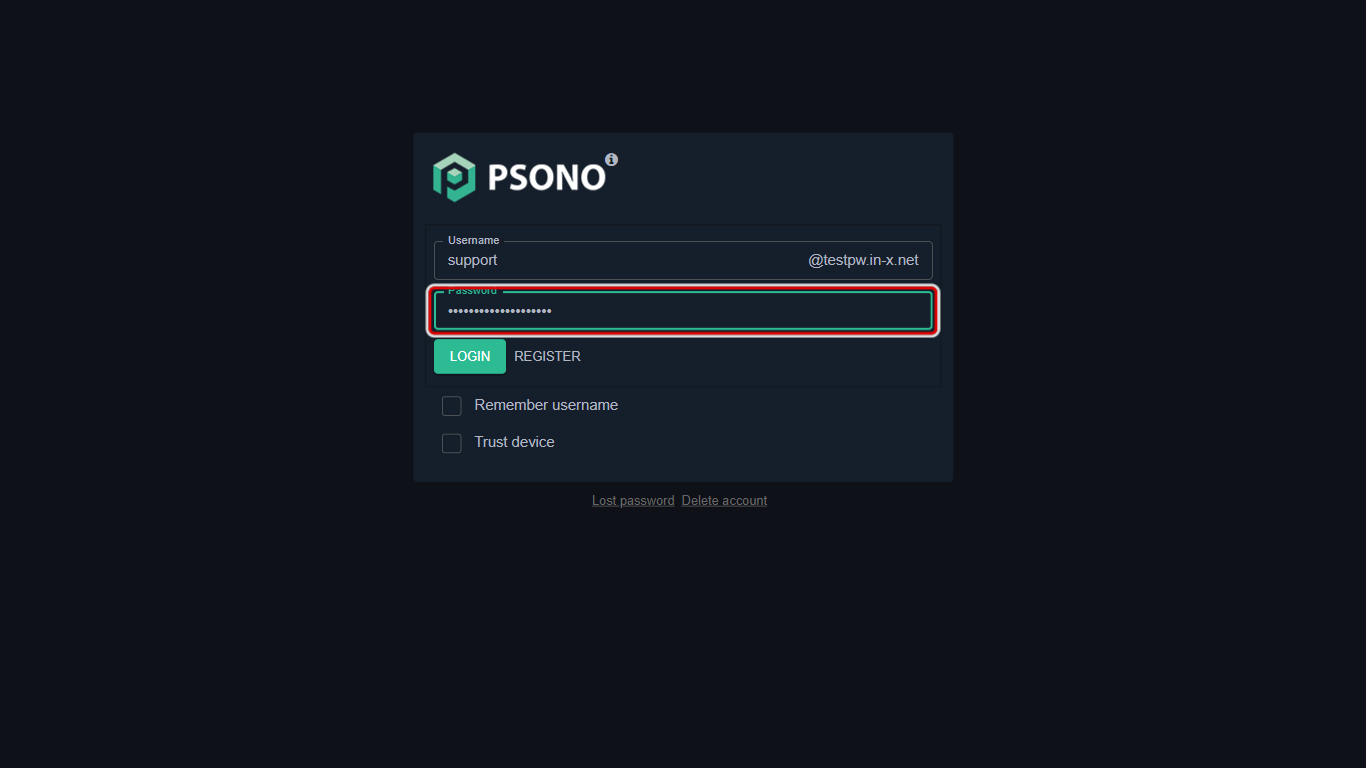
-
Click Login.
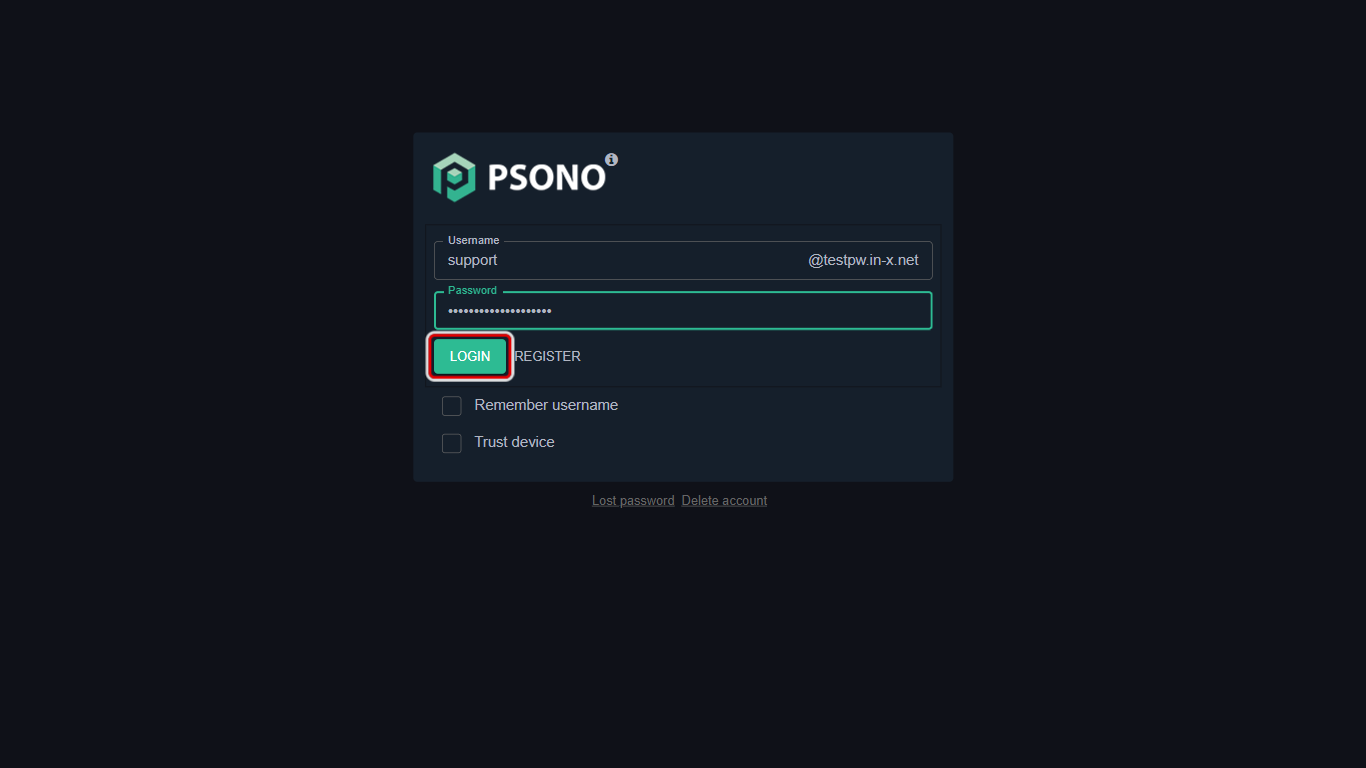
-
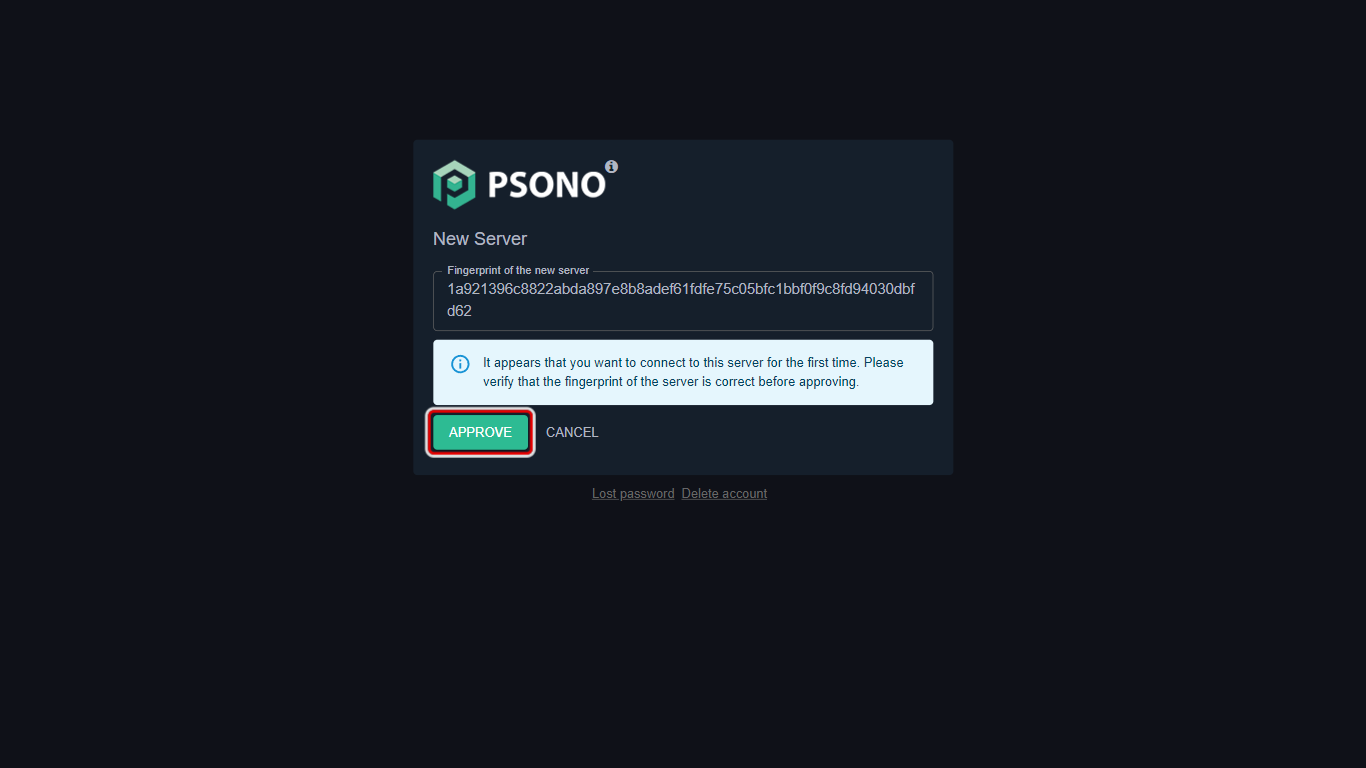
On a new computer or browser, Psono may show a New Server page with a long code under Fingerprint of the new server. Check it matches the Psono Fingerprint in your Quick Reference Document, then click Approve. If it doesn't match, click Cancel and contact us.
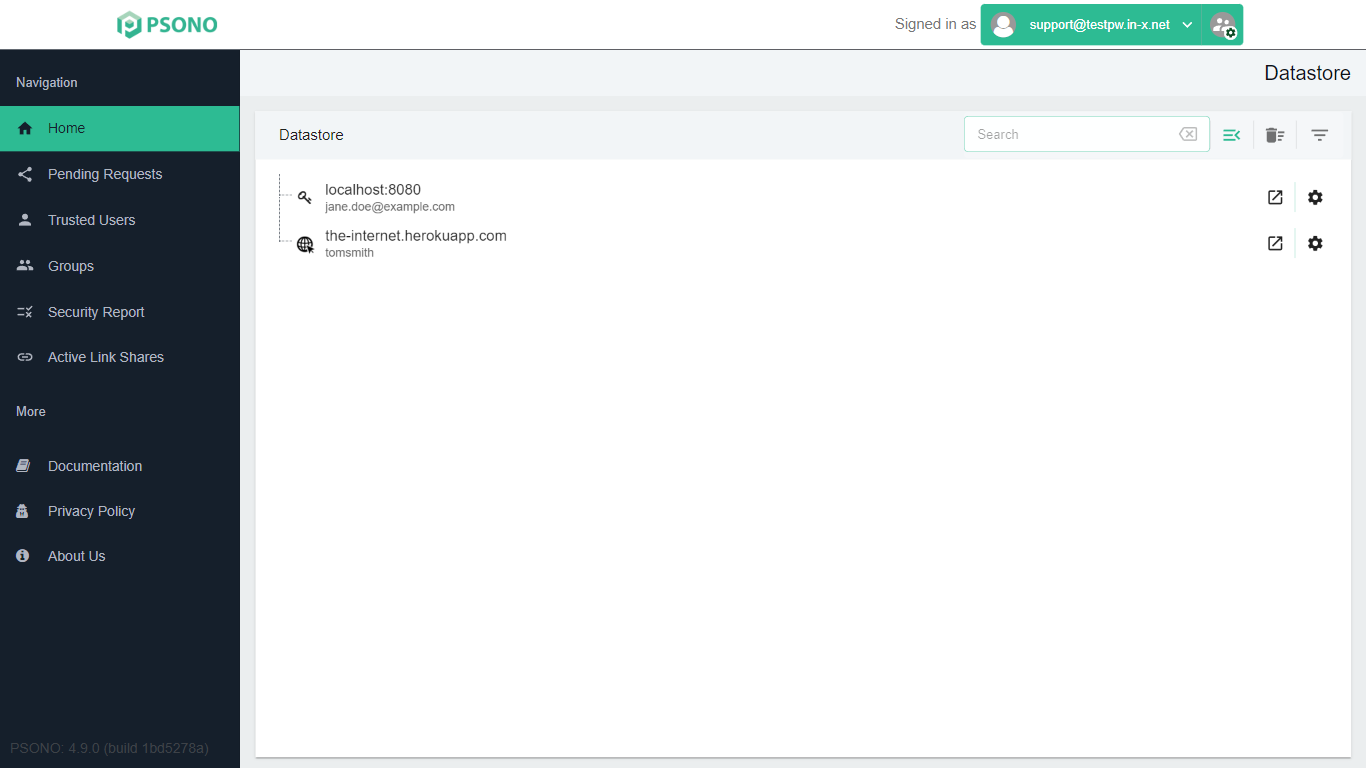
You are now on your Datastore page.
Accept a password someone shared with you
-
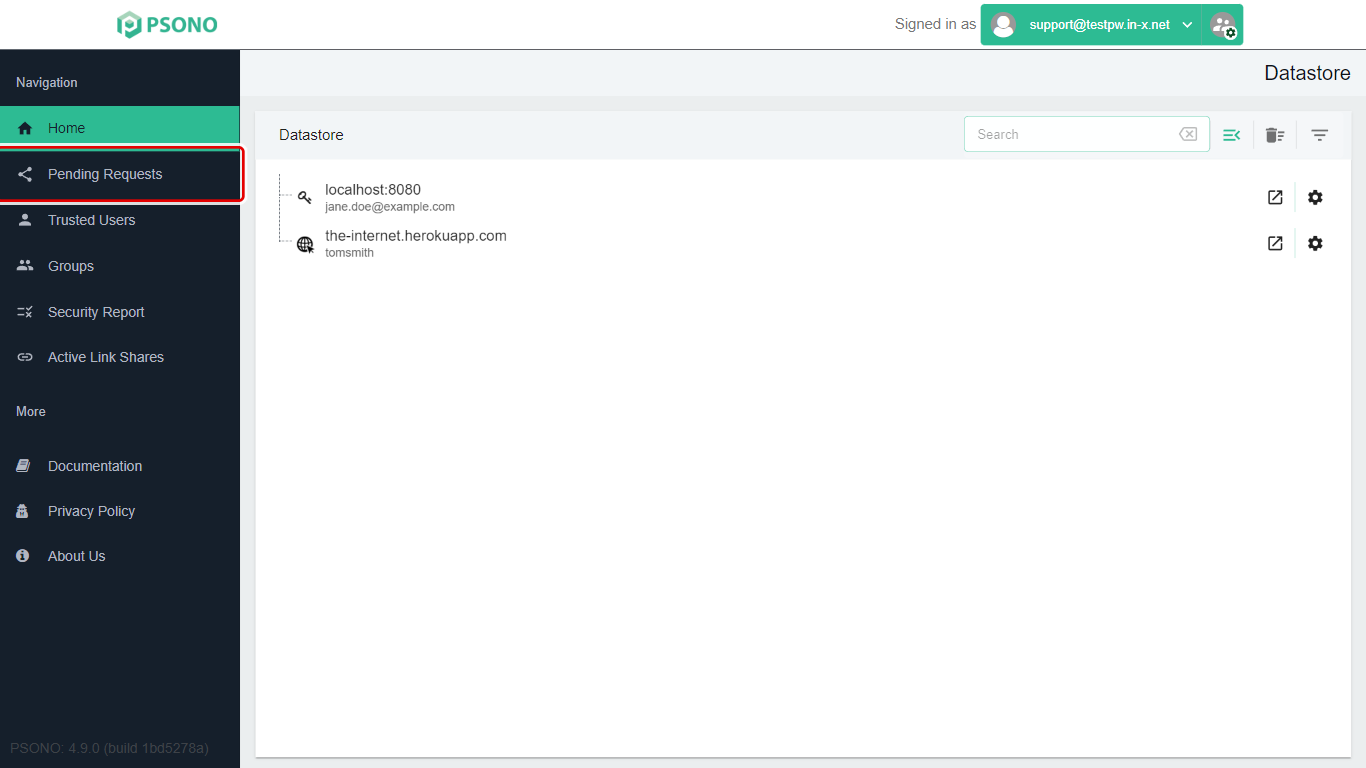
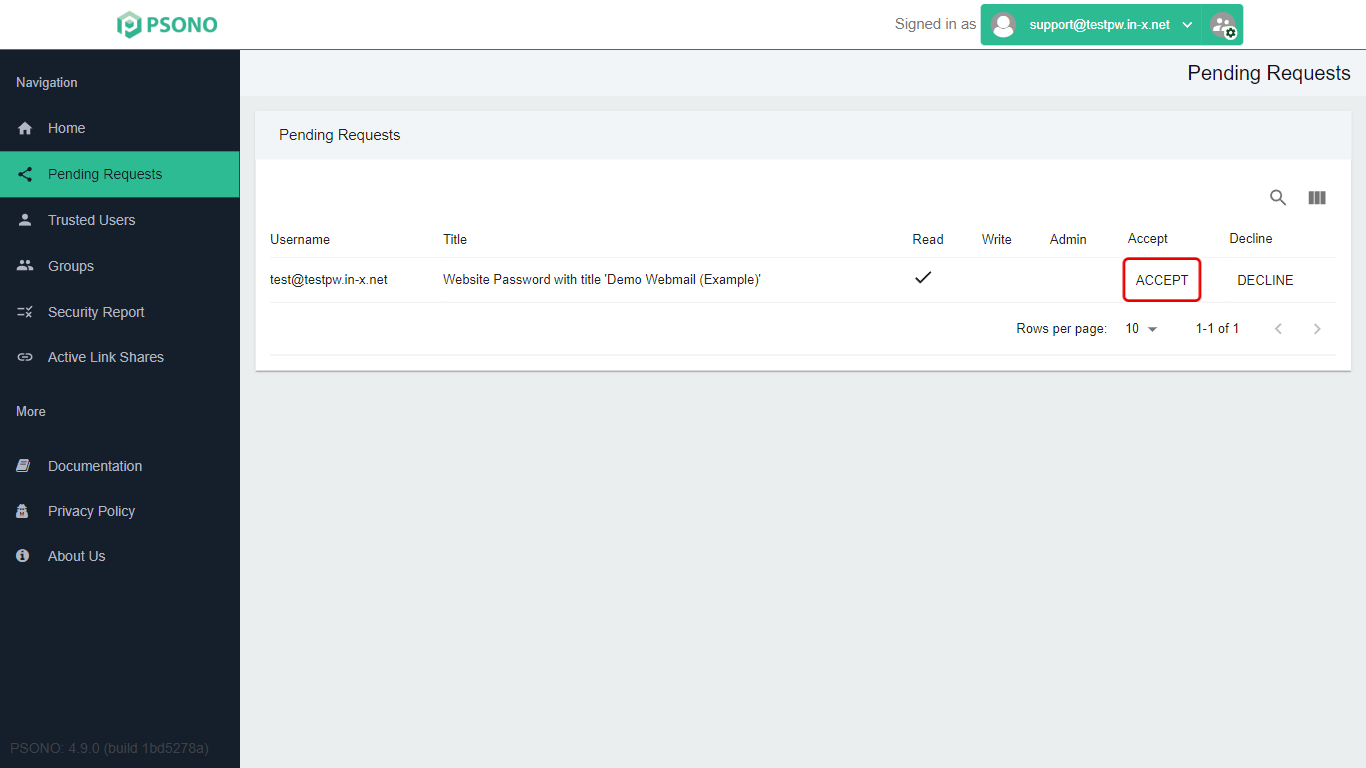
Click Pending Requests in the menu on the left. Check here whenever someone tells you they've shared a password with you. You may also get an email from Psono saying something has been shared with you.
-
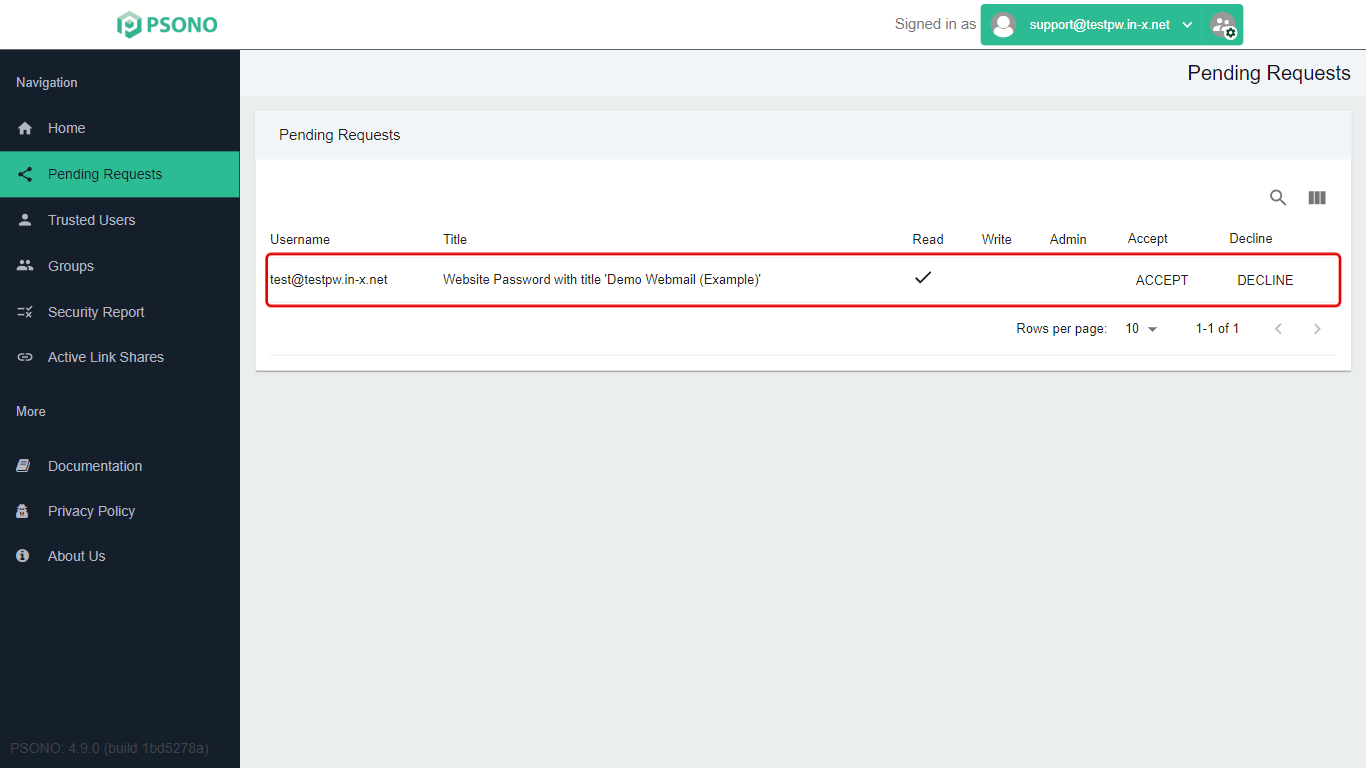
You'll see who shared it, what it is, and what you're allowed to do with it (Read, Write, Admin).
-
If you expected this share, click Accept. If you don't recognise it, click Decline and let us know.
-
The Accept Share window asks where to put it. Click one of your folders to put it there, or leave Path as
\to put it at the top of your list.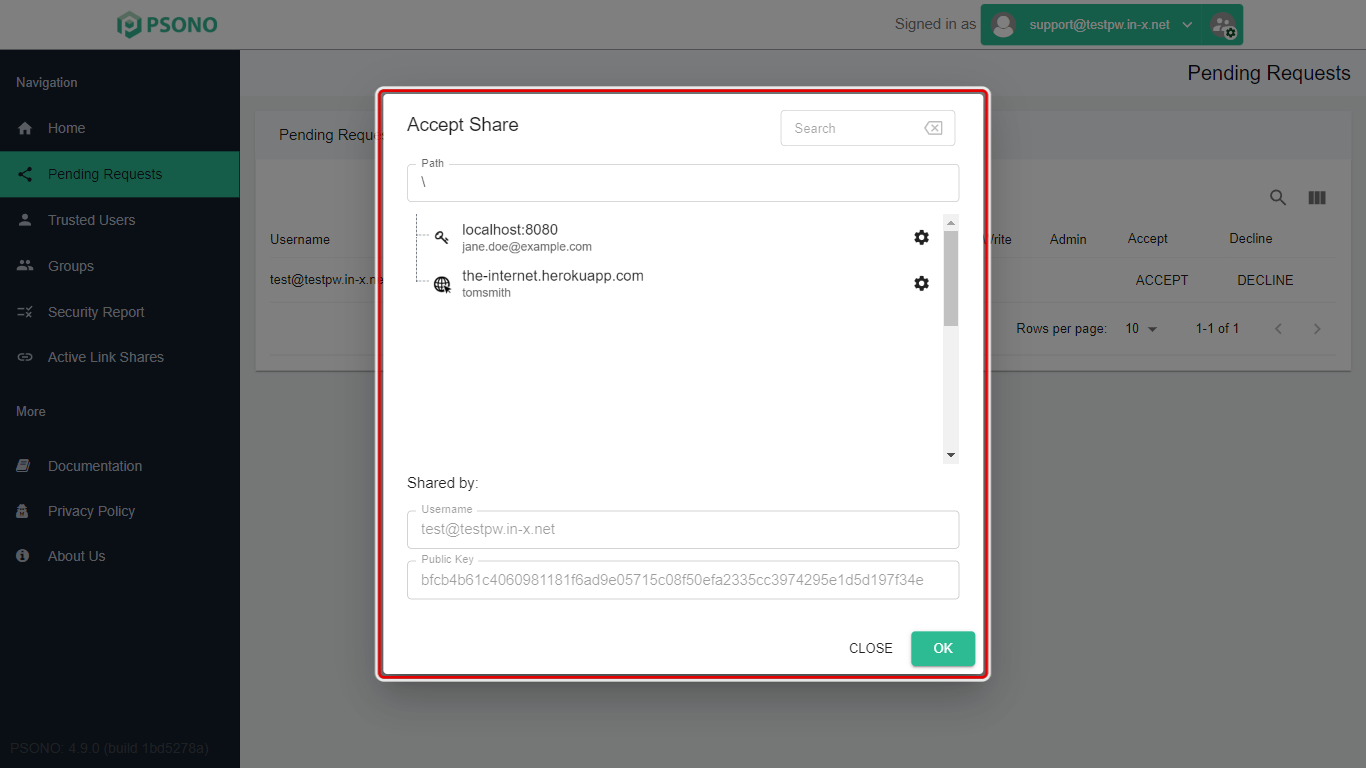
-
Under Shared by, you can see who sent it.
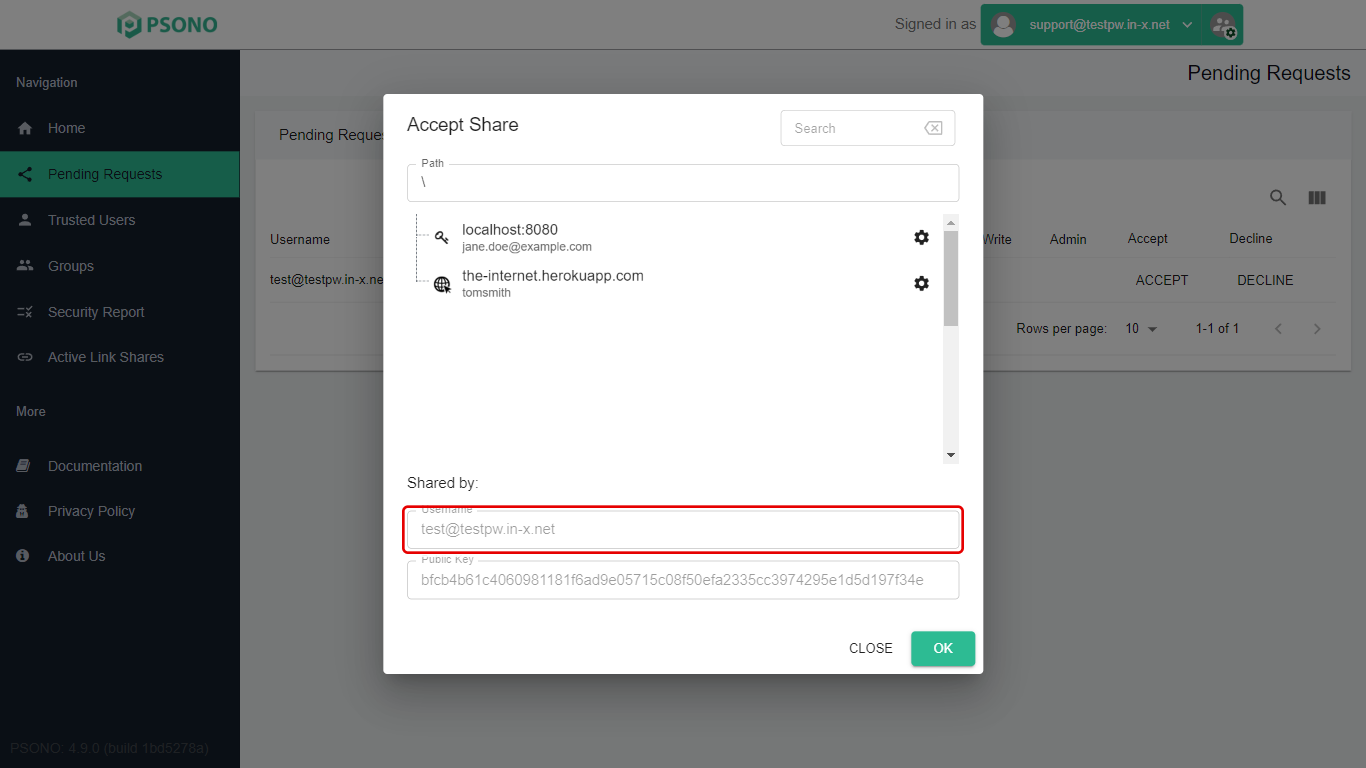
If you see (not trusted) next to the name, it only means you haven't marked this person as trusted in Psono yet. If you know who they are, it's fine to continue.
-
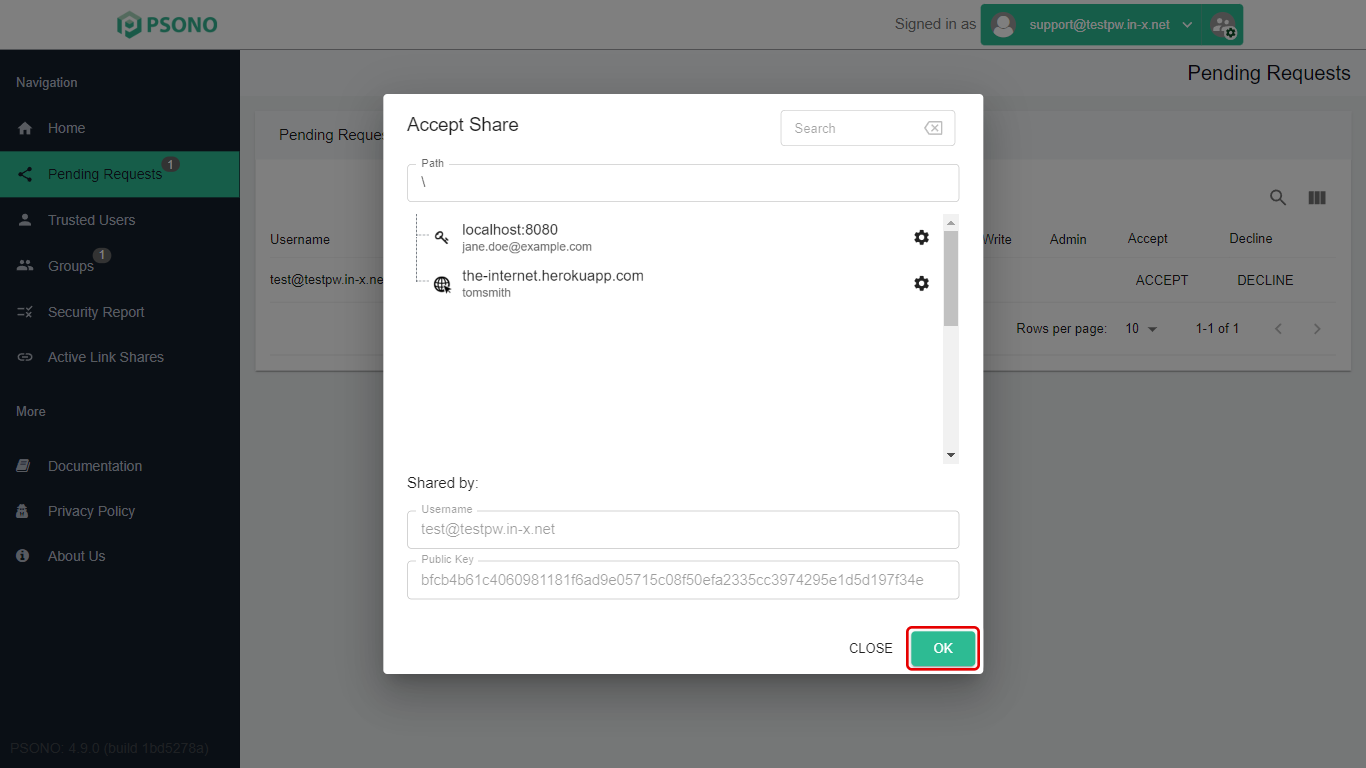
Click OK.
Join a group to get its shared folders
-
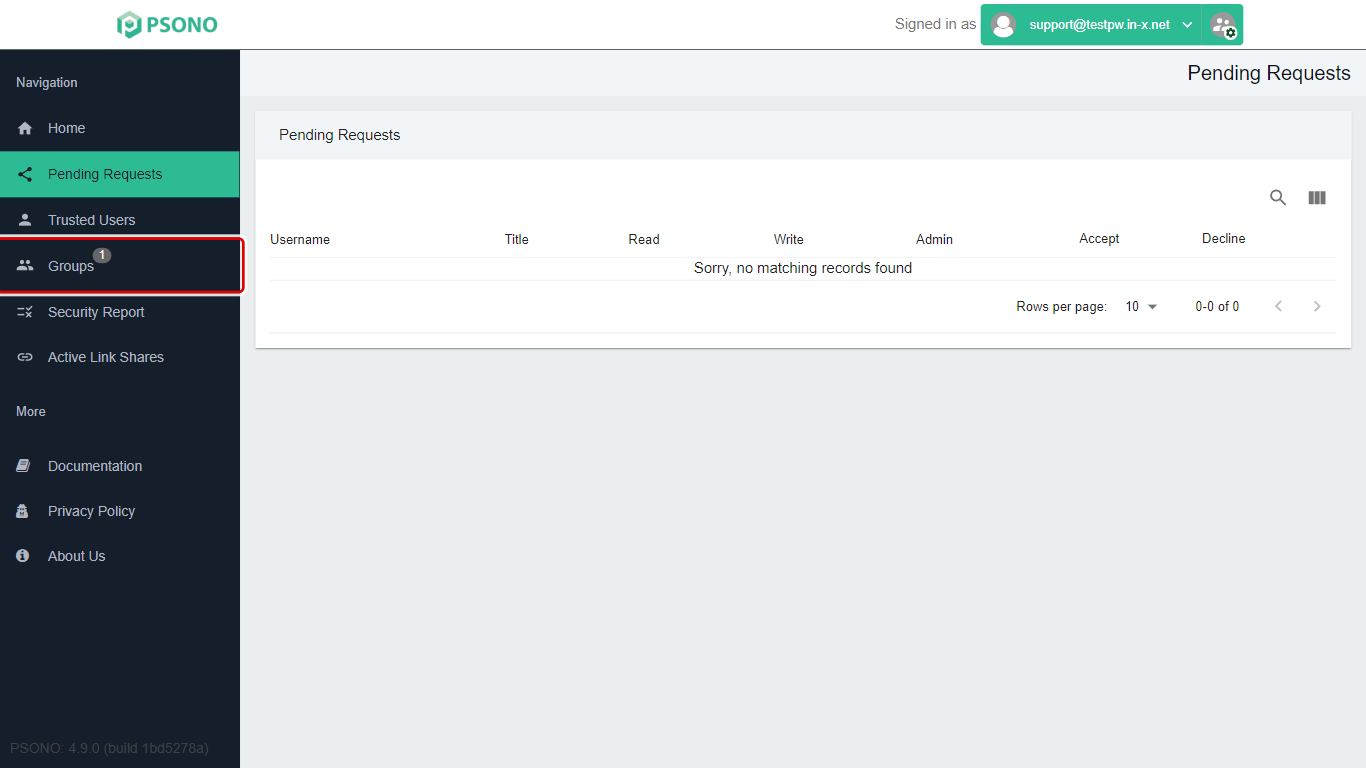
Click Groups in the menu on the left. A number next to Groups shows how many group invitations are waiting.
-
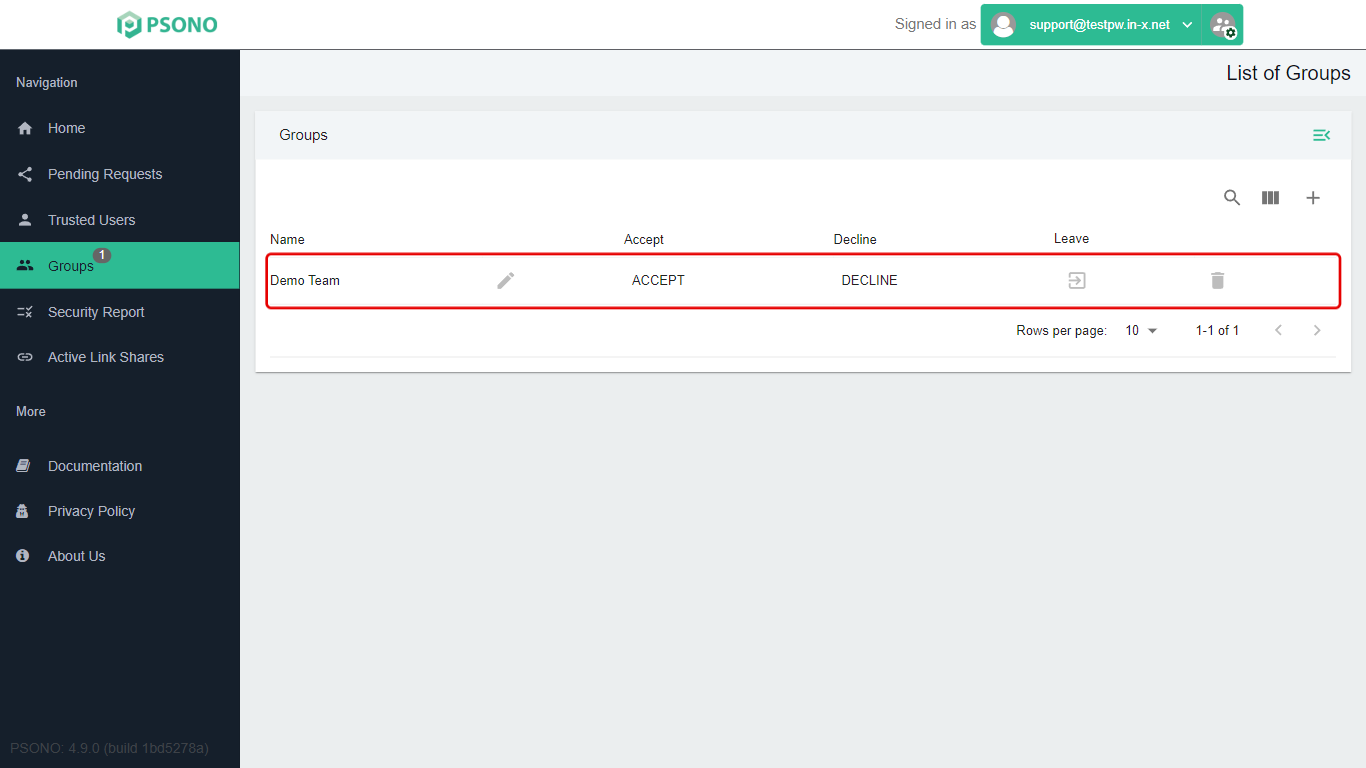
Your invitation shows in the list.
-
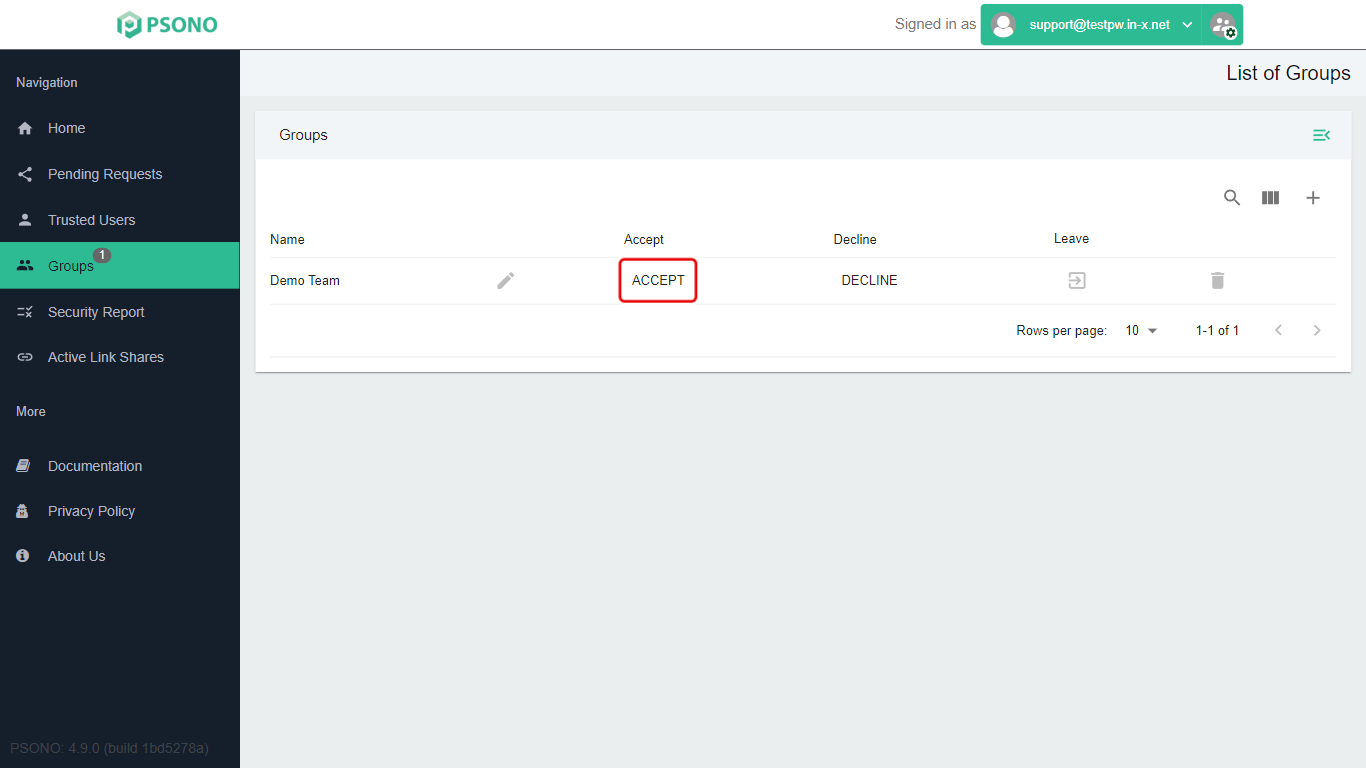
Click Accept on the group's row.
-
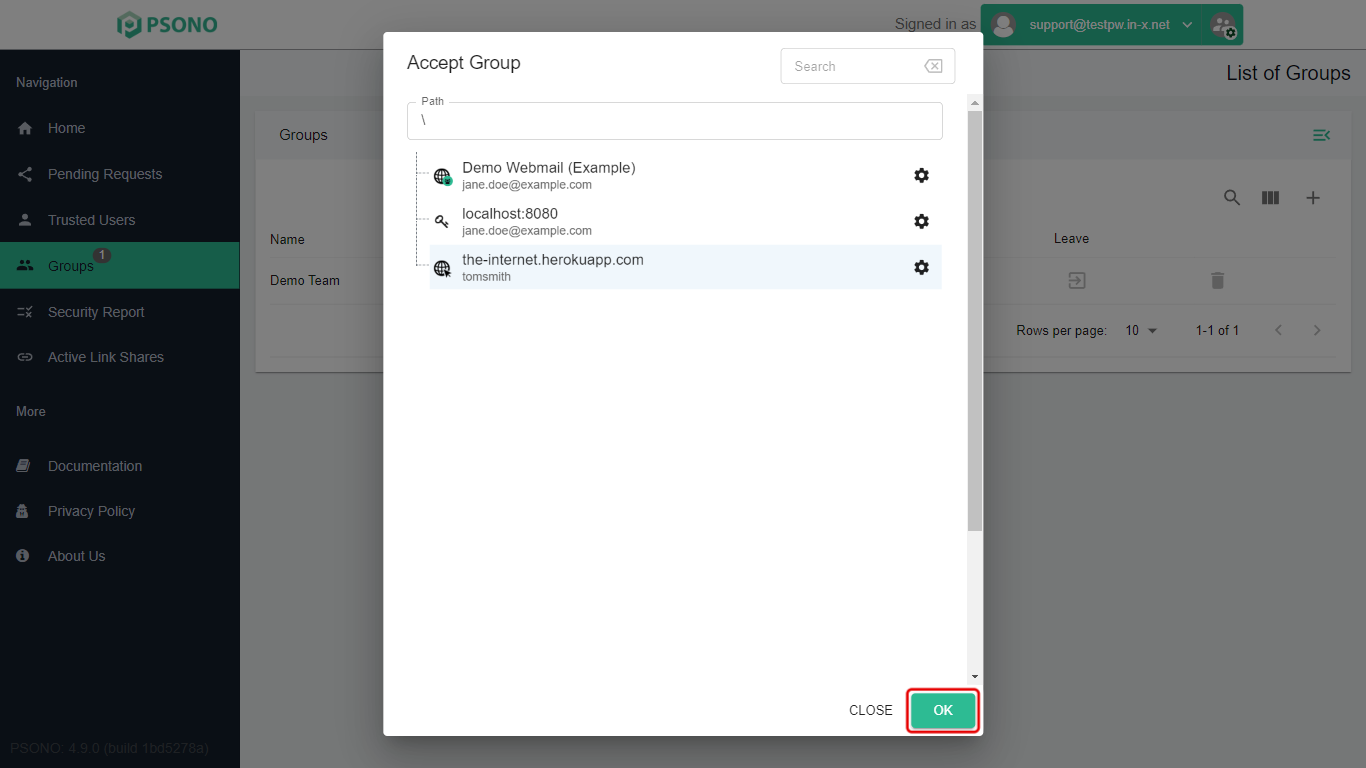
The Accept Group window asks where to put the group's shared folders. Click one of your folders, or leave Path as
\for the top of your list.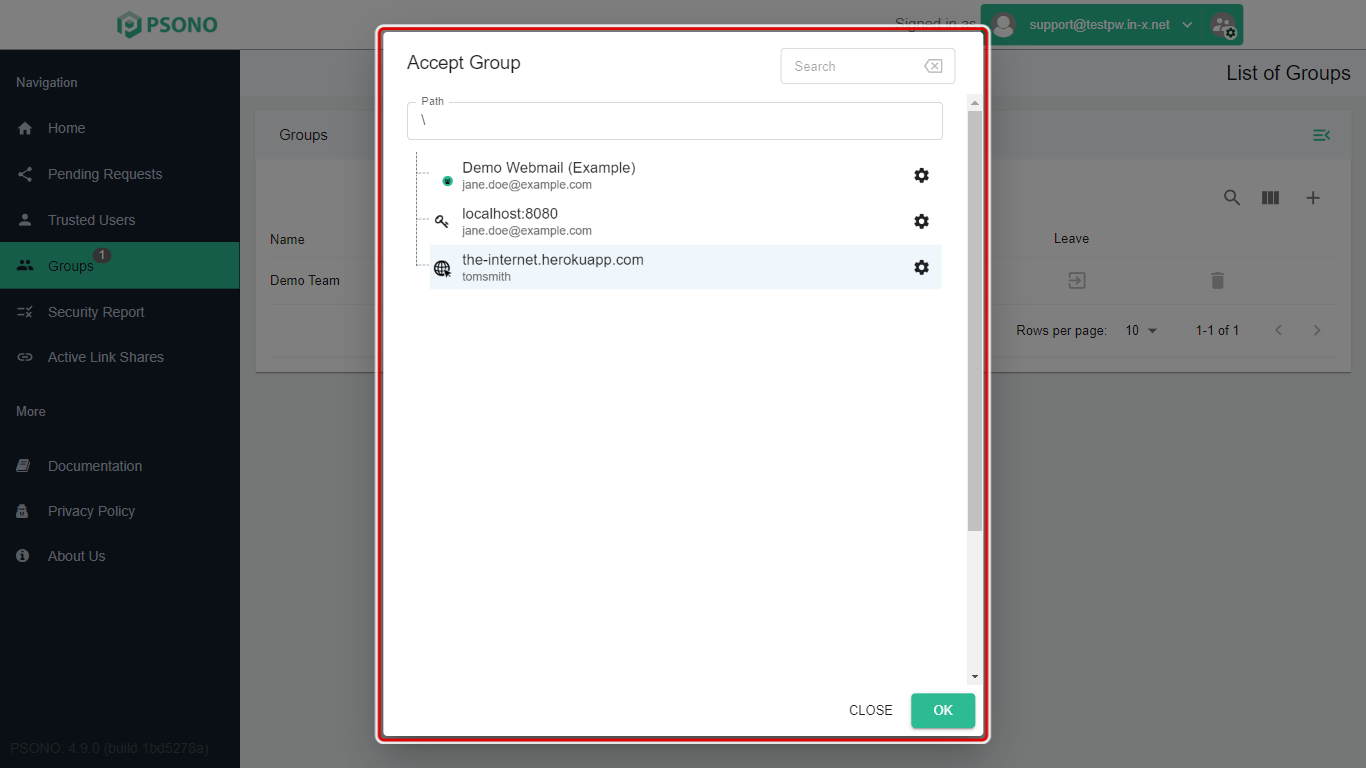
-
Click OK.
Later shares: If your team shares more folders with the group after you've joined, an Accept New Shares button shows on the group's row under Groups. Click it, choose where to put them, and click OK.
Find your shared items
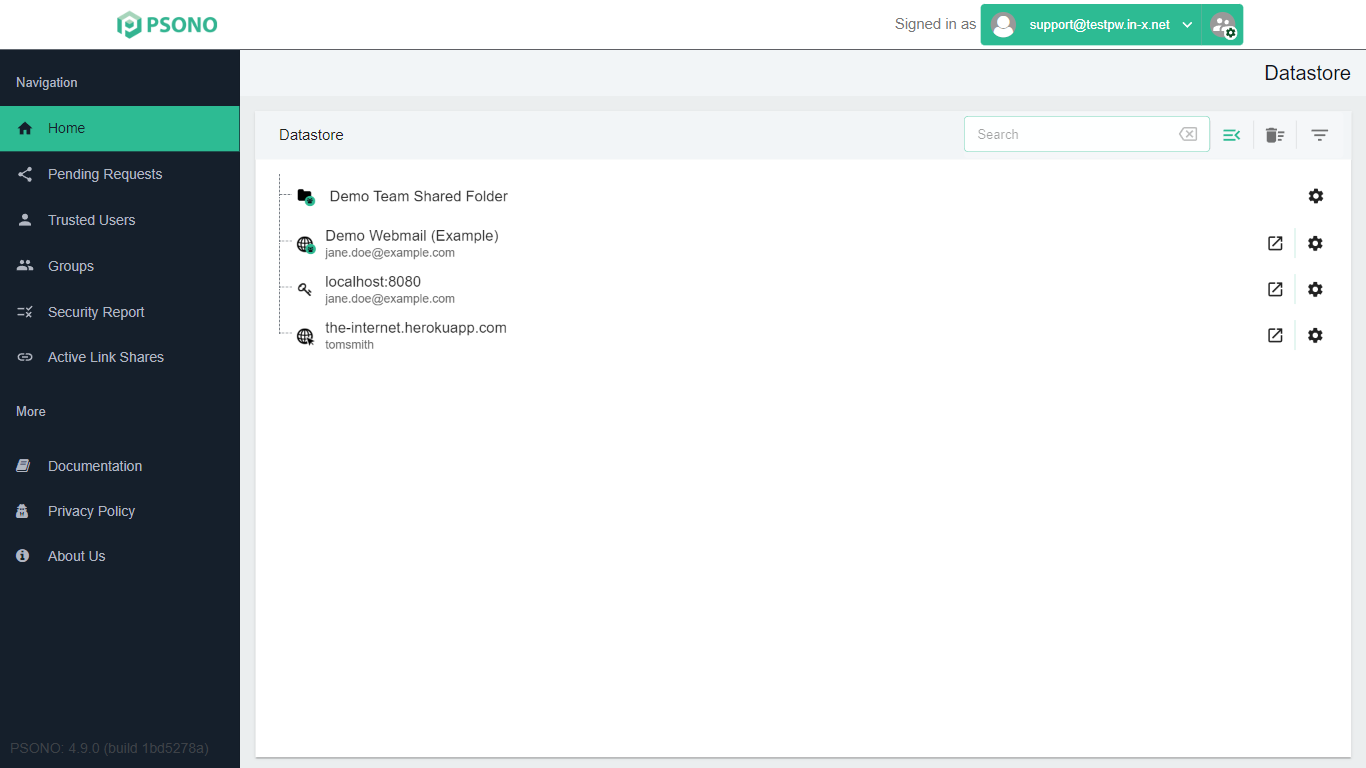
Go back to the Datastore. The shared password and the team folder are now in your list.
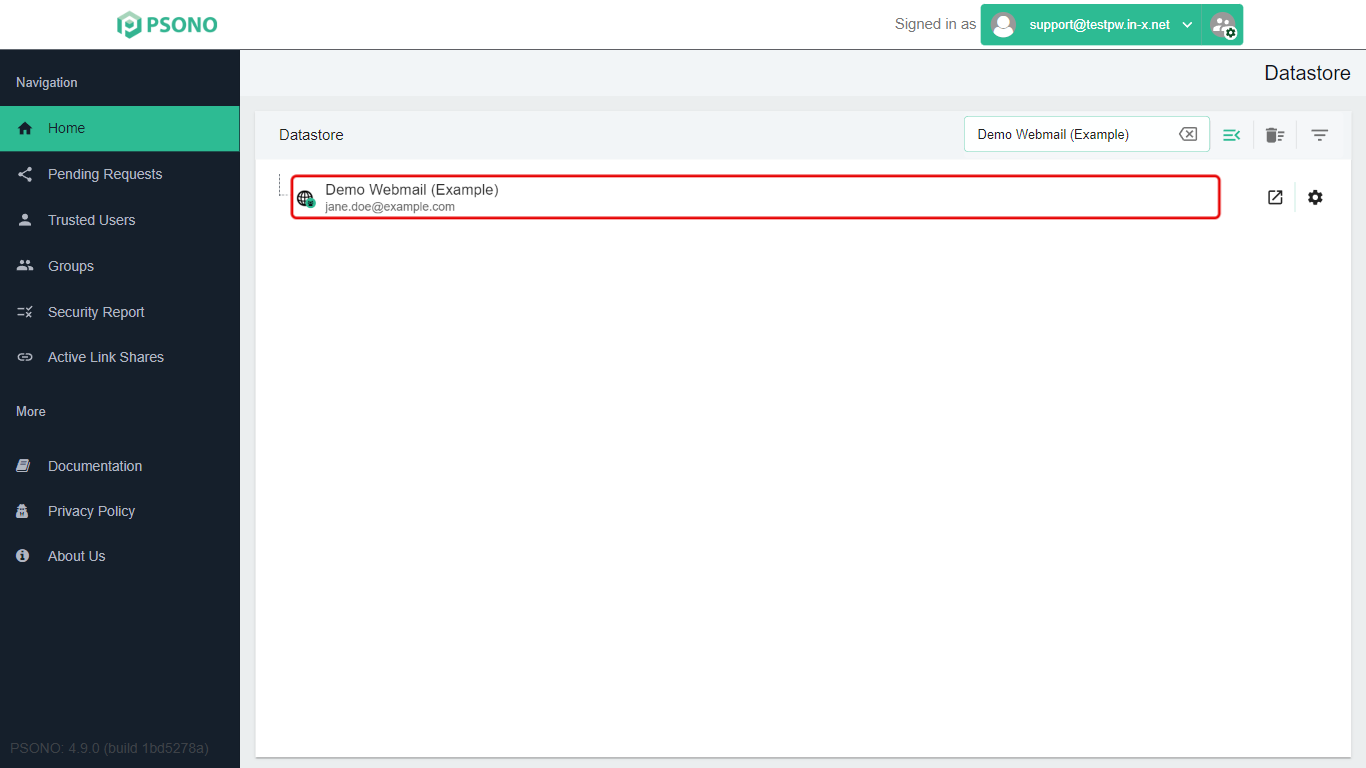
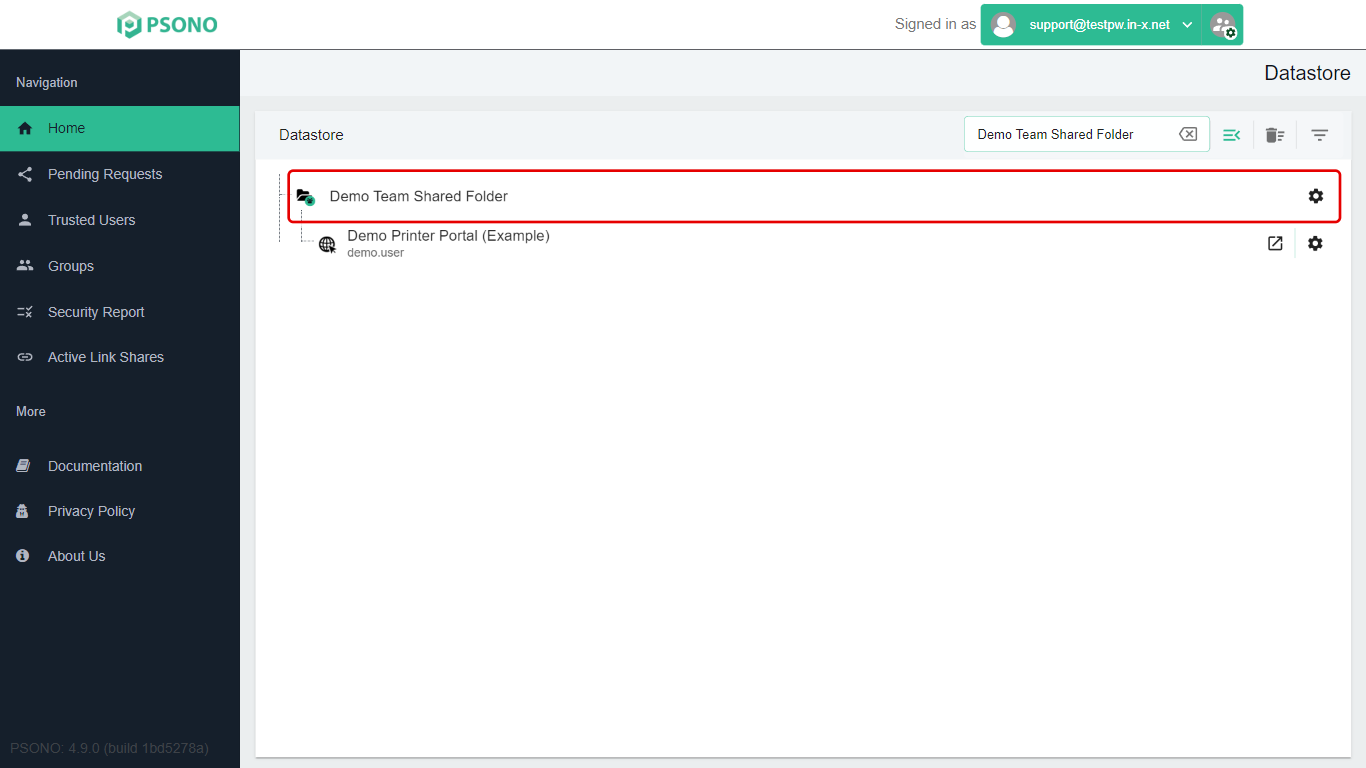
What you can do with them depends on the permissions you were given. With only Read, you can use the password but can't change it.
Using shared items in the browser extension
Shared entries work in the browser extension just like your own.
-
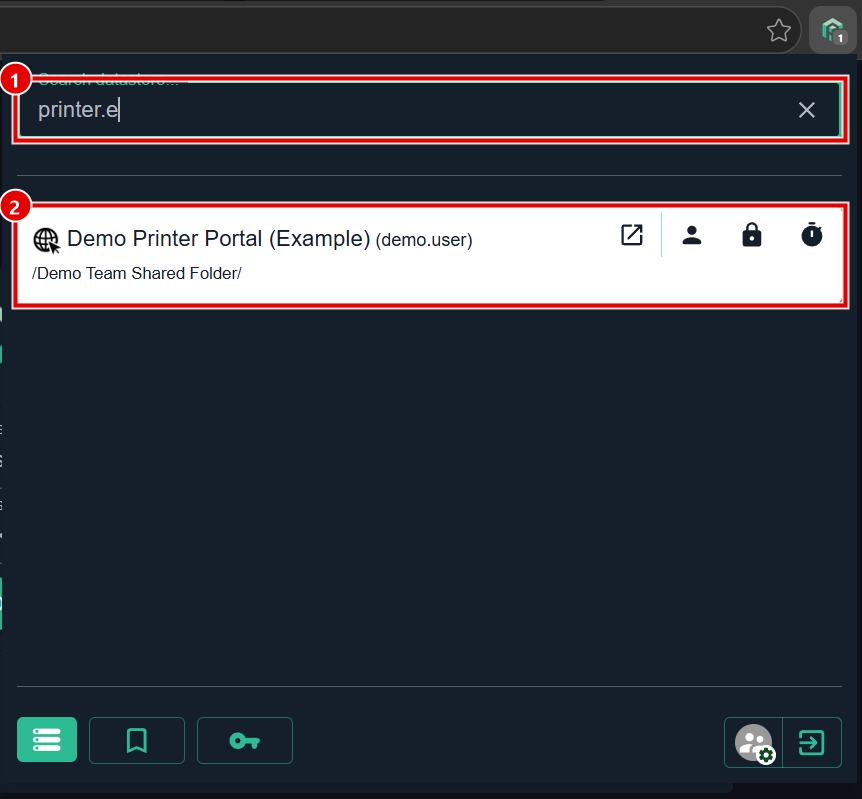
Click the Psono icon in your browser's toolbar. Type part of the entry's name or website in Search datastore… (1). Shared entries show up too, with the folder they're in underneath (2).
-
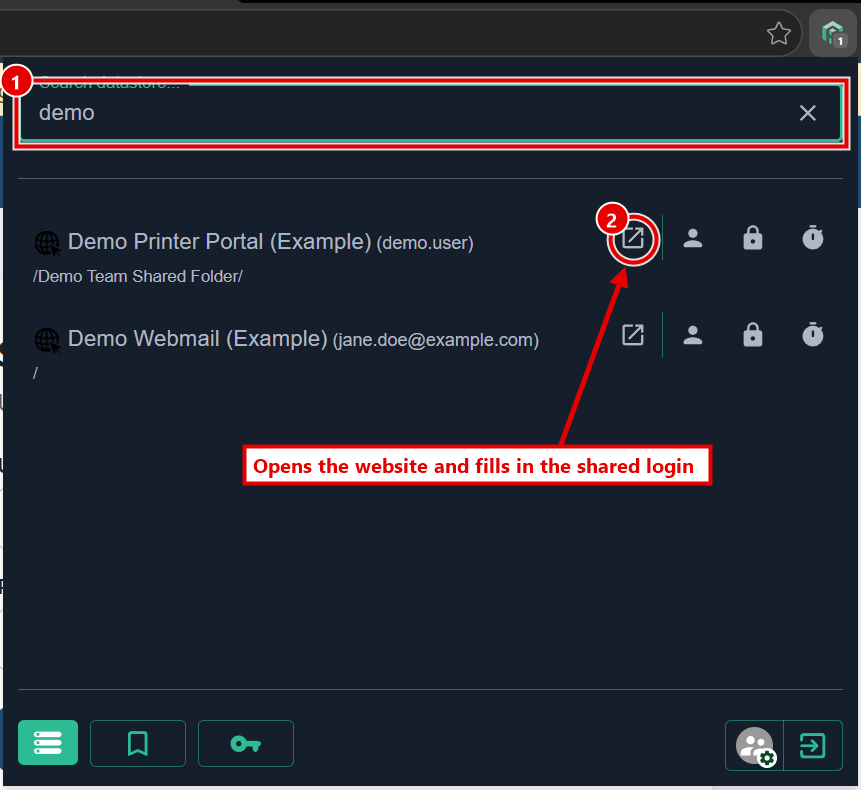
To sign in with a shared entry, search for it (1) and click the arrow icon on its row (2). Psono opens the website and fills in the login. Only the arrow fills in for you; clicking the entry's name doesn't.
If you're already on the website's sign-in page, you can instead click the green Psono icon in the password box and pick the shared entry. See Filling in passwords with the browser extension.
If you only have Read permission, you can use the password but can't change it. Ask the person who shared it to make the change.
Stuck on a step? Email support@the-it-connection.com or call 815-526-3600 and we’ll walk you through it.