
Click any picture to see it full size.
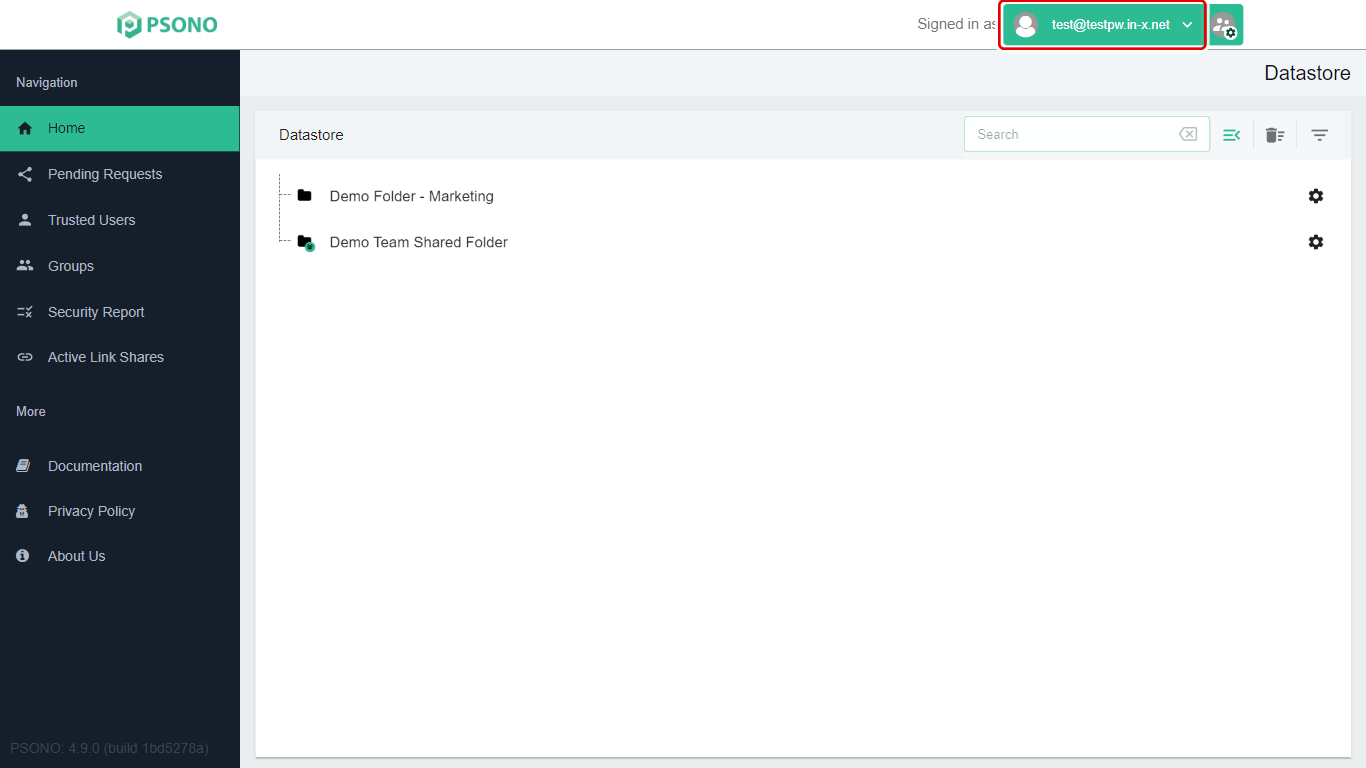
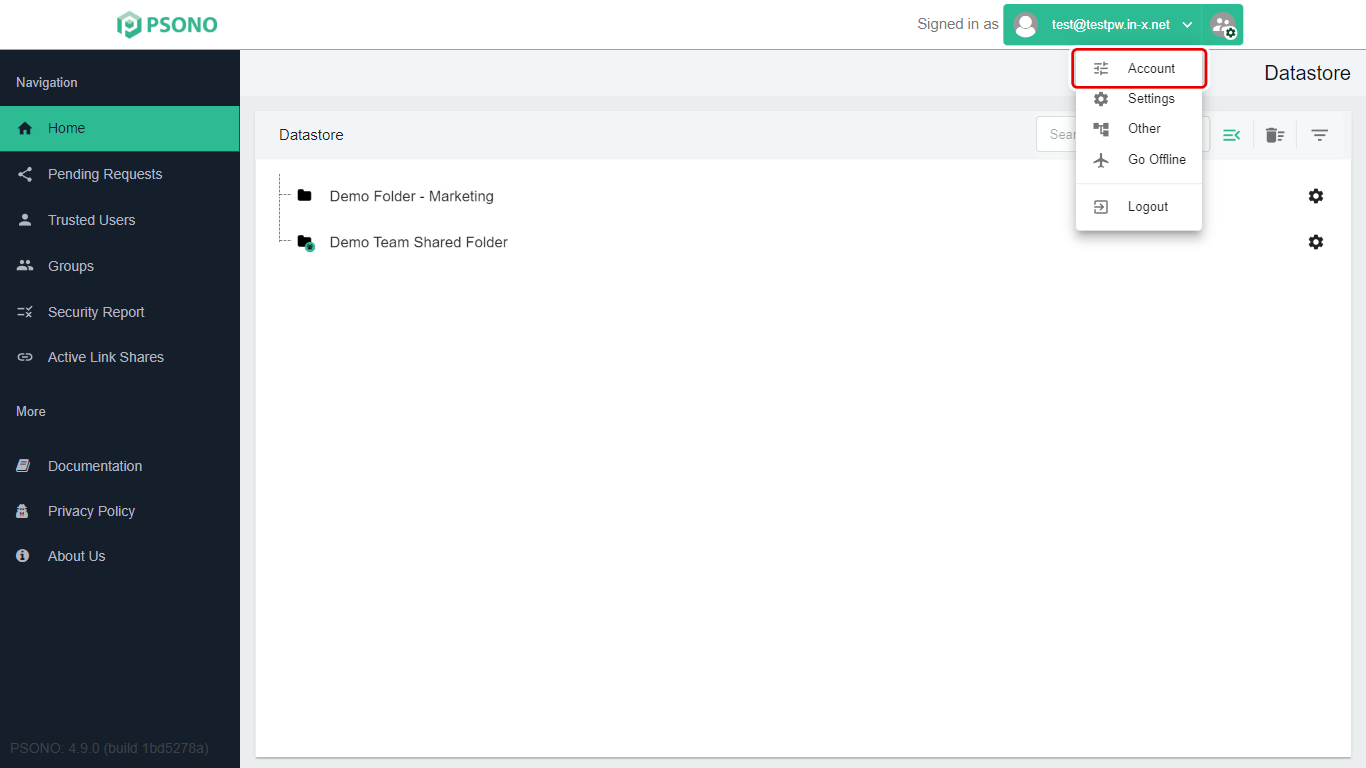
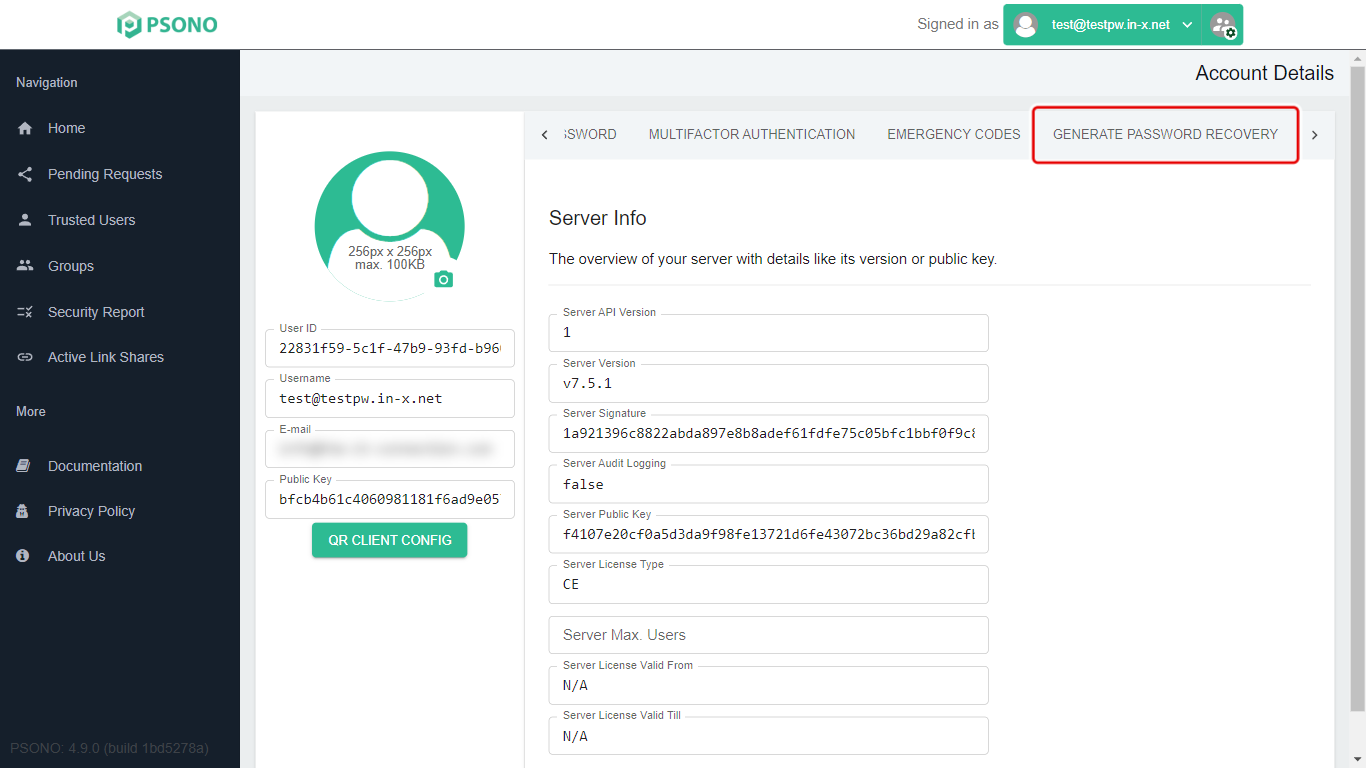
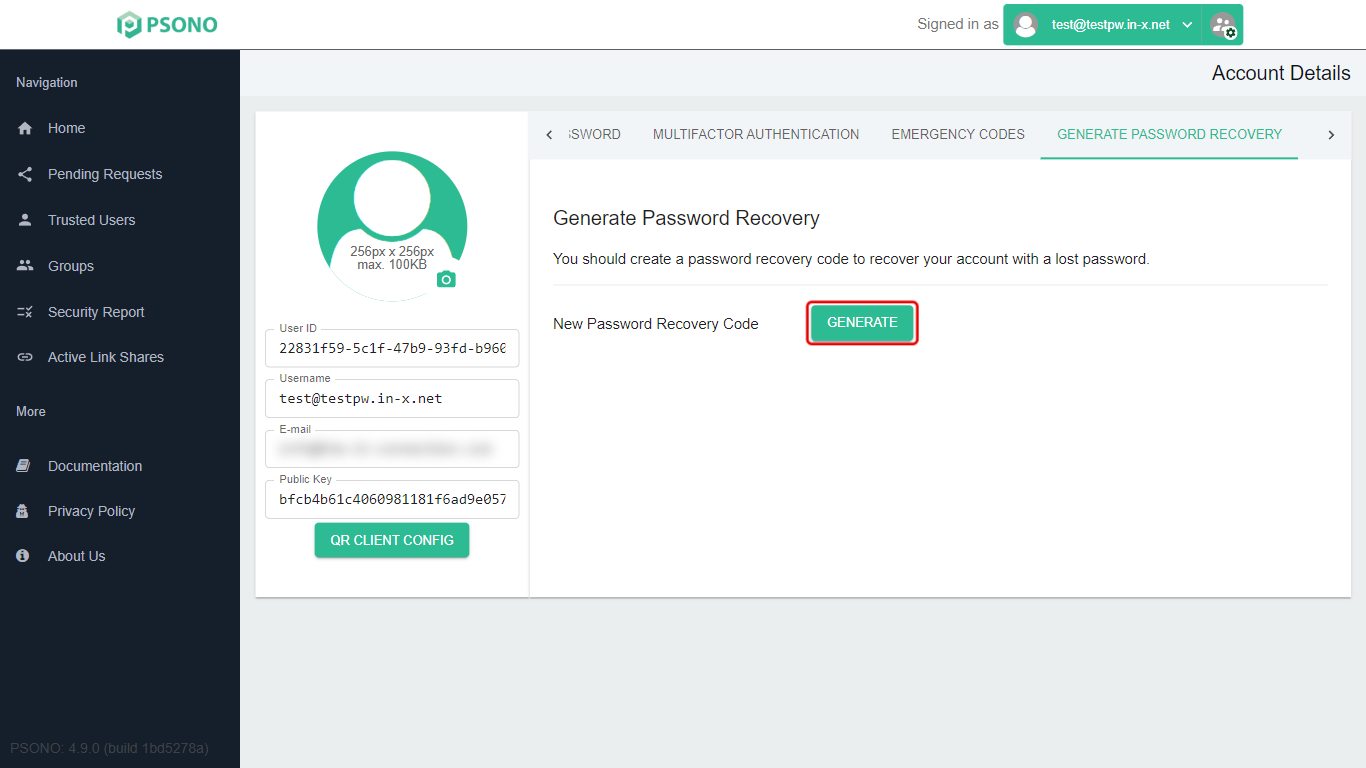
In this guide, the red box in each picture shows what to click.
Why this matters
Psono encrypts your passwords with your own Psono password. That keeps them safe, but it also means nobody, including us, can reset your Psono password for you. If you forget it, the only way back in is a recovery code you made beforehand.
If you sign in with single sign-on (SSO), for example with your Microsoft 365 account, you don't need a recovery code. Ask us if you're not sure.
Making a recovery code
-
Click your name at the top right (Signed in as …), then Account.
-
Click the › arrow at the right end of the row of tabs until you see Generate Password Recovery, then click it. (The tab is hidden off the right edge at first.)
-
Click Generate.
-
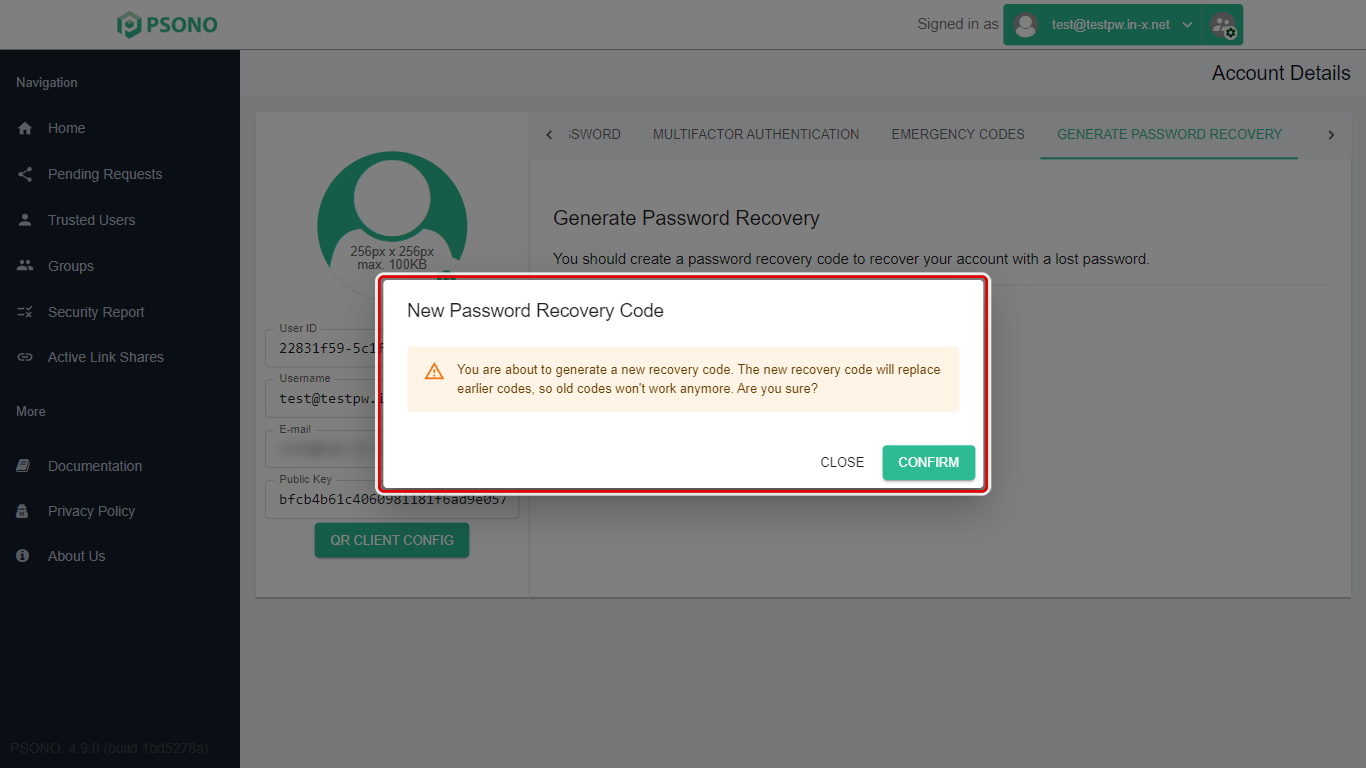
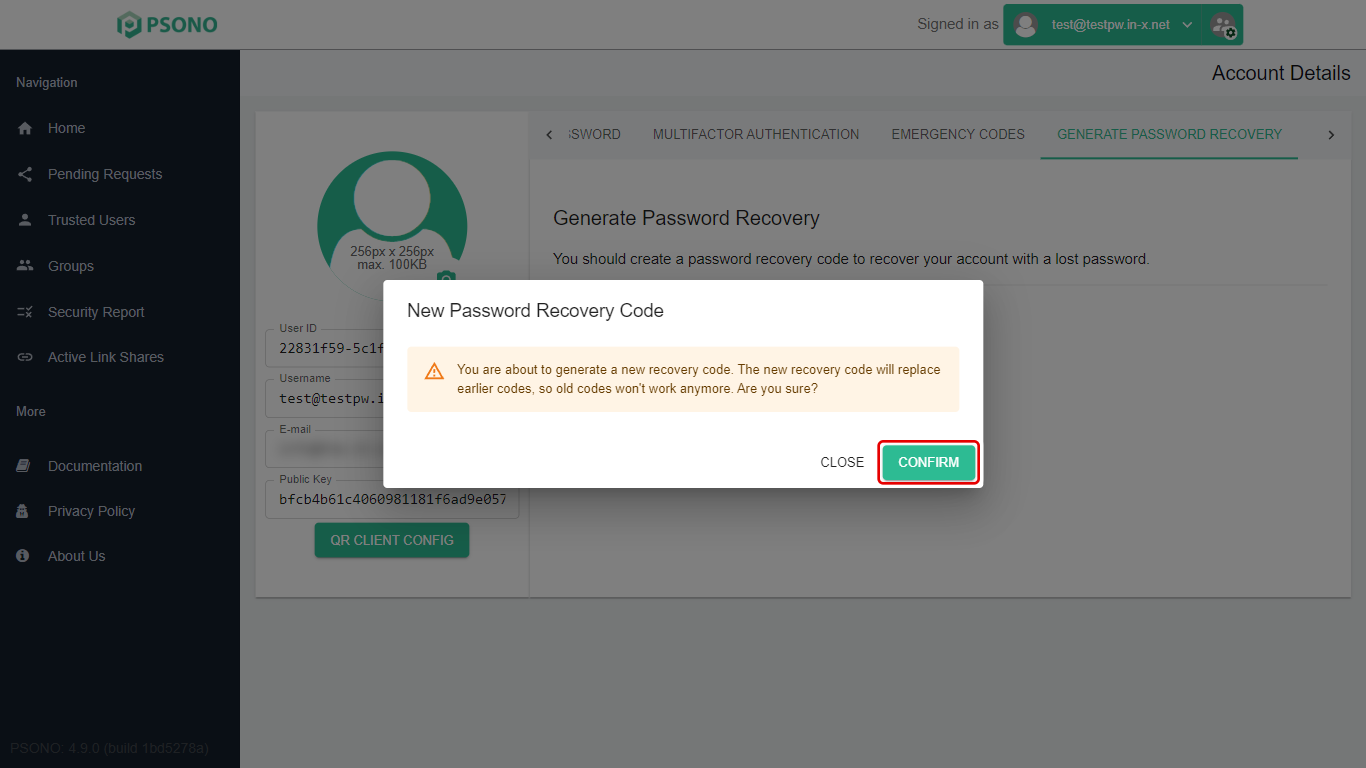
Psono warns that a new code replaces any earlier one. Click Confirm.
-
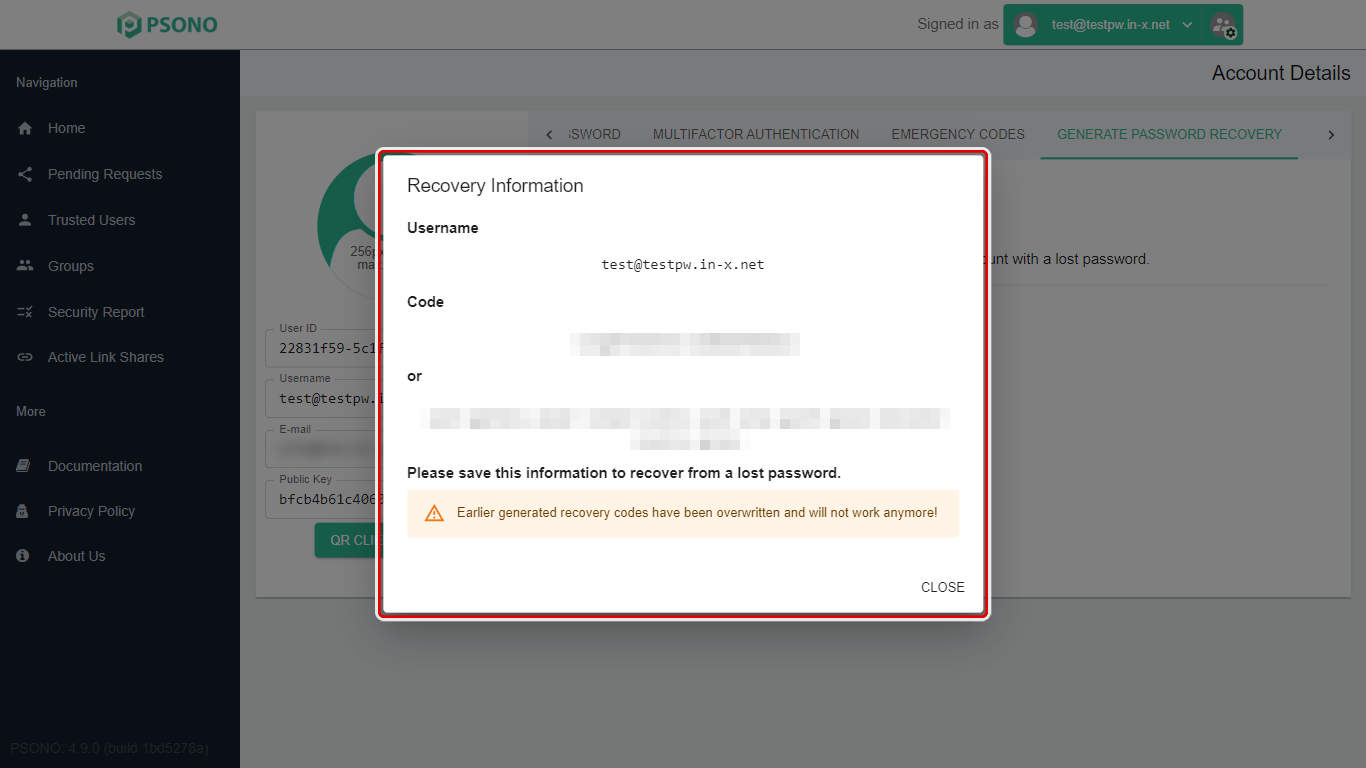
The Recovery Information window shows your Username, a Code, and the same code as a list of words. You only need to keep one of them: either the code or the words.
-
Write it down (or print the window with your browser's Print), and keep it somewhere safe away from your computer, such as a locked drawer at home. Don't save it in Psono itself; you couldn't get to it if you were locked out.
The code in our picture is blurred on purpose. Yours will be clear.
-
Click Close.
Making a new code cancels the old one. Only make a new code if you've lost the old one or never made one.
If you forget your Psono password
You'll need your recovery code (or the word list).
-
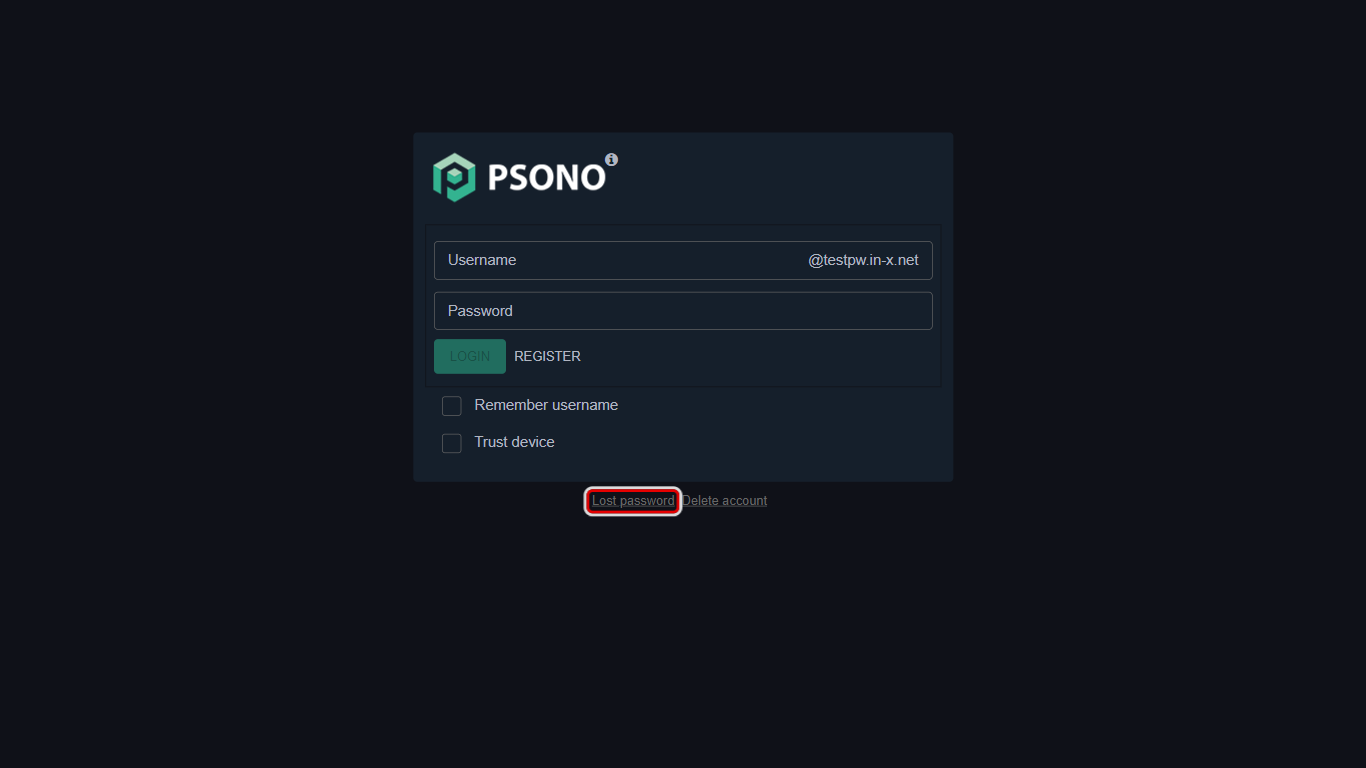
On your company's Psono sign-in page, click Lost password. (Don't click Delete account next to it.)
-
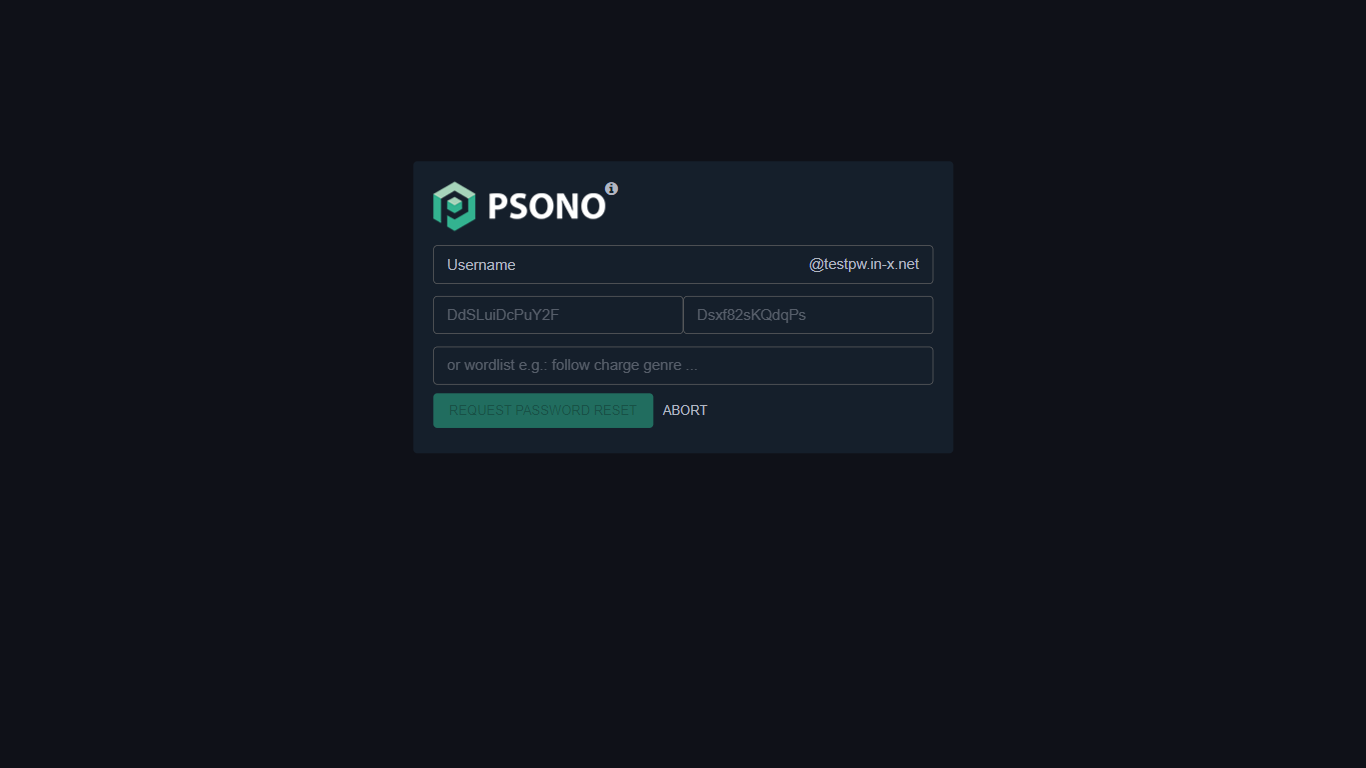
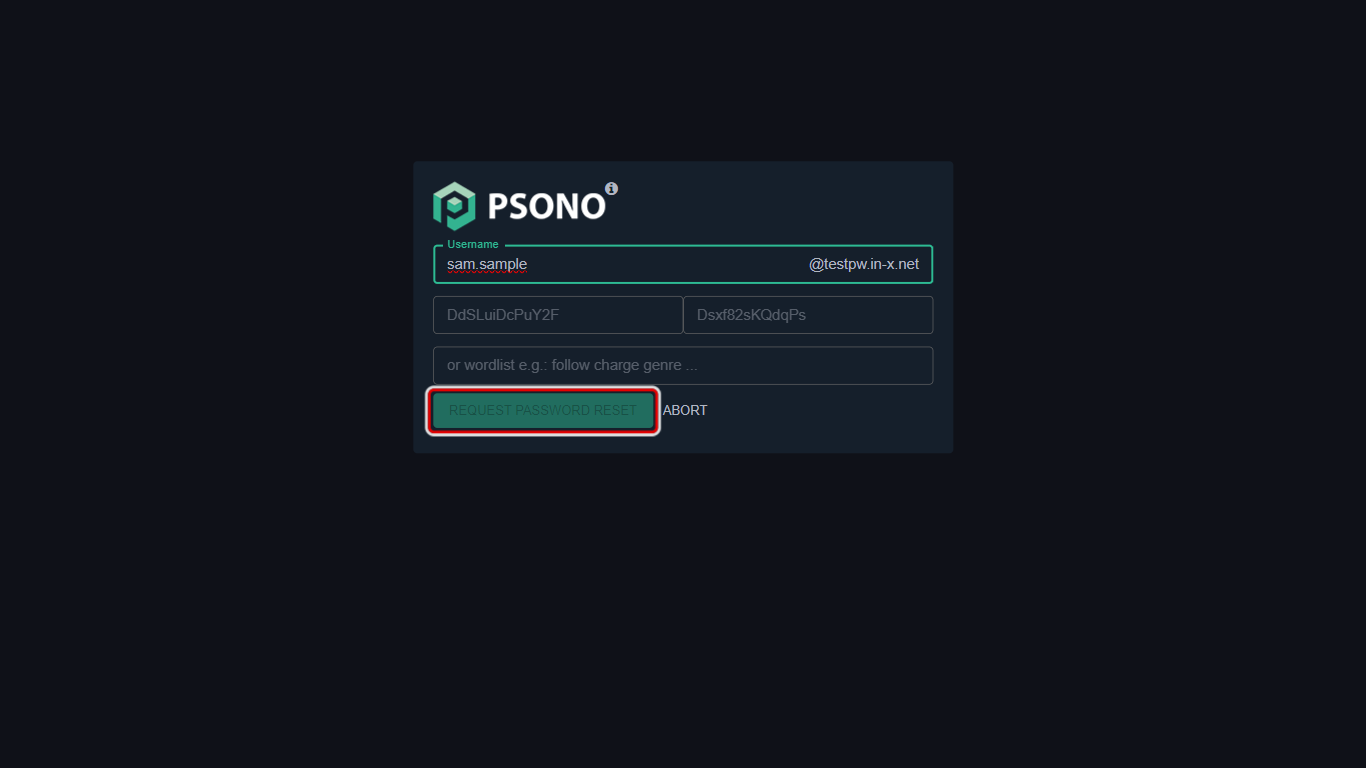
The lost password page opens. The grey text in the boxes is only an example of what goes there.
-
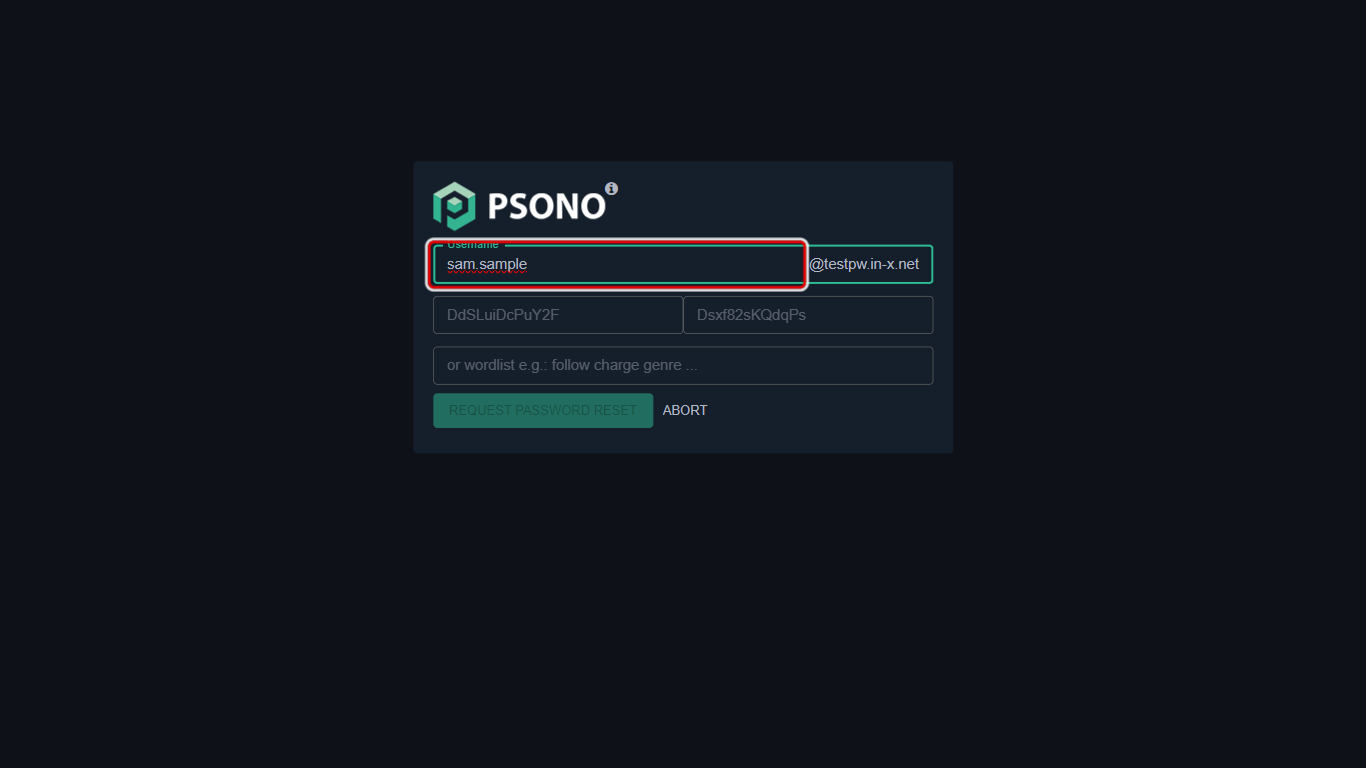
Type your Username (only the part before the @).
-
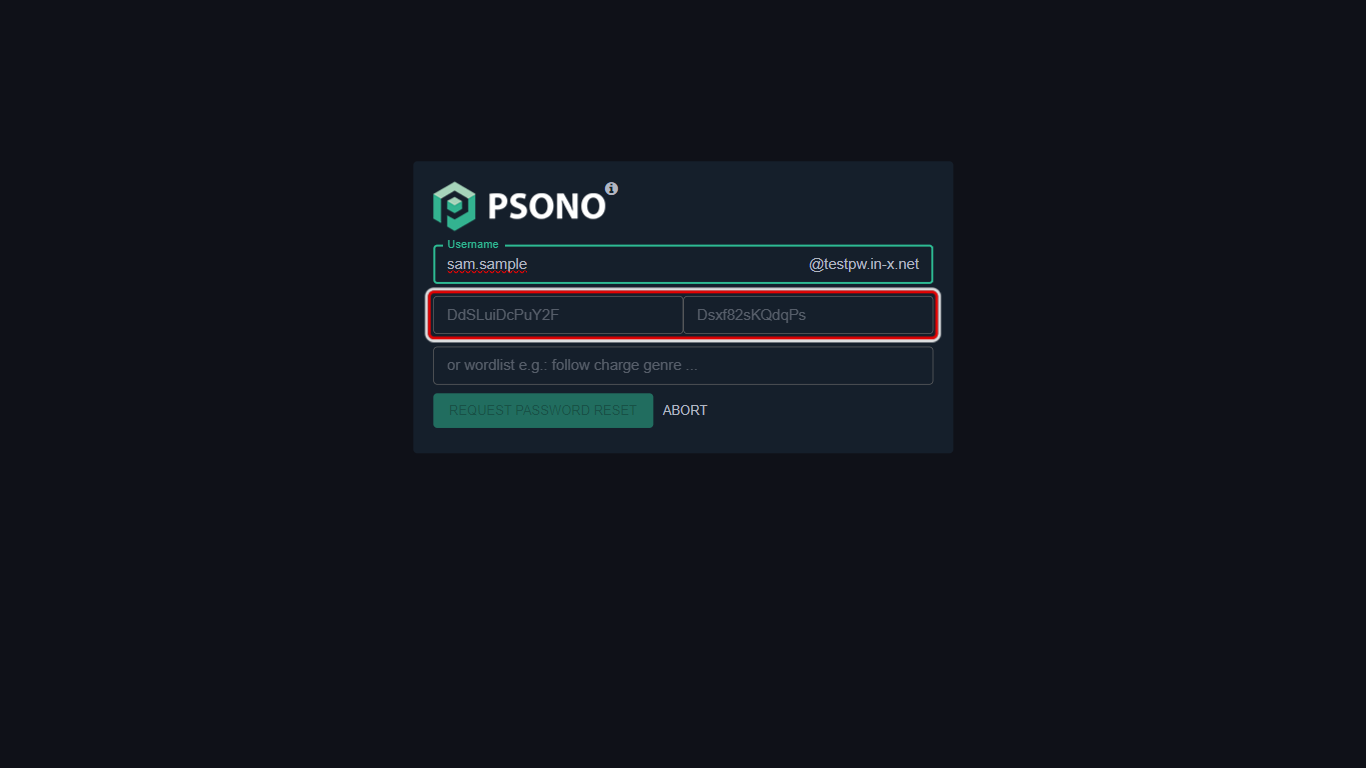
Type your recovery code into the two boxes. Your code has two halves separated by a dash: type the first half in the first box and the second half in the second box.
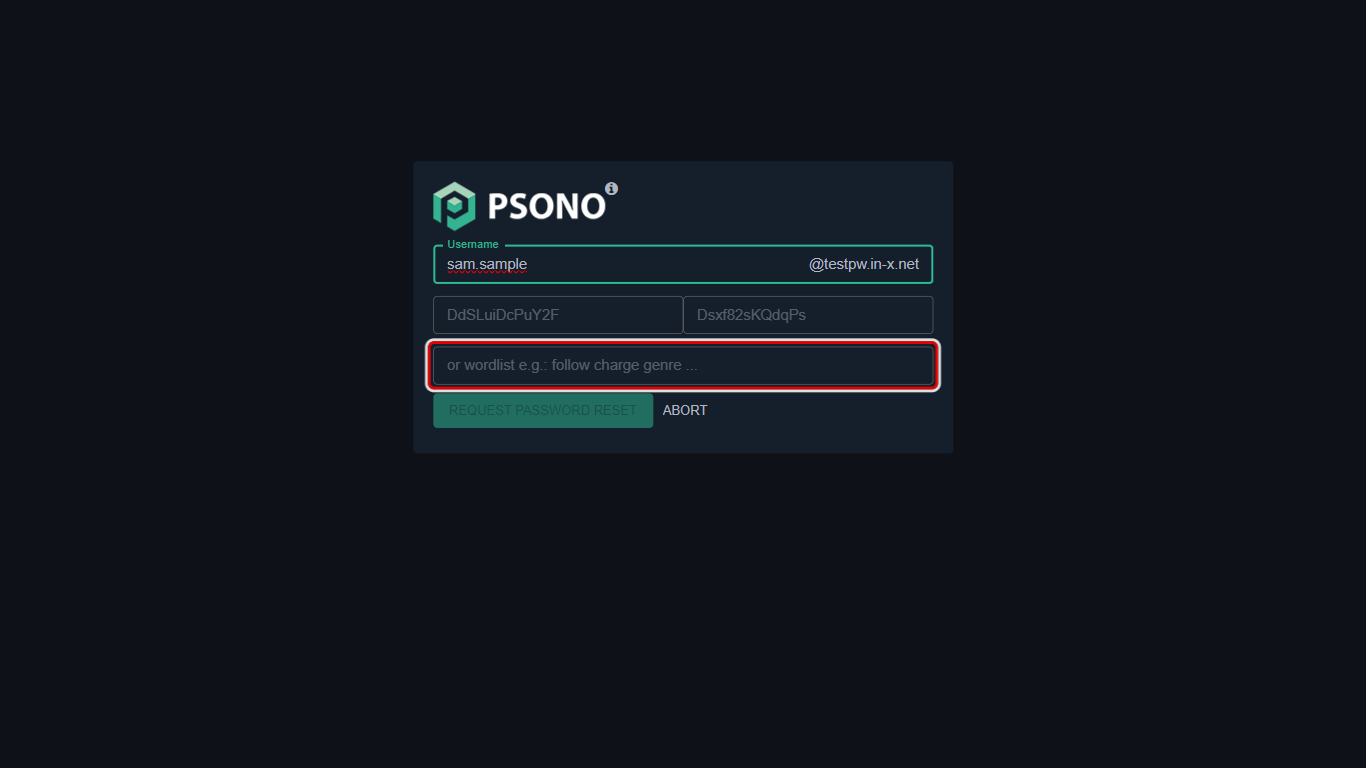
Or, instead of the code, type your word list in the box below, with a space between each word.
-
Click Request Password Reset. The button only turns on once you've typed your username and code.
-
Type a new password in New Password and again in New Password (repeat), then click Set new password.
-
Sign in with your new password, then make a new recovery code straight away. The old one has been used.
Emergency codes: access for someone you trust
An emergency code lets a person you trust, such as a manager or family member, get into your Psono account if something happens to you. There's a built-in delay: after they use the code, they must wait for the lead time you chose before they get in. Psono lets you know when a code is used, so if it's being misused you can delete the code before the wait is over (see See or remove emergency codes).
Make an emergency code
-
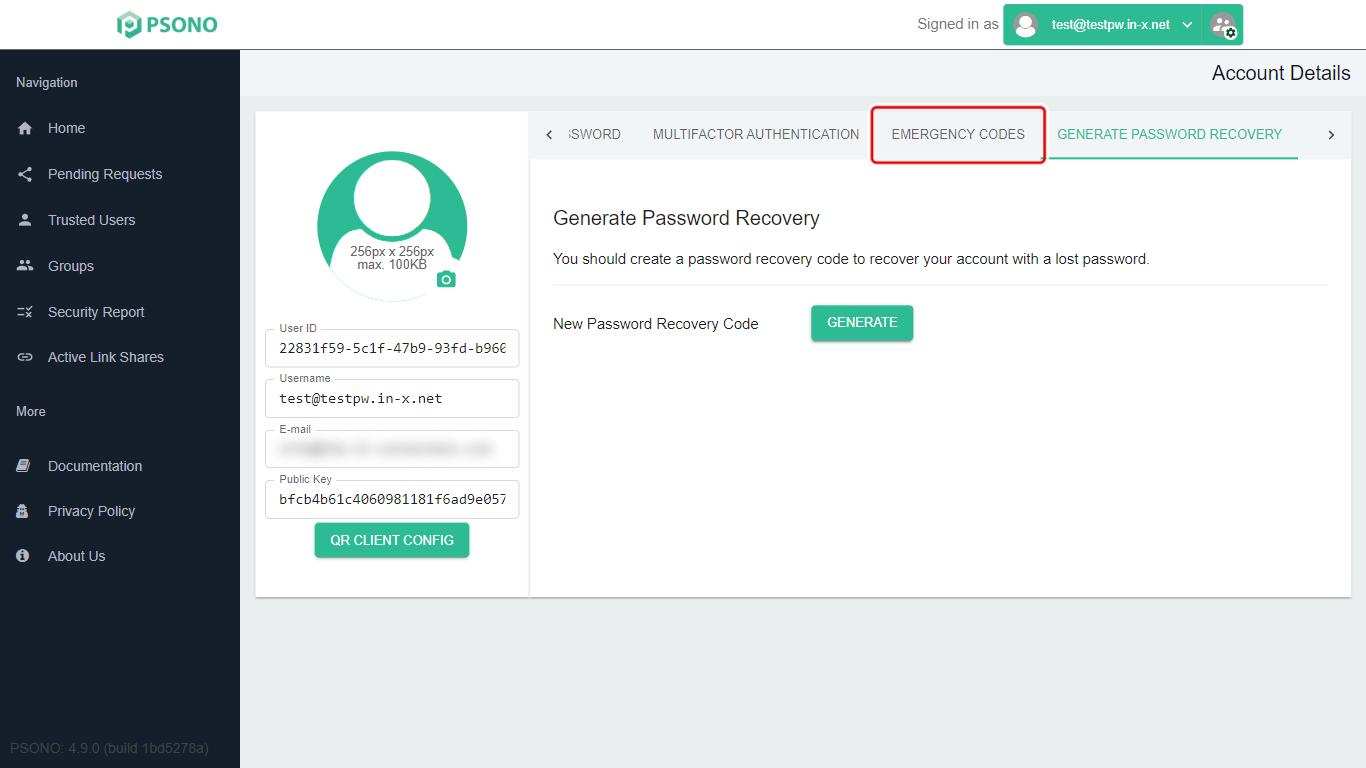
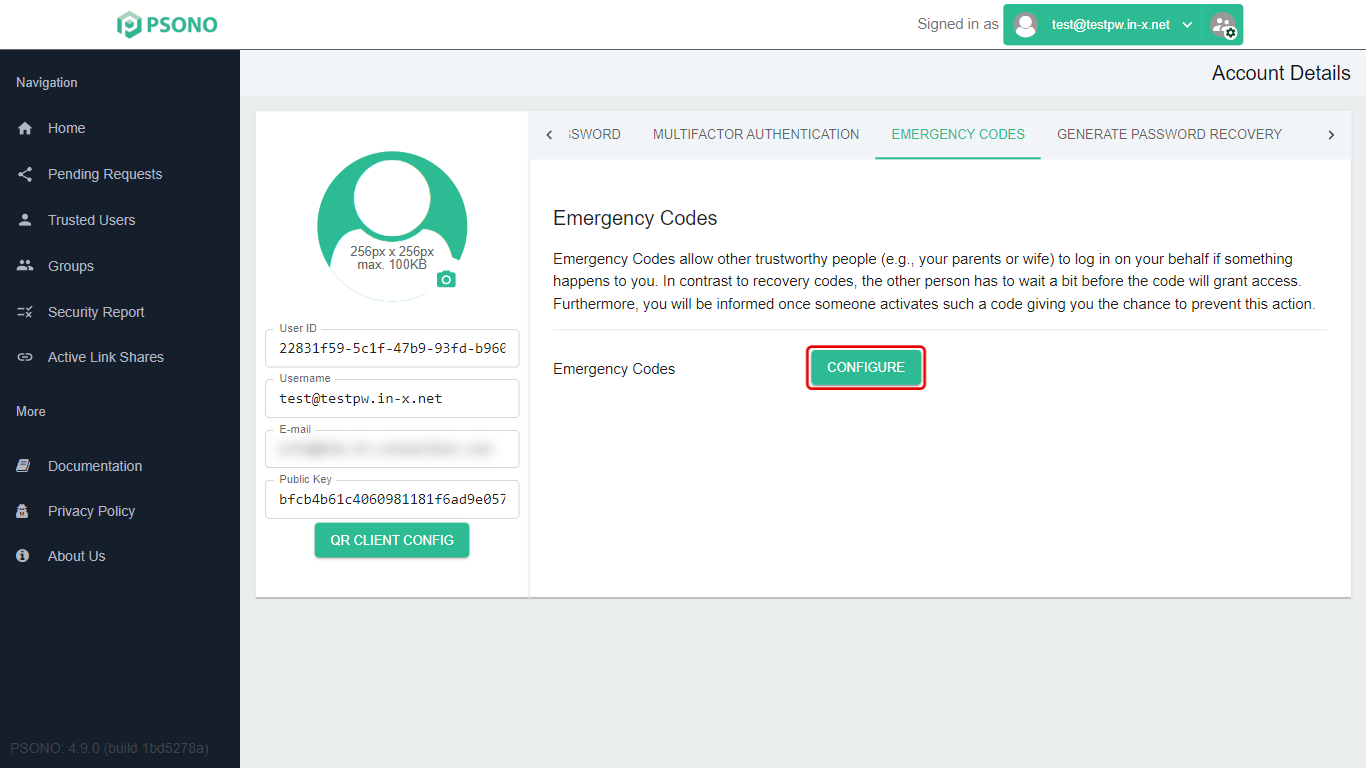
Go to Account (see above) and click the Emergency Codes tab. You may need to click the › arrow at the end of the tabs to see it.
-
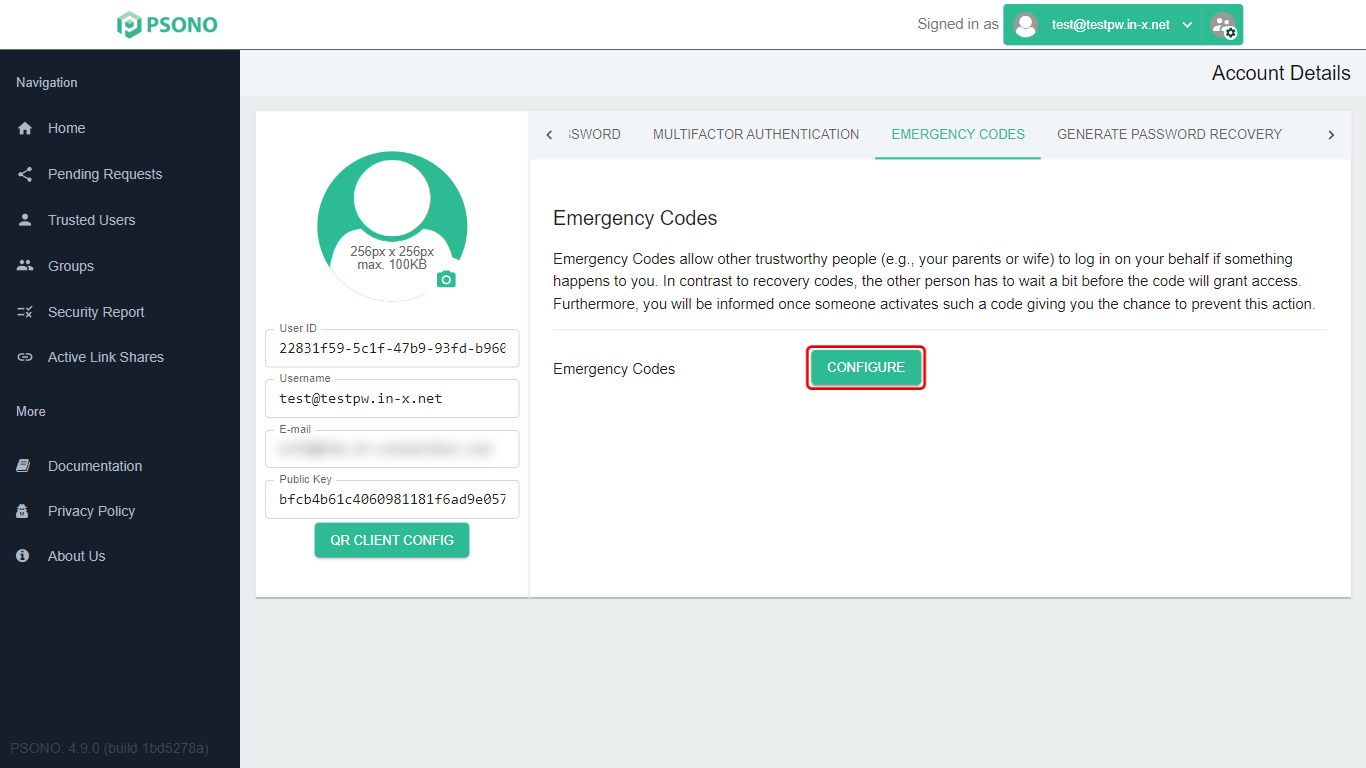
Click Configure.
-
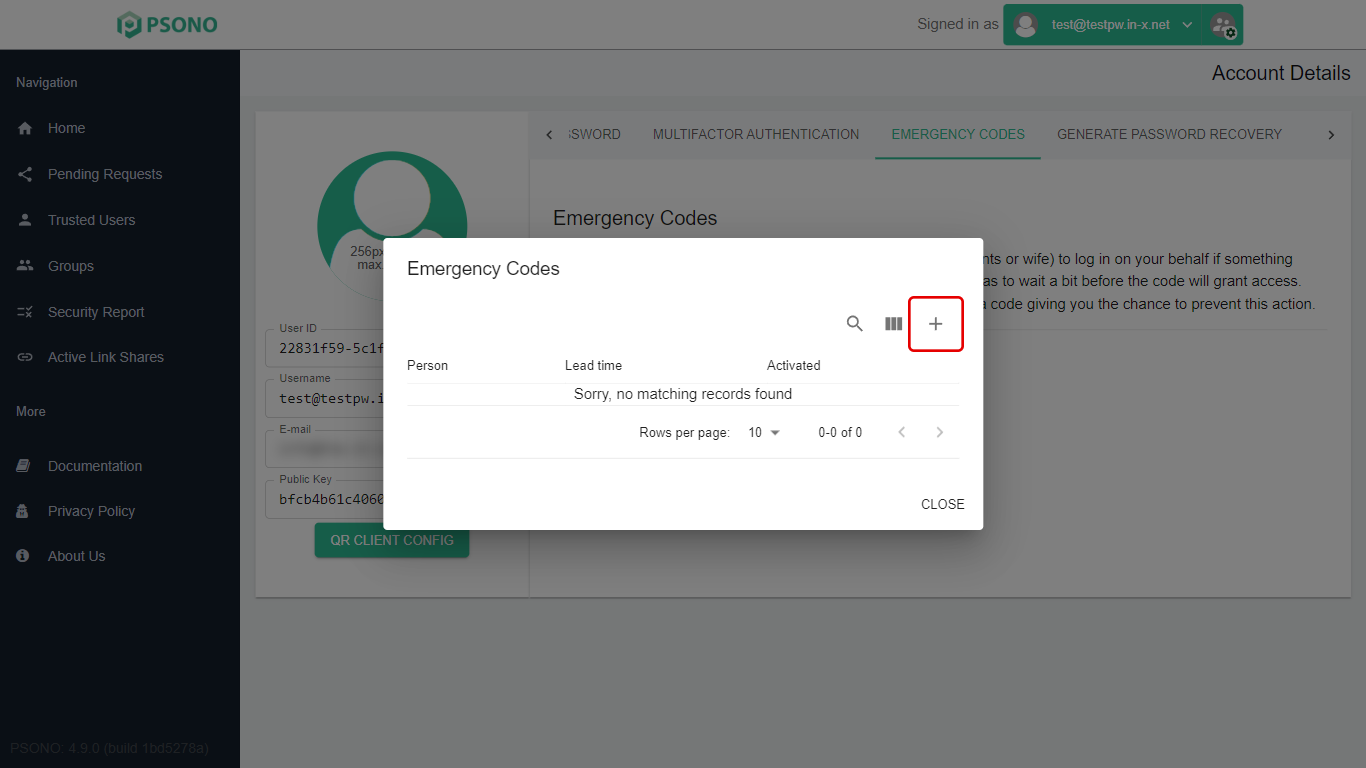
Click the + button.
-
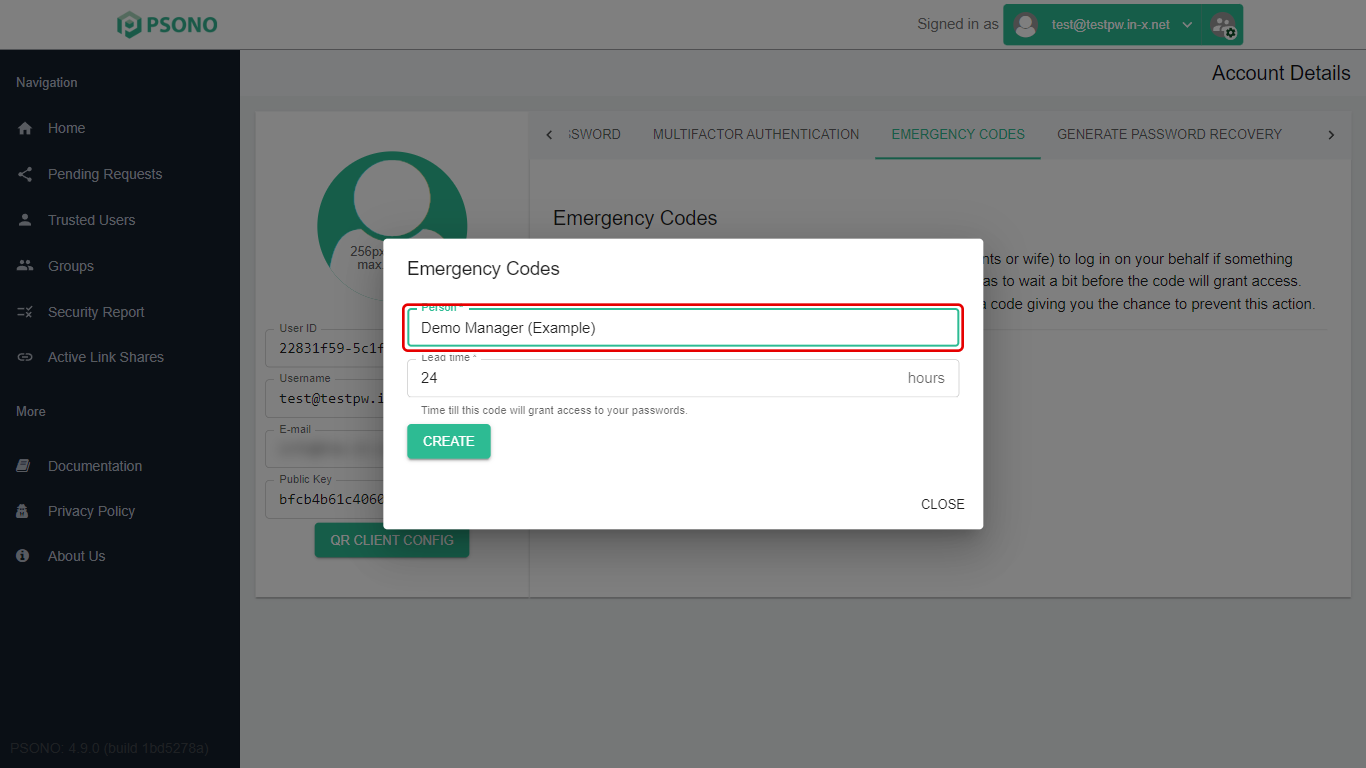
In Person, type who the code is for.
-
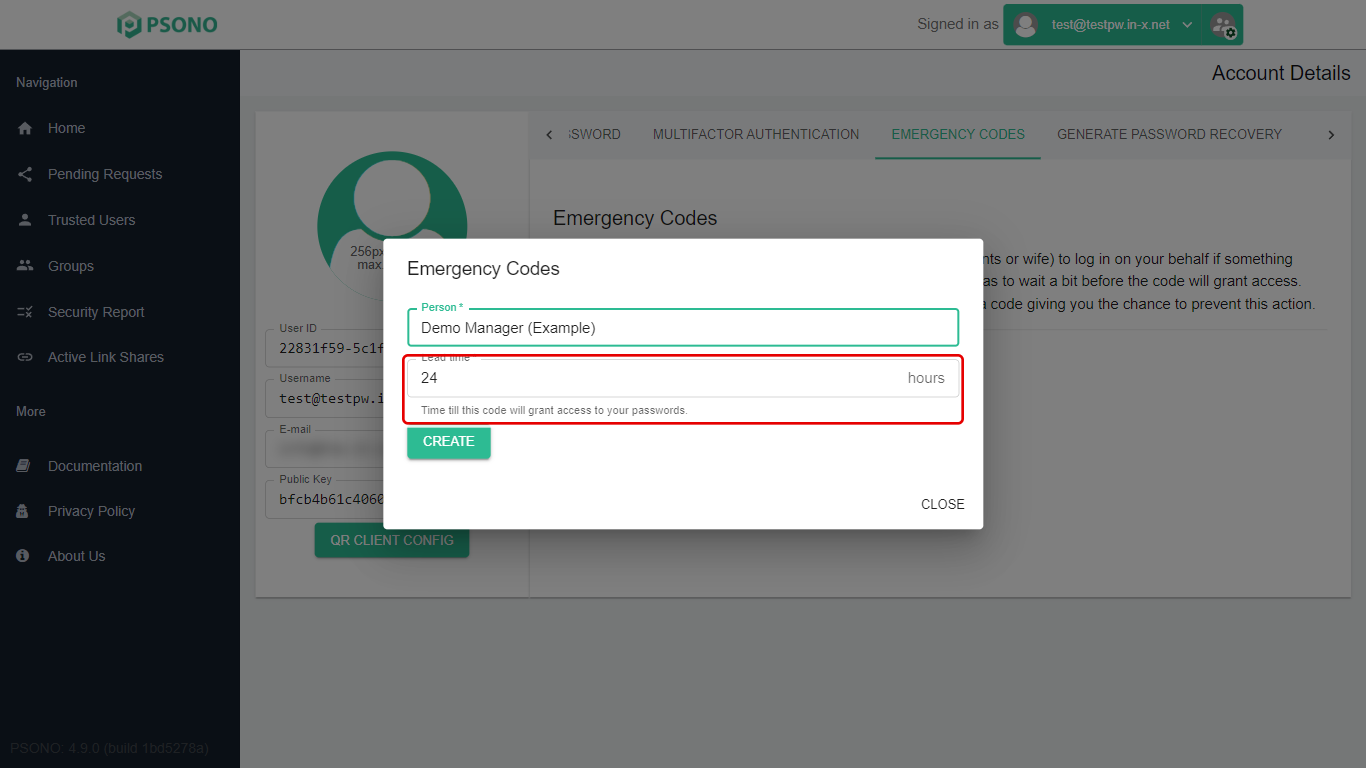
Lead time is how many hours they must wait after using the code. It starts at 24. A longer wait gives you more time to block it if needed.
-
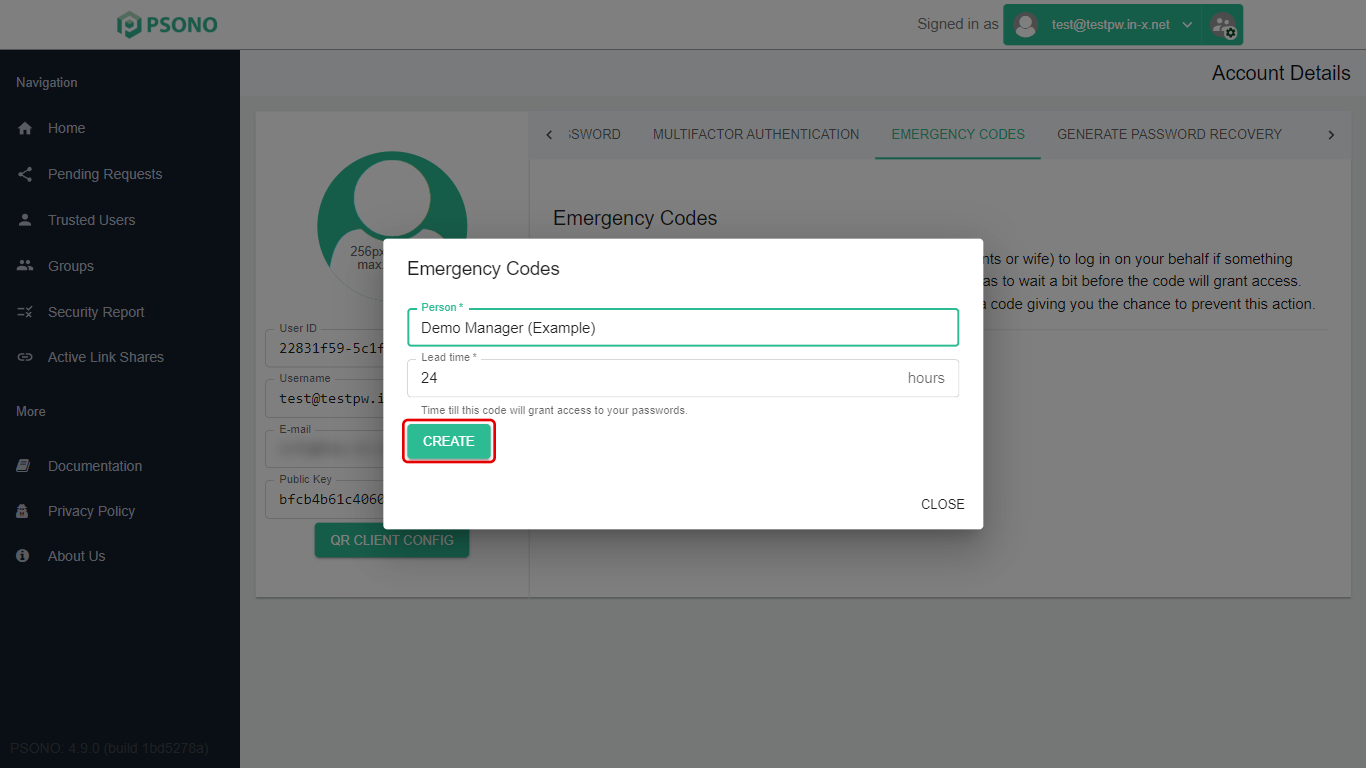
Click Create.
-
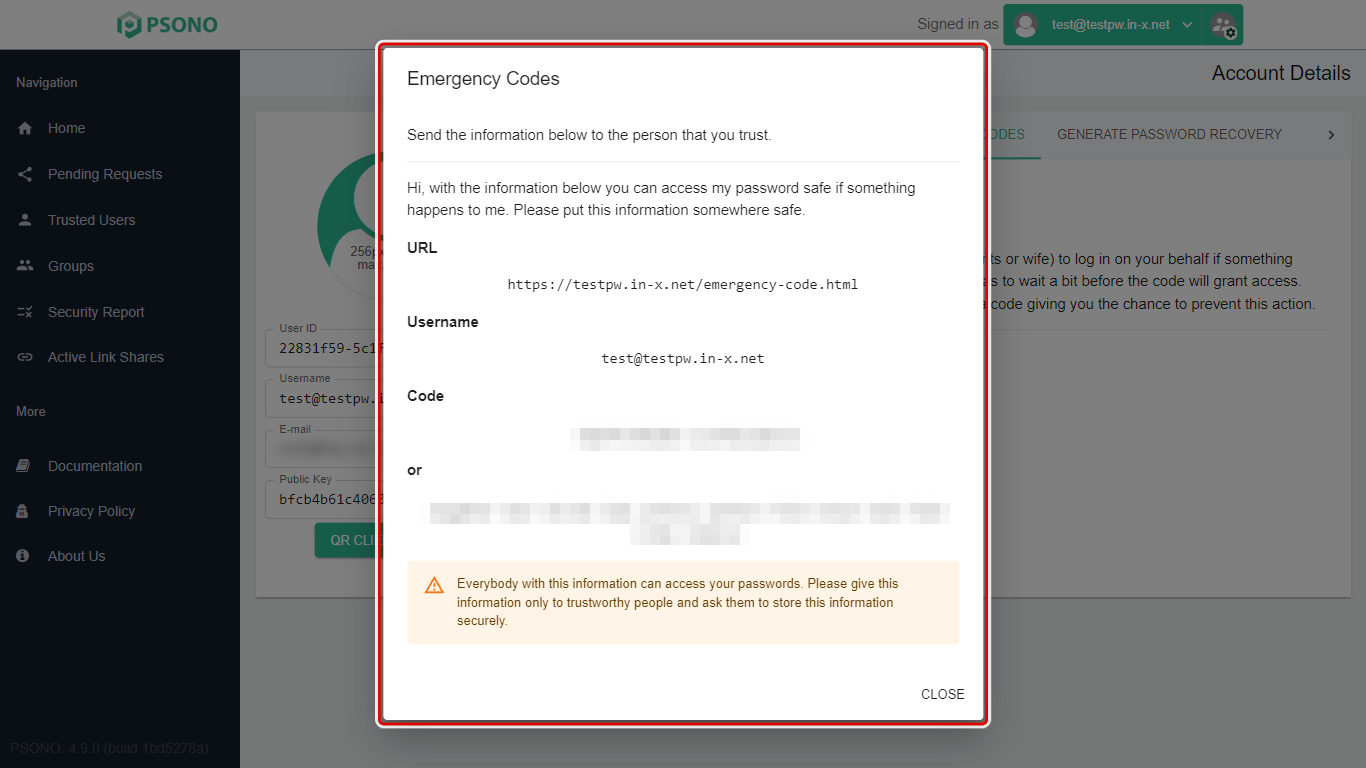
Psono shows what to give the person: the web address, your username, and the code (or word list). Copy it into a letter or a sealed envelope, or another safe place they can get to. This is the only time the code is shown. (It's blurred in our picture on purpose.)
-
Click Close.
See or remove emergency codes
-
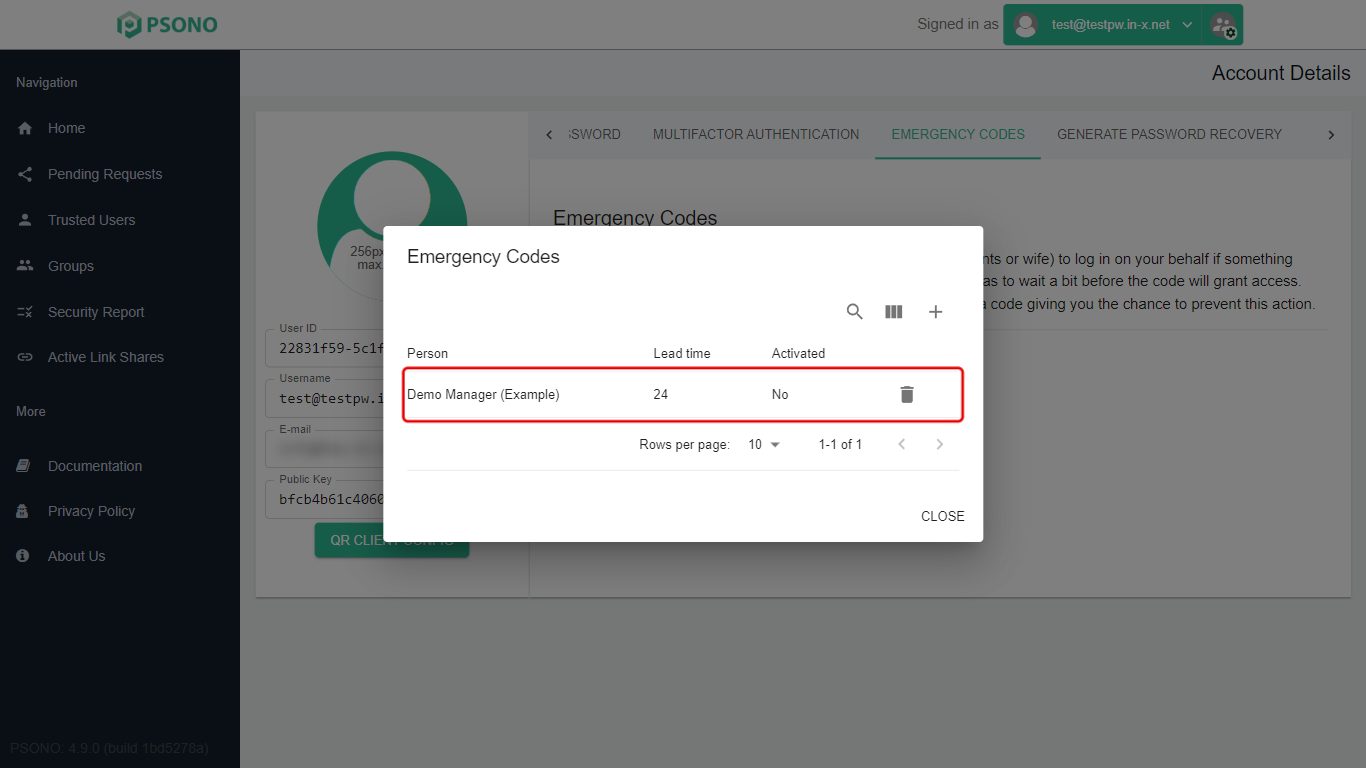
Click Configure again to see who you've given a code to, the lead time, and whether it has been Activated (used). The code itself isn't shown again.
-
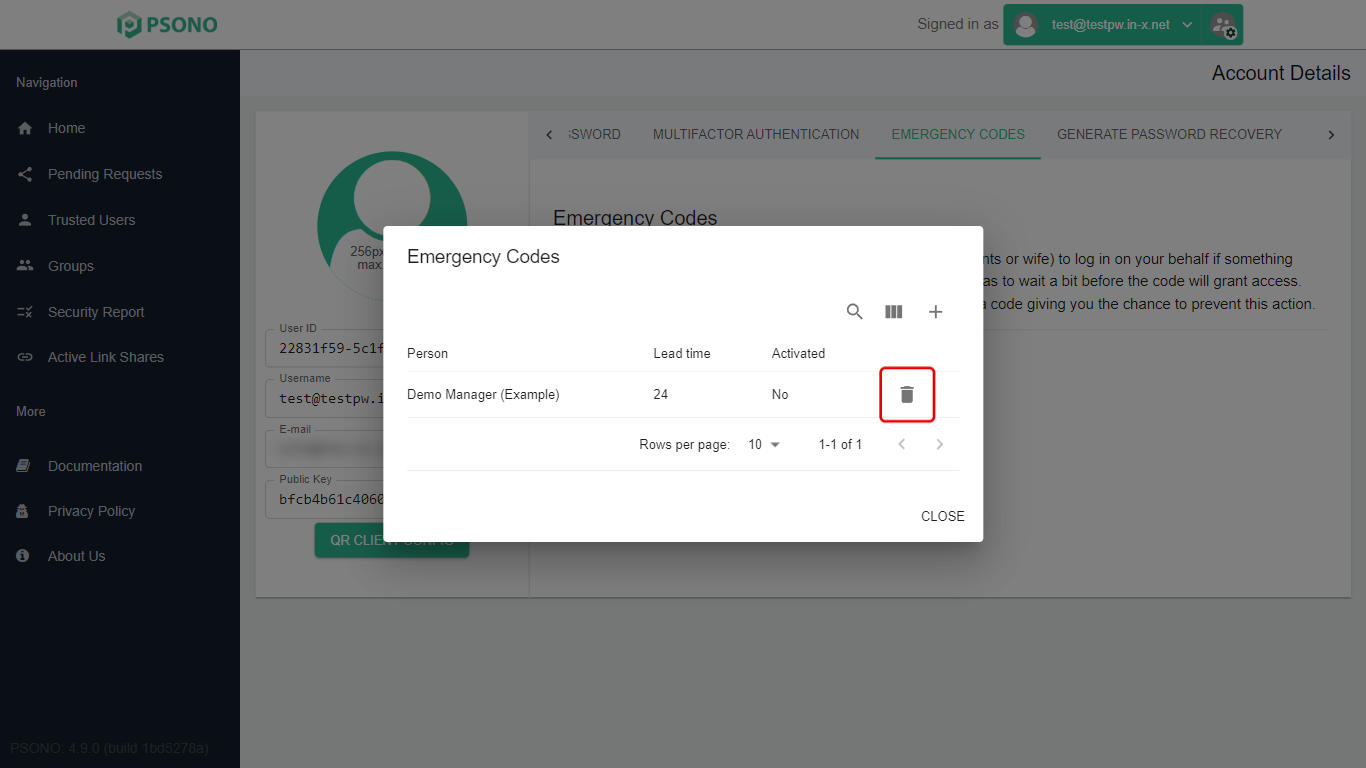
To cancel a code, click the bin icon on its row. Psono deletes it at once without asking.
Stuck on a step? Email support@the-it-connection.com or call 815-526-3600 and we’ll walk you through it.