
Click any picture to see it full size.
In this guide, the red box in each picture shows what to click.
Both are on the Other page:
-
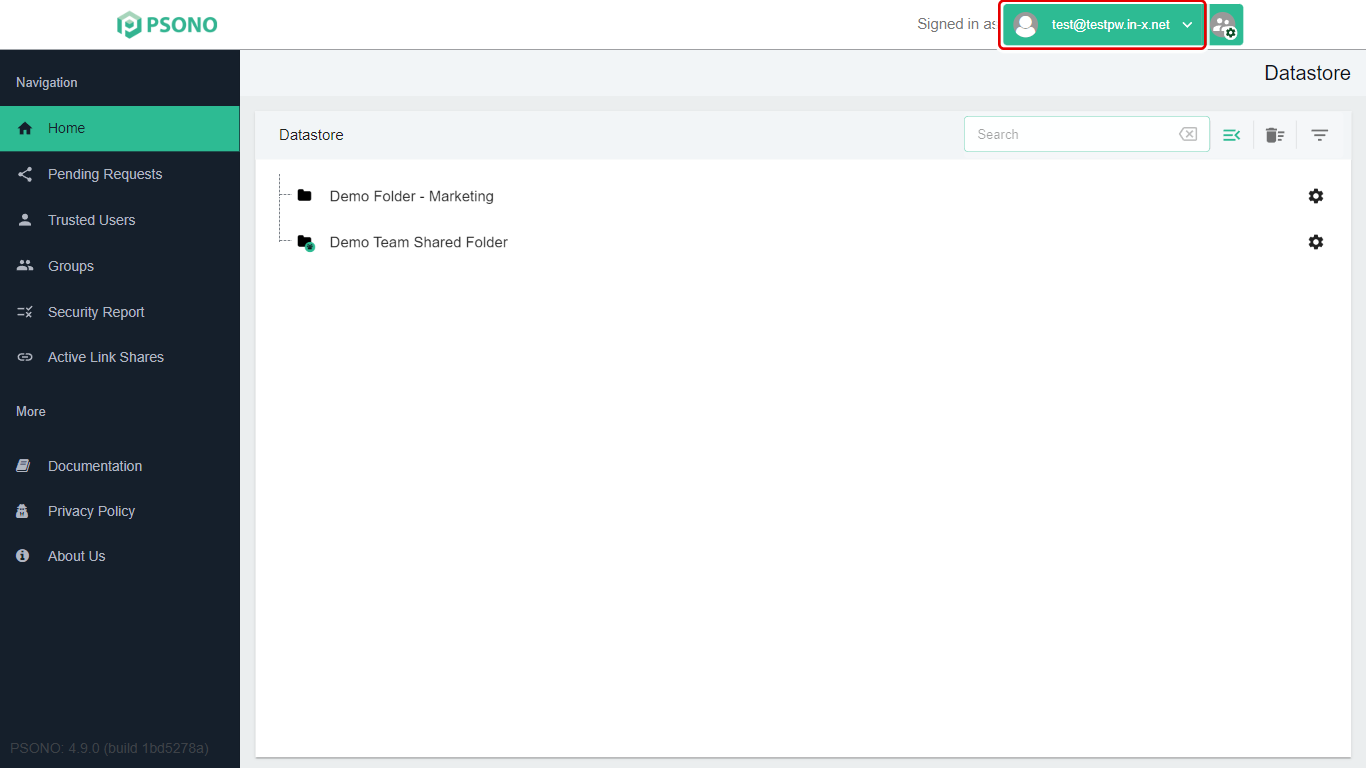
Click your name at the top right (Signed in as …).
-
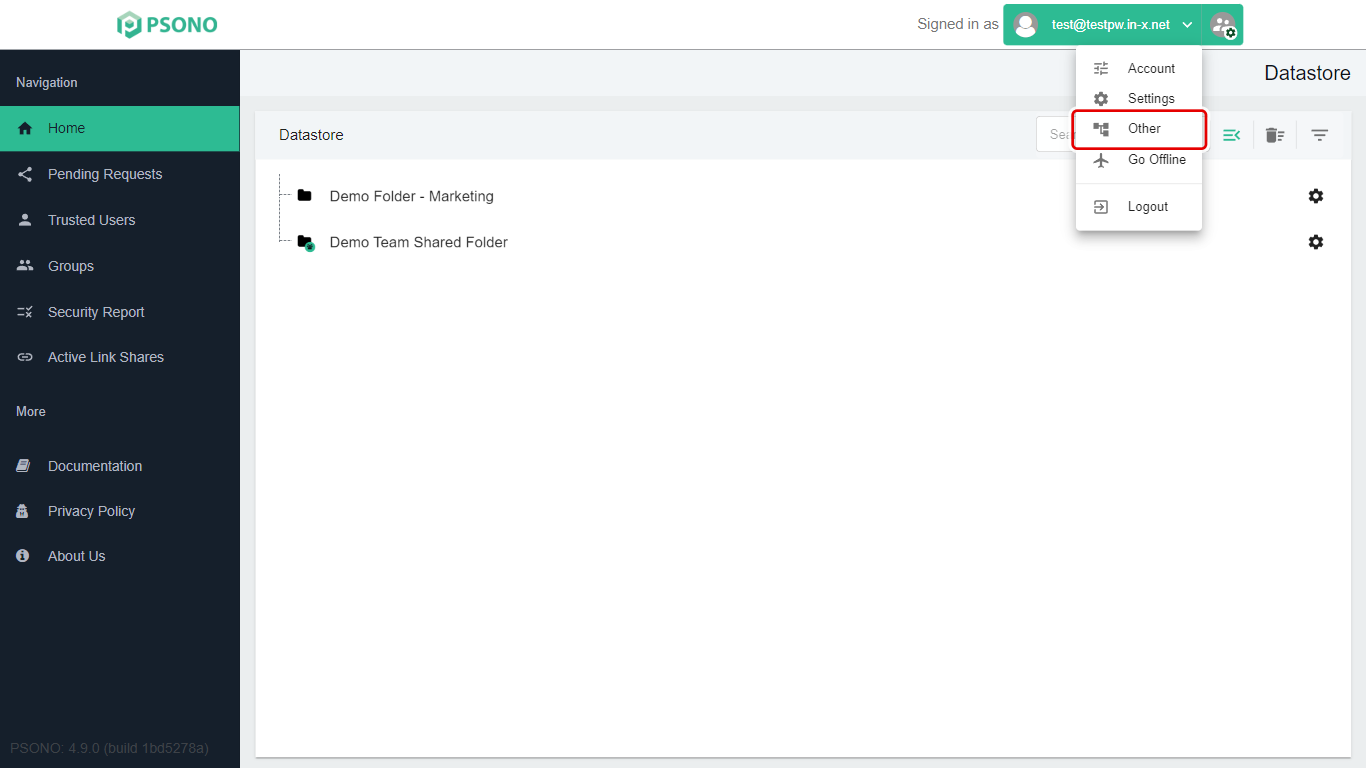
Click Other.
Importing from another password manager
If you used another password manager, or saved passwords in your web browser, you can bring them into Psono.
-
First, export your passwords from the other program. Each program does this differently; look for "Export" in its settings. Save the file somewhere you can find it, such as your Desktop.
-
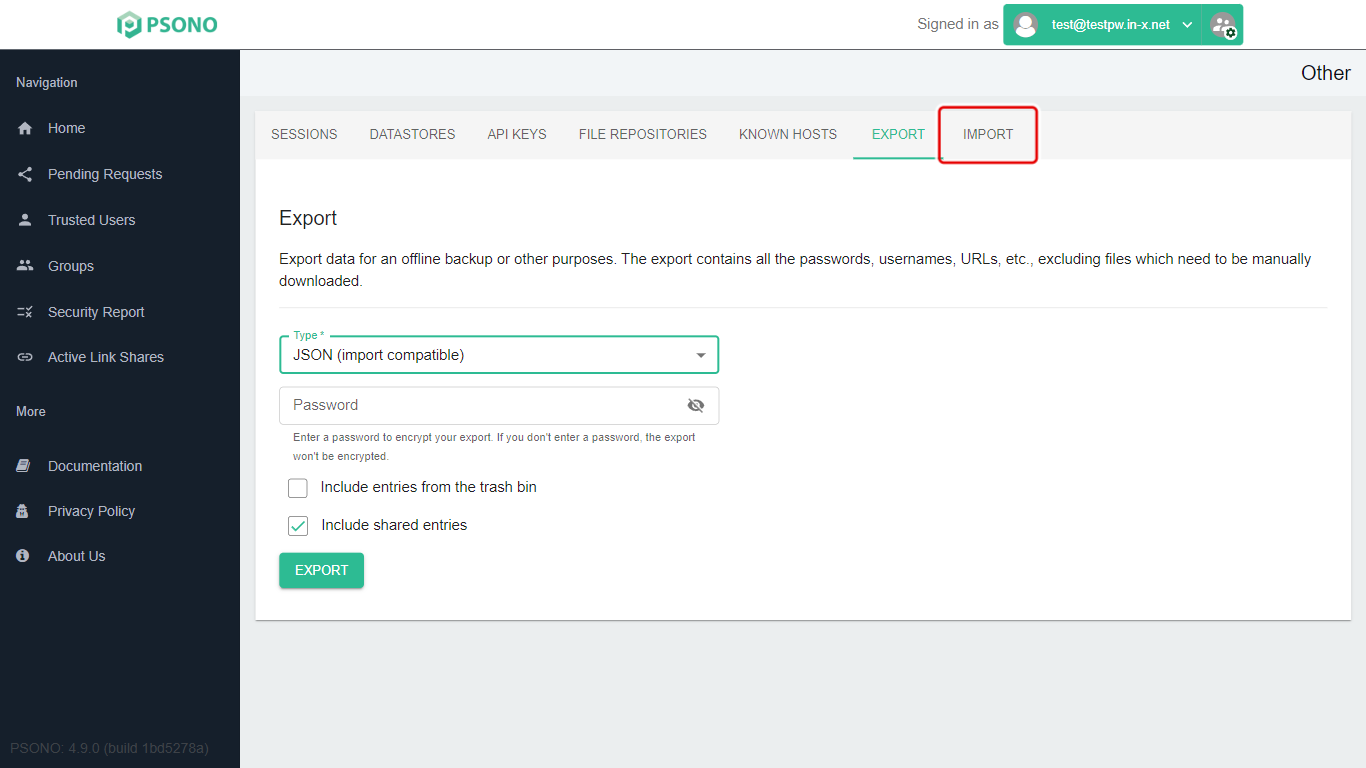
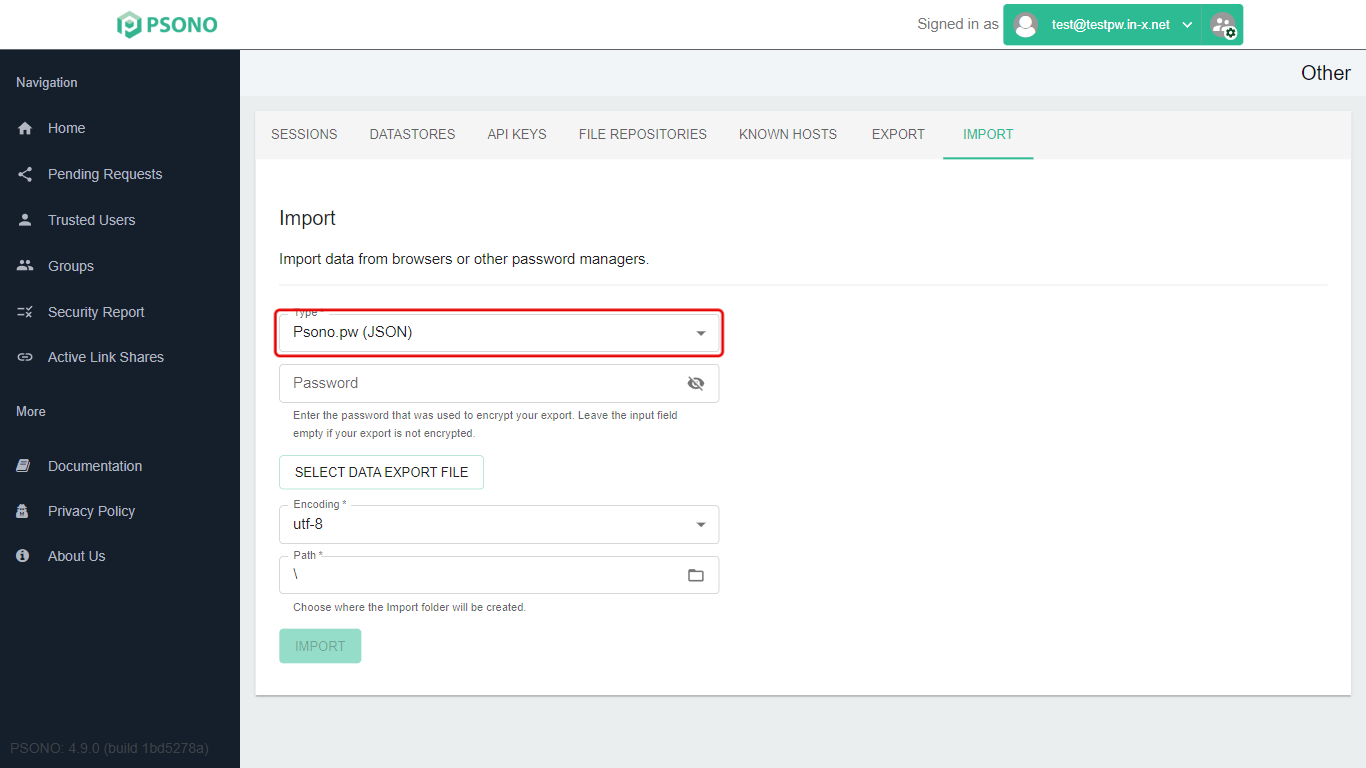
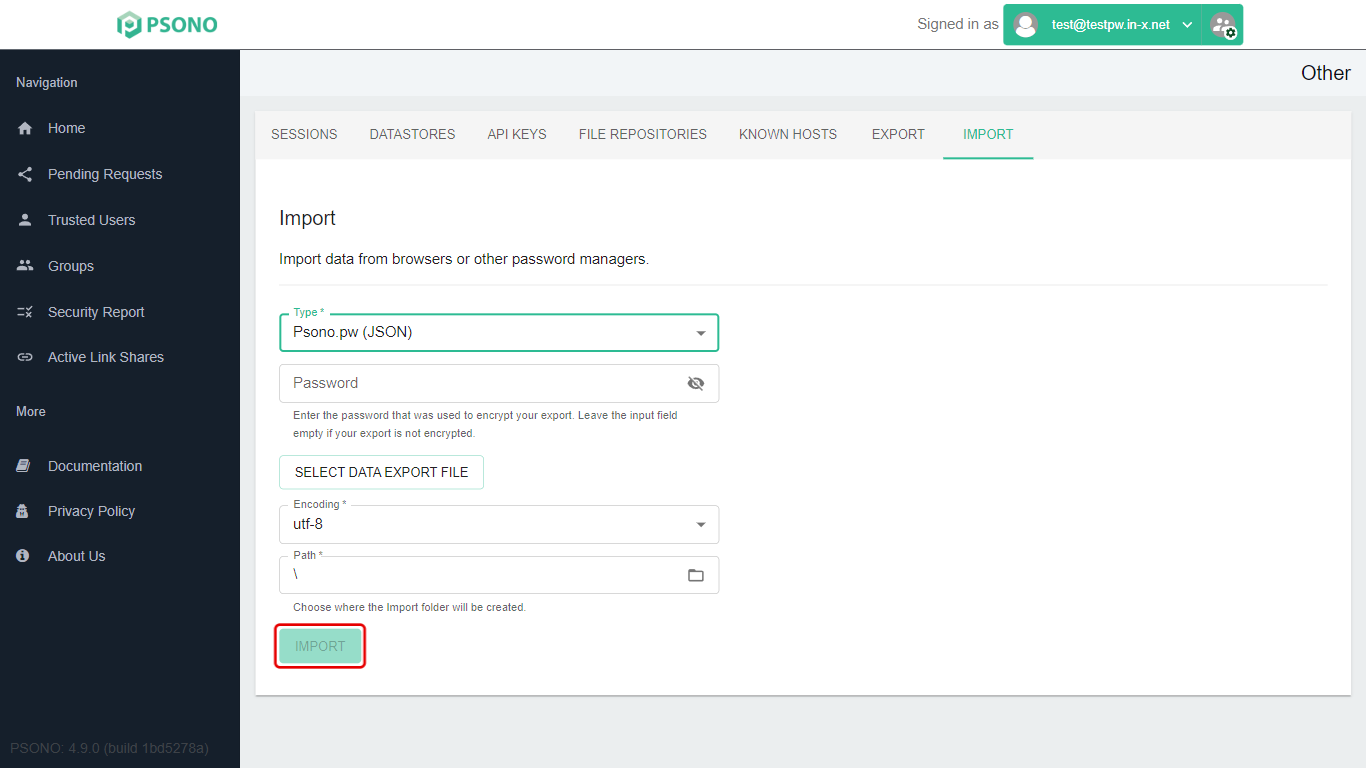
In Psono, on the Other page, click the Import tab.
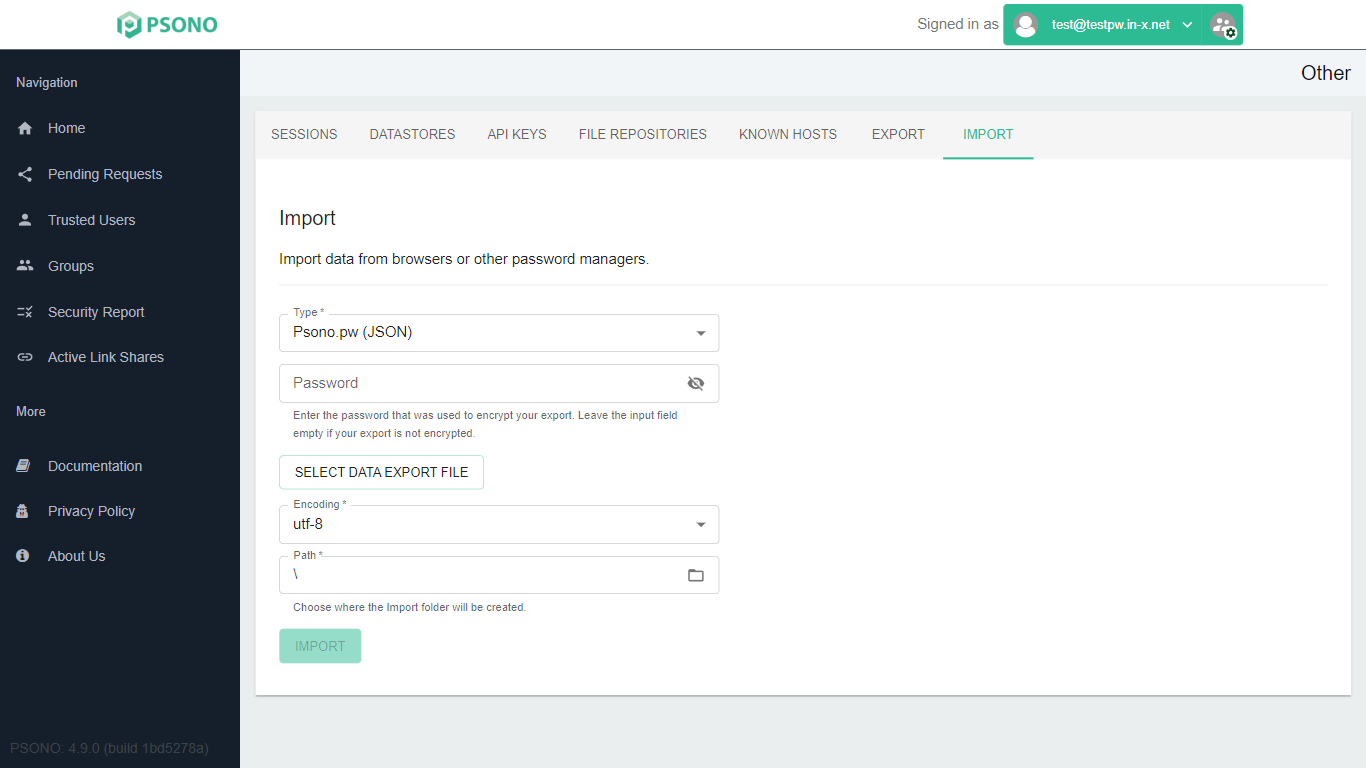
Leave Password empty and Encoding as
utf-8unless we've told you otherwise. -
Click the Type list and choose the program your file came from.
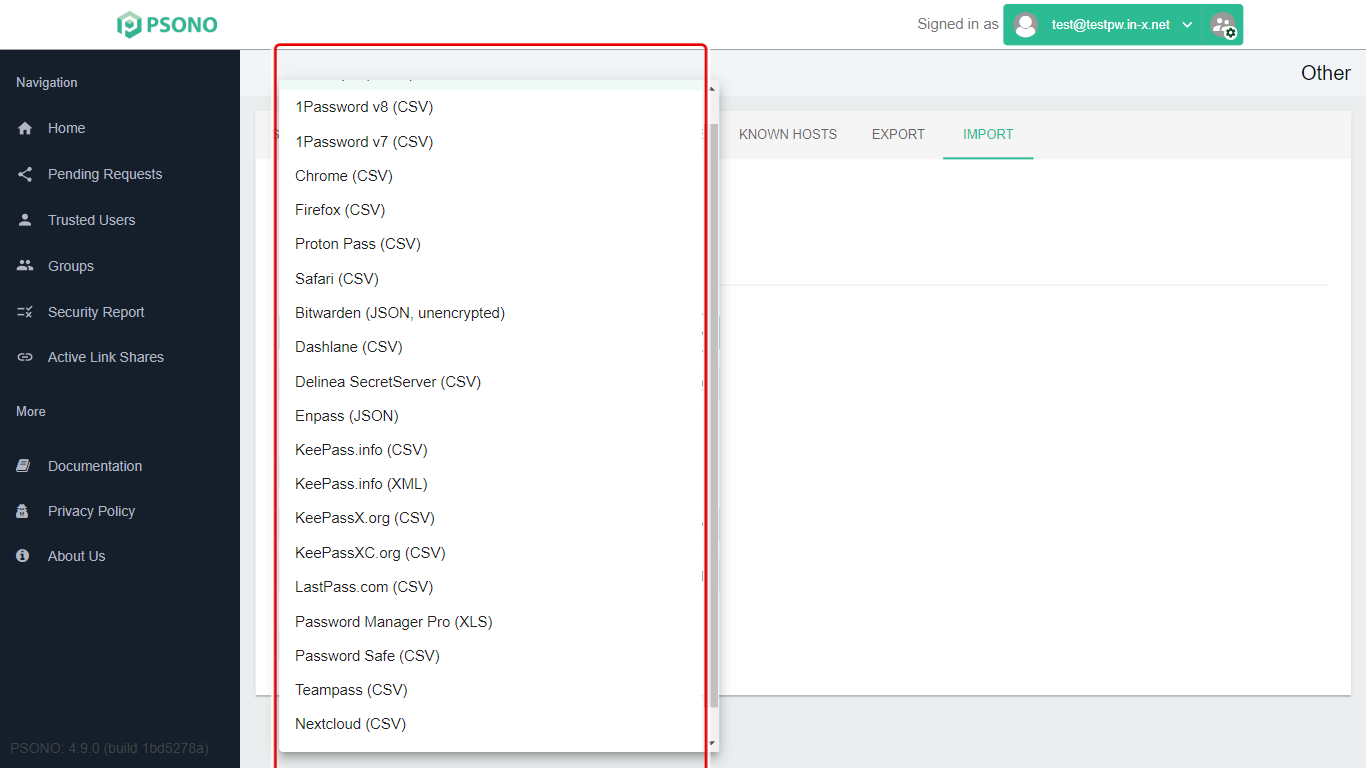
Supported programs include Chrome, Firefox, Safari, Bitwarden, 1Password, LastPass, KeePass, Dashlane, Proton Pass and others. For passwords saved in Microsoft Edge, export them from Edge as a CSV file and choose Chrome (CSV). For Bitwarden, the export must be the unencrypted JSON kind.
-
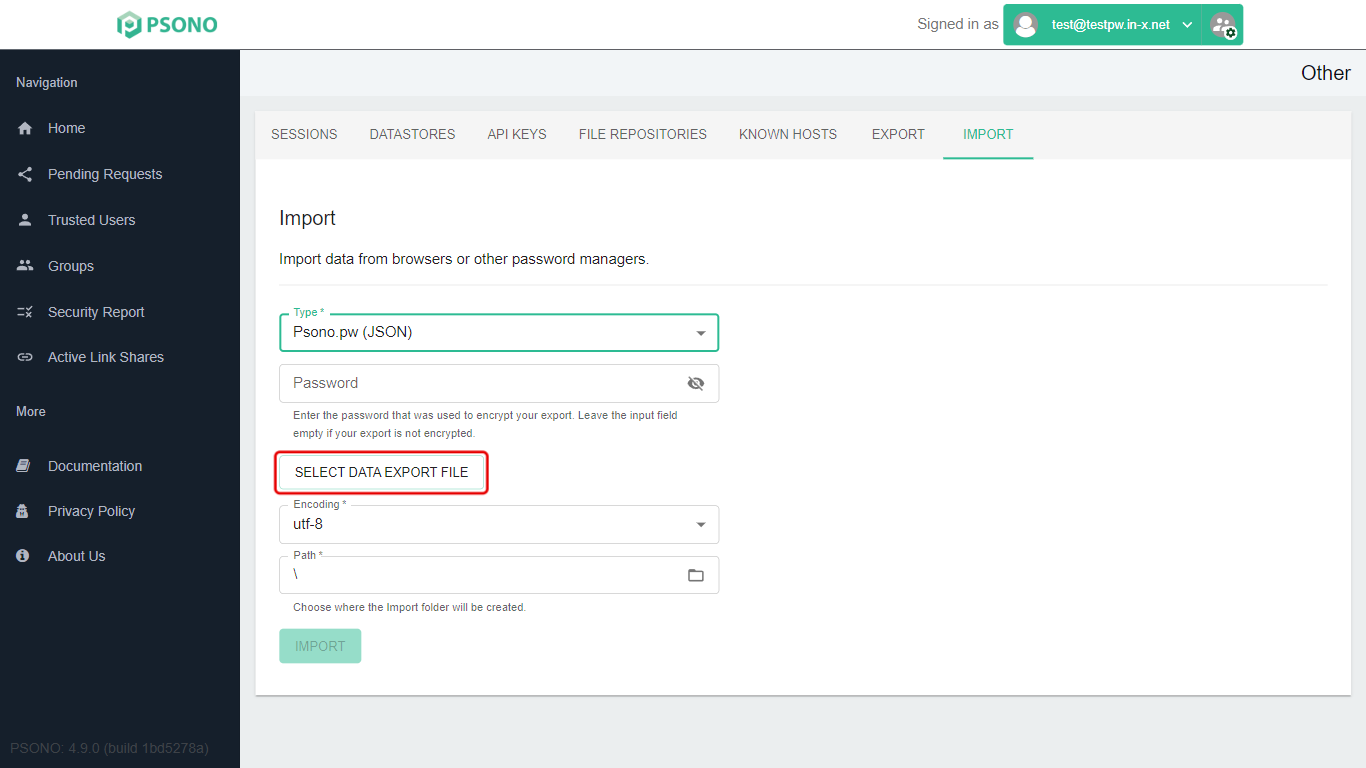
Click Select data export file and choose the file you exported.
-
Path is where Psono creates a new folder for the imported passwords. Leave it as
\(the top of your list) unless you want it inside one of your folders.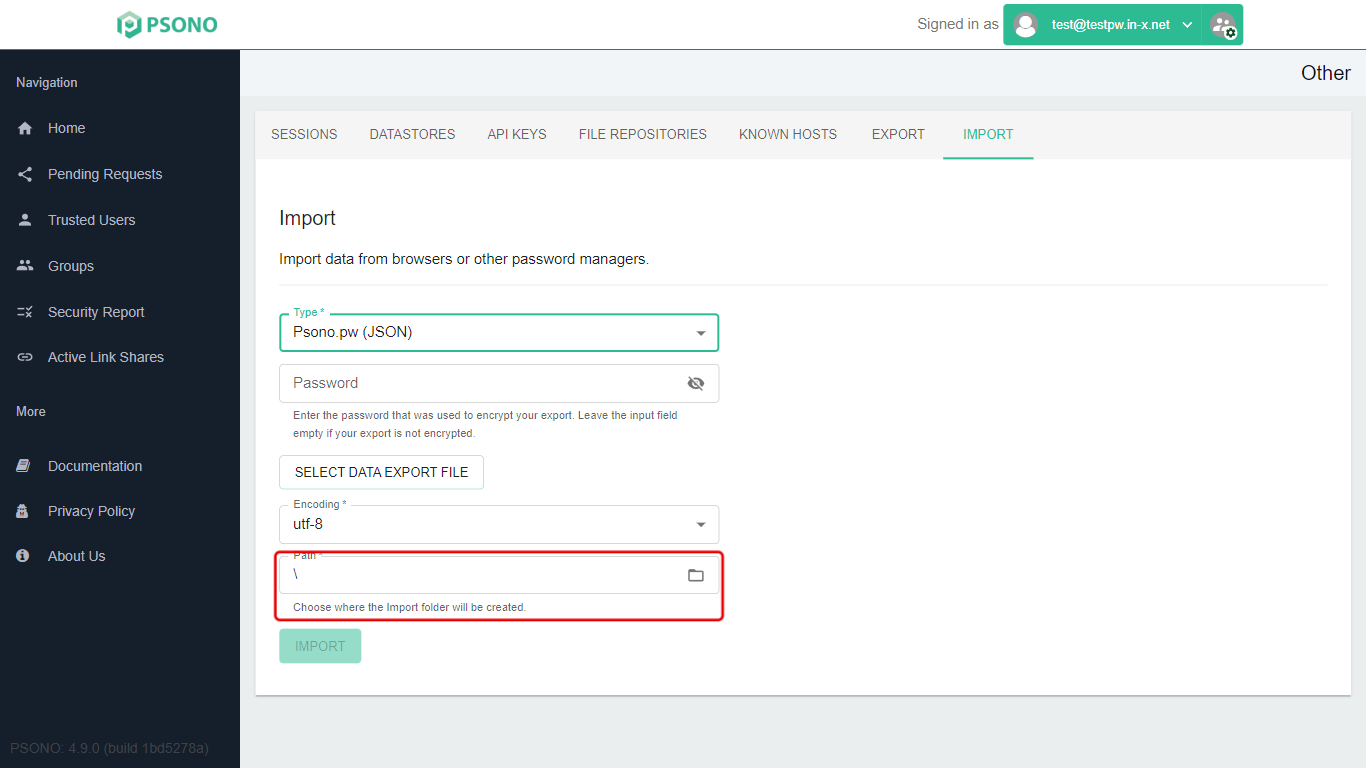
-
Click Import.
Delete the exported file afterwards. It contains all your passwords in plain text. Delete it, then empty your Recycle Bin.
Exporting your passwords
Exporting saves a copy of all your passwords to a file. Only do this if we've asked you to, or you need a backup.
-
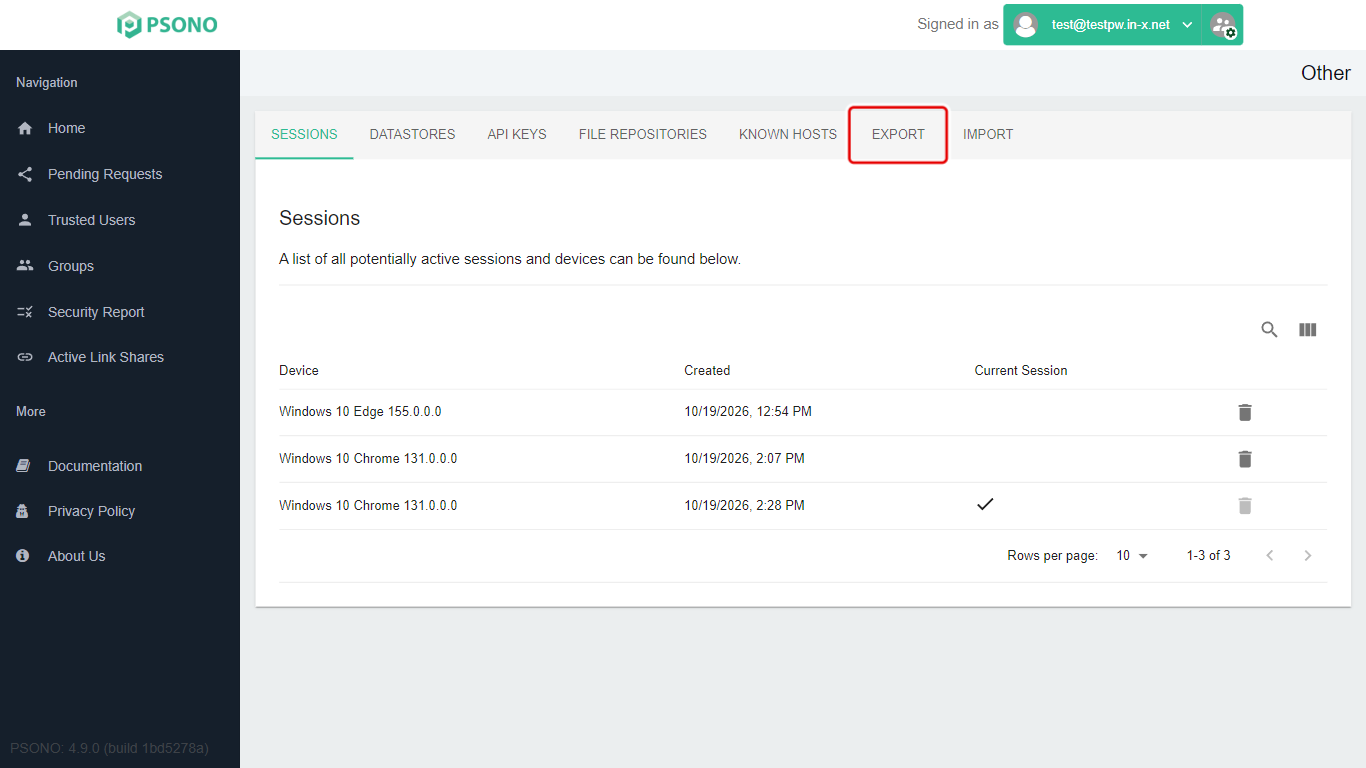
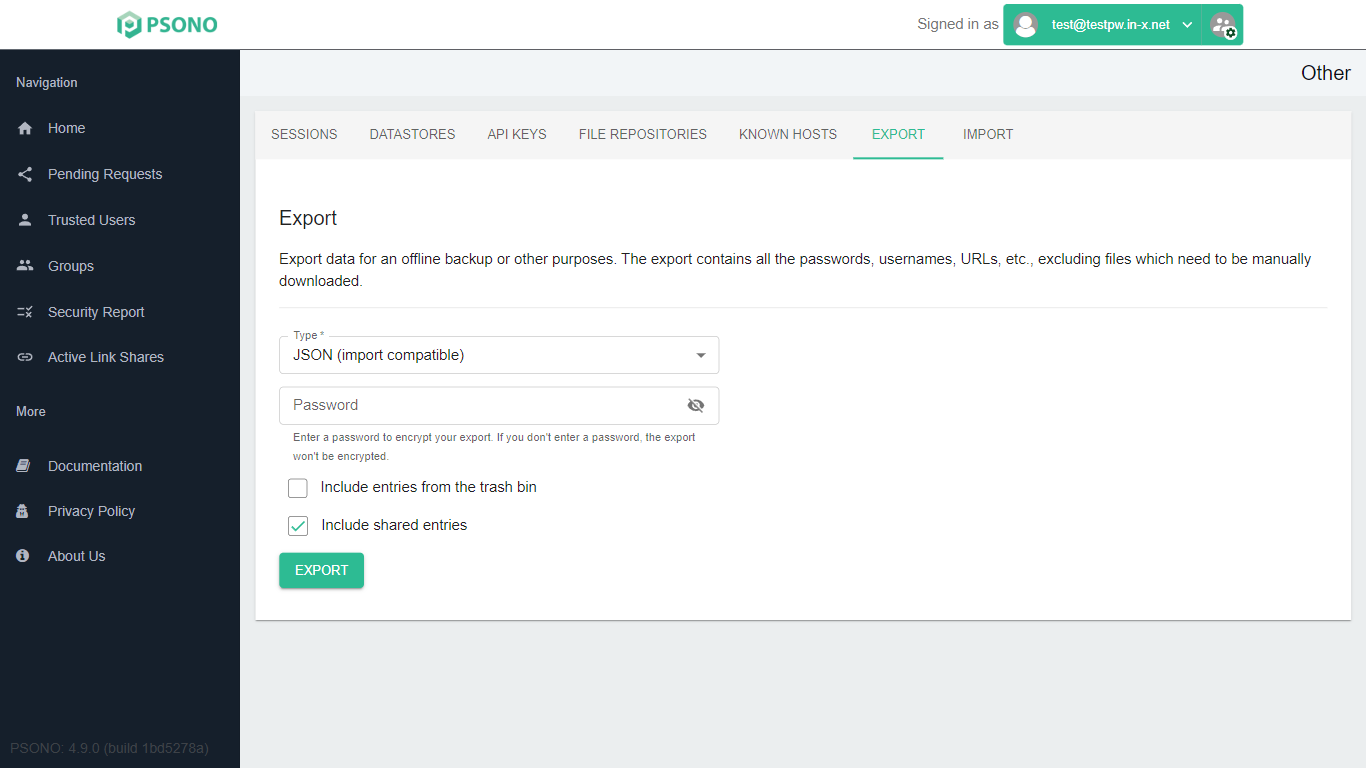
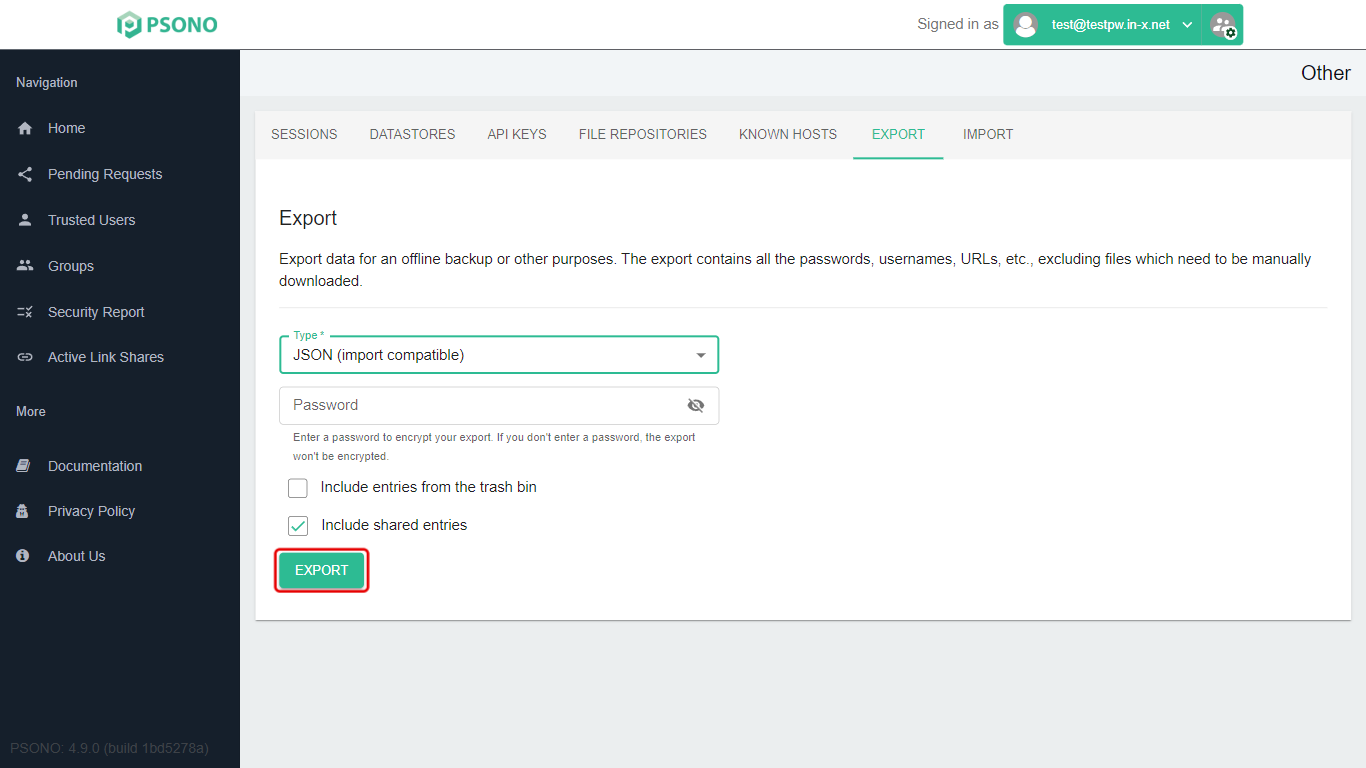
On the Other page, click the Export tab.
-
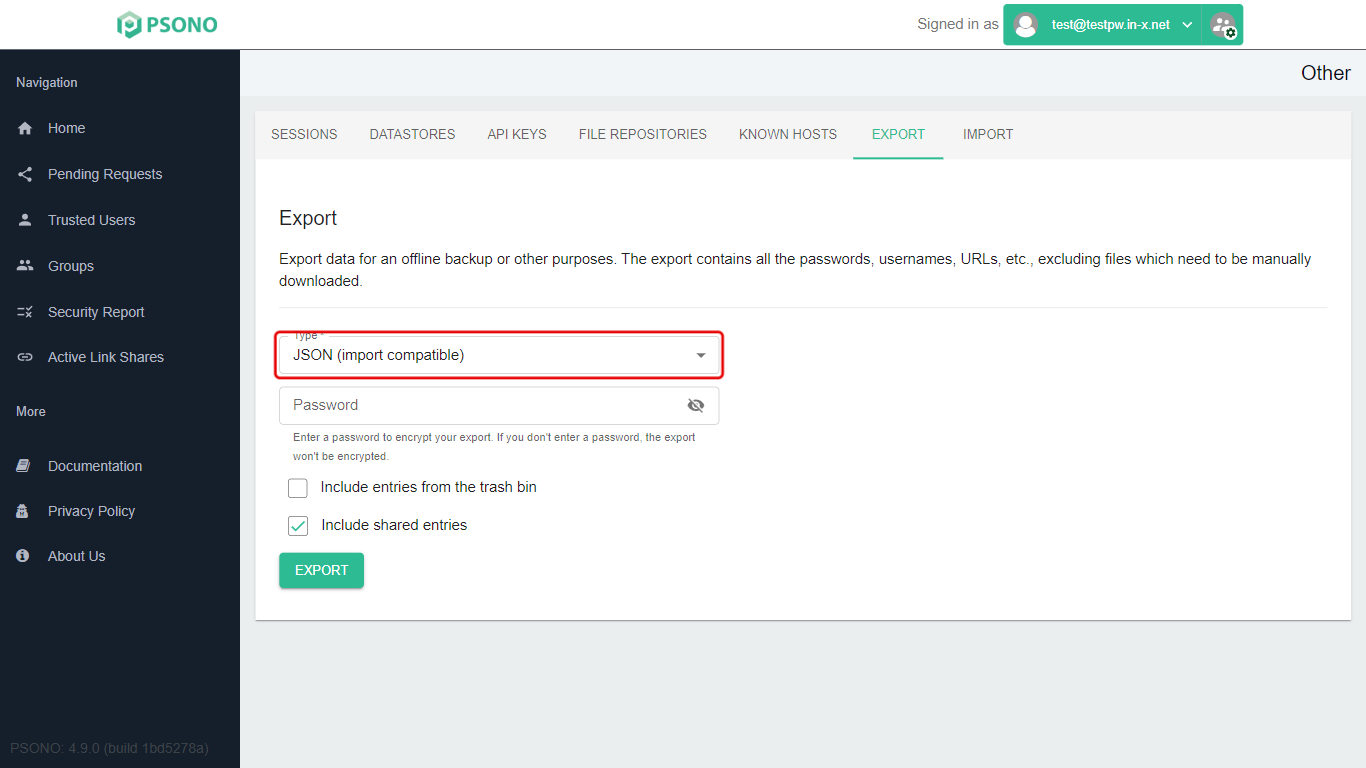
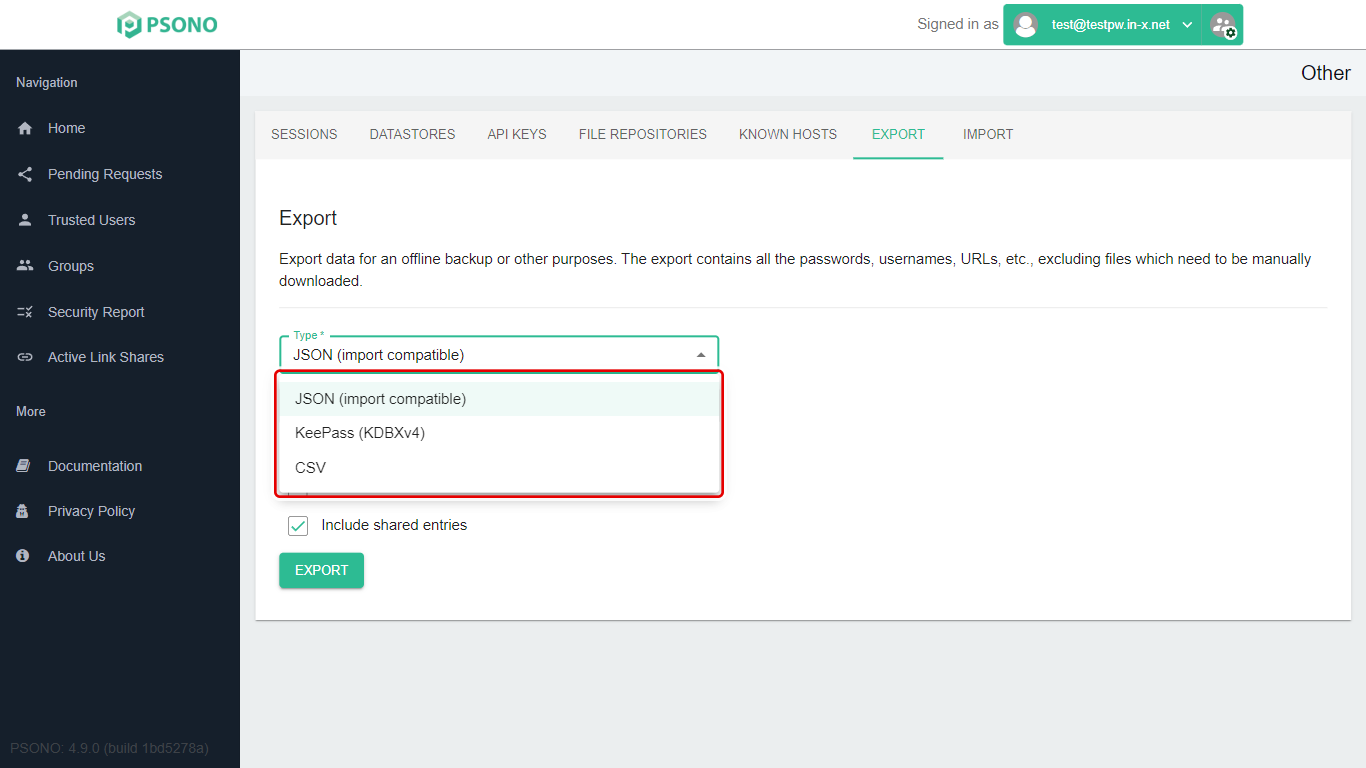
Click Type and choose the format. JSON (import compatible) can be imported back into Psono later. CSV opens in Excel. KeePass (KDBXv4) is only for moving to KeePass.
-
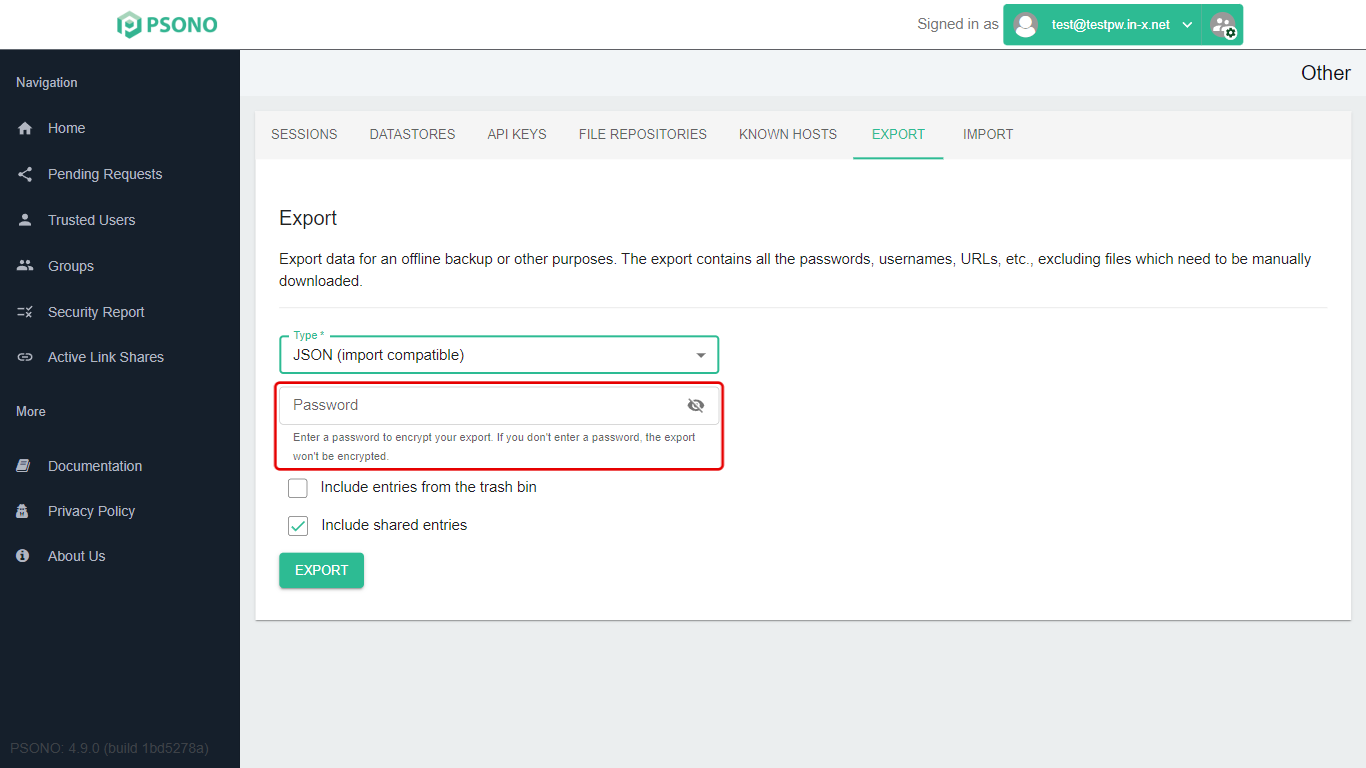
Password (strongly recommended): type a password to lock the export file. Without one, anyone who gets the file can read all your passwords. Keep this password safe; you'll need it to import the file again. (CSV files can't be locked.)
-
Choose what to include:
-
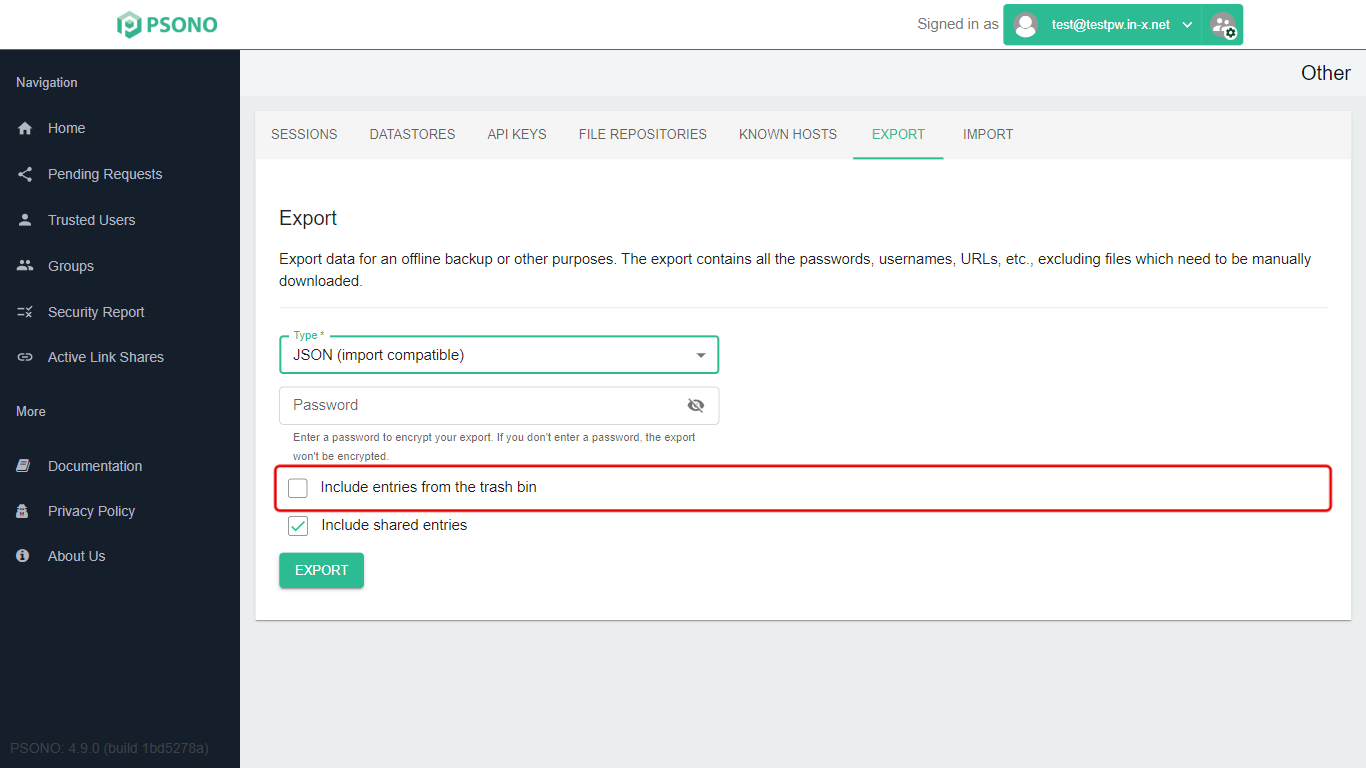
Include entries from the trash bin: usually leave this off.
-
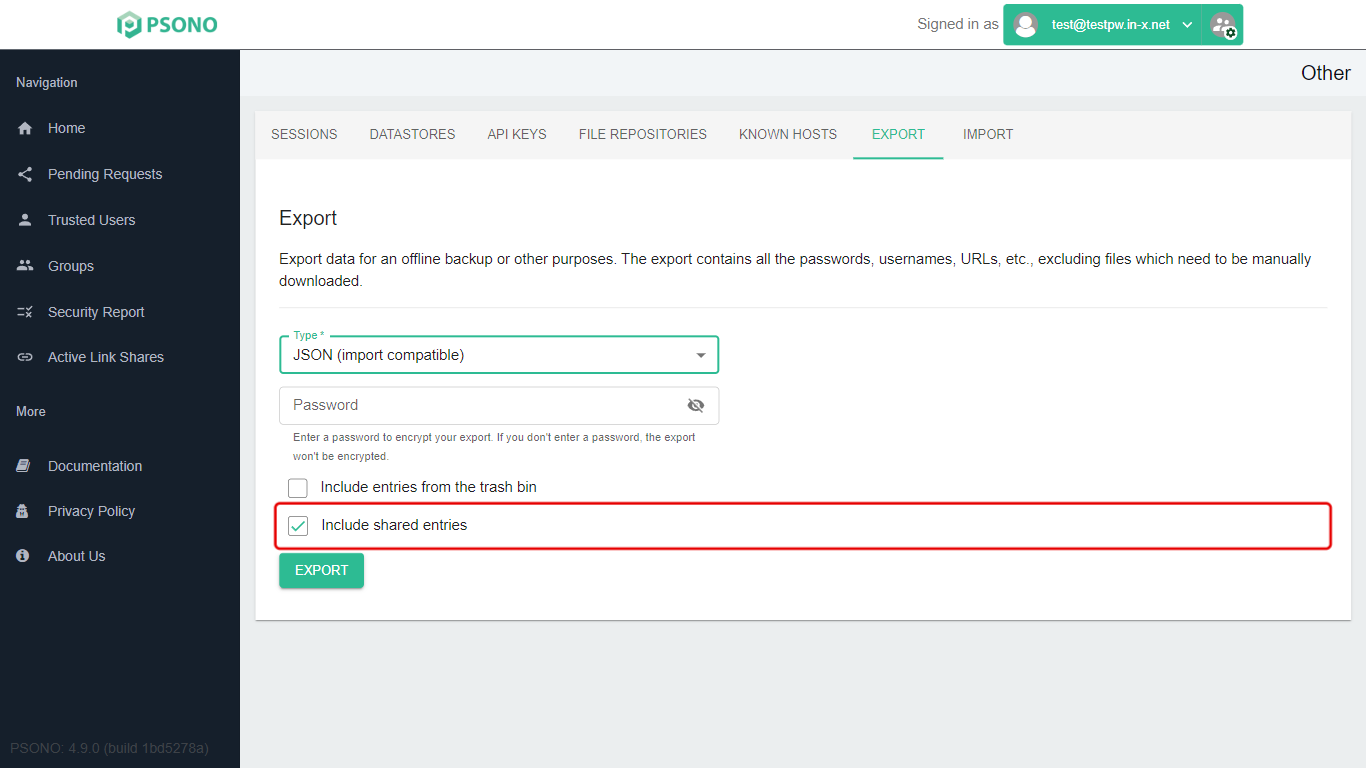
Include shared entries: on by default. Turn it off to export only your own passwords.
-
-
Click Export. Your browser downloads the file.
Keep exported files somewhere safe, and delete them when you no longer need them.
Stuck on a step? Email support@the-it-connection.com or call 815-526-3600 and we’ll walk you through it.