
Infinite Expansion · Your Day
One screen, one email, everything that needs you today.
Dashboard, Daily Briefings and Note Boards.
Infinite Expansion already knows your tasks, meetings, deals, tickets, time and projects, because they all live in one system. Every morning it puts them together, has the AI pick what matters most, and delivers it to your dashboard and your inbox before your first coffee.
Written from every app at once, not one app's digest.
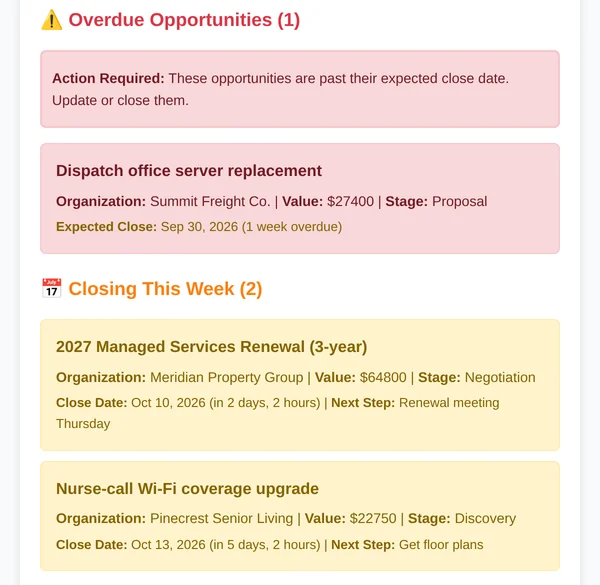
Most tools send a digest of their own data. This one is written from all of it at once, so it can tell you that an overdue task is putting a milestone at risk, or that a deal went quiet just before your call with that client.
Your Morning, Briefed
A note from a good assistant, in your inbox every morning.
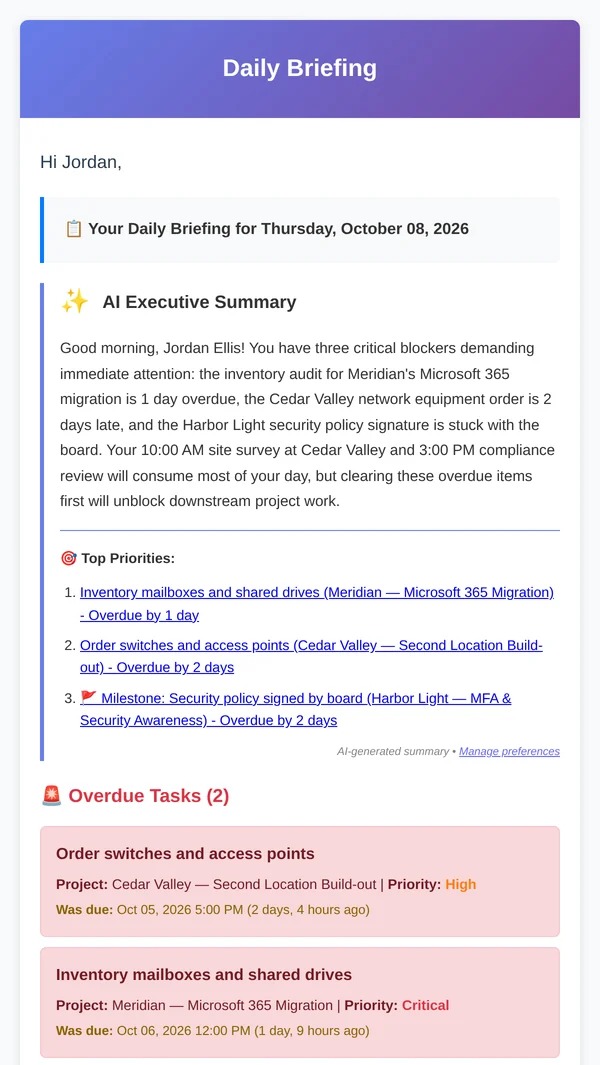
- Every morning, your Daily Briefing arrives by email. It opens with an AI Executive Summary: what's overdue, what's blocking what, and what to tackle first. Then the top three priorities, linked.
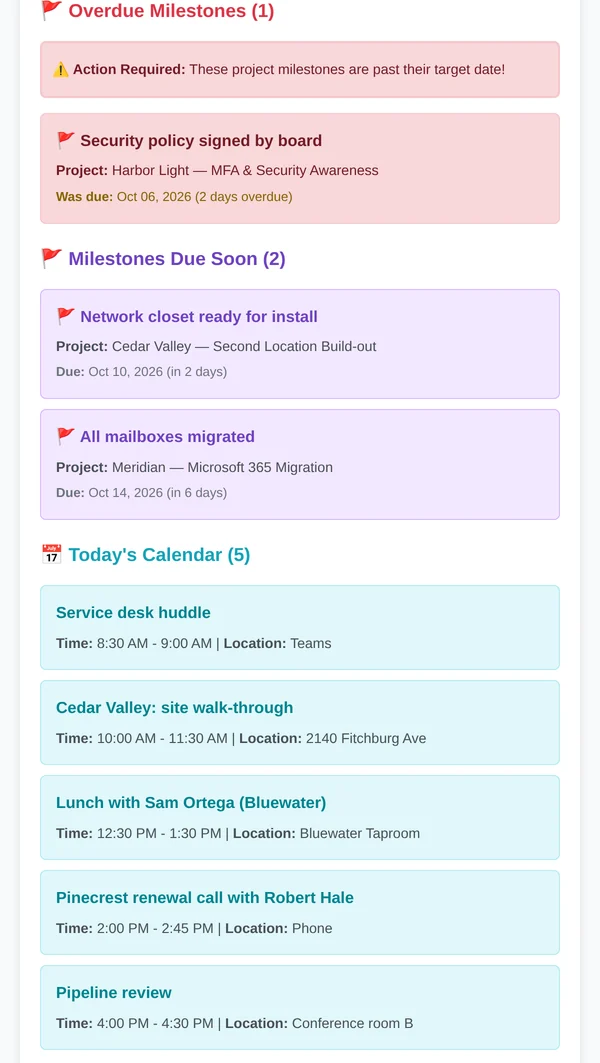
- Below that, the details from every app: overdue and due-today tasks, milestones, today's meetings, tickets assigned to you, deals closing this week or past due, recent wins, unbilled time and low stock. Each section appears only when it has something in it.
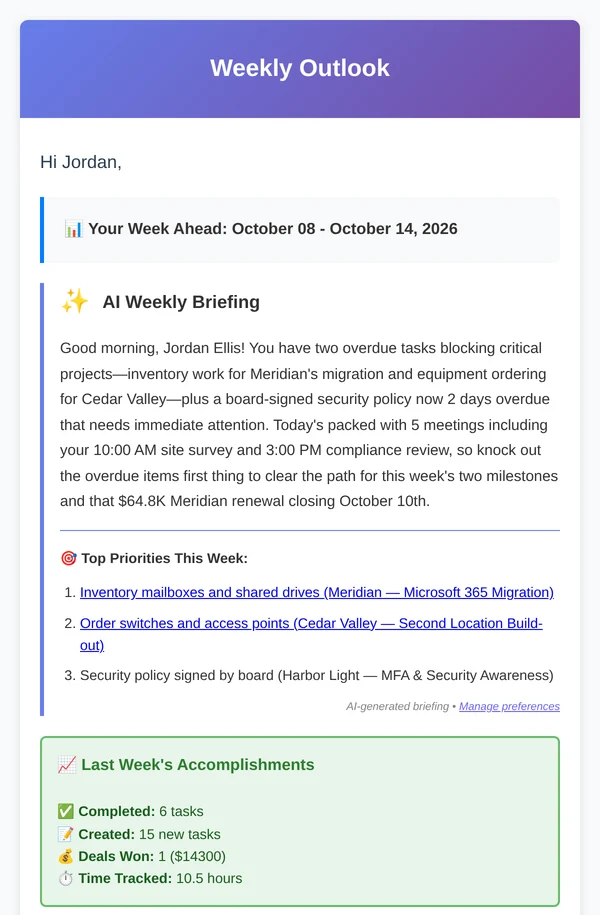
- Every Monday, the Weekly Outlook: last week's accomplishments, this week's schedule day by day, and the AI's weekly briefing.
- Choose which sections are included, or skip the AI summary
- Days with nothing to report send nothing: no empty emails
- Critical alerts can also be emailed the moment they happen
- Times and dates in your own time zone
The Dashboard
Open the dashboard and it's all live.
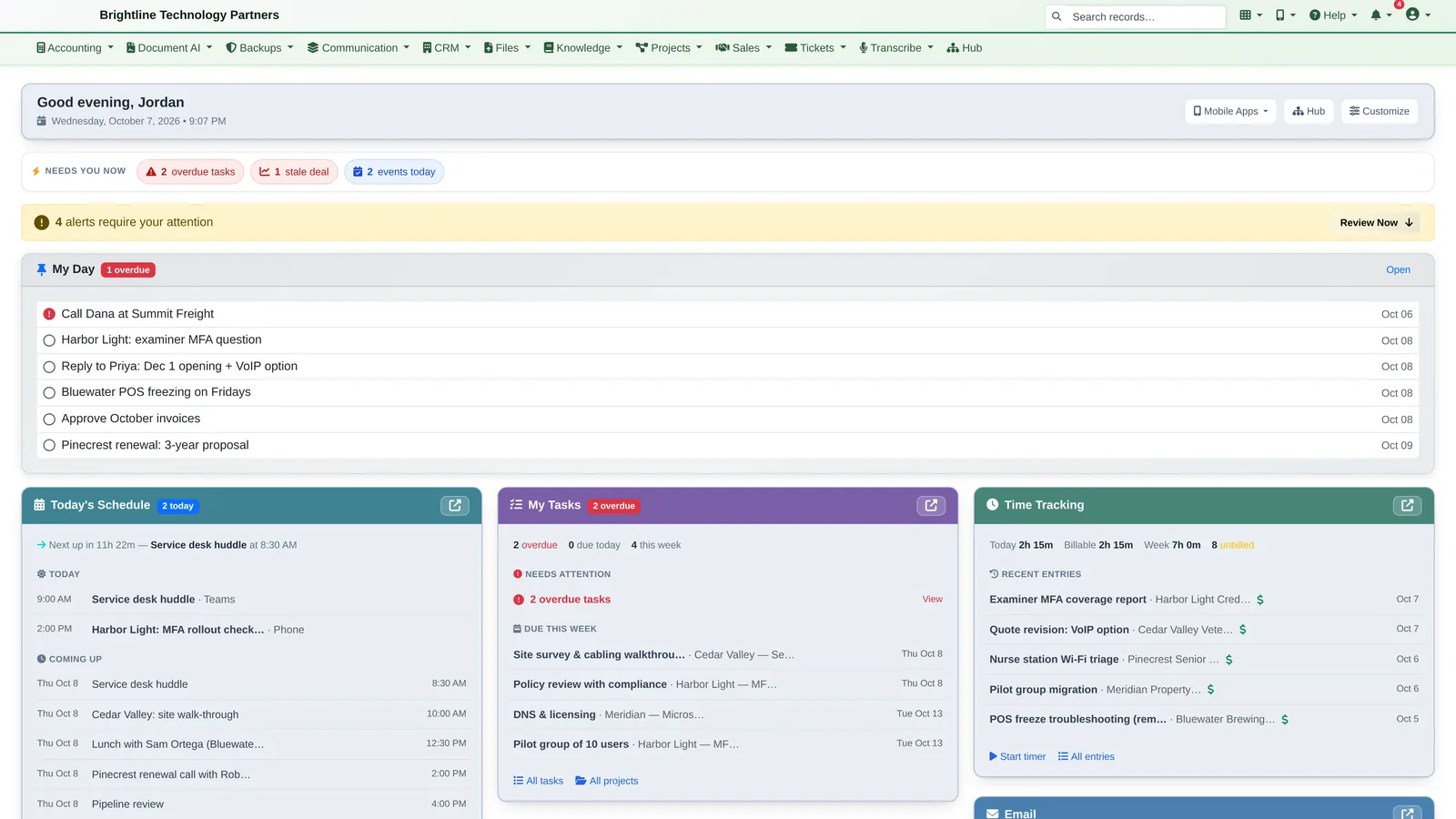
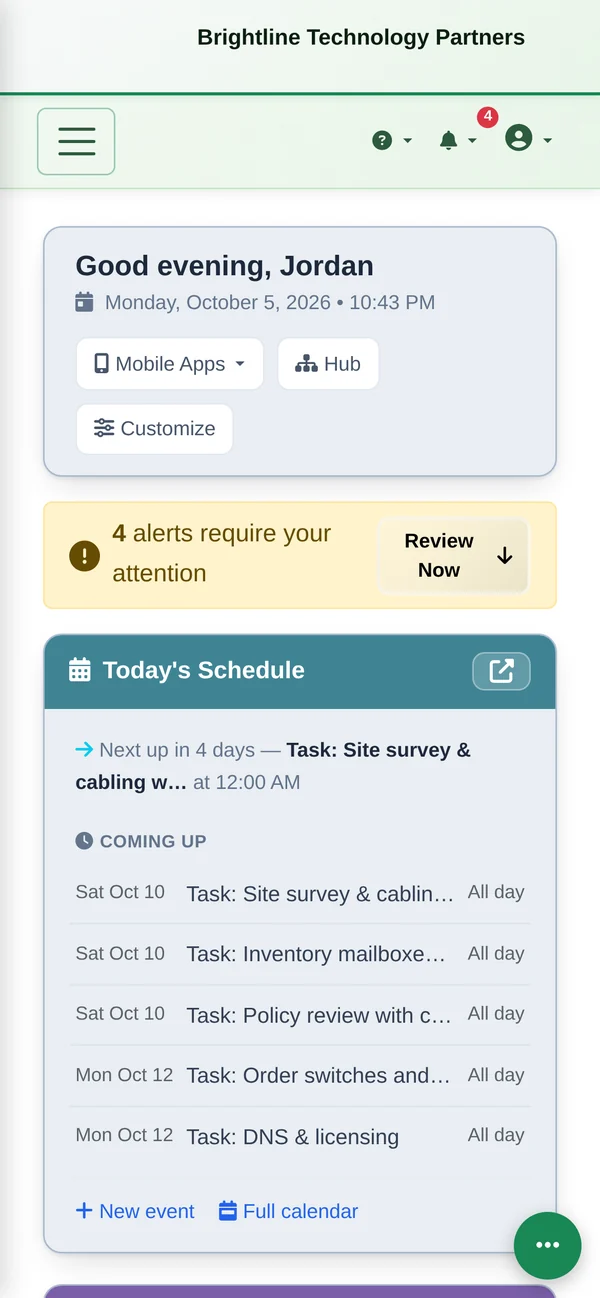
- A “Needs you now” strip (“2 overdue tasks · 1 stale deal · 2 events today”), your My Day board, schedule, tasks, time, pipeline, email and more, each a card you can rearrange or hide.
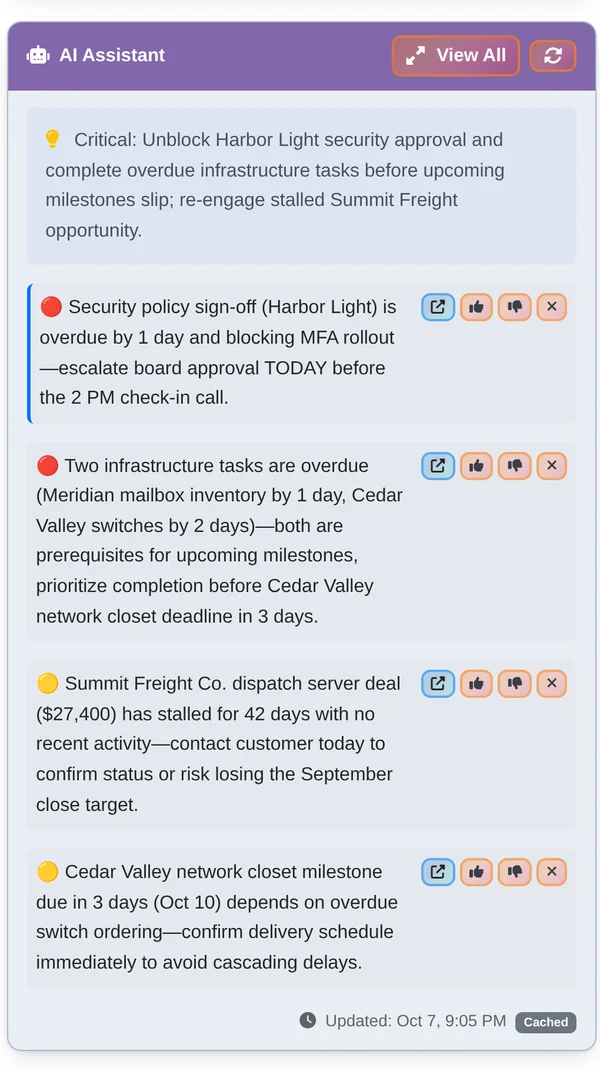
- The AI Assistant card connects the dots across apps: a security sign-off is overdue and blocking a rollout, so escalate it before the 2 PM call. Rate each insight, dismiss it, or jump straight to the record.
The same dashboard works on your phone, installed to the home screen like an app.
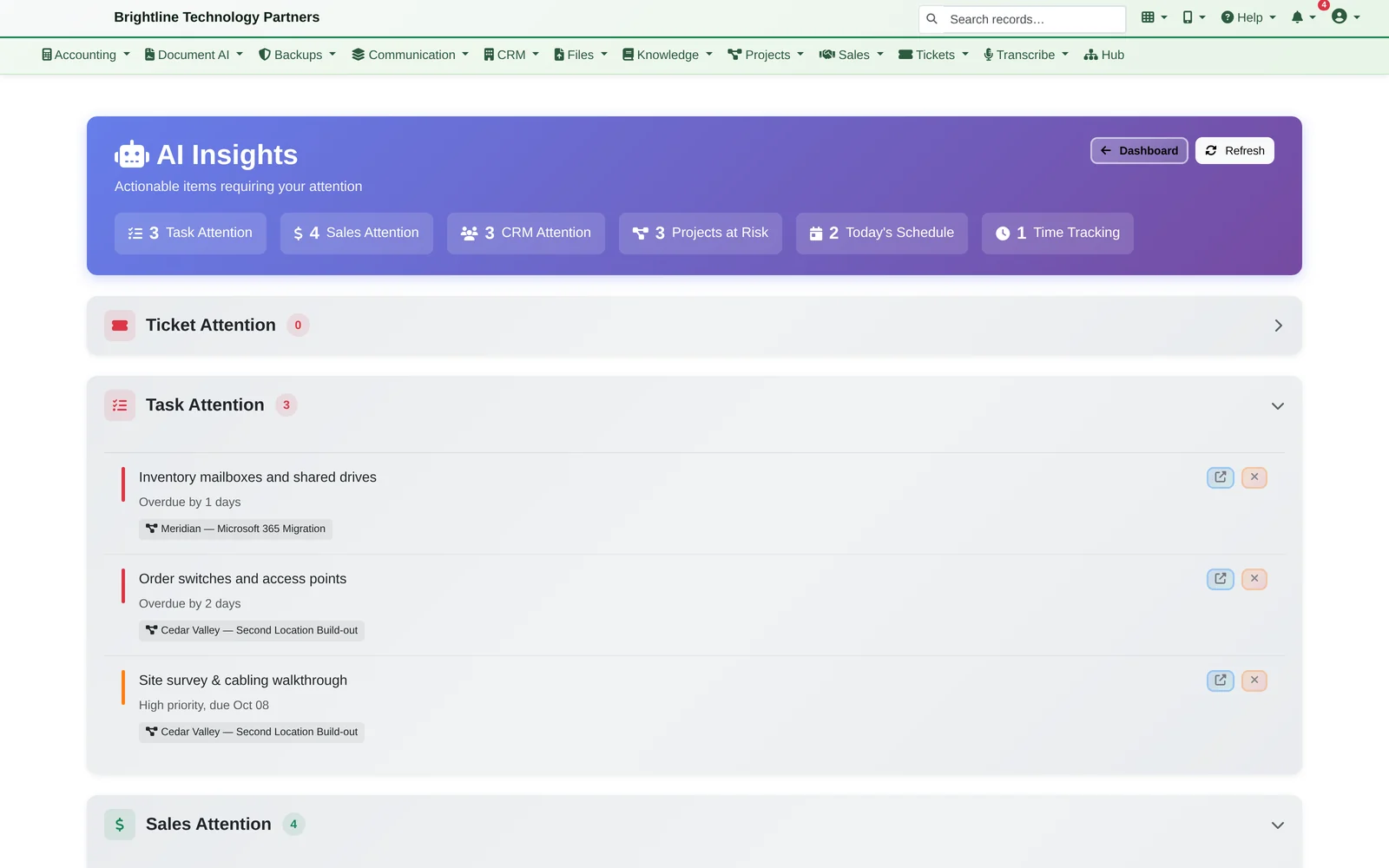
- AI Insights groups everything that needs attention by area: tasks, sales, CRM, projects at risk, today's schedule and time tracking.
Note Boards
Your day, on one board. Every email and ticket one click away.
Note Boards are digital sticky notes wired into everything else. Pin an email straight from your inbox, add what you need to do about it, give it a due date, and drag it into Today.
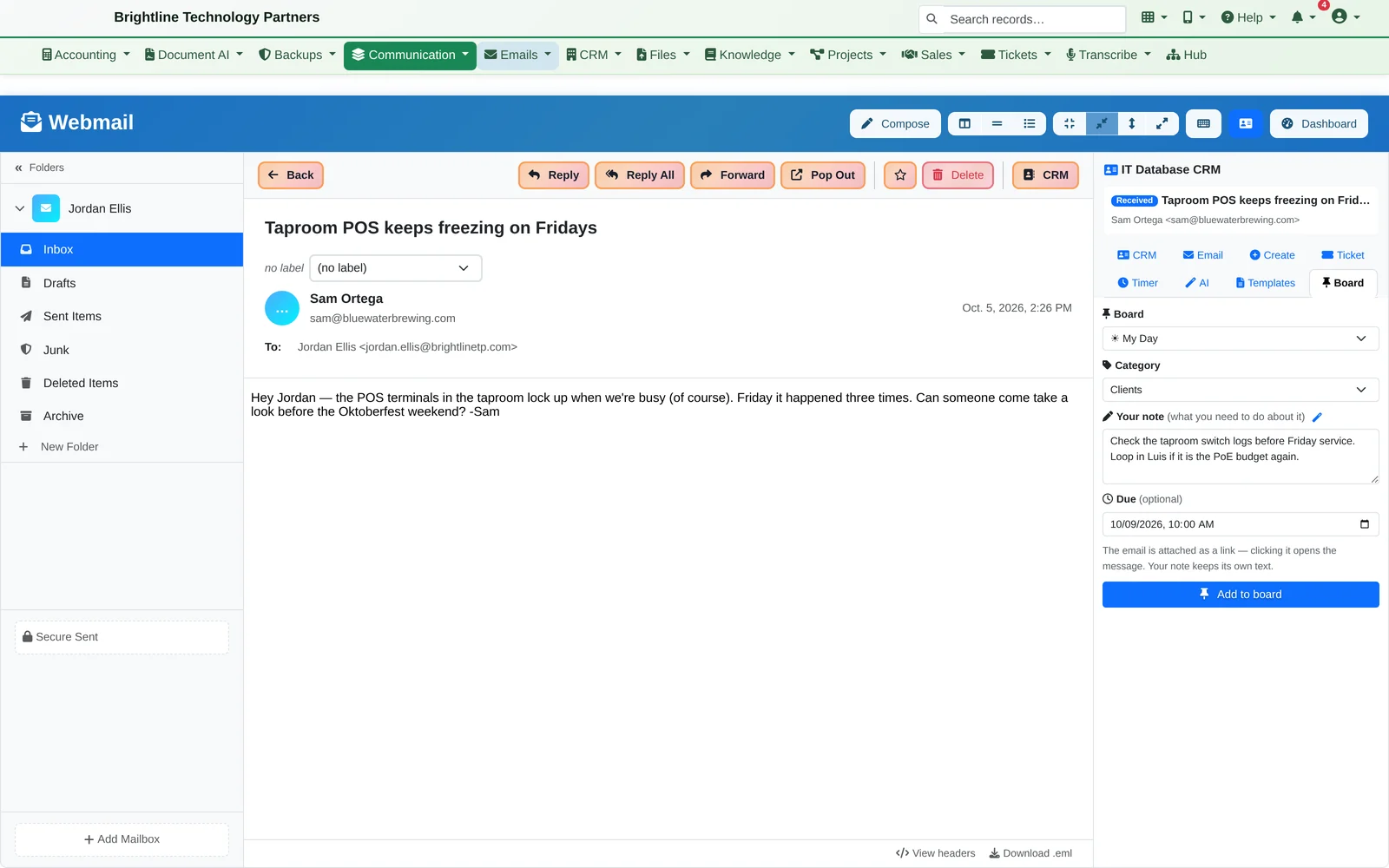
- An email needs action, but not right now. Click Board in the side panel, pick a board and a category, type what you need to do and set a due date. The Outlook add-in has the same Board tab.
- It lands on your My Day board as a sticky note with the email attached. Click the attachment to open the original message.
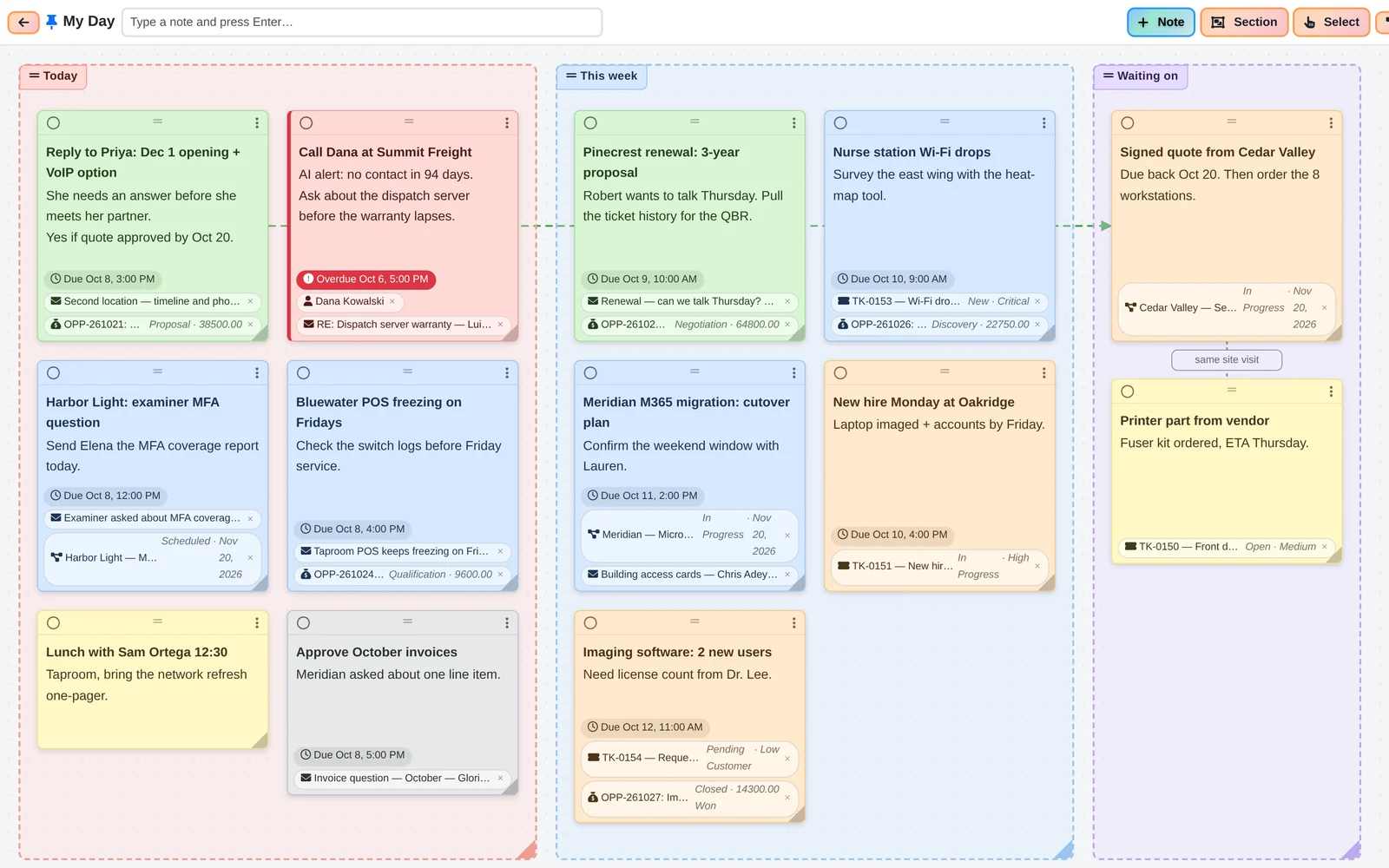
- Organize your way. Drag notes into sections like Today, This week and Waiting on. Color-code them by category. Draw a labeled line between related notes (“once she approves”). Any open board updates by itself.
More of a List Person?
Every board is also a clean, sortable to-do list.
- Switch to List view: the same notes as a to-do list, sorted by due date or grouped by category. Drag notes between categories, or into your own order.
- Nothing slips. Due dates send reminders in chat, as phone notifications and by email, starting two business days out and continuing until it's done.
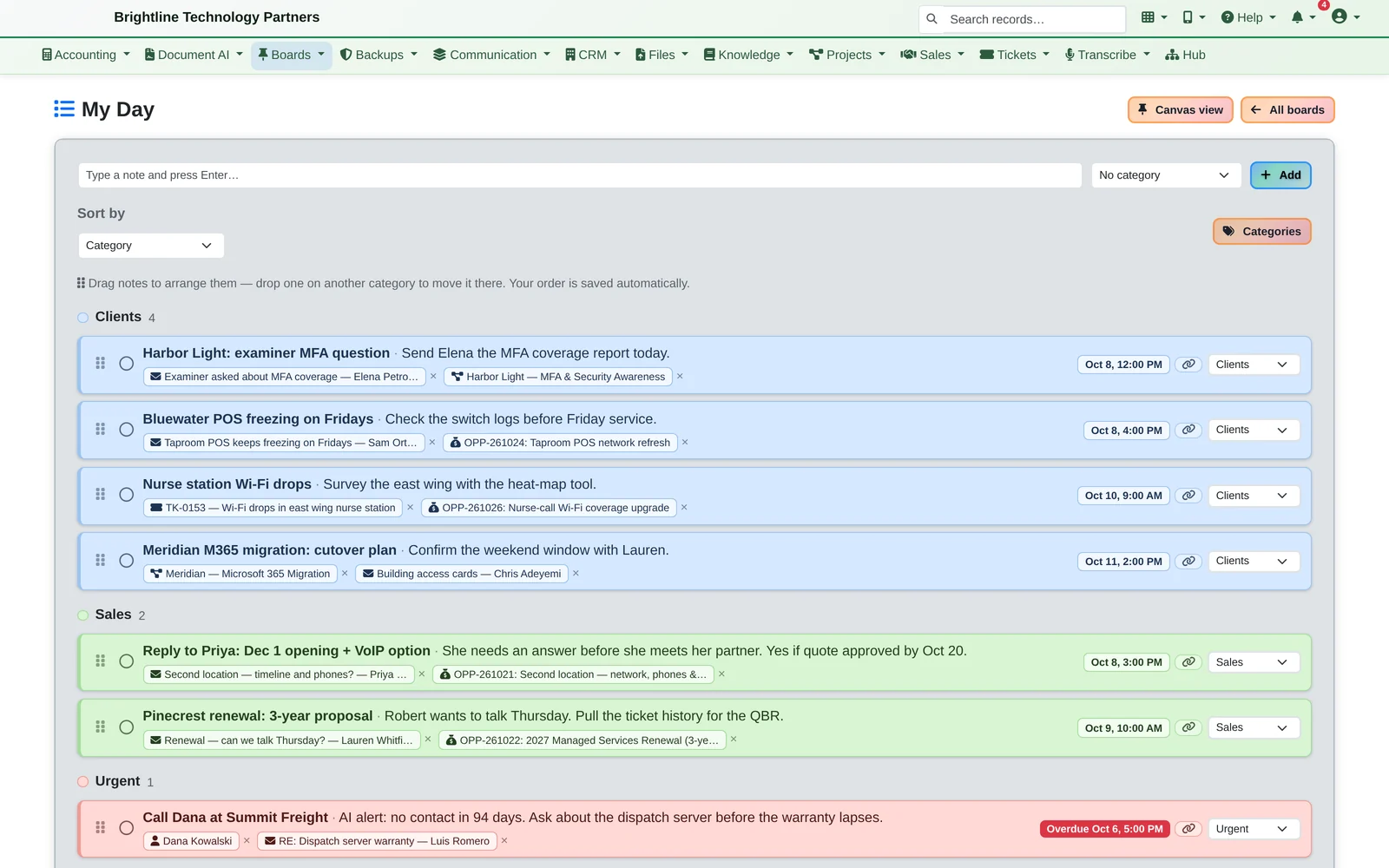
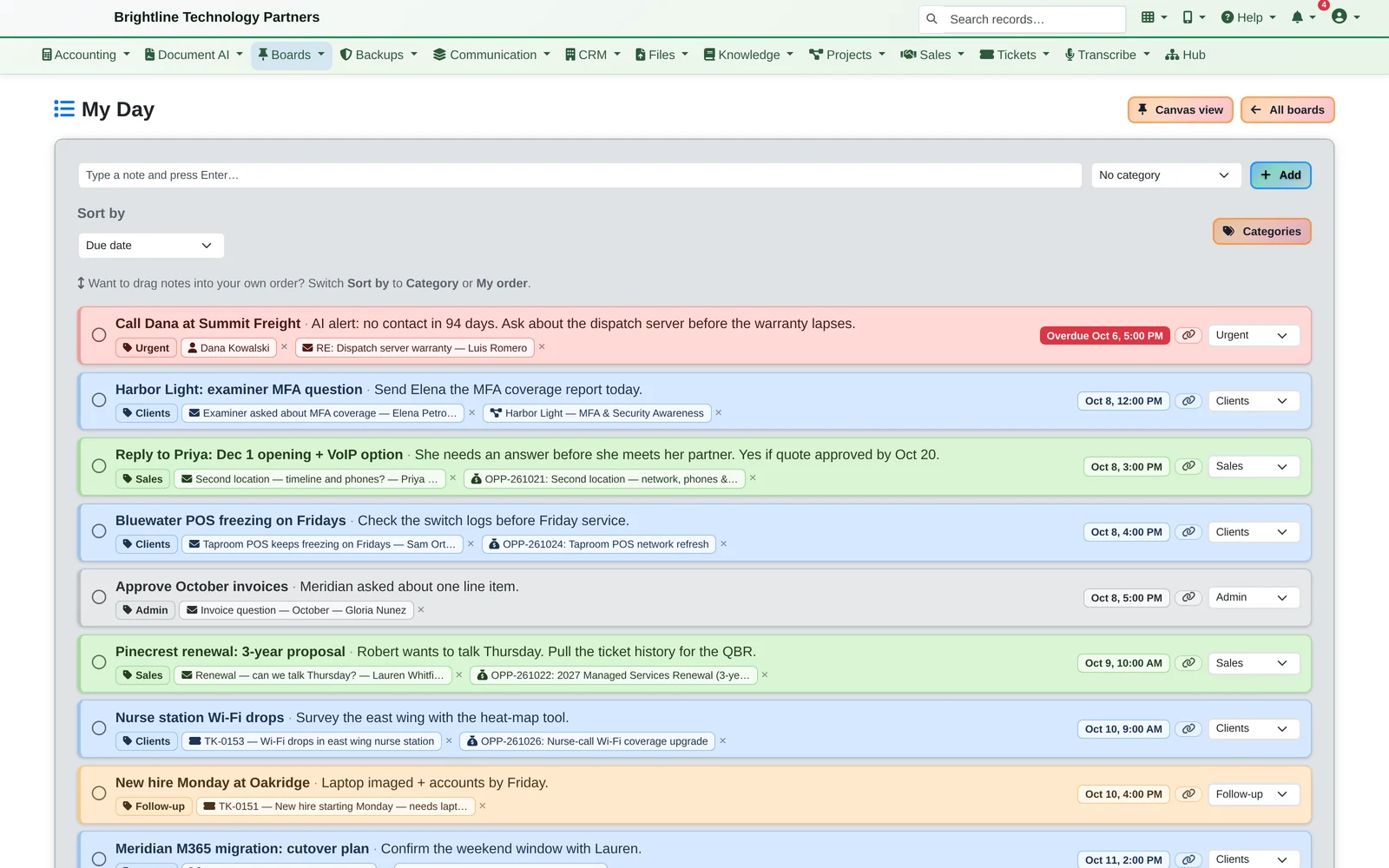
A note is always your own note. The email, ticket or deal is attached to it. Moving a note or marking it done never changes the ticket or the email: your board is your private plan, and the records stay where they belong.
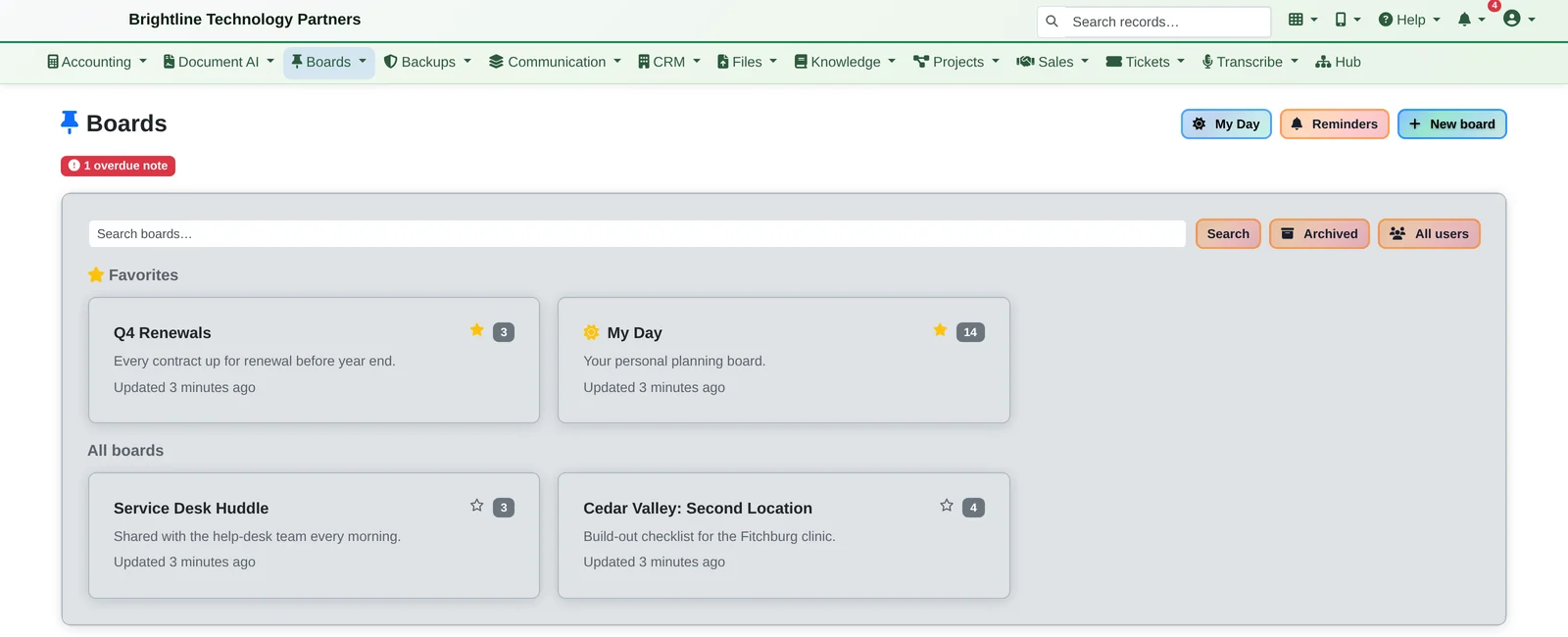
- A My Day board made for you, plus as many boards as you want
- Blank, daily or weekly board templates
- Share a board with specific people or a whole team; changes appear live for everyone
- Favorite, duplicate, archive and export boards to PDF
Everything in Your Day
Briefings, a dashboard and boards, from every app.
Daily Briefings
- A Daily Briefing email every morning and a Weekly Outlook every Monday
- An AI Executive Summary and top three priorities at the top
- Pulls from projects, tasks, milestones, calendar, help-desk tickets, the sales pipeline, time tracking, inventory and more, depending on the apps you use
- Each section switches on or off
Dashboard
- A “Needs you now” strip and an alerts banner
- Cards for every app you use; rearrange and hide them
- The AI Assistant card, with feedback, dismiss and one-click links to the record
- The AI Insights page, grouped and counted by area
Note Boards
- Pin emails from webmail or the Outlook add-in, and tickets, projects and tasks with a Pin to board button
- Attach emails, tickets, projects, tasks, deals, contacts, files and more, each showing its live status
- Canvas or list view, categories with colors, due dates and reminders
- Private by default: people only see attached records they already have permission to open
- Works on phones and tablets, with keyboard shortcuts on desktop
Start every day knowing exactly what matters.
We'll show you a Daily Briefing, the dashboard and a My Day board built from the same day's work, in about 20 minutes.