
Infinite Expansion · Manufacturing
From the customer's order to a running machine, in one system.
Manufacturing, start to finish.
Products know what they're made of and which machines can make them. Add them to a project and the work orders, materials and machine schedule follow. Operators press Start and Done on a tablet, so you can see whether the machines really ran.
For cabinet and millwork shops, furniture makers, equipment builders and fabricators.
Any shop that makes what it sells. The Manufacturing pack sets the platform up for production in one click: work orders, machines, operators, machine uptime and downtime. Two add-ons tune it further: Cabinets & Millwork (sheet goods, CNC, delivery and install) and Equipment & Assembly (assemblies, screw-level costing, shipping by freight).
One Kitchen, From Order to Delivery
Each product knows what it's made of.
Follow a fictional cabinet shop with four CNC routers, an edgebander, a boring machine and two assembly benches, as it builds the Smith family's kitchen.
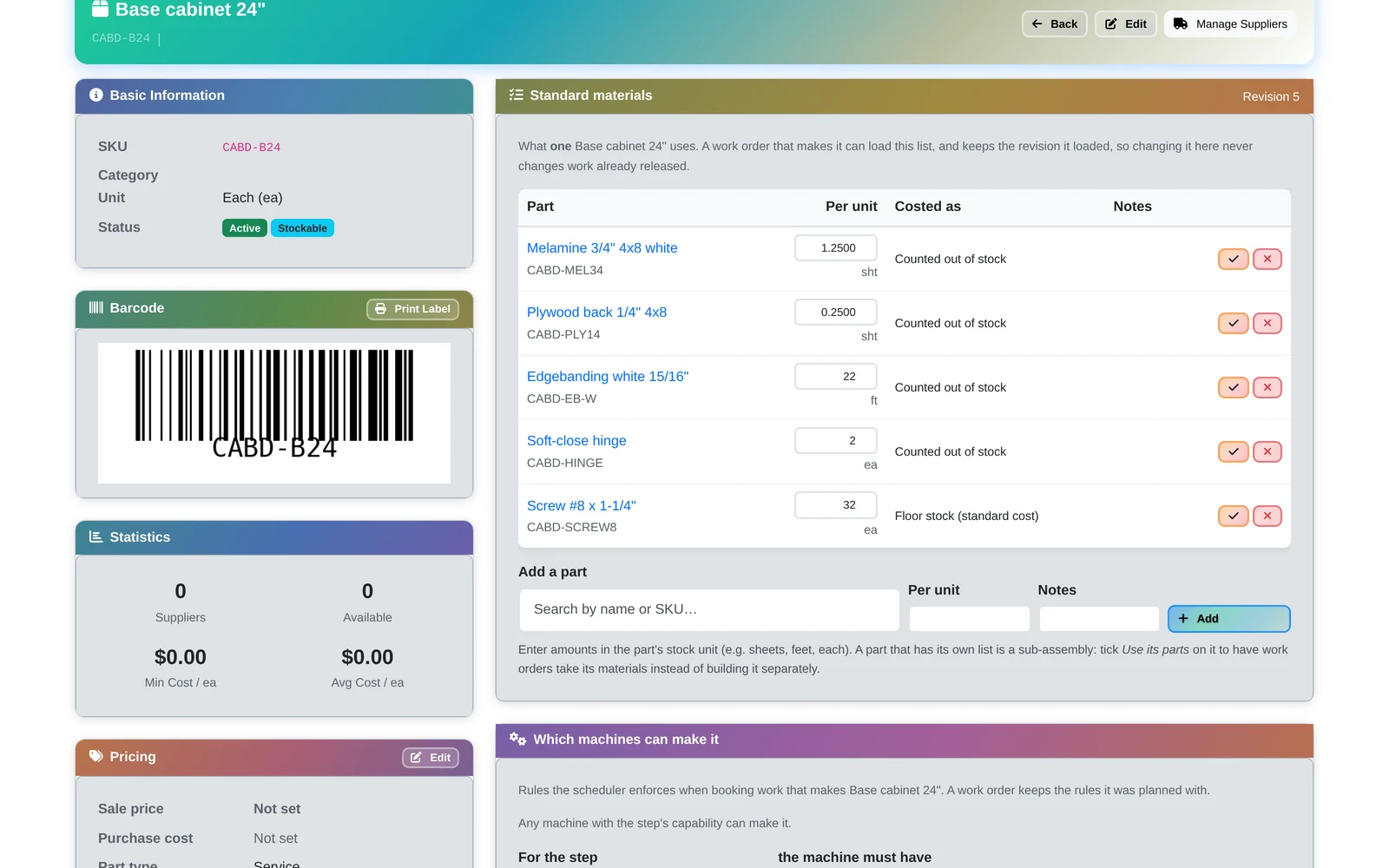
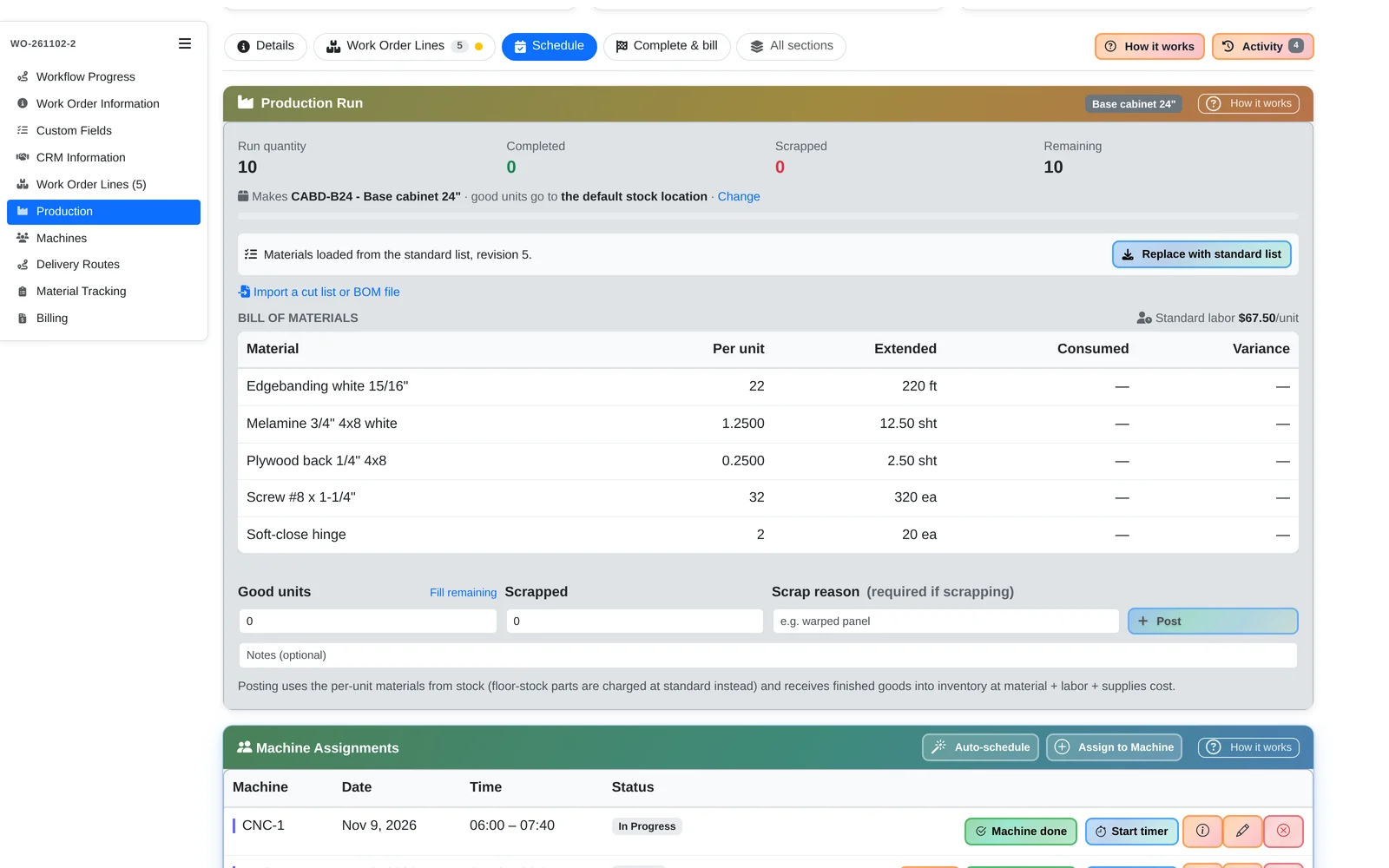
- A materials list per product. “Base cabinet 24 in.” lists what one cabinet uses: 1.25 sheets of melamine, a quarter sheet of back panel, 22 ft of edgebanding, 2 hinges, 32 screws.
- Every change gets a revision number, so editing the list never changes work that's already been released. A part with its own list can be a sub-assembly: tick “Use its parts” and work orders get its parts directly.
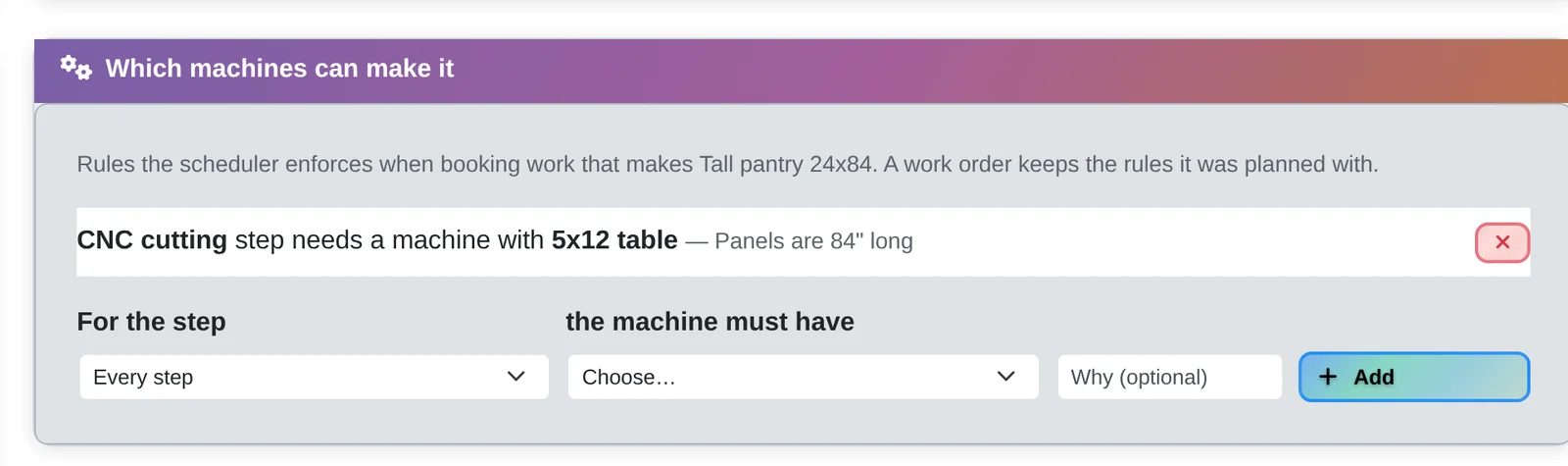
- …and which machines can make it. The tall pantry's panels are 84 inches long, so its CNC step needs the router with the 5×12 table. Machine rules are set per product, and the scheduler and every drag-and-drop enforce them.
Orders and Work Orders
Pick the products. The order and work orders follow.
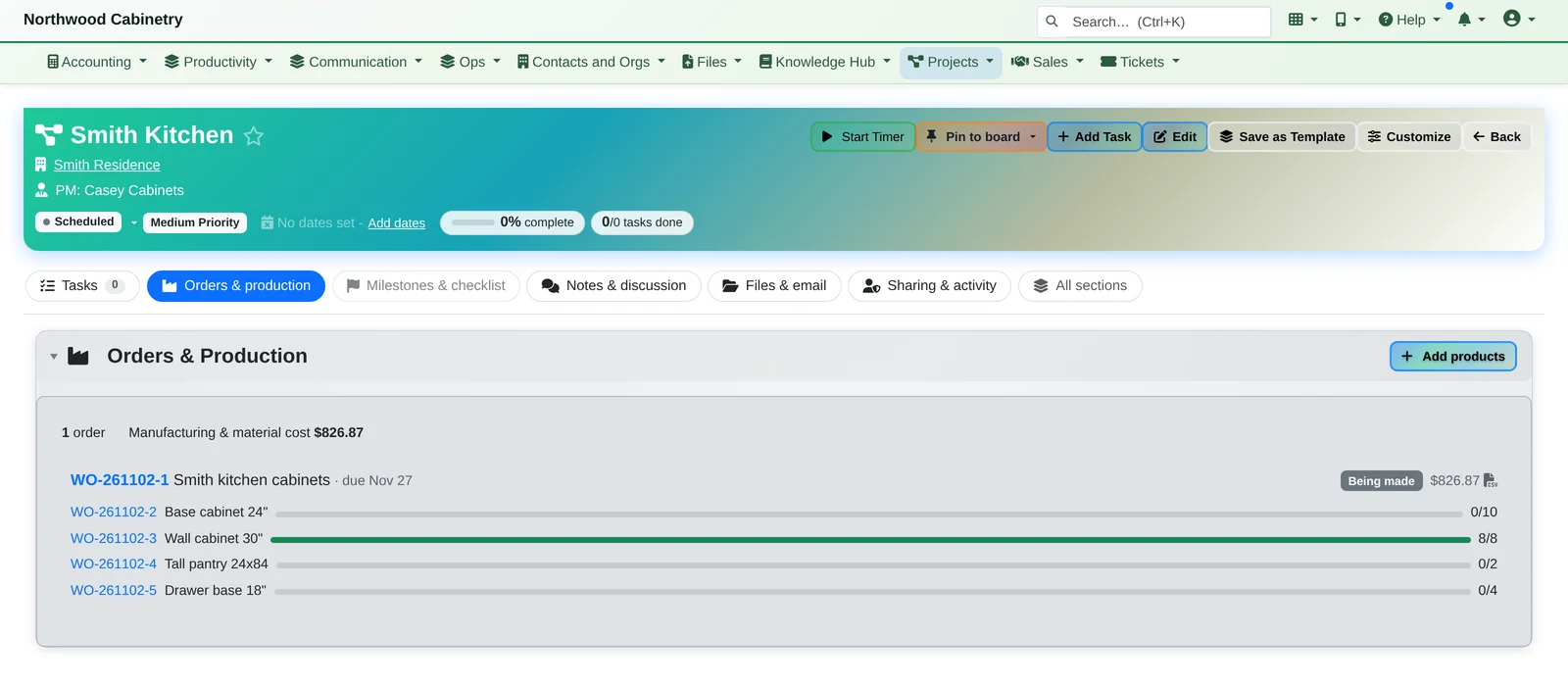
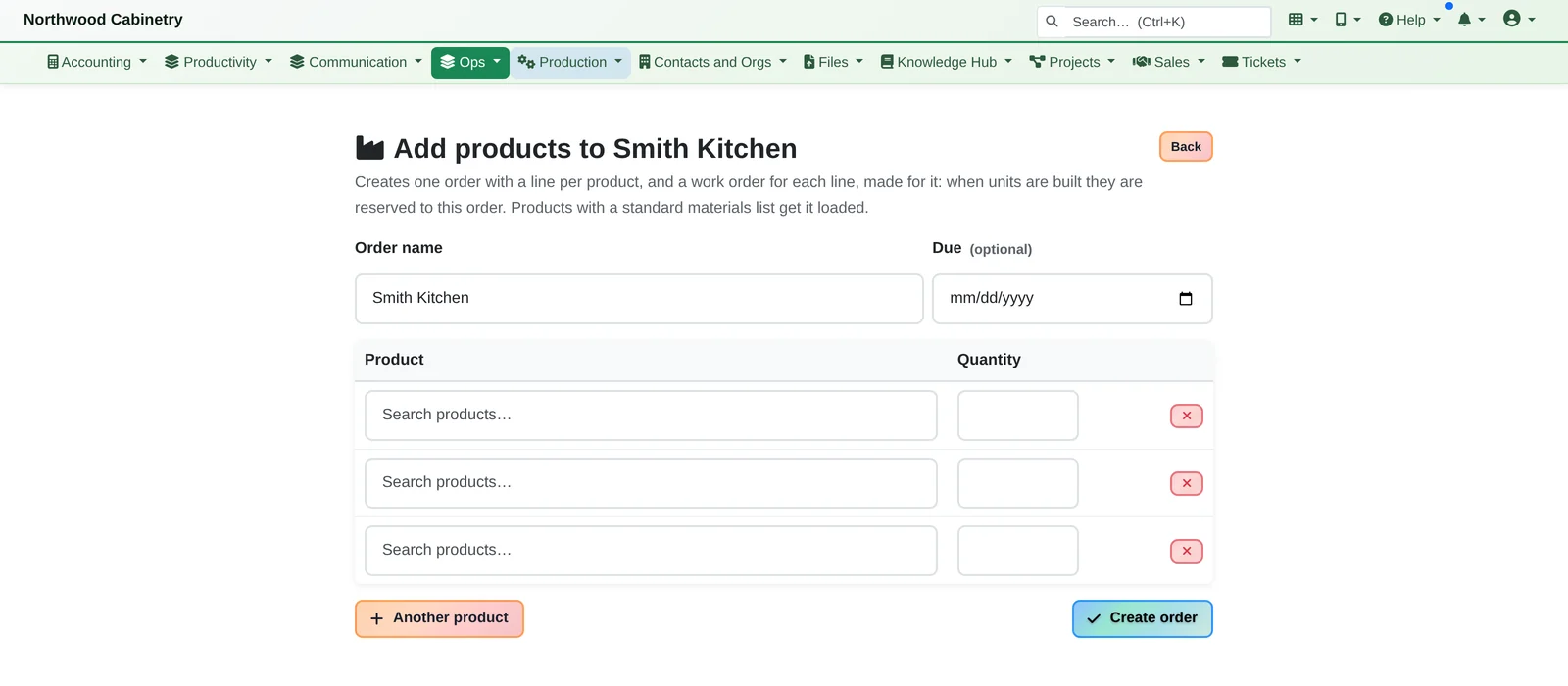
- Start from a project. The Smith Kitchen project gets an order for the cabinets. Click Add products, pick what's needed and how many, and you get one order plus one work order per product, each made for its order line and each with its materials already loaded.
A project template can do it for you: “Kitchen package — standard” orders 10 base, 8 wall, 2 pantry and 4 drawer-base cabinets the moment the project is created.
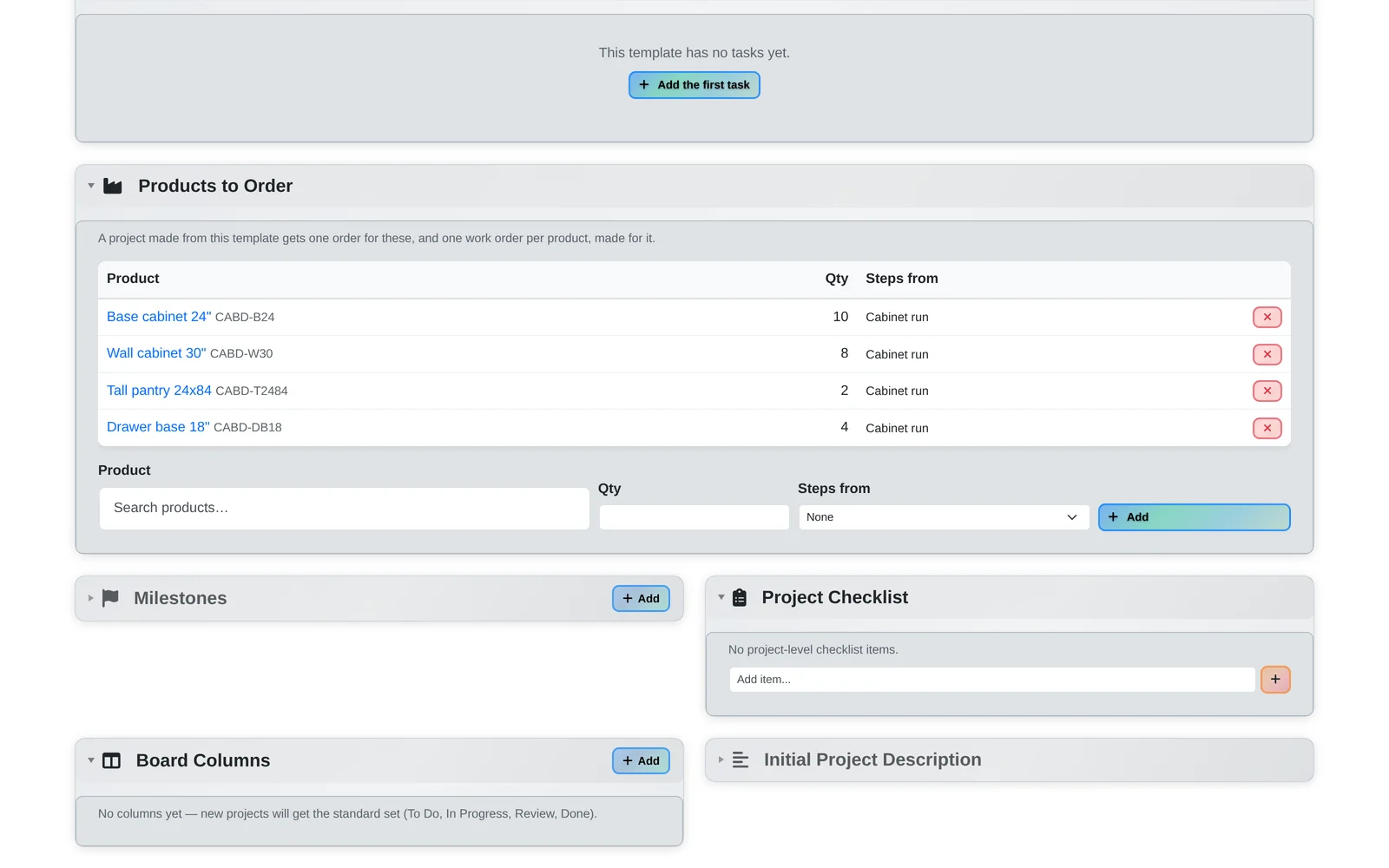
A template that orders a standard kitchen
Create the project and the order and work orders are already there.
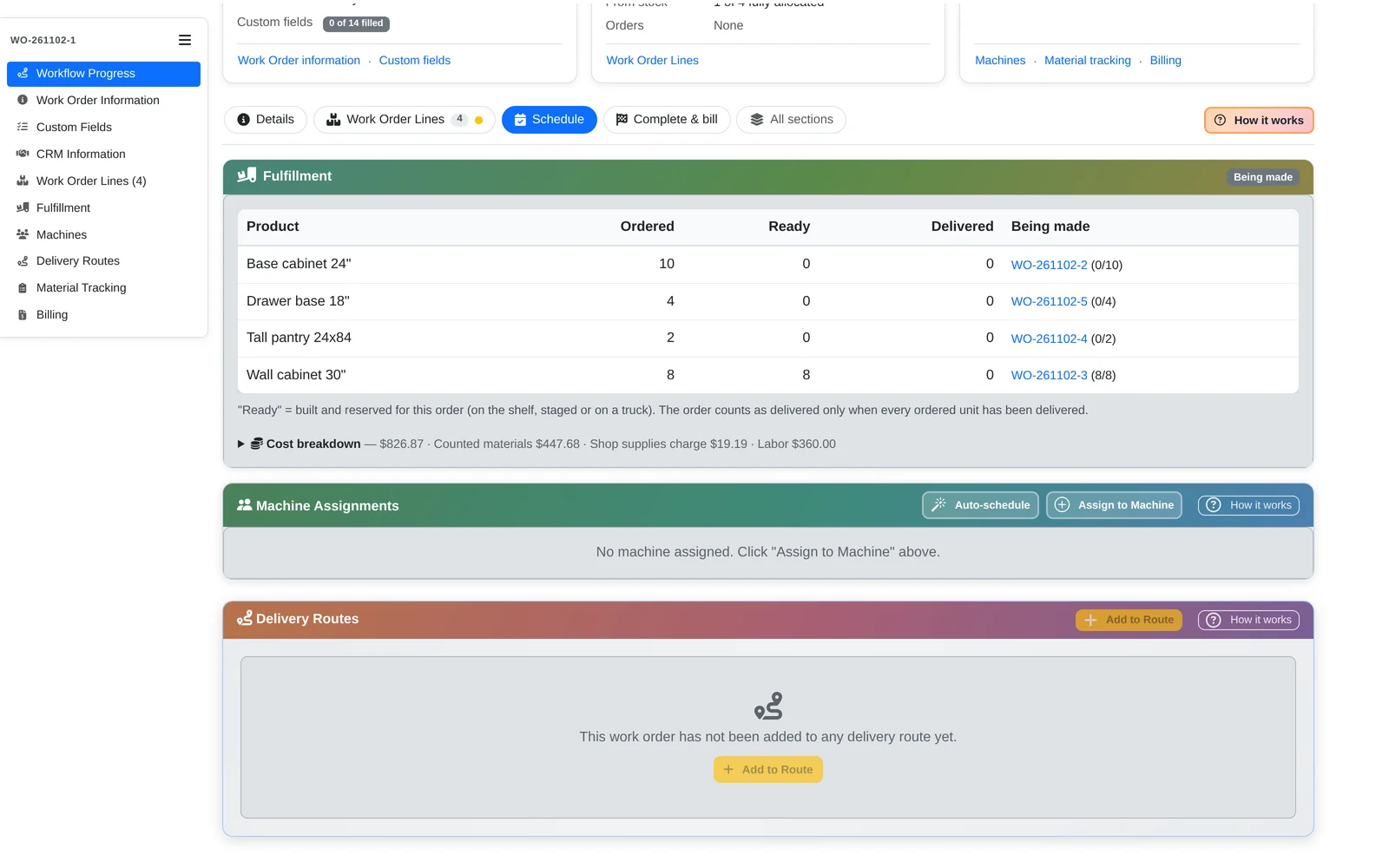
Ordered, ready, delivered
Per product: how many are ready, how many have gone out, and which work order is making them. The order runs Being made → Ready to ship → Delivered → Installed.
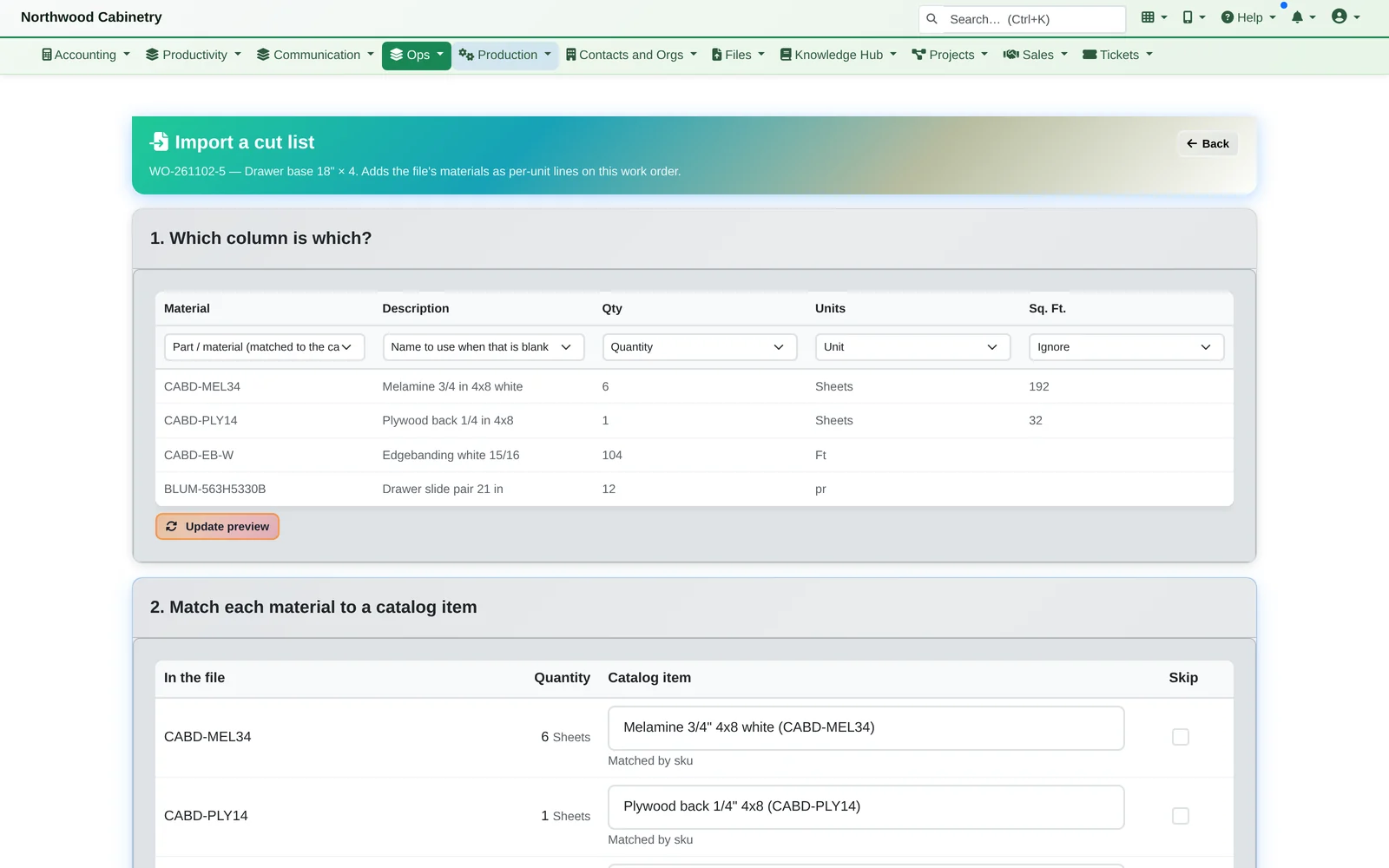
- Or import the cut list. If each job is designed fresh, export the material list from your design software and import it onto the work order. The platform guesses the columns and matches materials by part number or name.
It remembers your matches and column choices, so the next file from the same program goes straight through.
It reads any CSV or Excel export, or rows you paste in.
Machines and Scheduling
Every step booked on a machine that can do it.
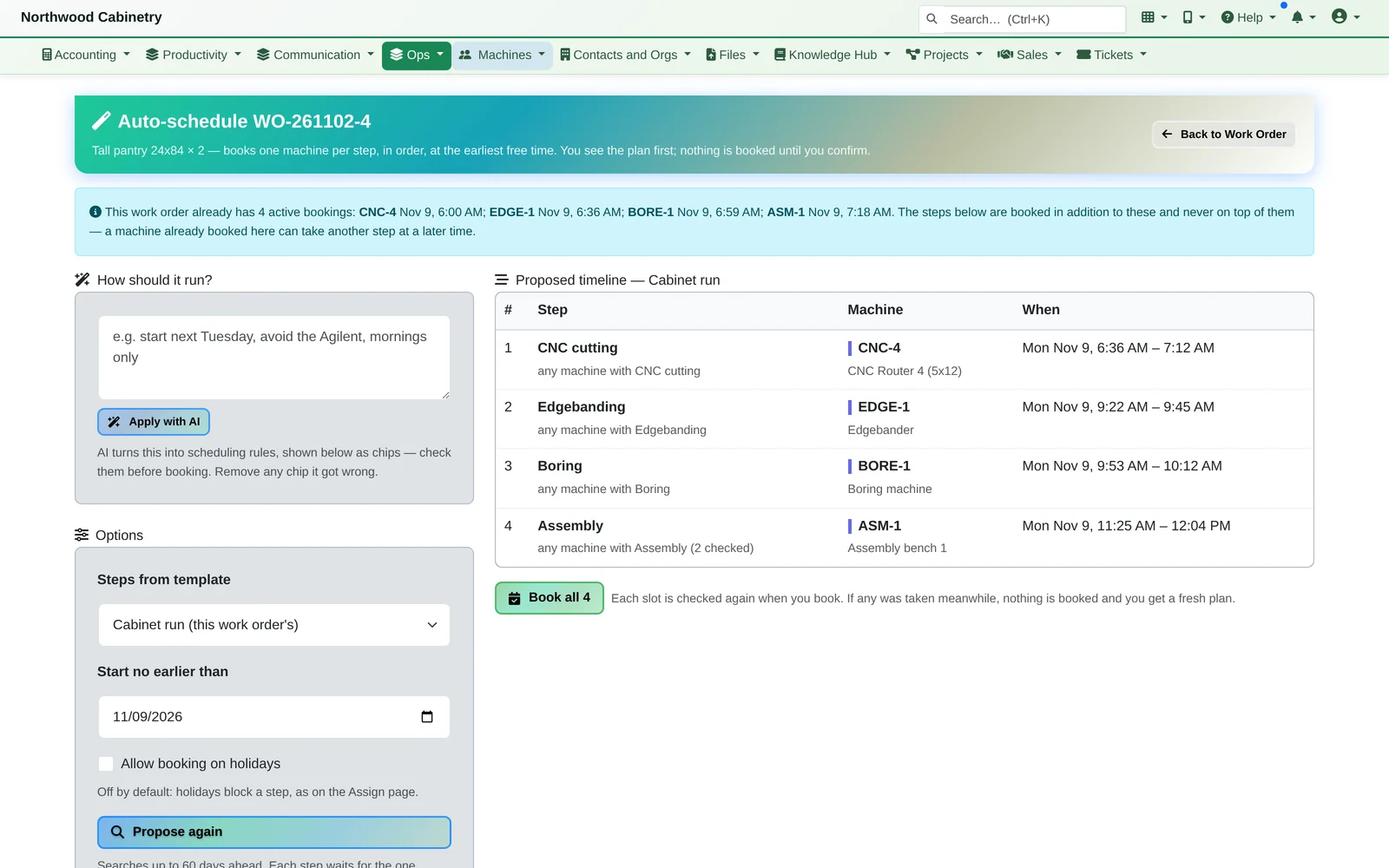
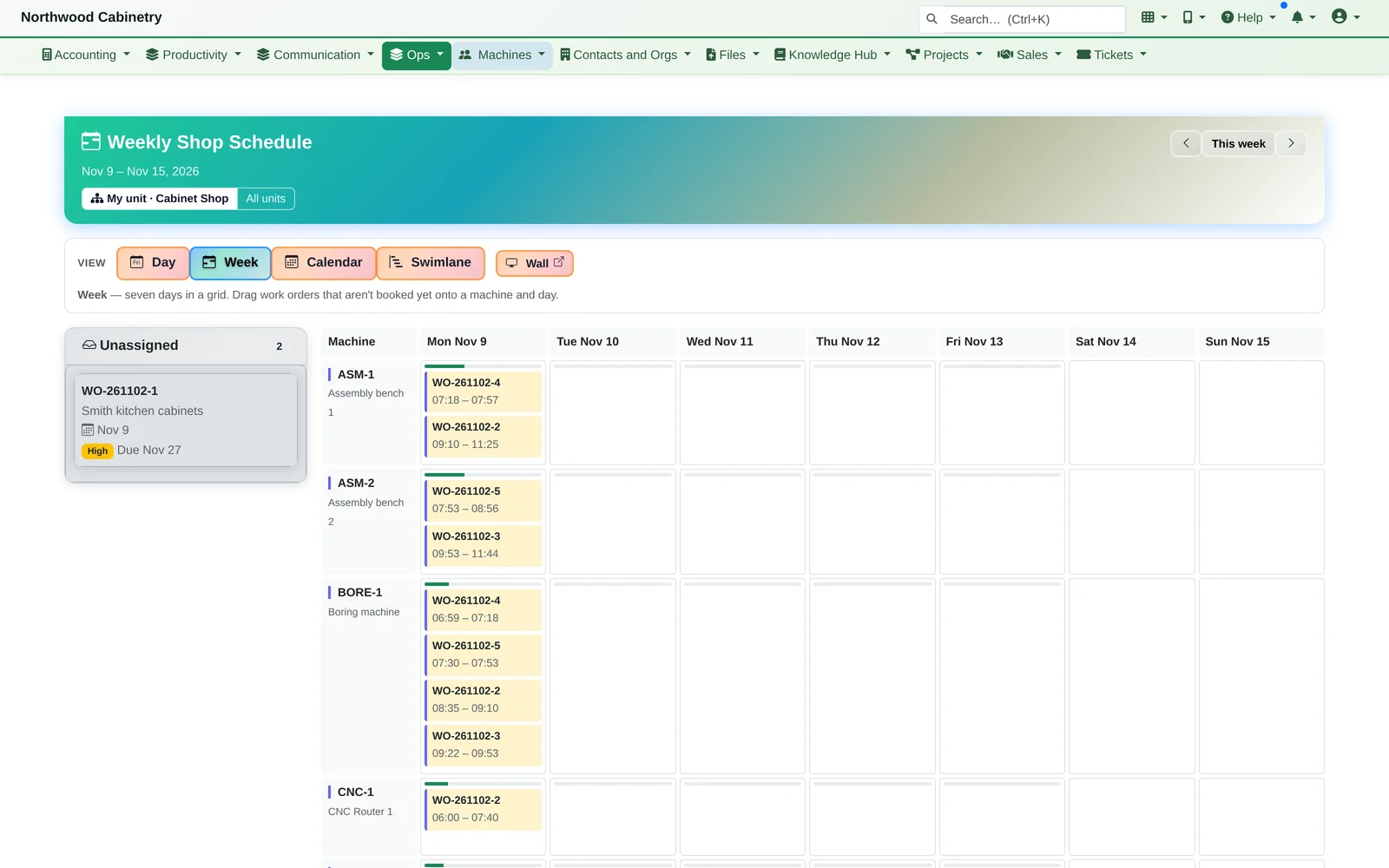
- Schedule the machines. Auto-schedule books every step (CNC, edgebanding, boring, assembly) on the earliest free machine able to do it. Step times grow with quantity, long steps are split across shifts, and it warns you when the last step would finish after the due date. You see the plan first; nothing is booked until you confirm.
On the Shop Floor
Operators press Start and Done. You see whether the machines really ran.
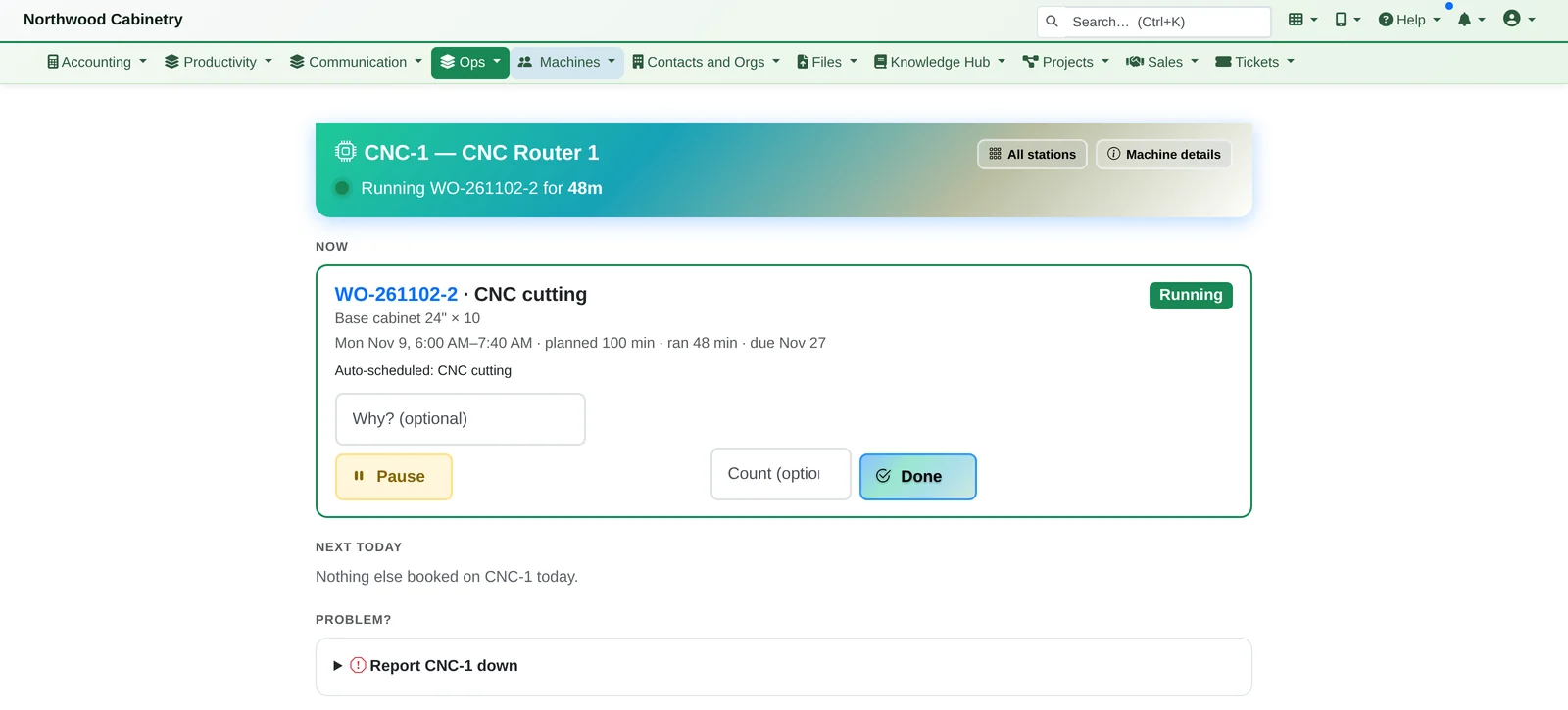
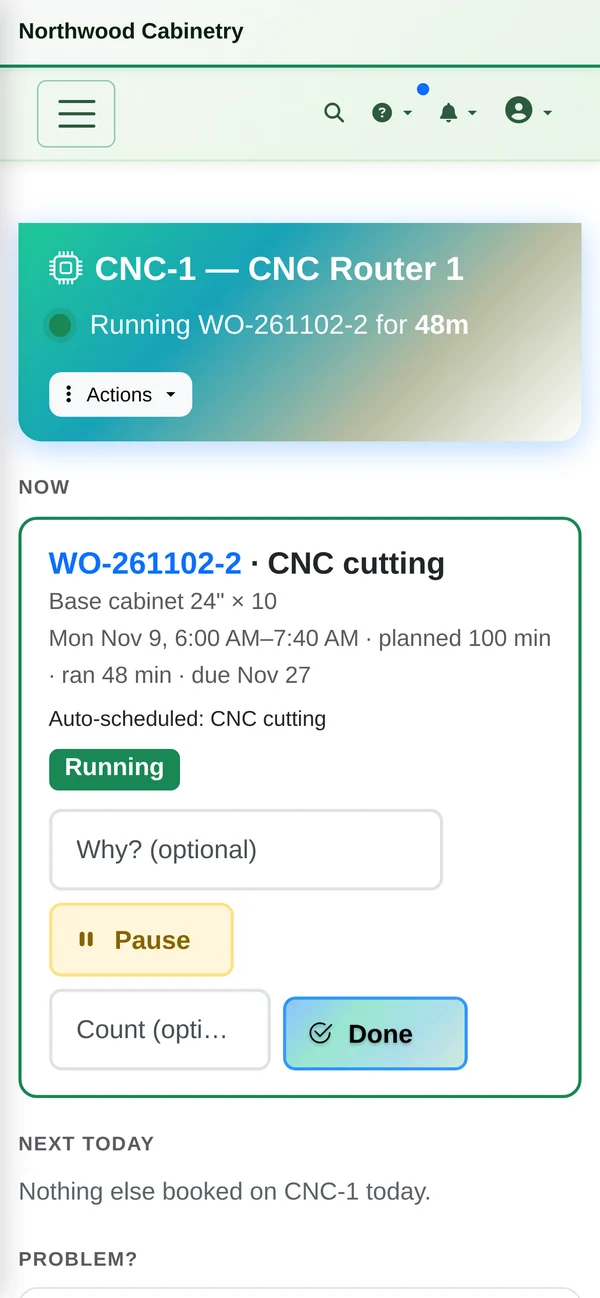
- Run them from the shop floor. Each machine has a station on a tablet or phone: what's running now, what's next today, and what's coming later. Operators press Start, Pause and Done, and can report the machine down. Finished cabinets are accepted at the last step, which posts production.
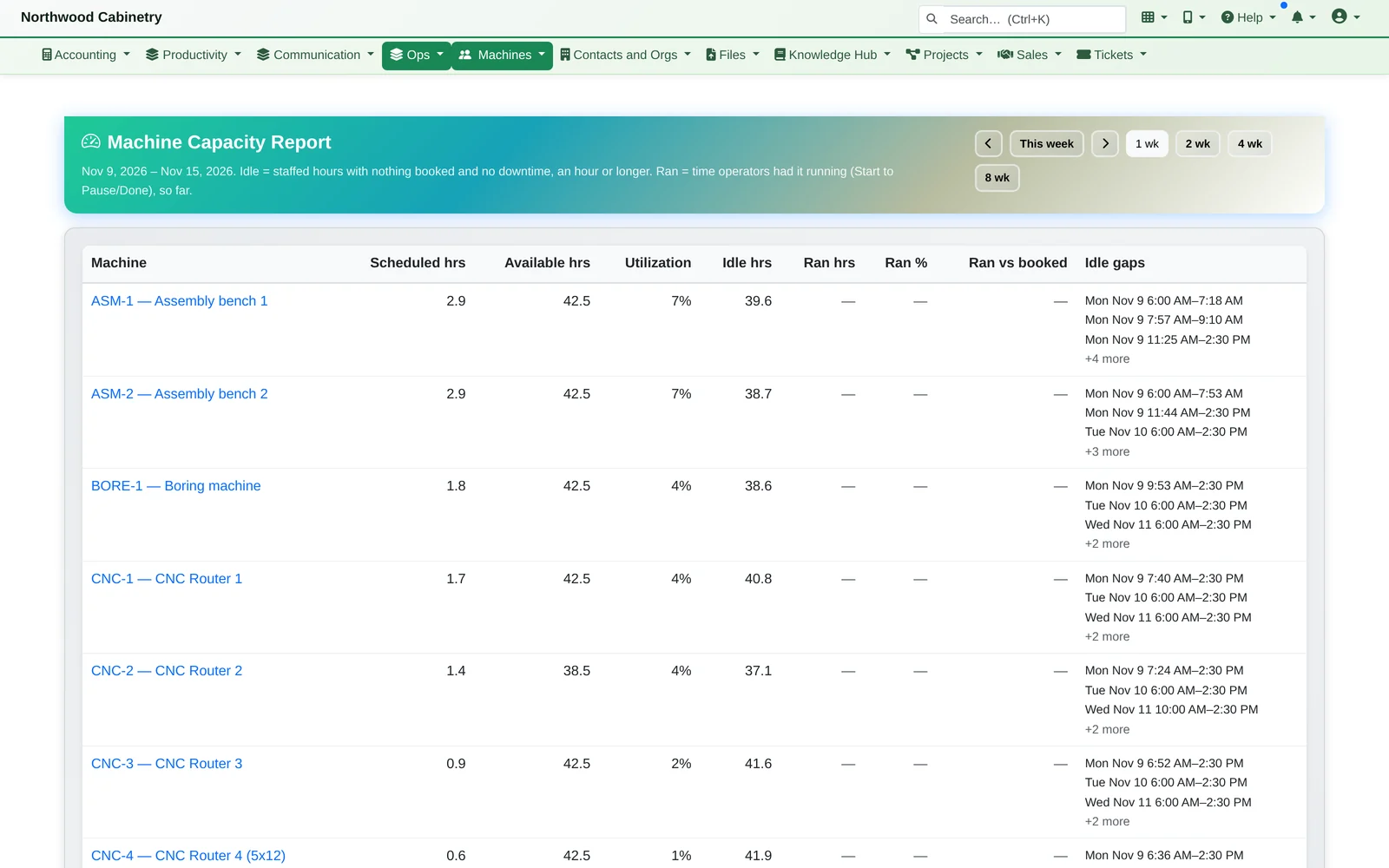
- See whether the machines really ran. The capacity report shows booked against available hours, idle gaps worth filling, and hours actually run against hours booked.
Run time comes from operators pressing Start, Pause and Done. It isn't read from the machine's controller.
Purchasing and Cost
Know what every order cost, down to the screw if you want it.
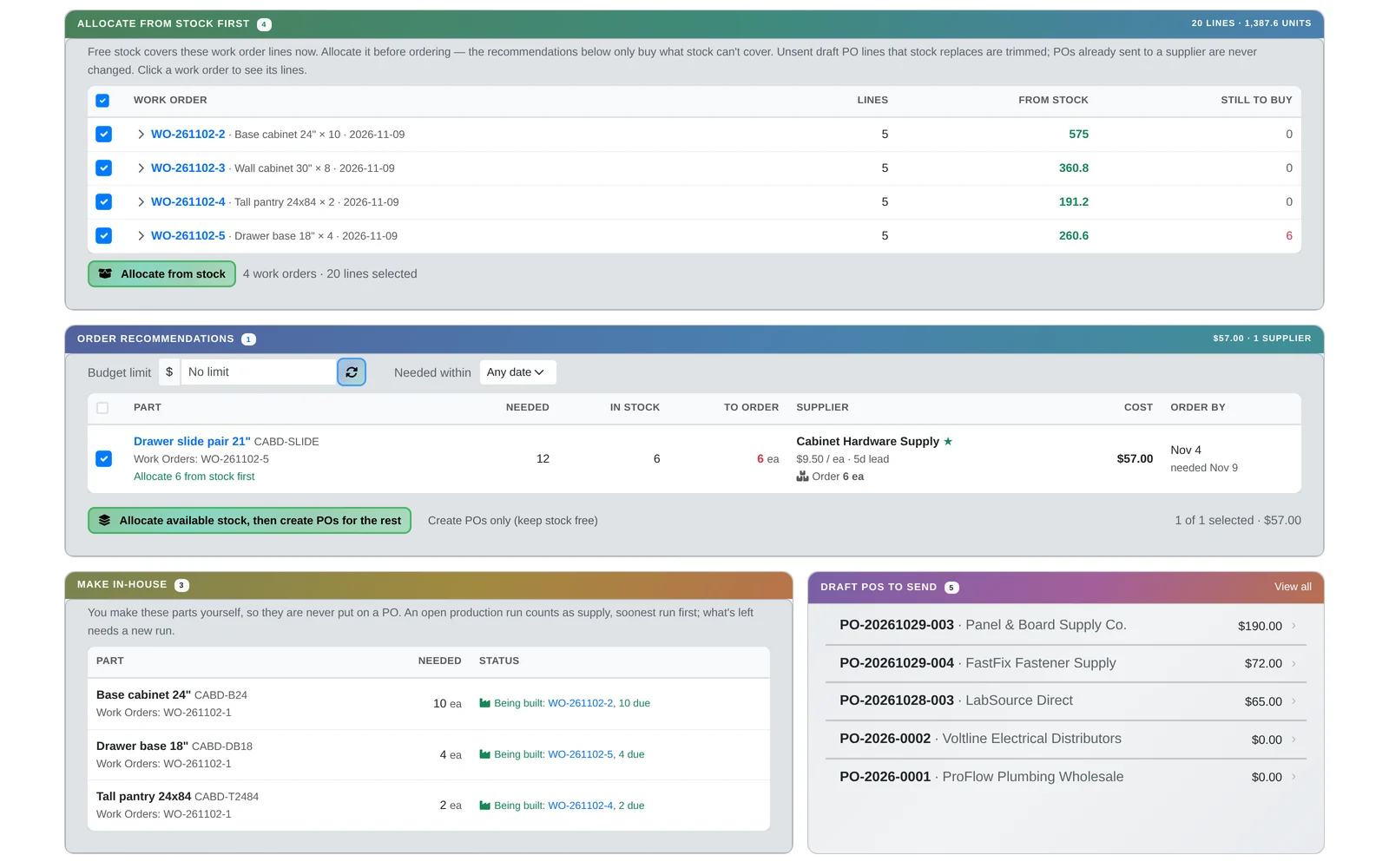
9. Buy what's missing, on time.
Smart Ordering uses what's on the shelf first, compares suppliers and shows an order-by date: the date the work needs the part, minus the supplier's lead time. Anything past its date is flagged late.
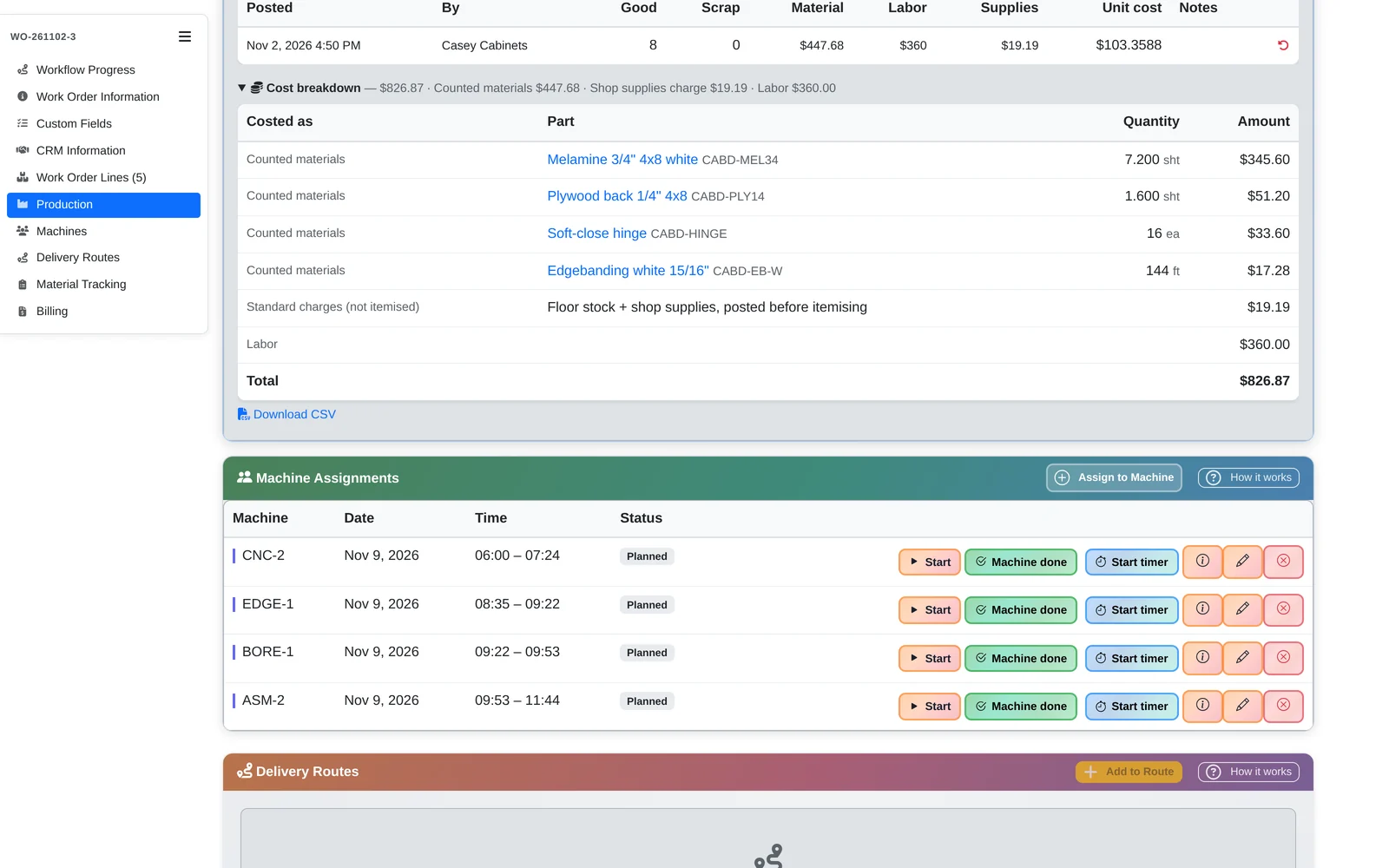
10. Know what each order cost.
Posting finished units uses the materials, adds labor at the department's standard rate, and puts the cabinets in stock reserved for the Smith order, so no other order can take them. The breakdown exports to CSV.
Three ways to cost a part
- Tracked parts are counted out of stock per job
- Floor stock (screws, glue) is charged at a standard cost without counting, and reconciled against what actually left the bins
- Shop supplies are covered by a per-unit or percent-of-material charge
- Posting is safe to retry: a double tap posts once
- Optional stop when a tracked part is short, with a recorded reason to override
The cost breakdown tells you what an order cost. Invoicing stays a separate step you control.
Set Up for Your Shop
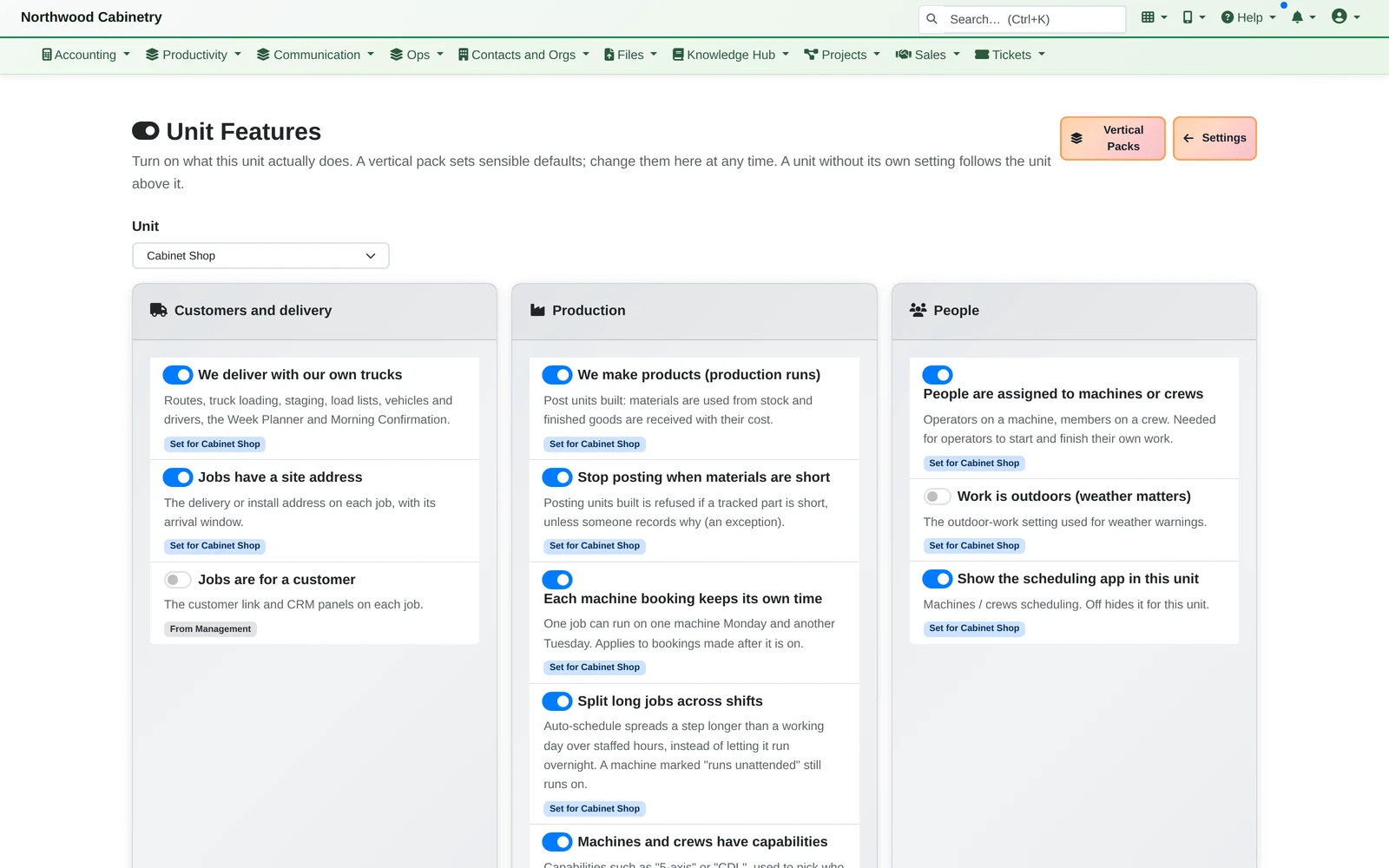
Switch on what your shop actually does.
Unit Features turns each capability on or off per department: delivering with your own trucks, site addresses, production runs, stopping a post when materials are short, splitting long jobs across shifts, and which people run which machines. A shop that ships by freight switches delivery off.
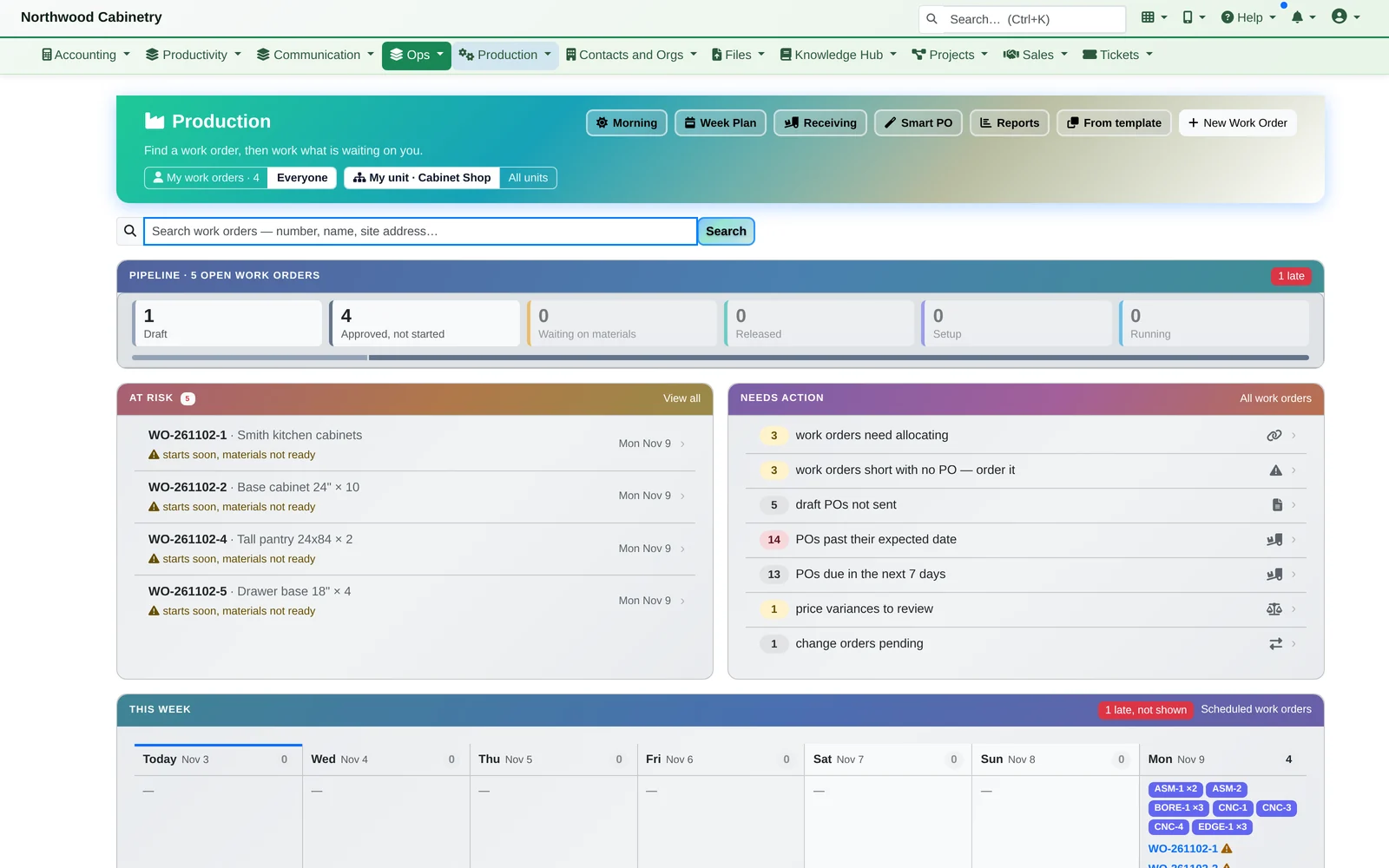
The production dashboard
The pipeline, what's at risk, and what needs action today.
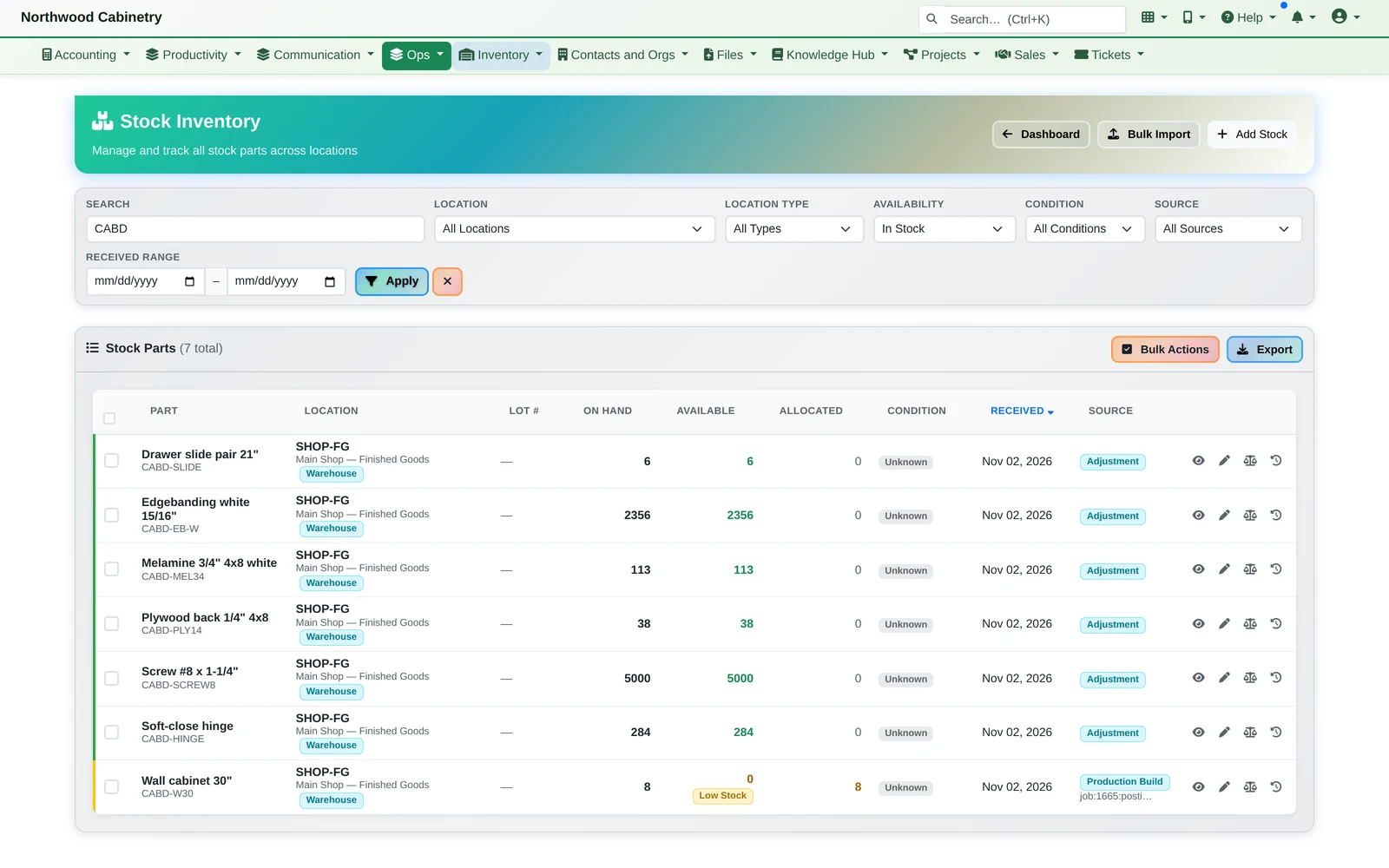
Sheet goods, hardware and finished cabinets
All in stock, all tracked, finished units reserved to the order they were made for.
Machines and scheduling
- Machines with capabilities (CNC cutting, 5×12 table, edgebanding…), uptime hours, maintenance downtime and an “unattended” setting
- Machine rules per product, enforced on every booking
- Week board with per-machine load bars; due date and priority rank the waiting list
- Delivery, truck loading and routes from field operations for shops that deliver their own goods
Orders and work orders
- Standard materials lists with revision tracking; work orders keep the revision they loaded
- Sub-assemblies whose parts load straight onto the work order, multiplied through
- Finished units reserved to their order line the moment they're posted
- An order with units still to make can't close itself
See it with your own products.
We'll take one order from the project to a running machine and a cost breakdown, then show you the rest of the platform it's built into.