
Infinite Expansion · eSignature
Send it, they sign it on their phone, and you can prove it.
eSignature, built in.
Upload a PDF, say who signs, and the fields place themselves. Your customer signs from the link in their email, with no account and no app, and you get the signed document plus a Certificate of Completion that records exactly how it happened.
Sign from the link in their email — no account needed.
Tired of paying per envelope for a separate signing service, or chasing “did you get my PDF?” eSignature is built into the same platform as your CRM, sales, tickets and documents, so a signed agreement lands on the customer's record by itself.
What Your Customer Sees
You upload it. They sign it on their phone. No account.
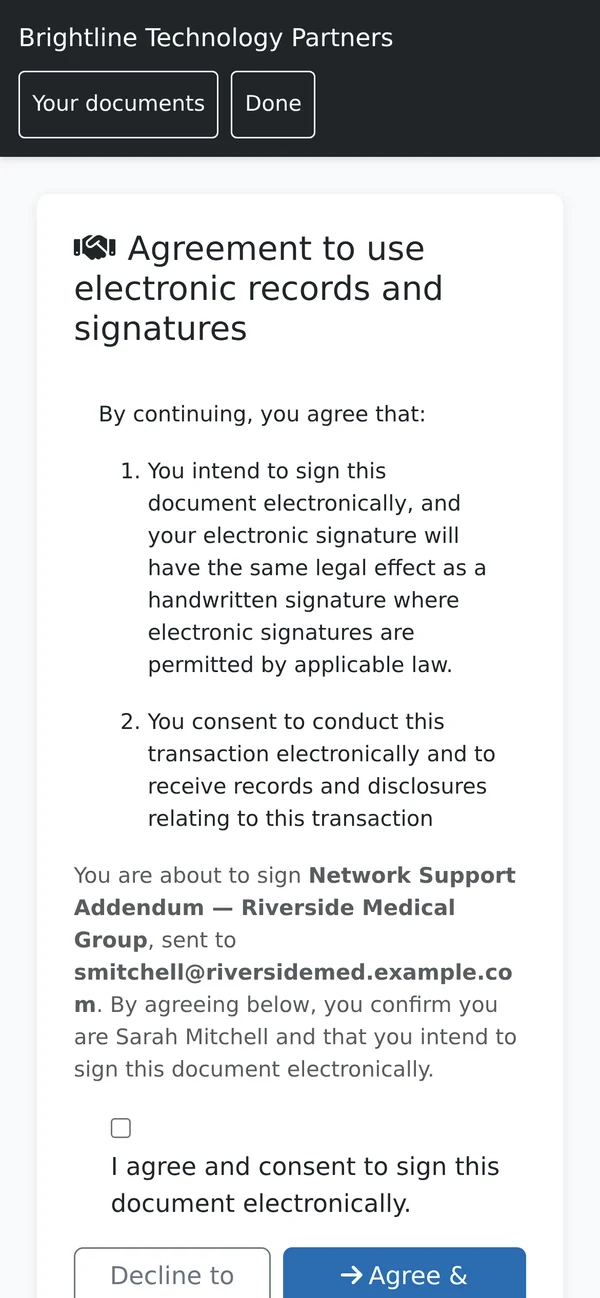
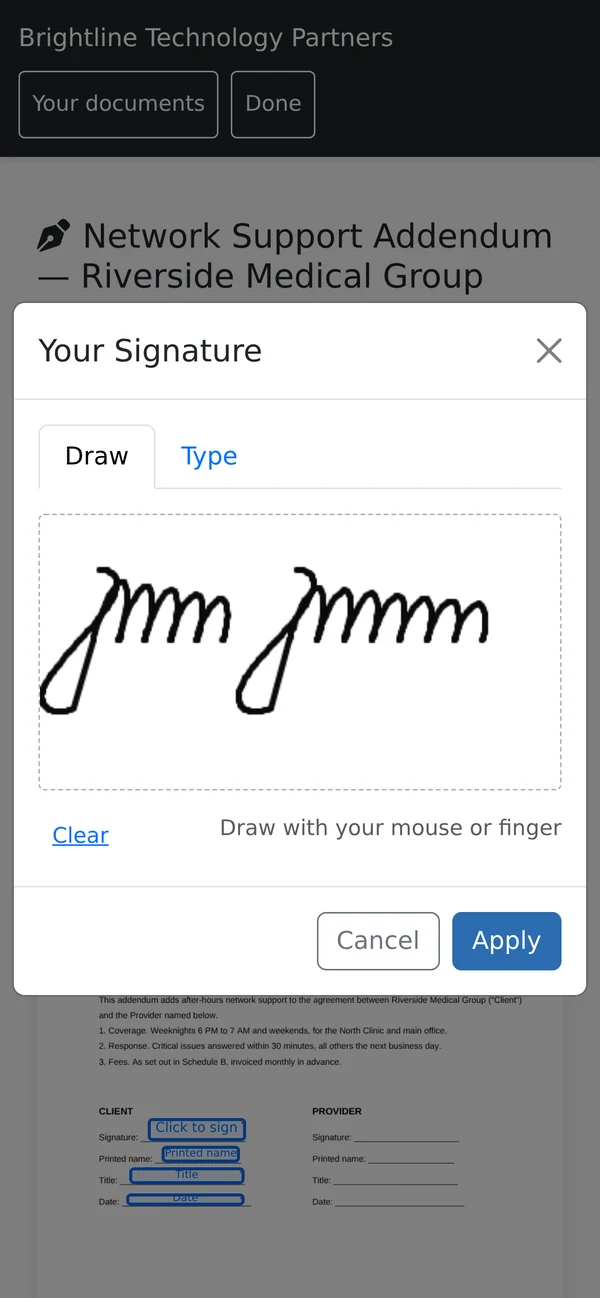
The email's Review & Sign button opens a short page with Continue. That's it: no password, no app, no sign-up. They agree to sign electronically, draw or type their signature, and tap through the fields. Customers who already have a Client Portal account sign in to it instead.
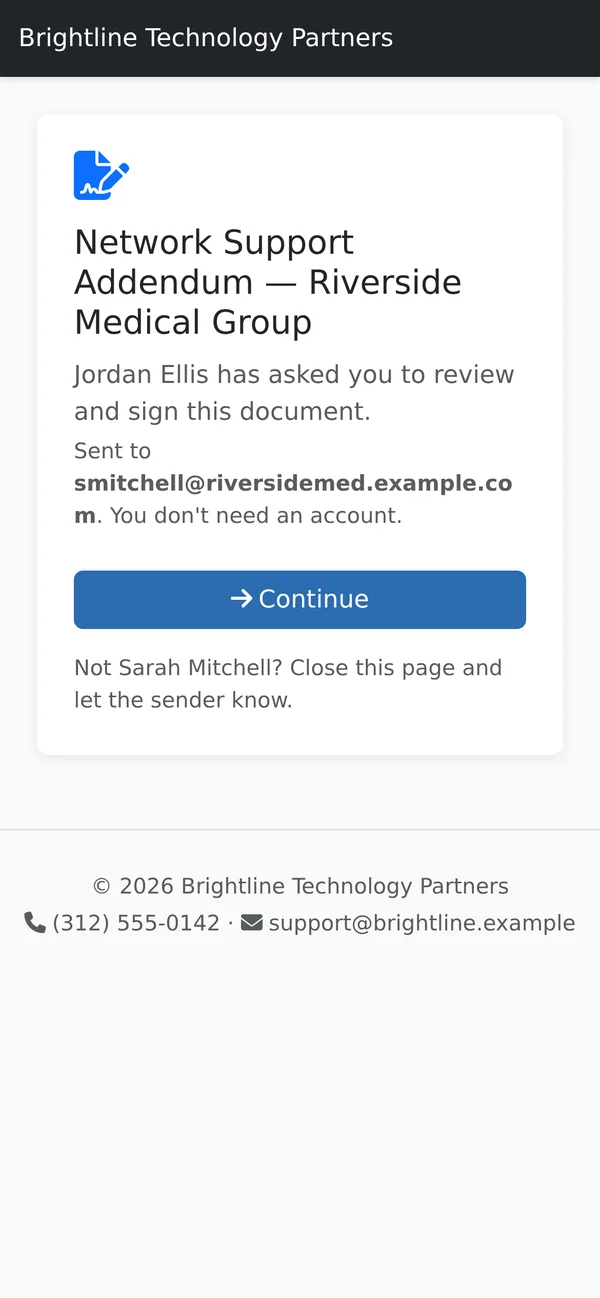
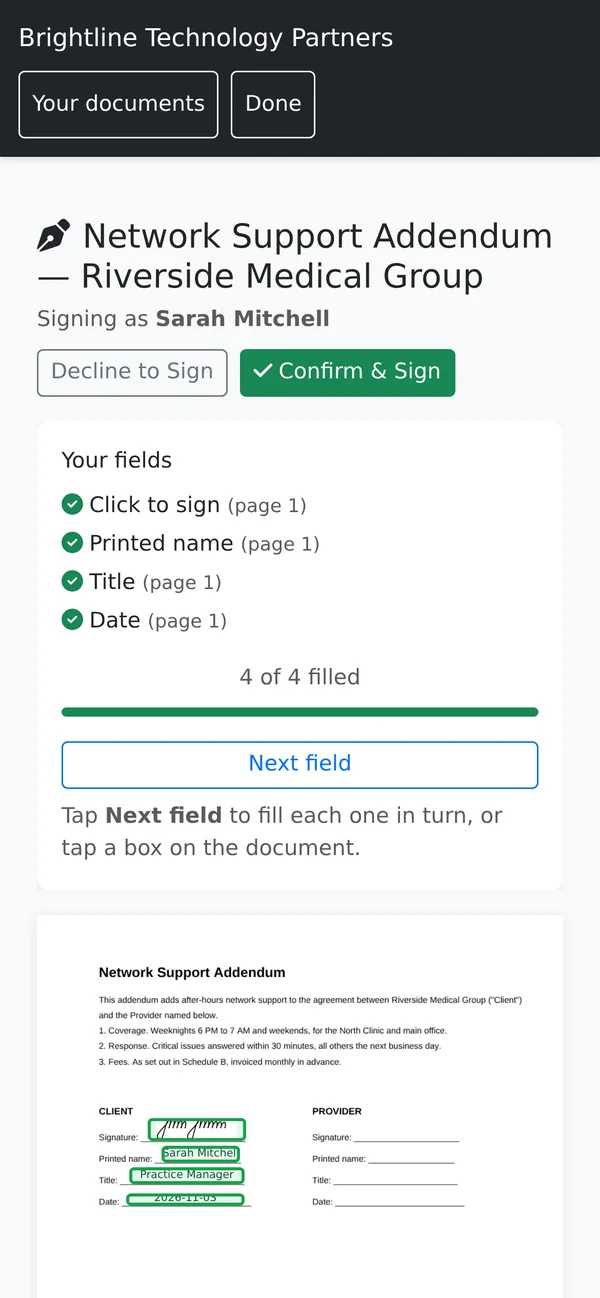
- The document fits the screen, and Next field opens each field in turn
- The pages follow the phone's light or dark mode
- Draw with a finger or a mouse, or type it: a typed signature uses a proper script font on every phone
- The exact consent wording they agree to is versioned and recorded
- Decline to Sign with a reason, and the sender is told why
Sending
From the customer's record to sent, in a few clicks.
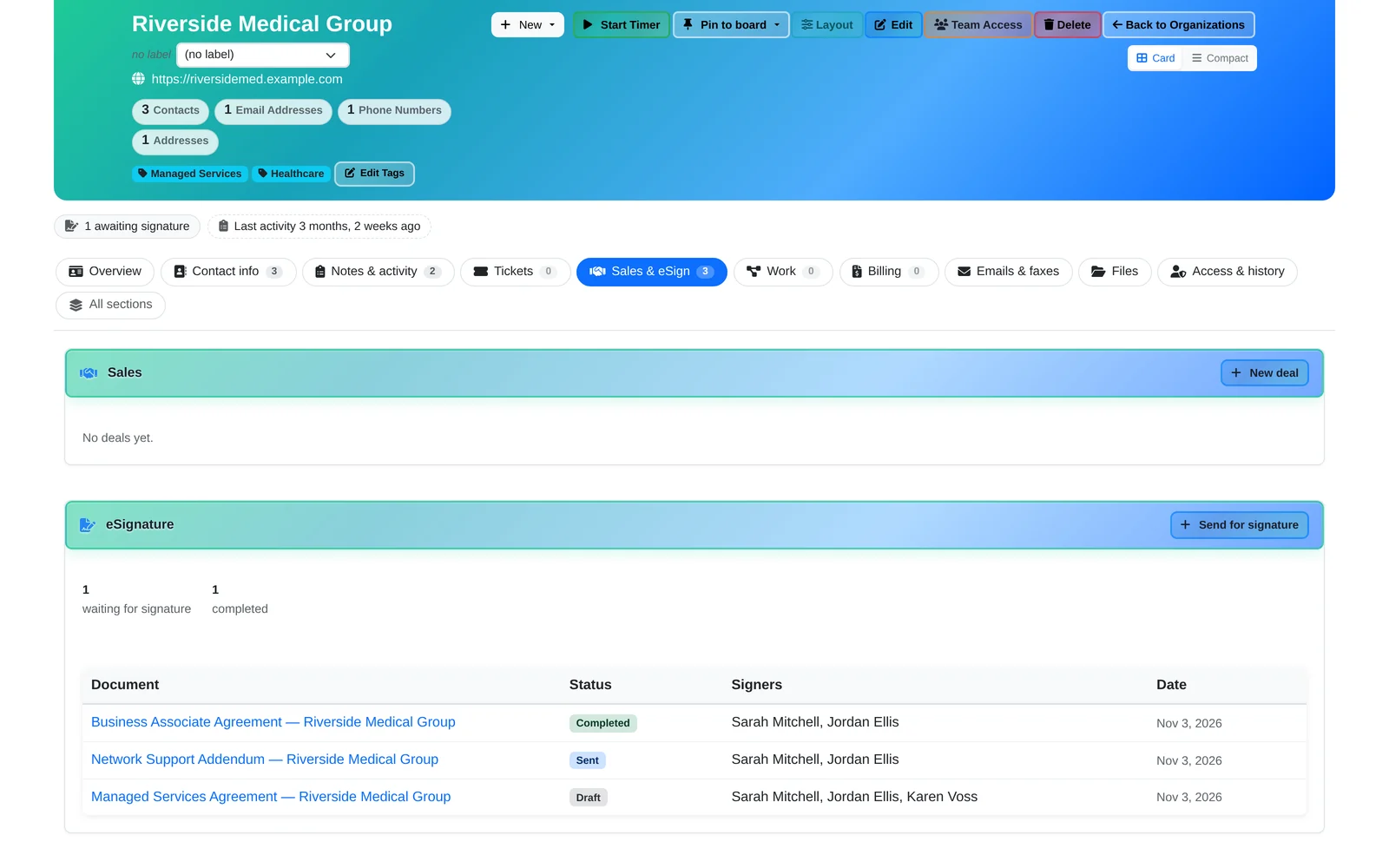
- Start from the customer. On the clinic's CRM page, open the eSignature card and click Send for signature. Starting from a contact adds them as the signer for you.
- Upload the PDF and say who receives it. Find each person in your CRM by name or email, or type someone new: a signer doesn't have to be in your CRM. Add me adds you when you countersign.
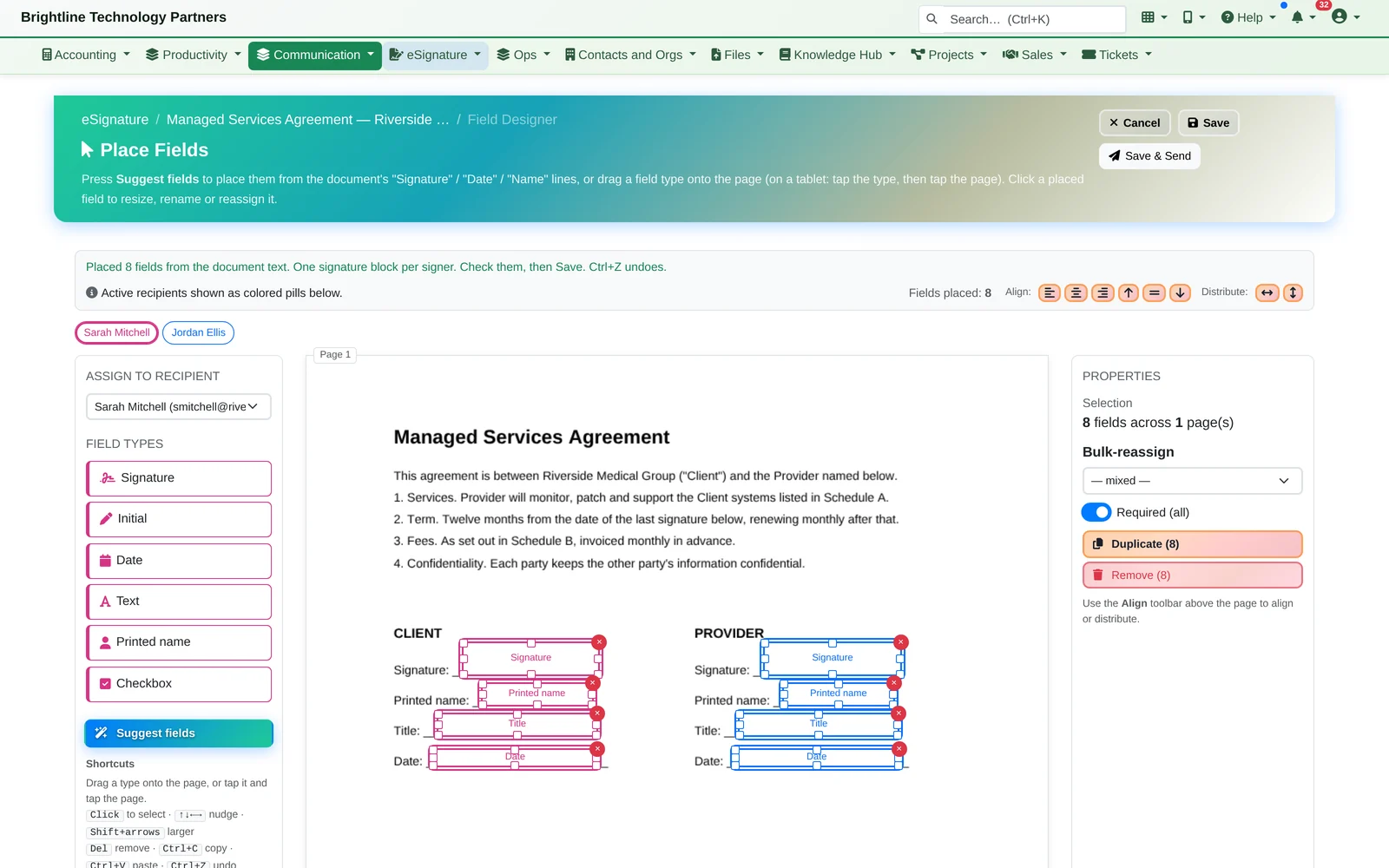
- The fields place themselves. Suggest fields finds the Signature, Printed name, Title, Date and Initials lines and gives each signer their own block. The word “date” in an ordinary sentence is left alone. Drag or tap to add anything it missed.
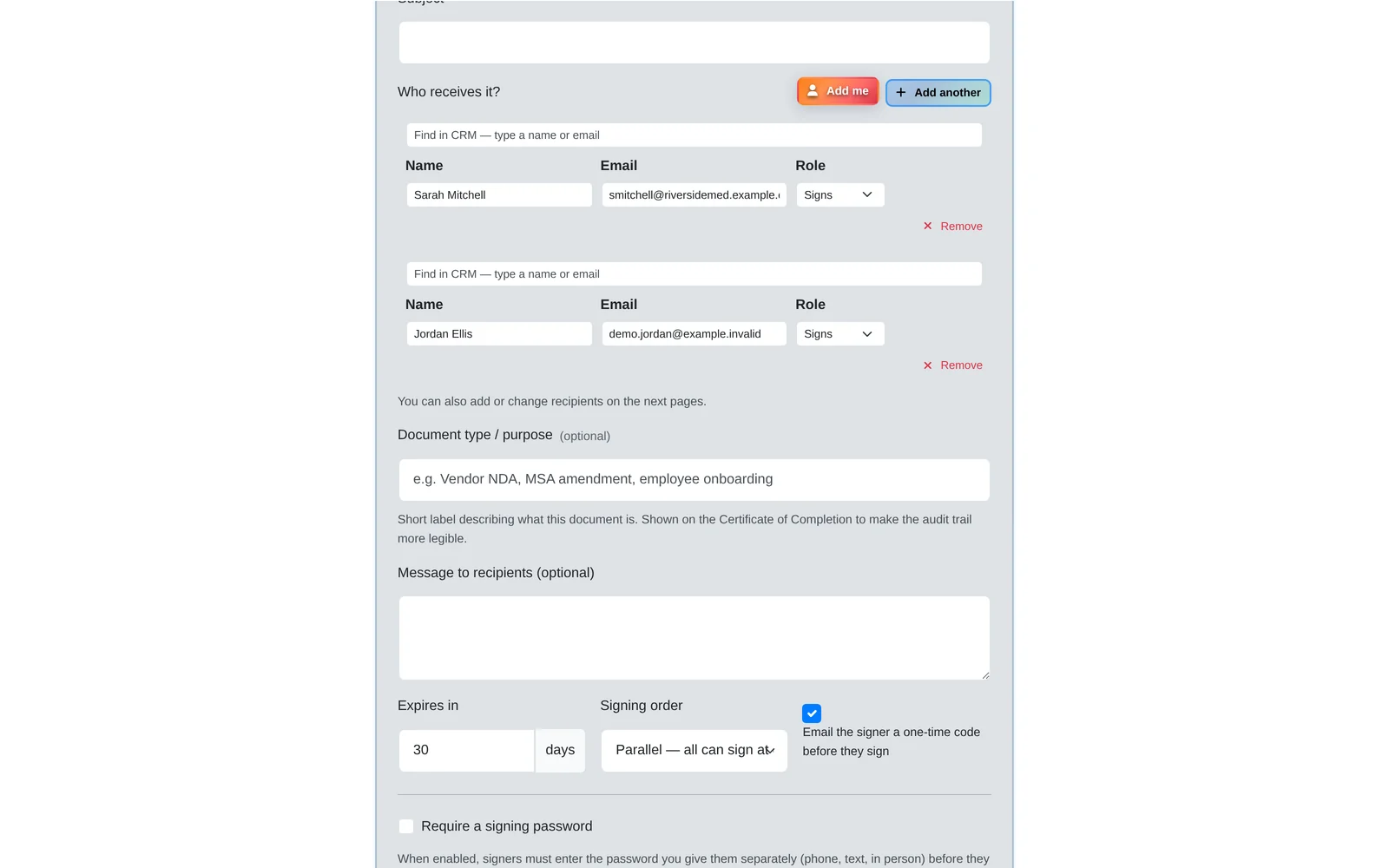
Suggest fields isn't AI. It reads the document's own text, so it works on every plan and the document never leaves your server. Scanned PDFs with no text get their fields placed by hand.
- A checklist says when it's ready. Recipients, a signature field for every signer, then Send. It won't let you send a document someone has nowhere to sign. After that, reminders go out on their own and the timeline records every step.
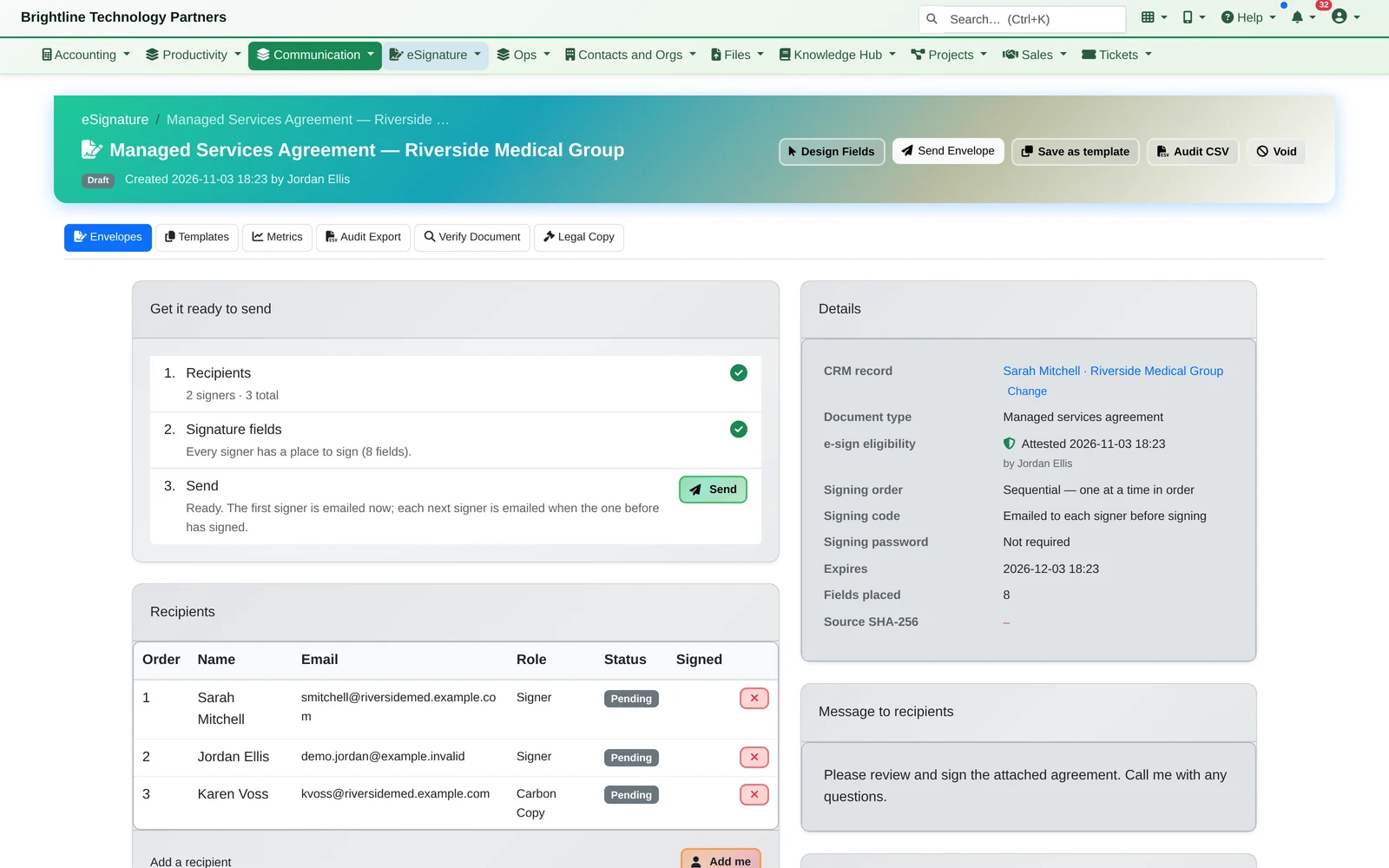
Ready to send
Signing order: everyone at once, or one at a time, where each next signer is emailed only when the person before has signed.
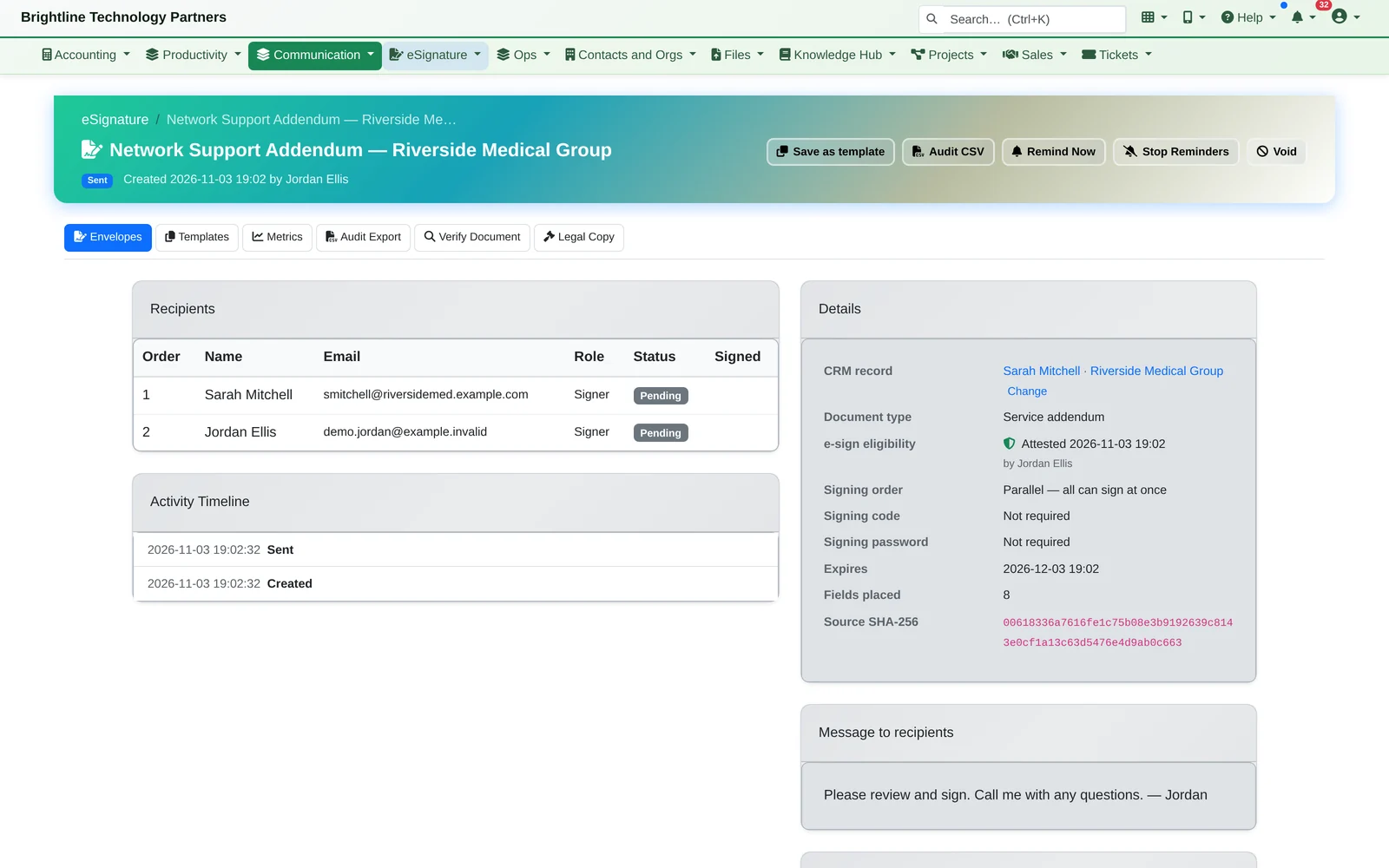
Out for signature
You get an email each time someone signs, saying who's next. Reminders go out after 48 hours, then every 48 hours, up to three. Remind Now, an expiry date, and Void with a reason.
- An optional signing code emailed to each signer before they sign (on by default), and an optional signing password you give them separately
- Field designer: drag fields onto the page, or tap on a tablet. Signature, initials, date, printed name, text and checkboxes, with align, copy and paste, and undo
- Signers and copy-only recipients, picked from your CRM or typed in
Proof and Records
And you can prove it.
- Everyone gets the signed copy. When the last person signs, the signatures are stamped onto the PDF and a Certificate of Completion is produced. Everyone on the envelope gets an email with a link to their signed copy.
The full activity timeline (sent, viewed, consented, each field filled, signed) downloads as a spreadsheet, alongside an audit export across all envelopes.
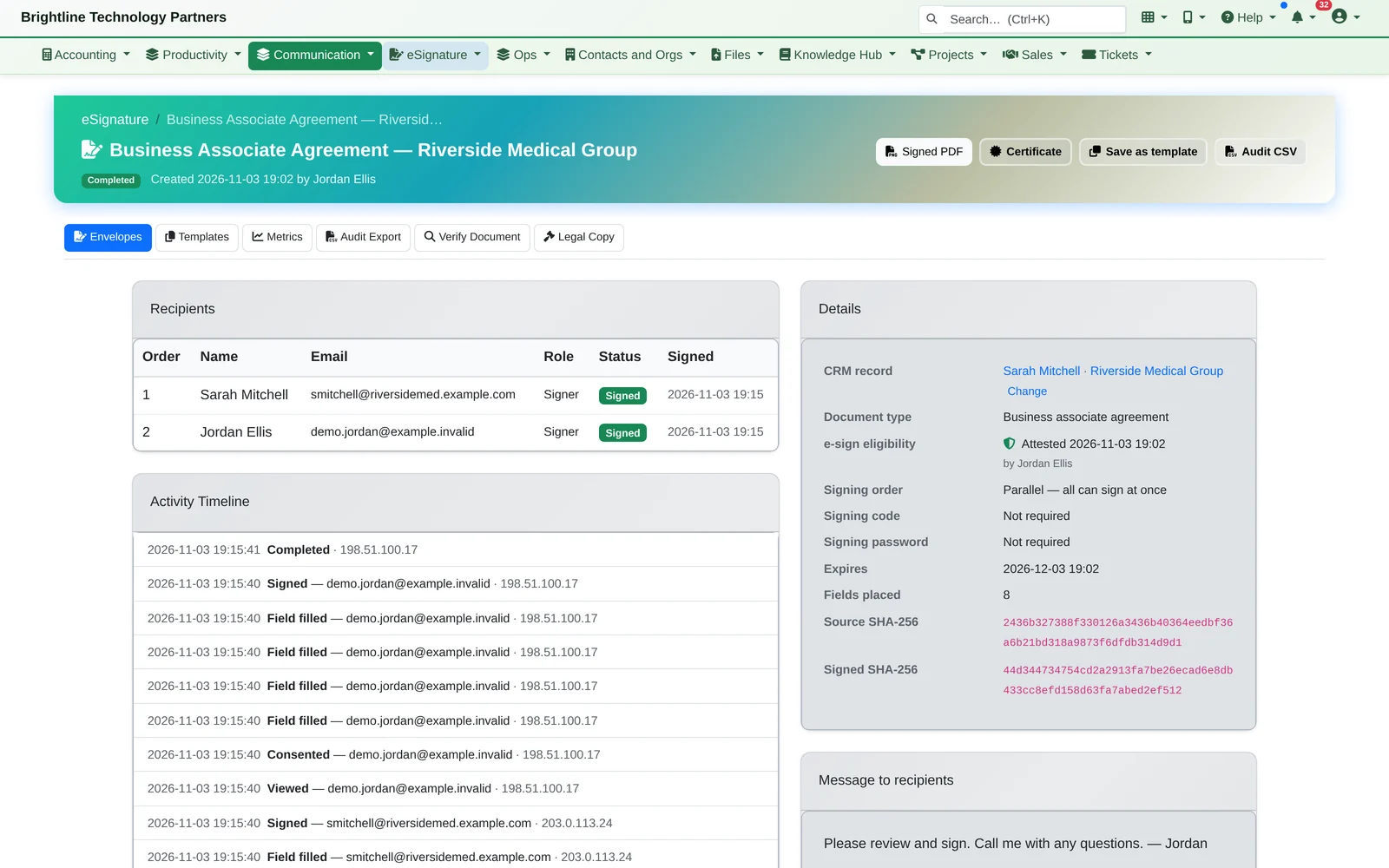
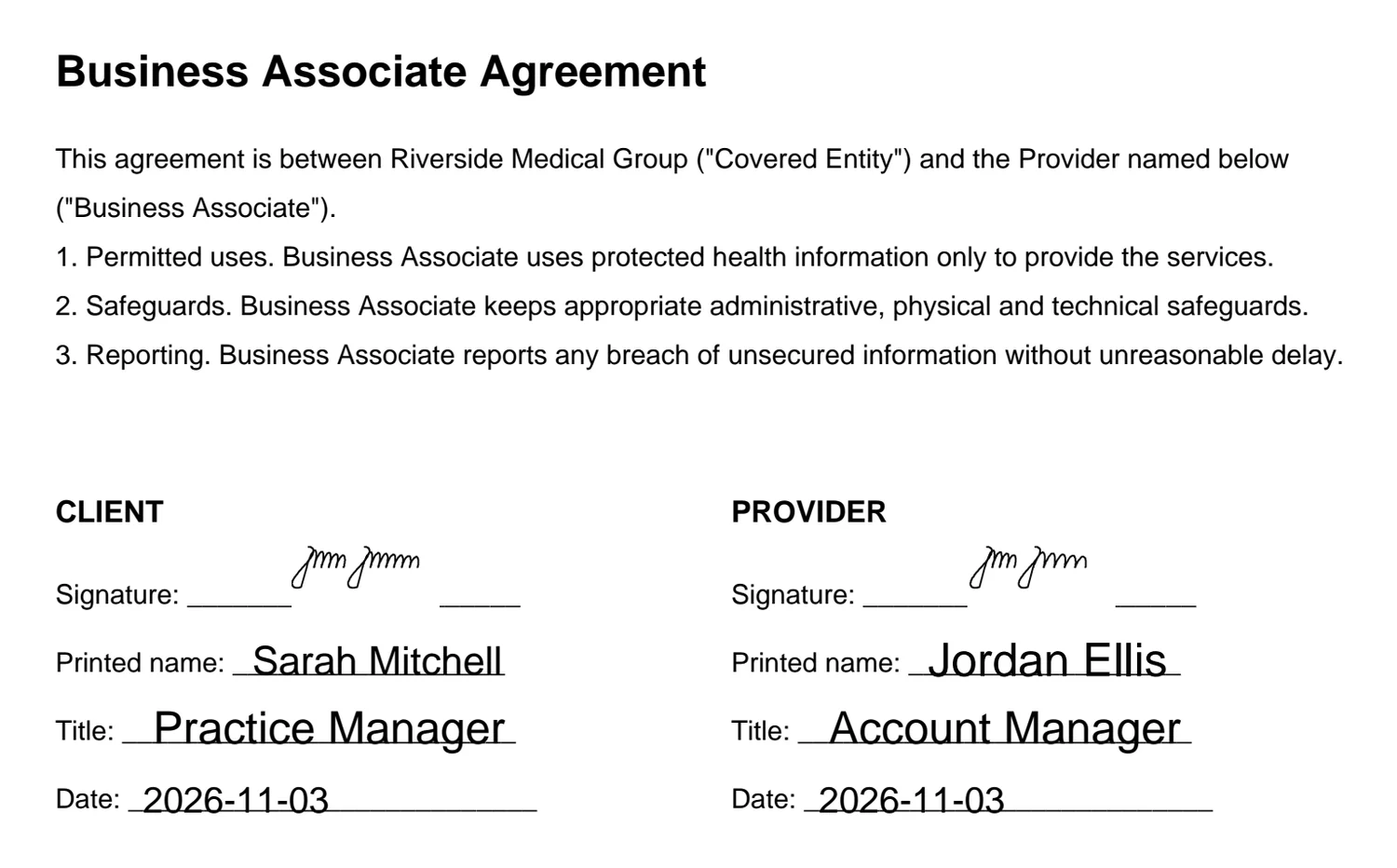
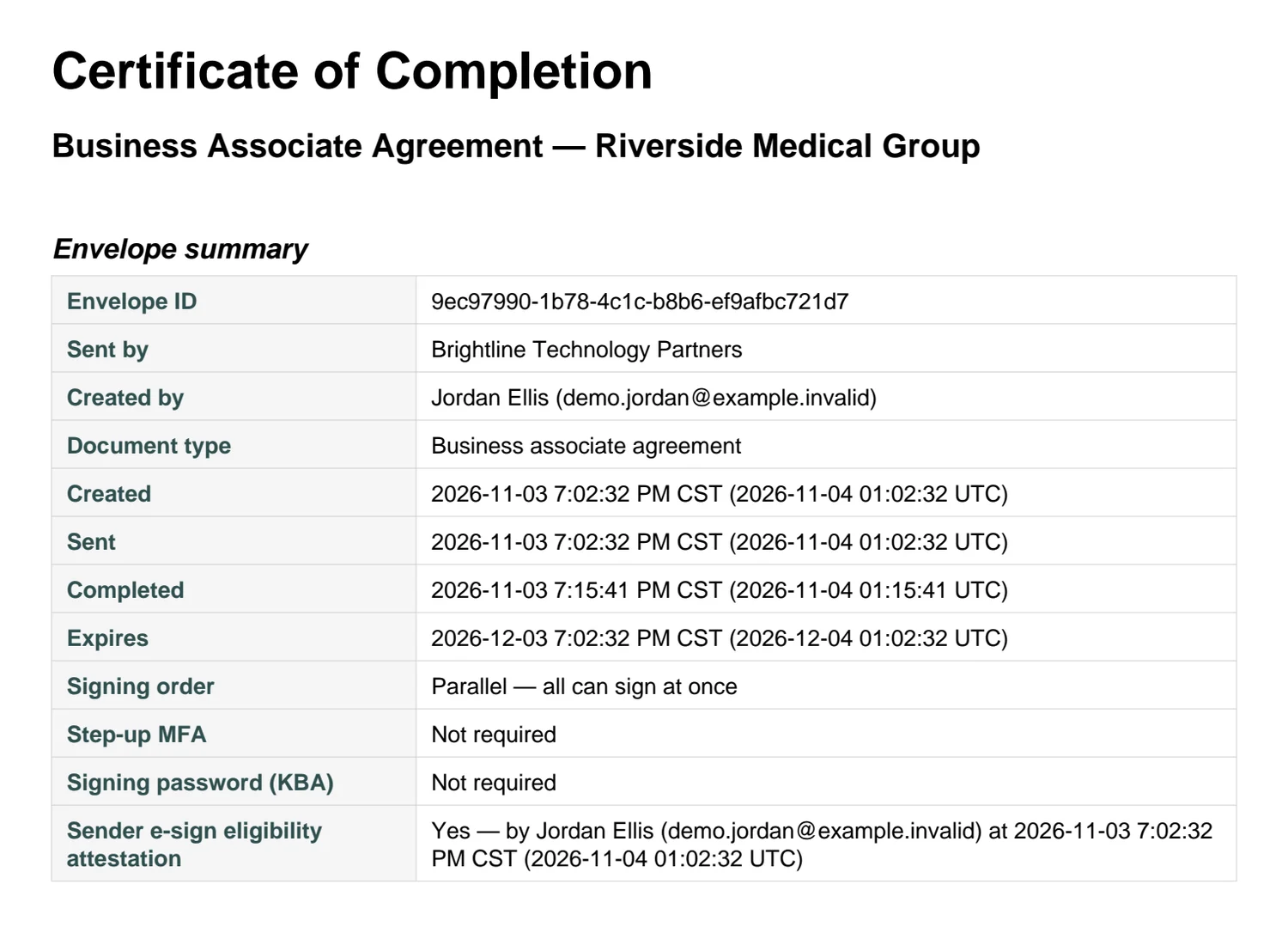
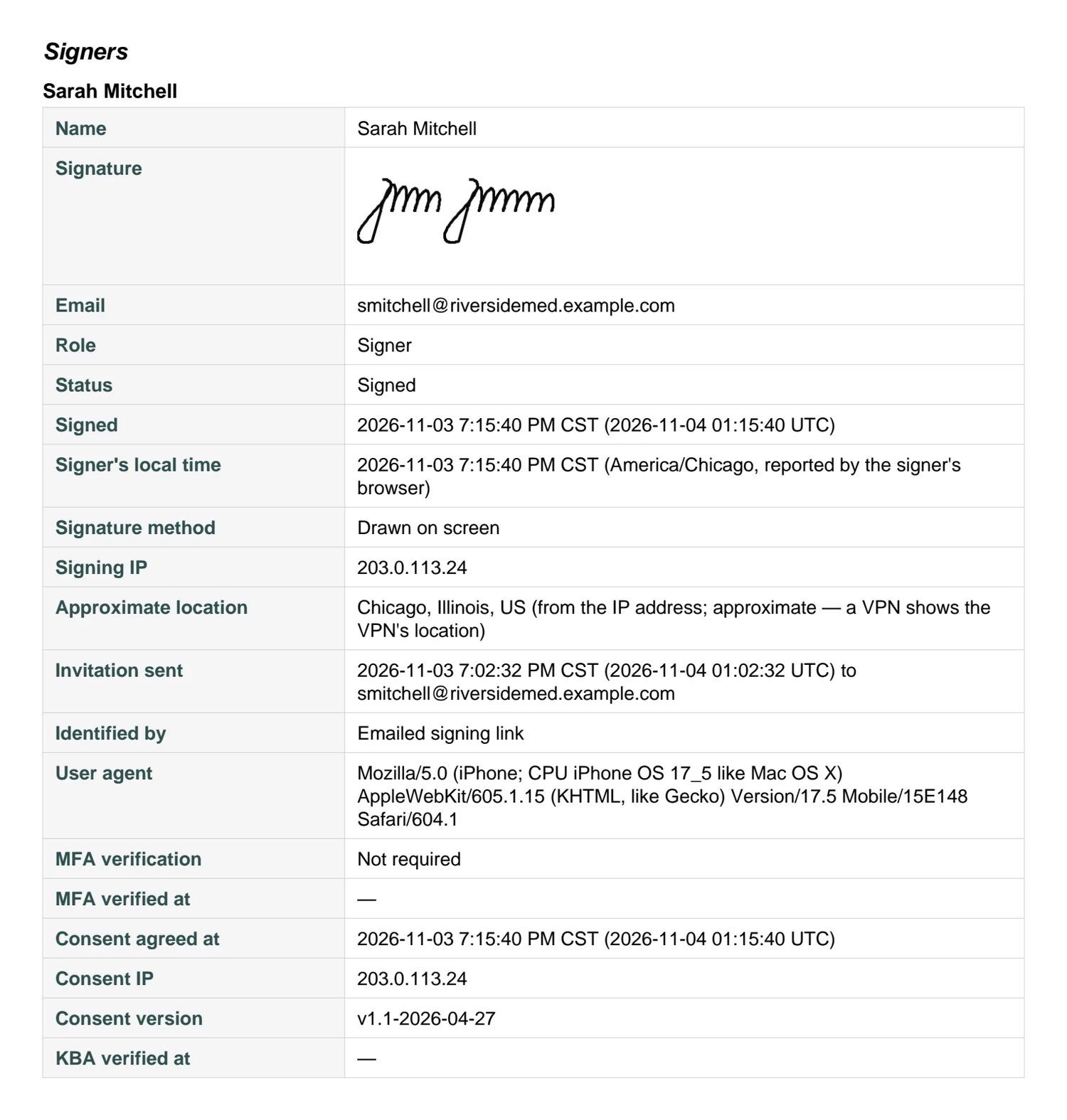
- Prove it later. The certificate records who signed, when, from which IP address and device, their local time, how they were identified, whether they drew or typed, and the exact consent text they agreed to. It also holds the SHA-256 fingerprints of the original and signed files.
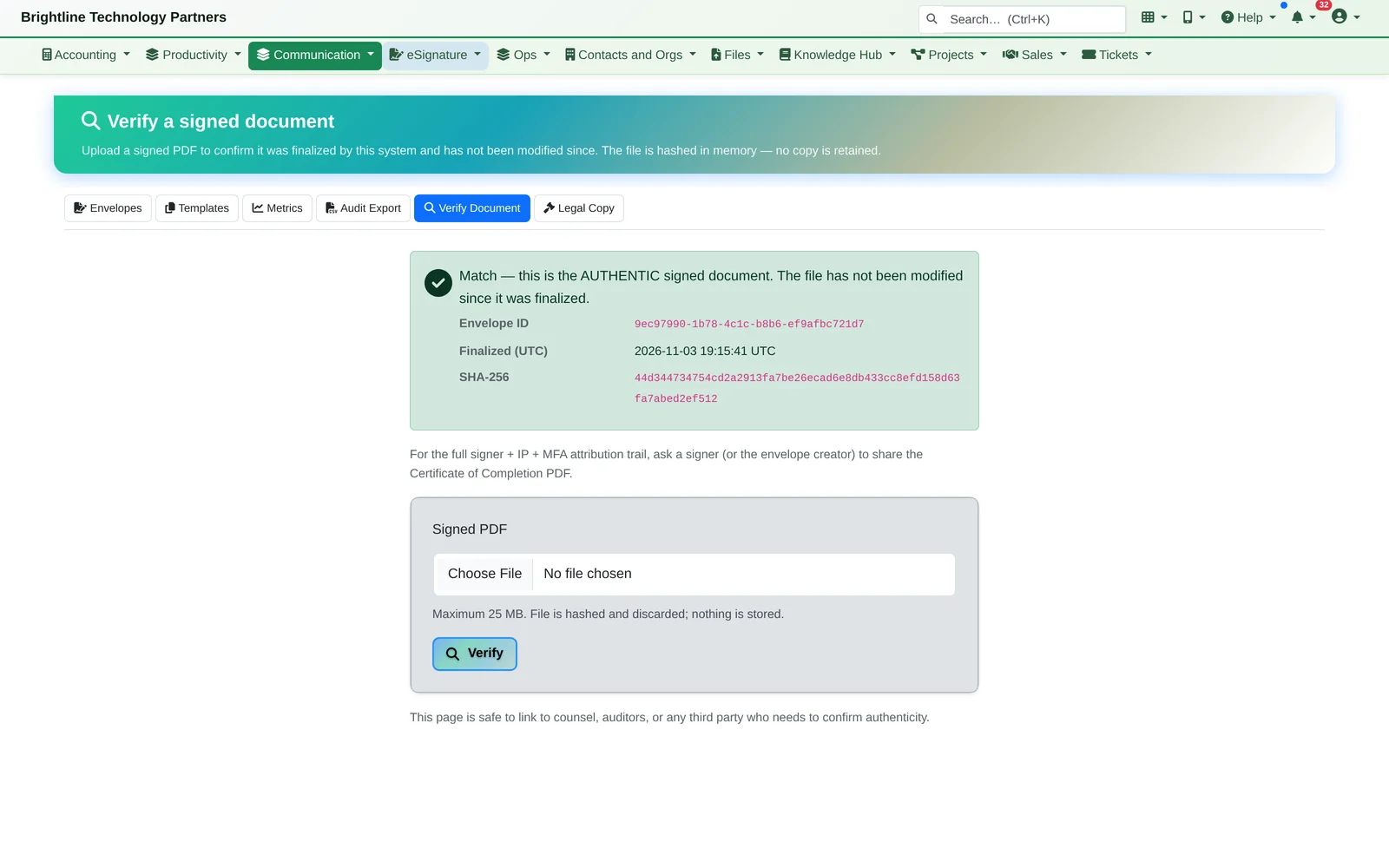
Tamper-evident: any change after signing shows up on the Verify page.
Anyone, such as an auditor or the other side's lawyer, can upload the PDF to Verify Document and see whether it's the authentic signed file, unchanged since it was finalised. The file is checked and thrown away, nothing is stored, and only the envelope ID and date are shown.
Templates and Volume
Set it up once. Send it to a whole list.
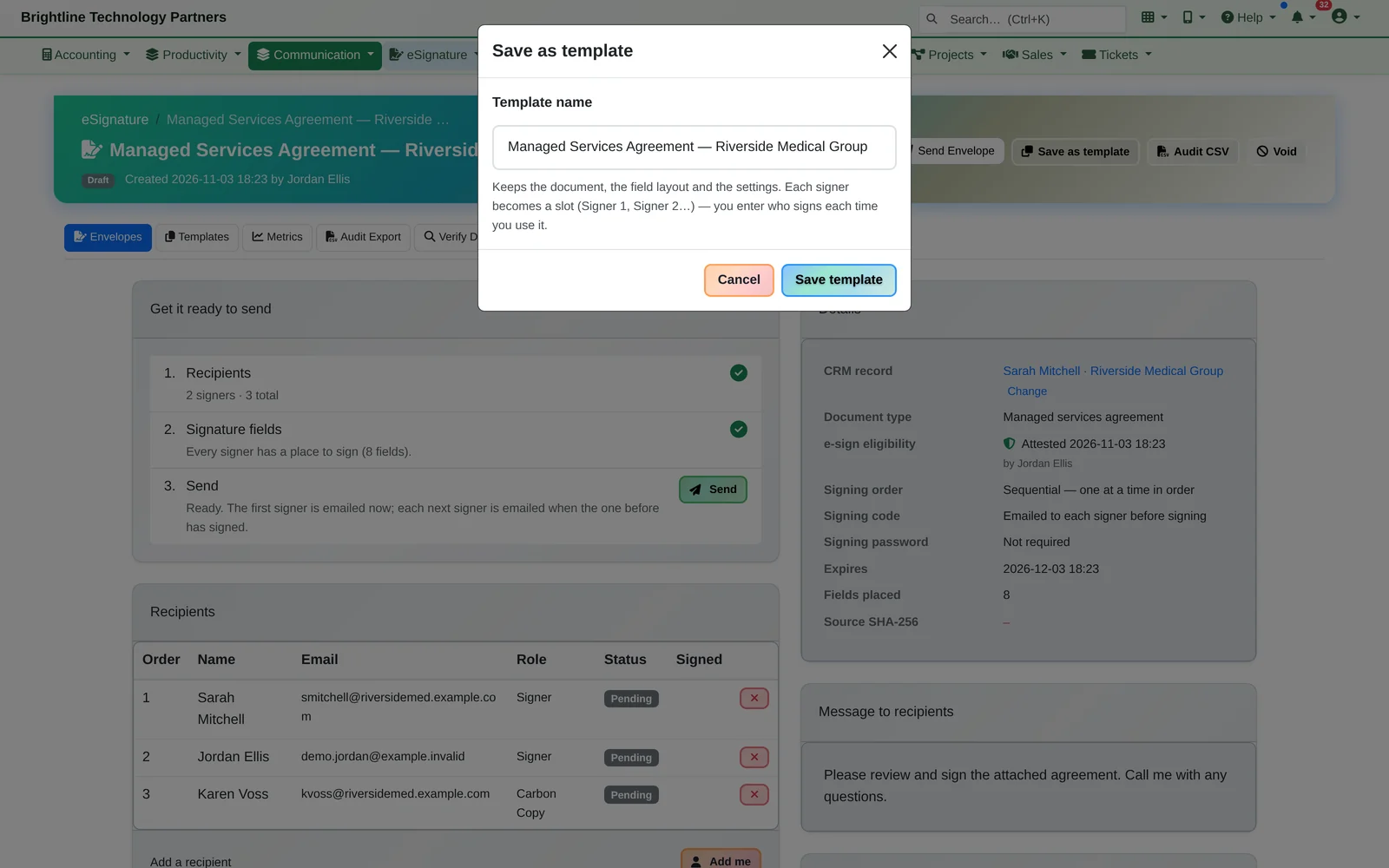
Save as template
From any envelope: the document, the layout and the settings, with each signer as a slot you fill in next time.
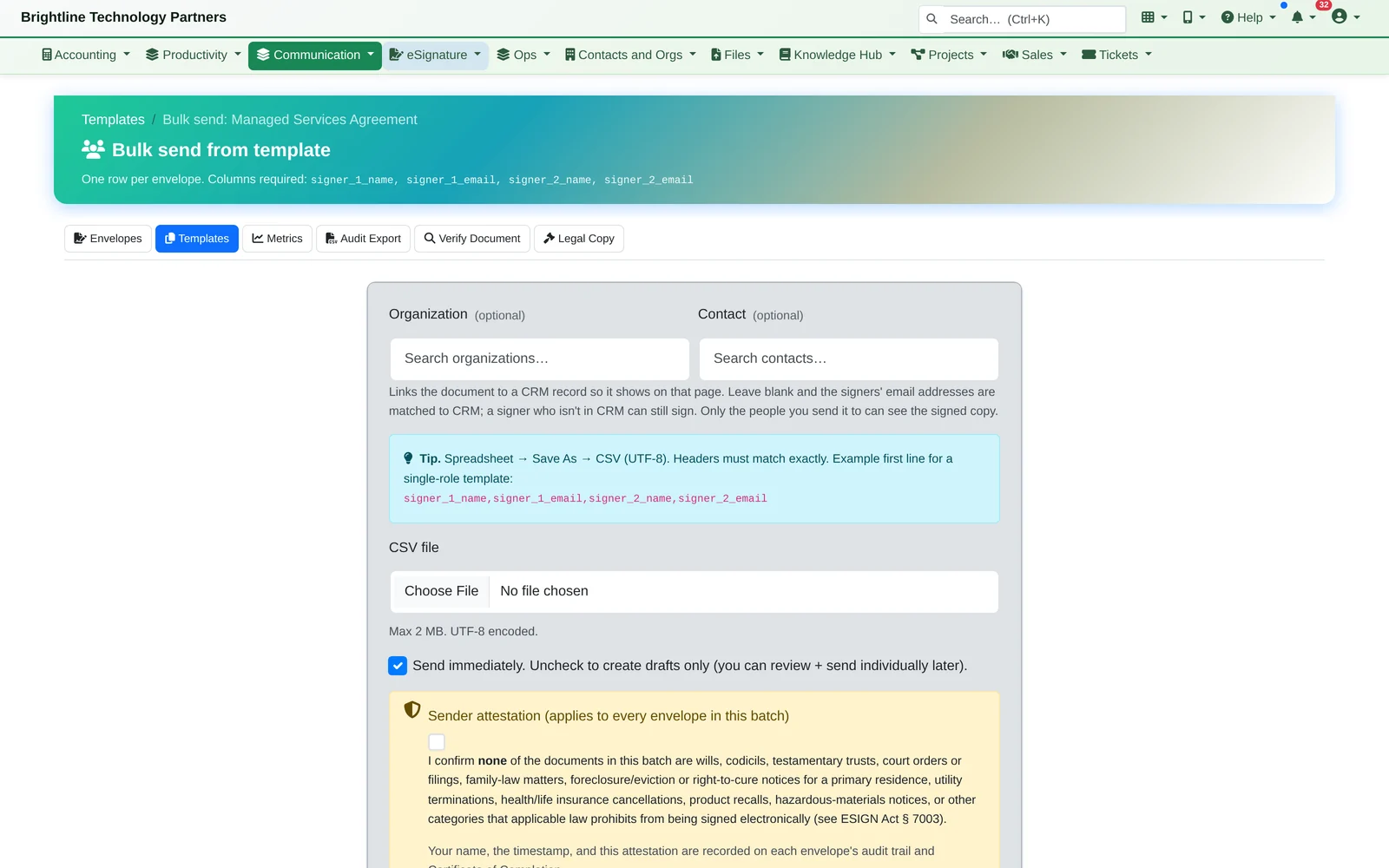
Bulk send
Send one template to a spreadsheet of people: one envelope each.
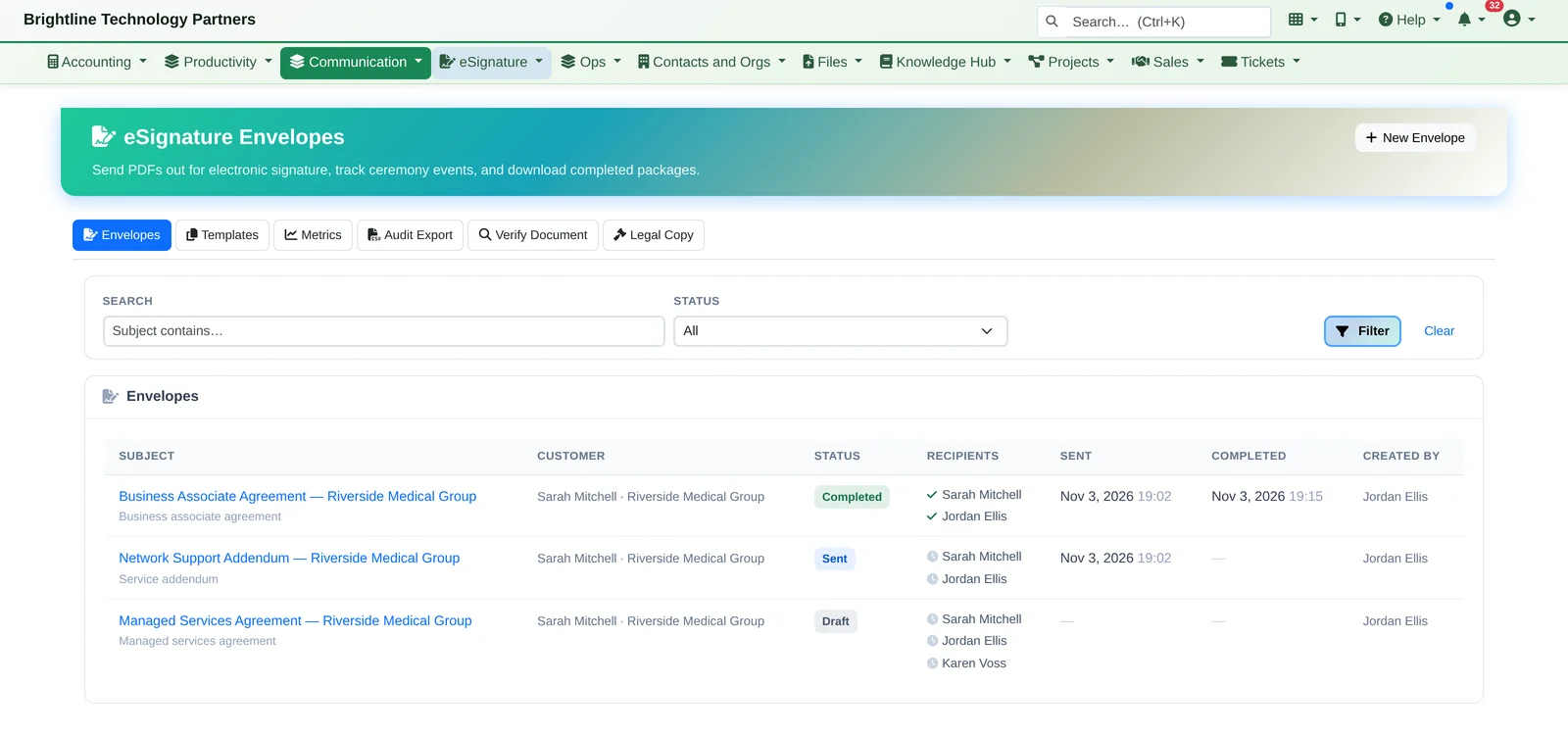
Every document out for signature, on one page
Who has signed, who hasn't, and when each one was sent and completed, with a metrics page alongside.
Connected to Everything Else
Signed agreements land on the customer's record.
- Every envelope can be linked to a CRM organization and/or contact and shows on that record's page. Leave it blank and the signers' email addresses are matched to your CRM, only when the match is unambiguous
- Quotes from the sales pipeline go out for signature the same way
- On the customer's side, only the people you send a document to can see it, so linking an agreement to a clinic doesn't show it to the front desk
- On your side, roles decide who sees what, and a sensitivity label such as Restricted hides an envelope from anyone without clearance
See it signed, start to finish.
We'll take one agreement from upload to signed on a phone, show you the certificate and the Verify page, then the rest of the platform it's built into.