
Infinite Expansion · AI Email Assistant
Your inbox, with an assistant that already knows your clients.
Email that keeps its promises.
Infinite Expansion checks your customer email so nothing slips. It tells you who is still waiting on an answer, who never answered you, and what you promised and when. It drafts replies in your own voice, offers meeting times from your calendar, briefs you before a call, and answers questions about your inbox in plain English.
In the browser or inside Microsoft Outlook. Nothing is ever sent without you.
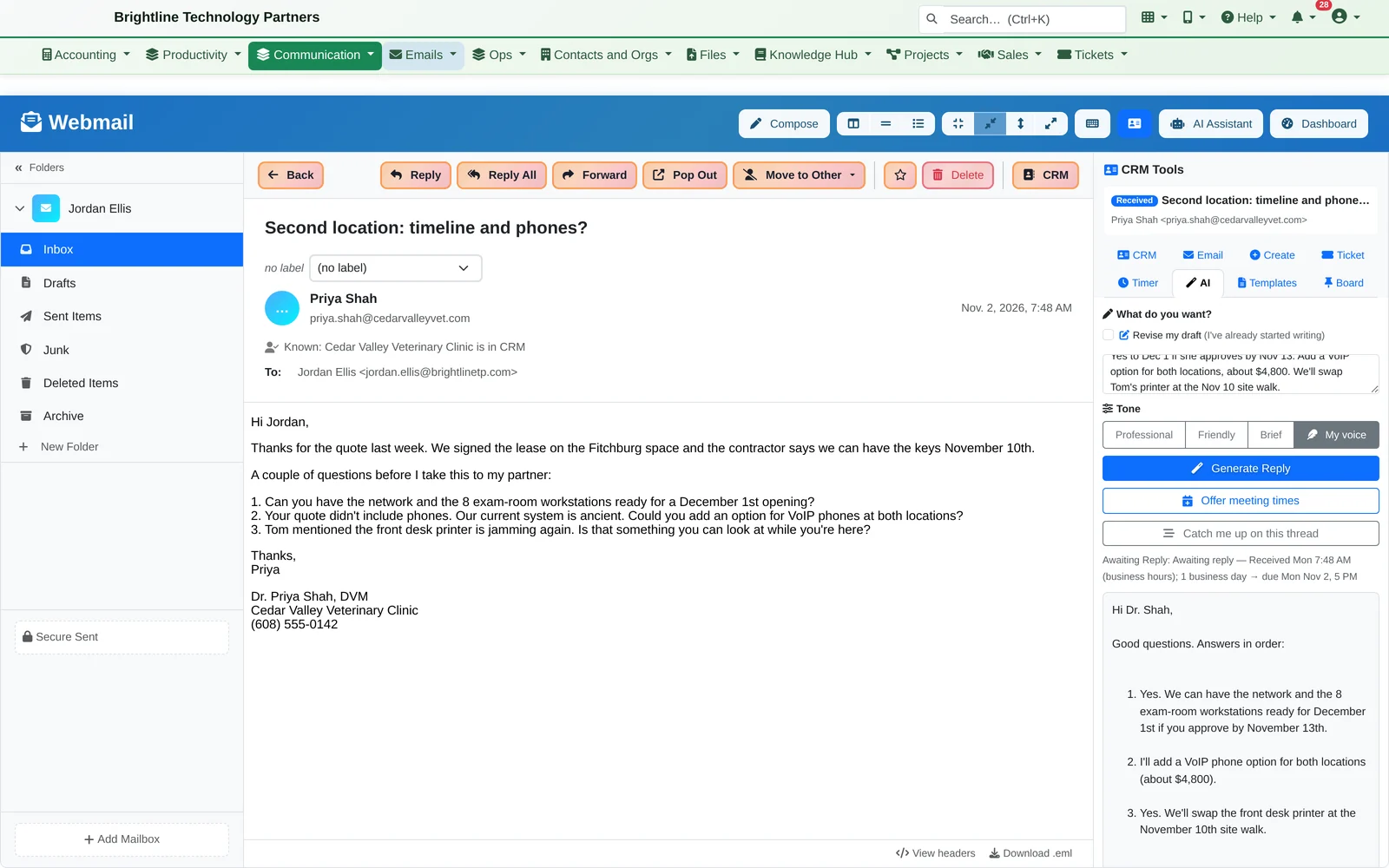
Generic AI writing tools don't know your customers, and inbox add-ons don't know your business. This one is built into the same platform as your CRM, deals, help desk, calendar and documents, so it can say “this is the renewal deal”, “she's waiting on the backup pricing” and “you're free Wednesday at 10”.
Monday, 9 AM
One page tells you what needs you this morning.
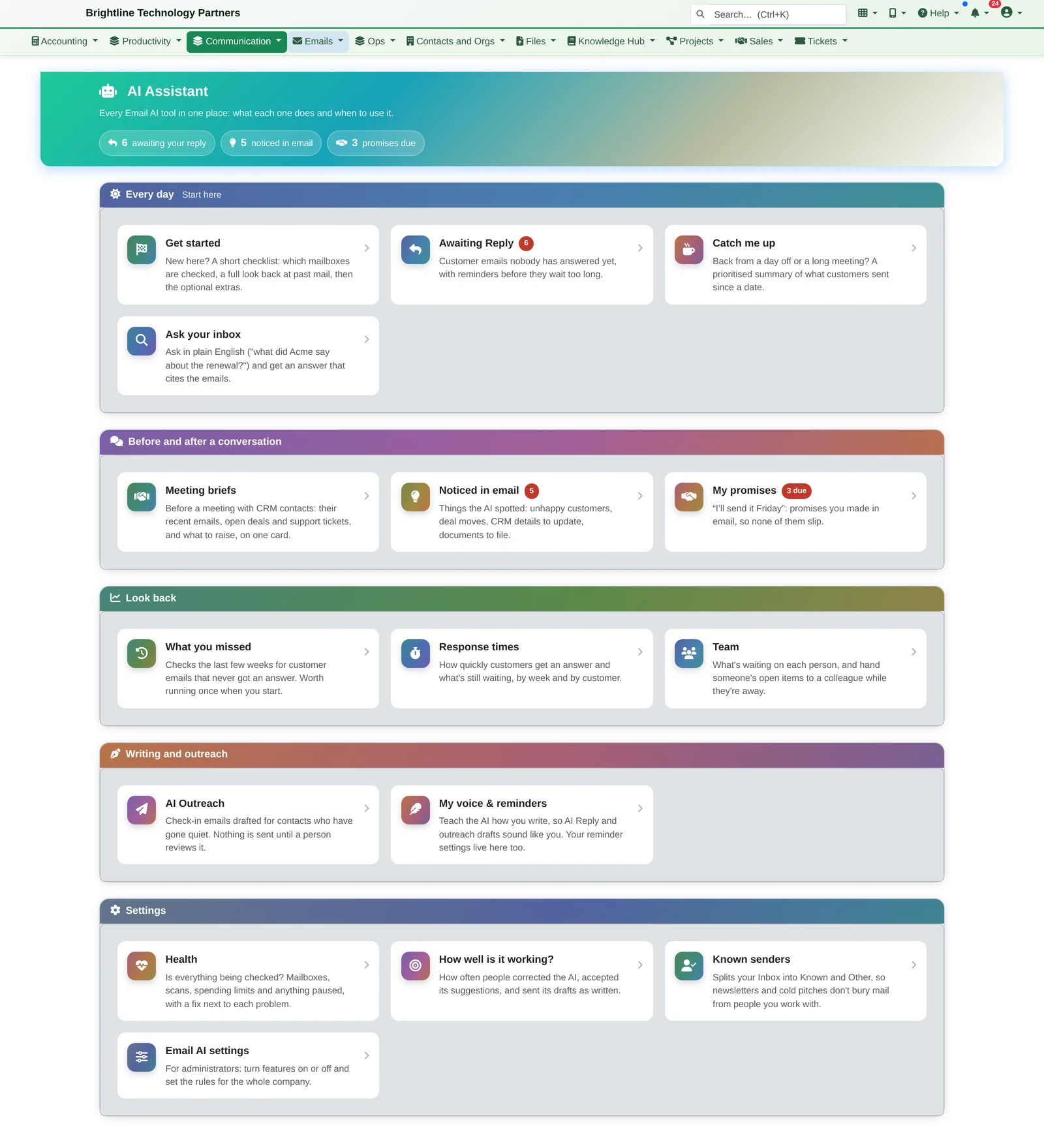
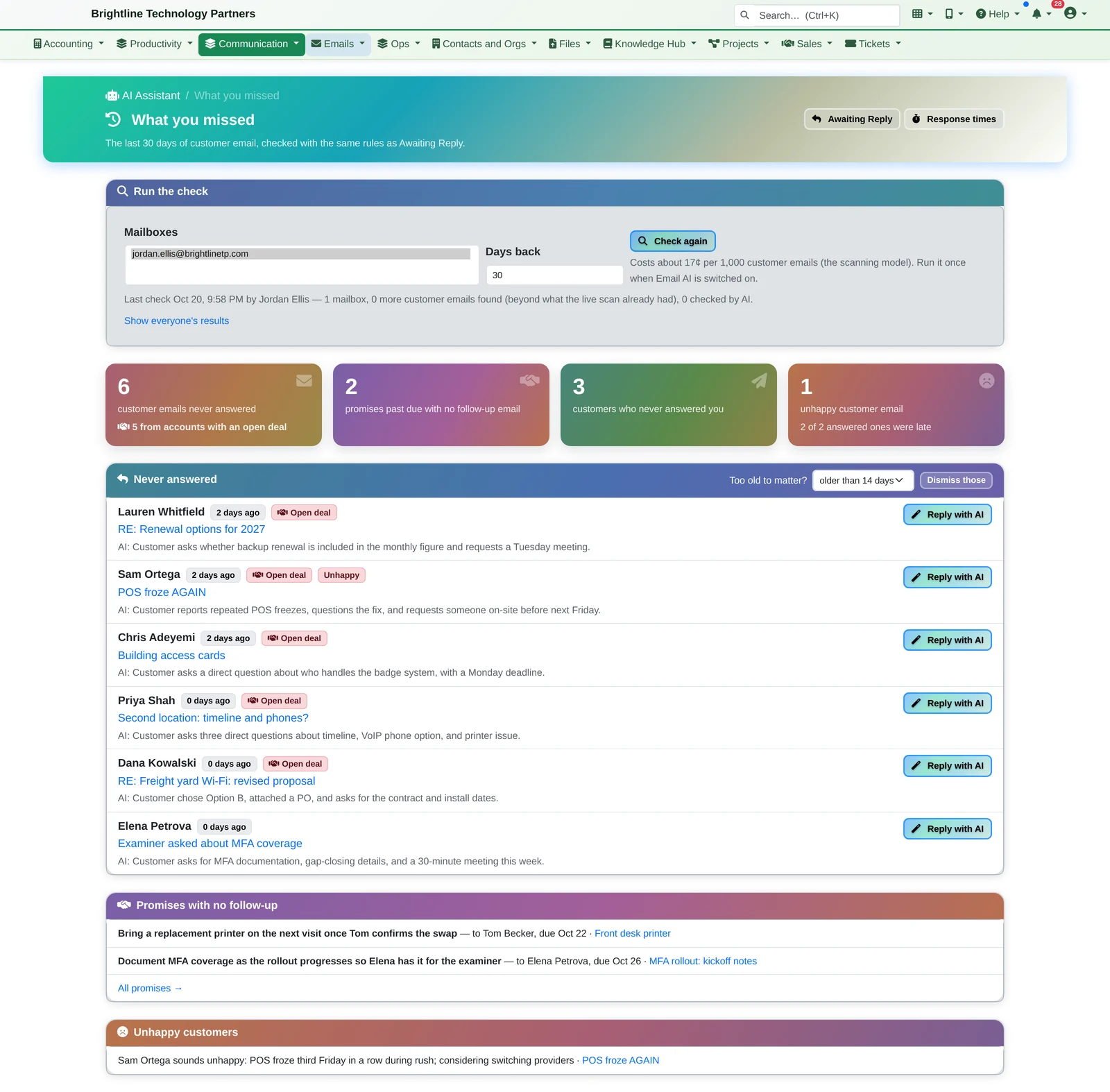
- Jordan opens the AI Assistant. Six customers are waiting on a reply, five things were noticed over the weekend, and three promises are due.
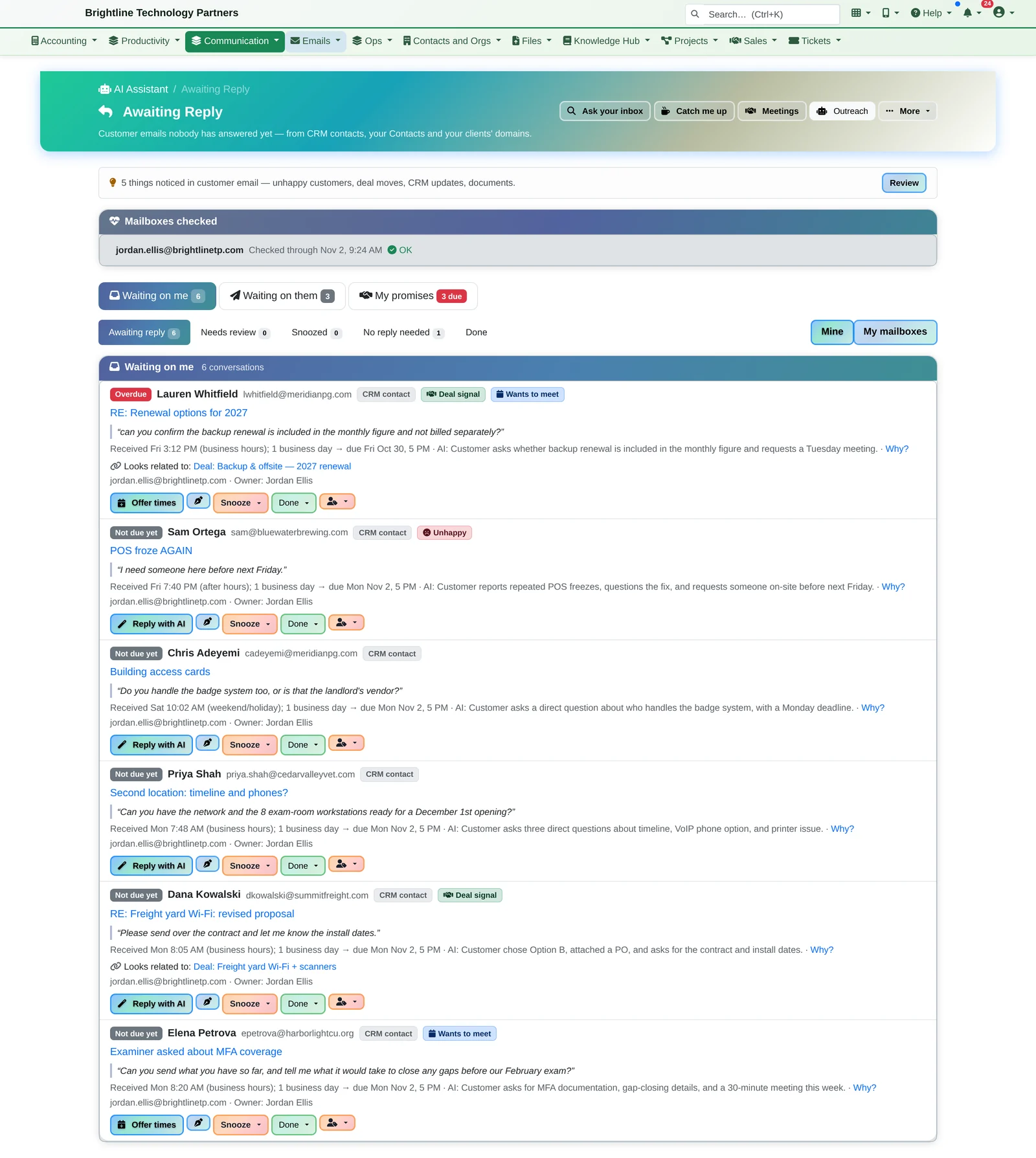
- Awaiting Reply puts the overdue one first. Lauren at Meridian asked a question on Friday afternoon and it's past the one-business-day target. Each email shows the customer's own words, why the AI flagged it, and the deal it probably belongs to.
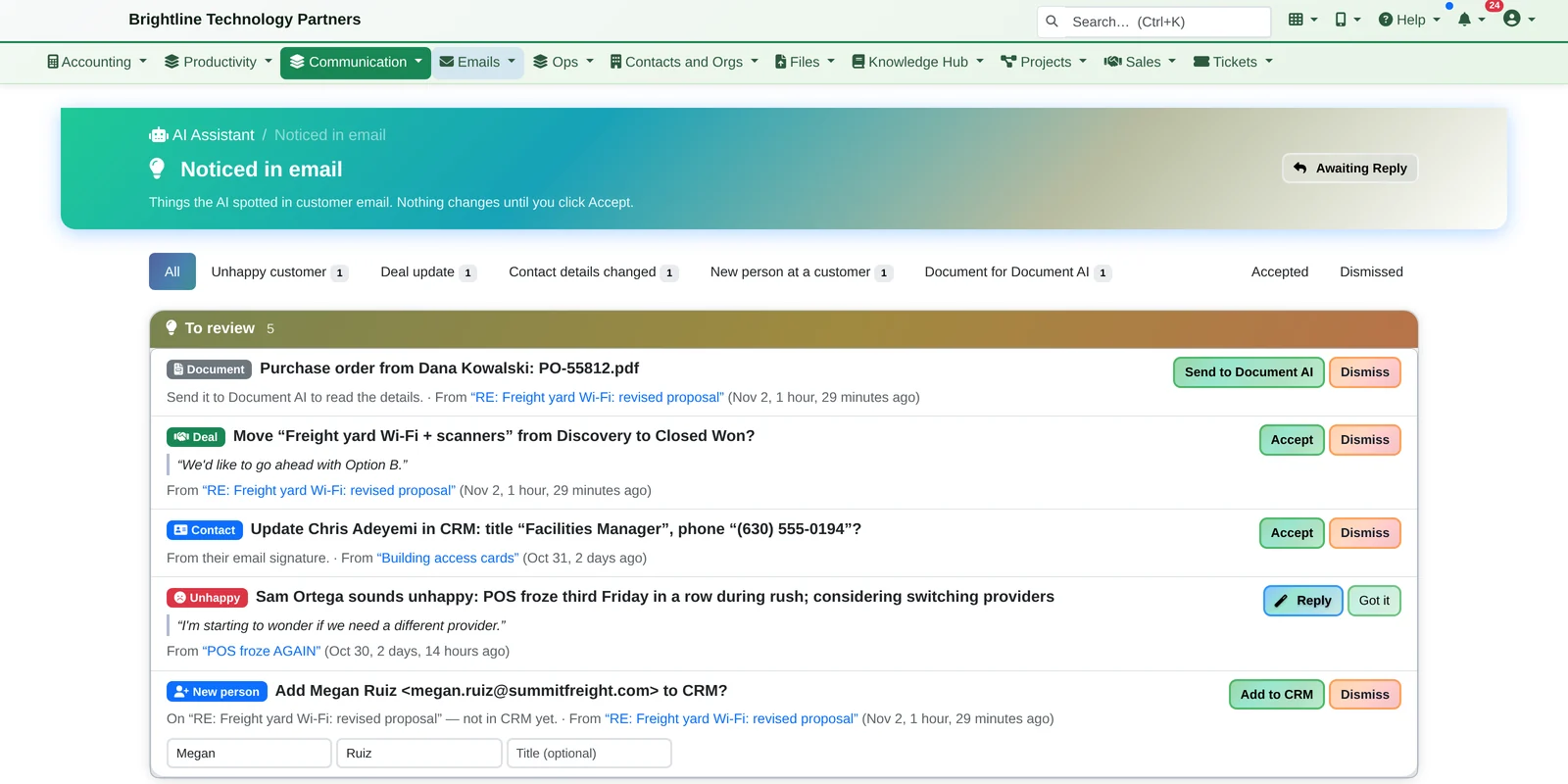
- Noticed in email: Dana at Summit Freight wrote “We'd like to go ahead with Option B” and attached a signed PO. One click moves the deal to Closed Won, one sends the PO to Document AI, and one adds Megan from purchasing, who was on CC, to the CRM. Sam at Bluewater sounds unhappy, and that's flagged too.
- Jordan replies to Priya in their own voice. One line of instructions (“Yes to Dec 1 if she approves by Nov 13. Add a VoIP option, about $4,800…”), the My voice tone, and the reply opens “Good questions.”, answers in a numbered list and signs off the way Jordan always does.
- Elena wants to meet this week. Offer meeting times writes the reply with three open slots from Jordan's calendar.
- Before Tuesday's renewal call, a click on the thread gives a catch-up of what's decided, what's still open and who owes what, and the meeting brief lists what to raise.
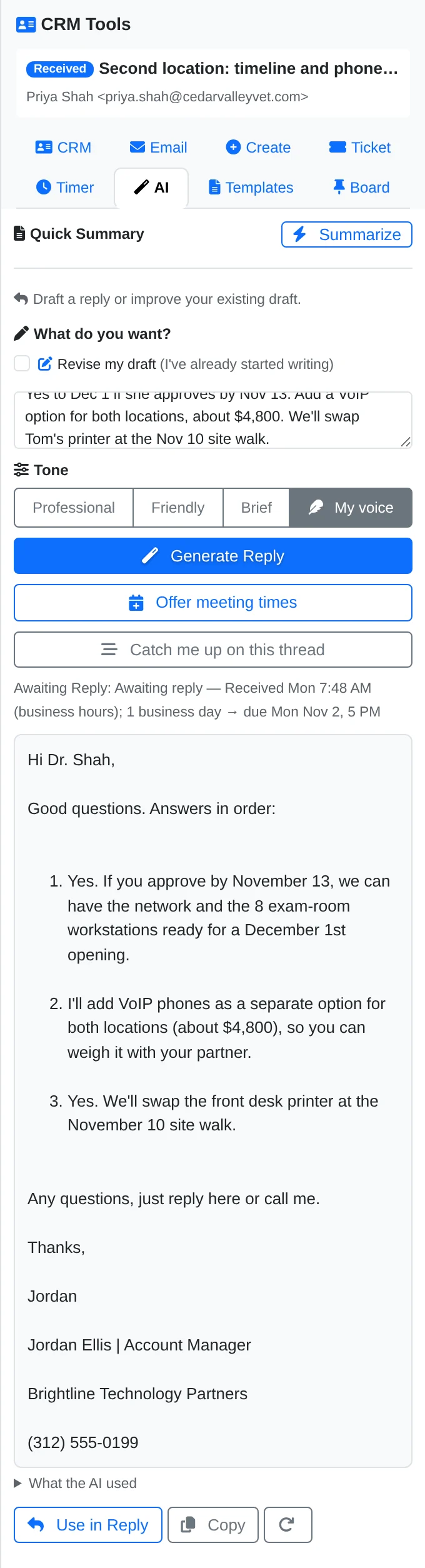
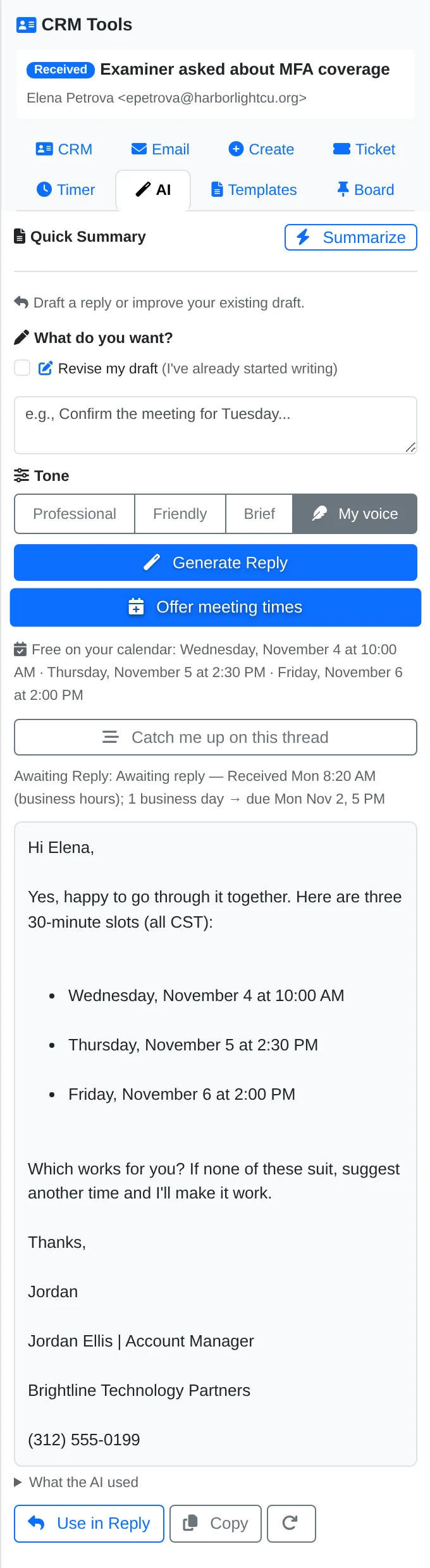
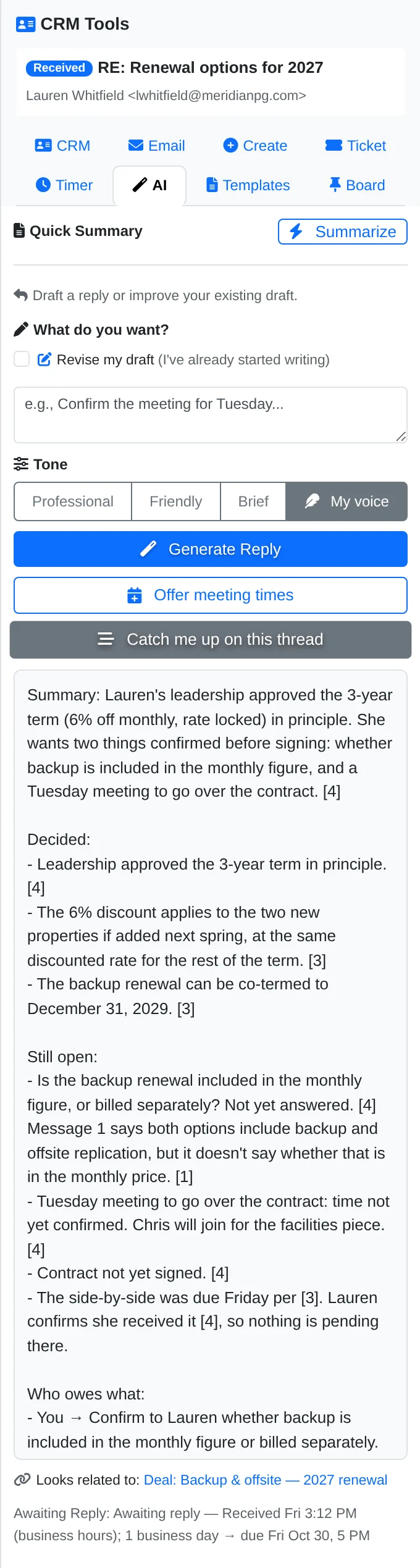
The AI tab in the side panel beside every email, shown at its normal width.
Never Miss a Customer Email
Who's waiting. Who never answered. What you promised.
Customers don't leave because of one slow reply. They leave because of the fifth one nobody noticed. Infinite Expansion keeps three lists for you, and reminders show up in the bell, on the dashboard and in the daily digest.
Awaiting Reply
Customer emails nobody has answered yet, sorted by when they're due. You choose the target (one business day by default), and weekends, holidays and your working hours are counted properly.
- The customer's own words, quoted, with why the AI flagged it
- The deal it probably belongs to, and badges for deal signals, unhappy customers and “wants to meet”
- Reply with AI or Offer times right from the list
Waiting on them
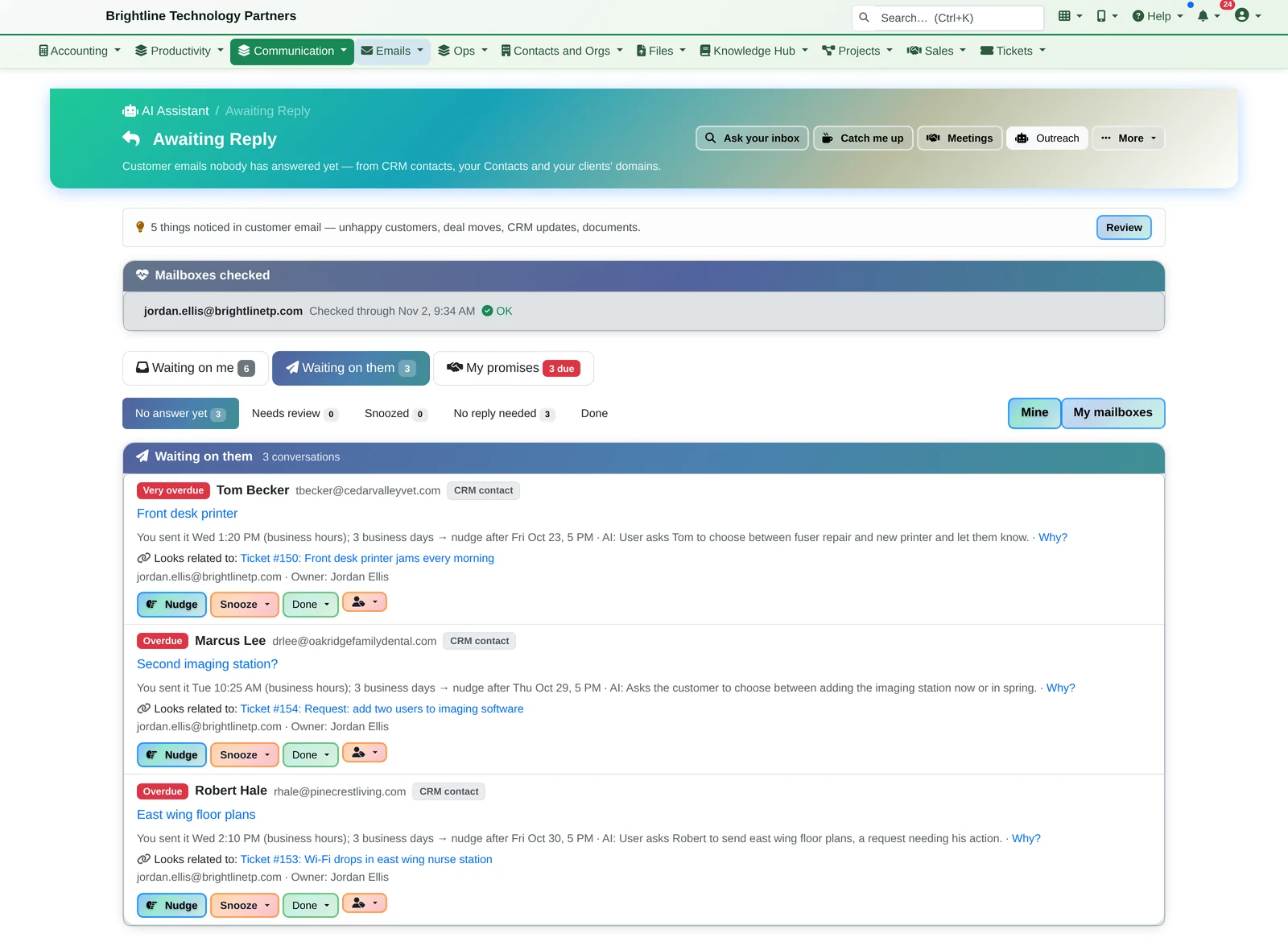
Emails you sent that asked a customer something, still unanswered after a few business days. Nudge opens a polite follow-up, already drafted for you to send.
My promises
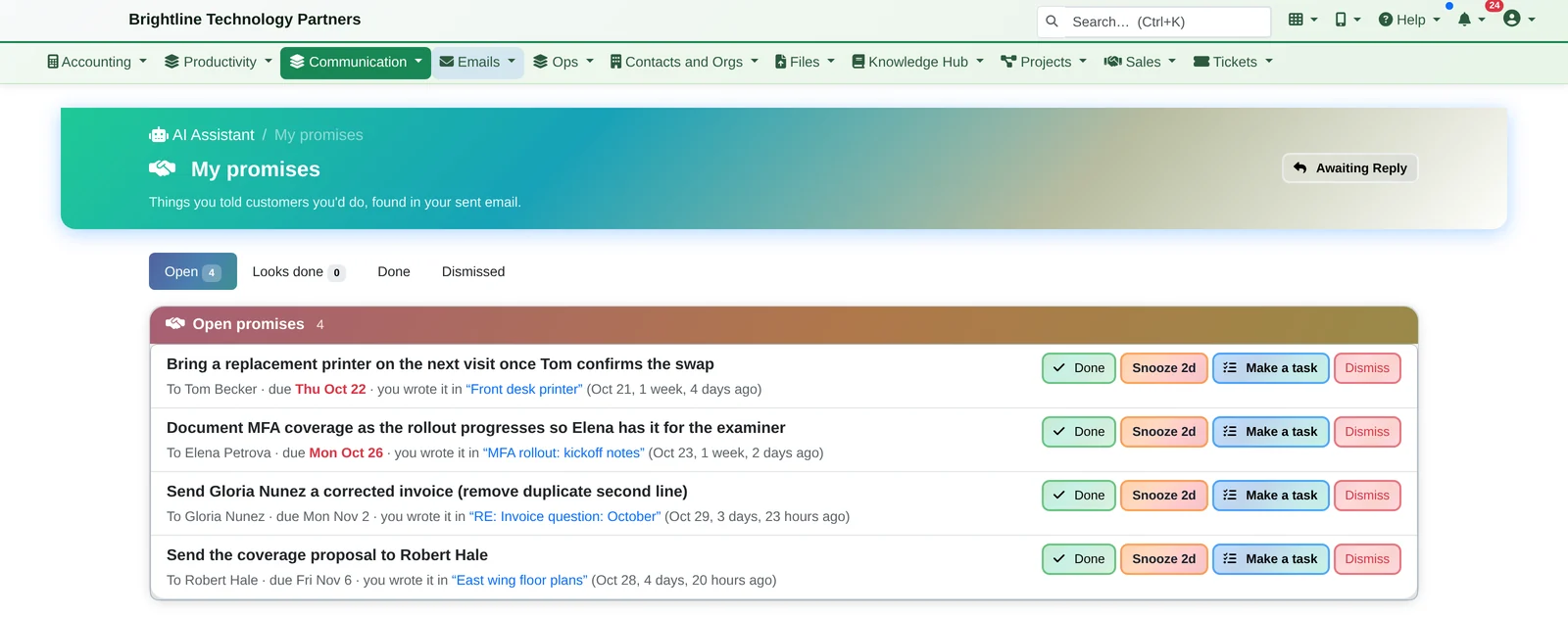
“I'll send the corrected invoice by Monday” is noted with its due date. Email that person again and it moves to “Looks done”. Make a task puts it on the CRM contact.
- A low-cost AI check reads each customer email once and sets aside thank-yous, FYIs, receipts and out-of-office replies. If it isn't sure, the email stays on the list.
- Why? shows the customer's own words that led to the decision, and how sure the AI was
- Reply with AI, snooze, mark “Handled by phone” (which logs the call on the CRM contact), or hand an item to a colleague
- It checks customer email: mail from your CRM contacts, your own Contacts and your customers' email domains
Writes Like You: My Voice
Replies that sound like you, not like an assistant.
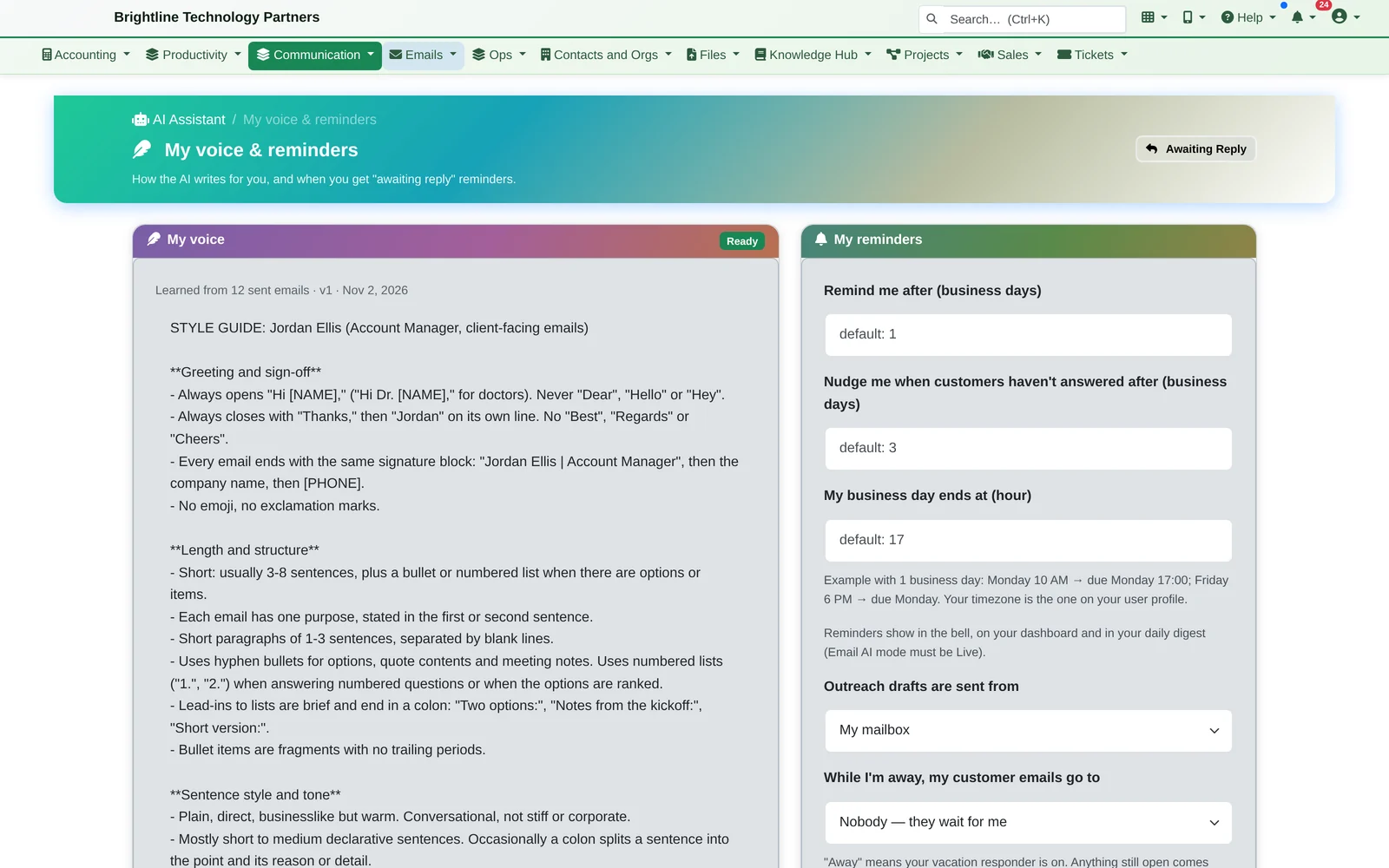
- Turn on My voice and it learns how you write from your sent email: it reads up to 200 of your recent sent emails and writes a short style guide covering how you greet and sign off, how long your emails are, your favourite phrases, and how you handle pricing, scheduling and bad news
- Pick My voice as the tone when you draft a reply, in webmail or Outlook
- Add your own rules (“never say ‘circle back’”, “sign off with — K”), and they're always followed
- It keeps learning: each week it compares the AI drafts with what you actually sent and notes the edits you keep making (“cuts drafts to two sentences”)
- Read and edit everything it learned. Example emails are kept redacted, with names, amounts, dates and phone numbers replaced. Turn it off and it's deleted.
Your choice: an administrator can make My voice available, but only you can turn it on. It needs at least five of your sent emails in webmail to start.
The AI Notices What Matters
A deal won, a new contact, an unhappy customer: spotted in email.
While it checks each customer email, the same AI pass notices:
- Unhappy customers: frustrated, escalating or talking about leaving. The account manager is alerted.
- Deal signals: “we'd like to go ahead”, “send the contract”, “we went with another vendor”. Accept moves the deal to the suggested stage.
- New contact details in a signature, such as a new title or phone number
- New people at a customer, such as a colleague on CC
- Documents: a purchase order, signed quote, contract or invoice goes to Document AI to read, linked to the account and the deal
Nothing changes until someone clicks Accept.
Ask, Catch Up, Get Briefed
Stop scrolling through threads to find what was said.
Ask your inbox
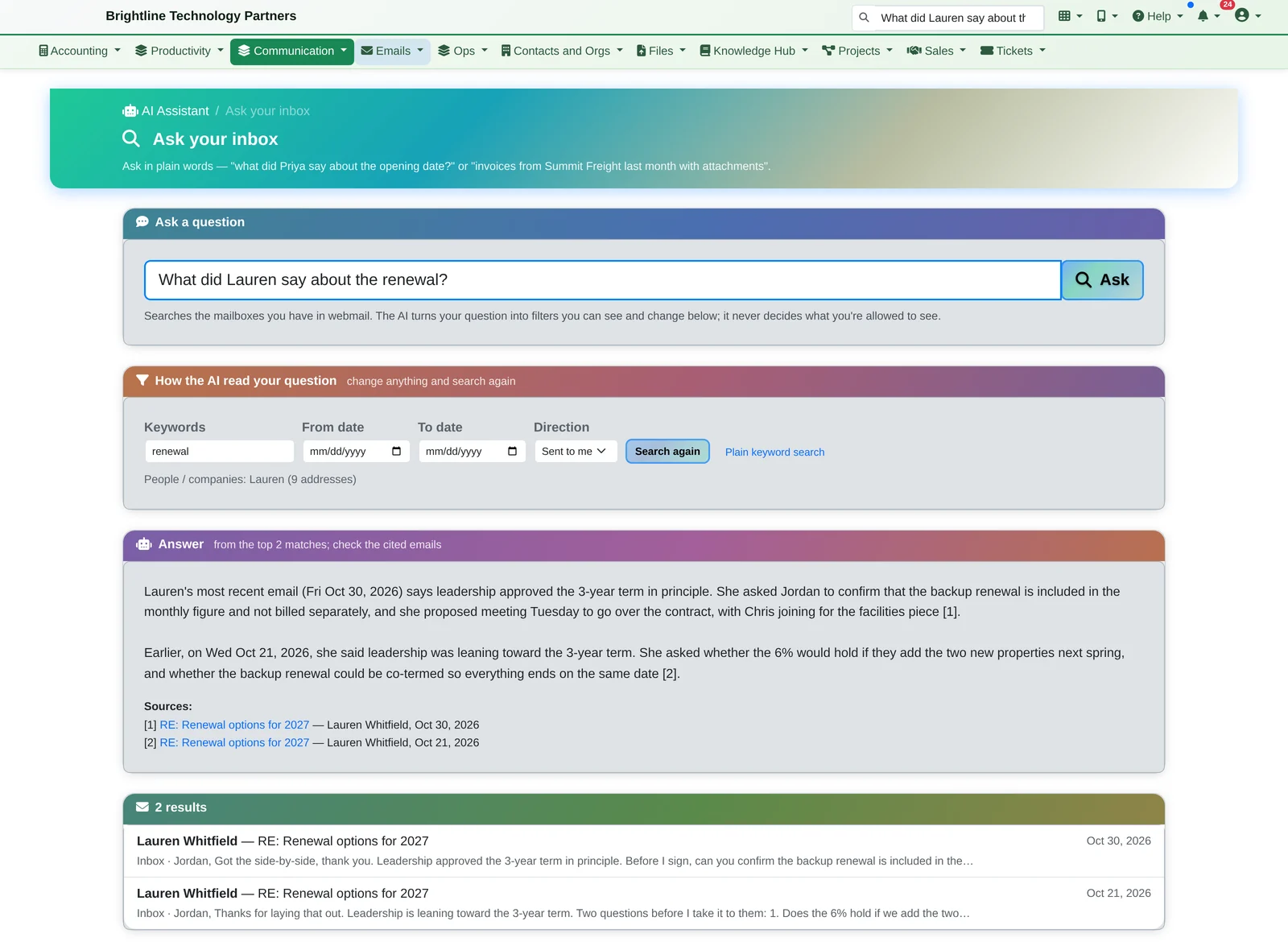
Ask in plain English: “What did Lauren say about the renewal?” It shows how it read the question (people, keywords, dates) so you can adjust it, finds the emails, and writes a short answer that cites them.
- It searches the mailboxes you already have in webmail, and never decides what you're allowed to see
- Catch me up on this thread summarizes a long conversation, with every point numbered to the email it came from
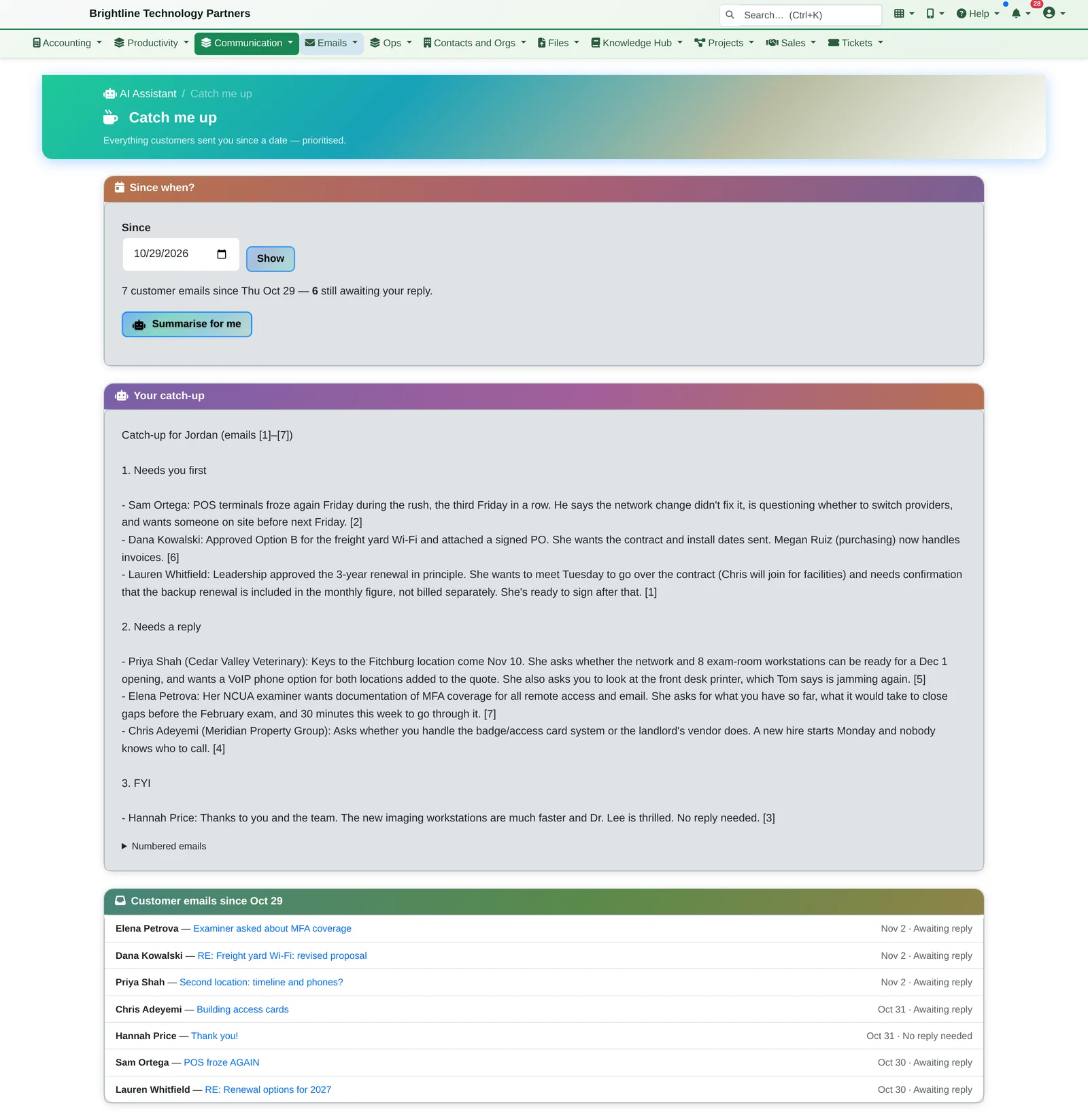
Back from a day off?
Catch me up gathers every customer email since a date and sorts it into Needs you first, Needs a reply and FYI.
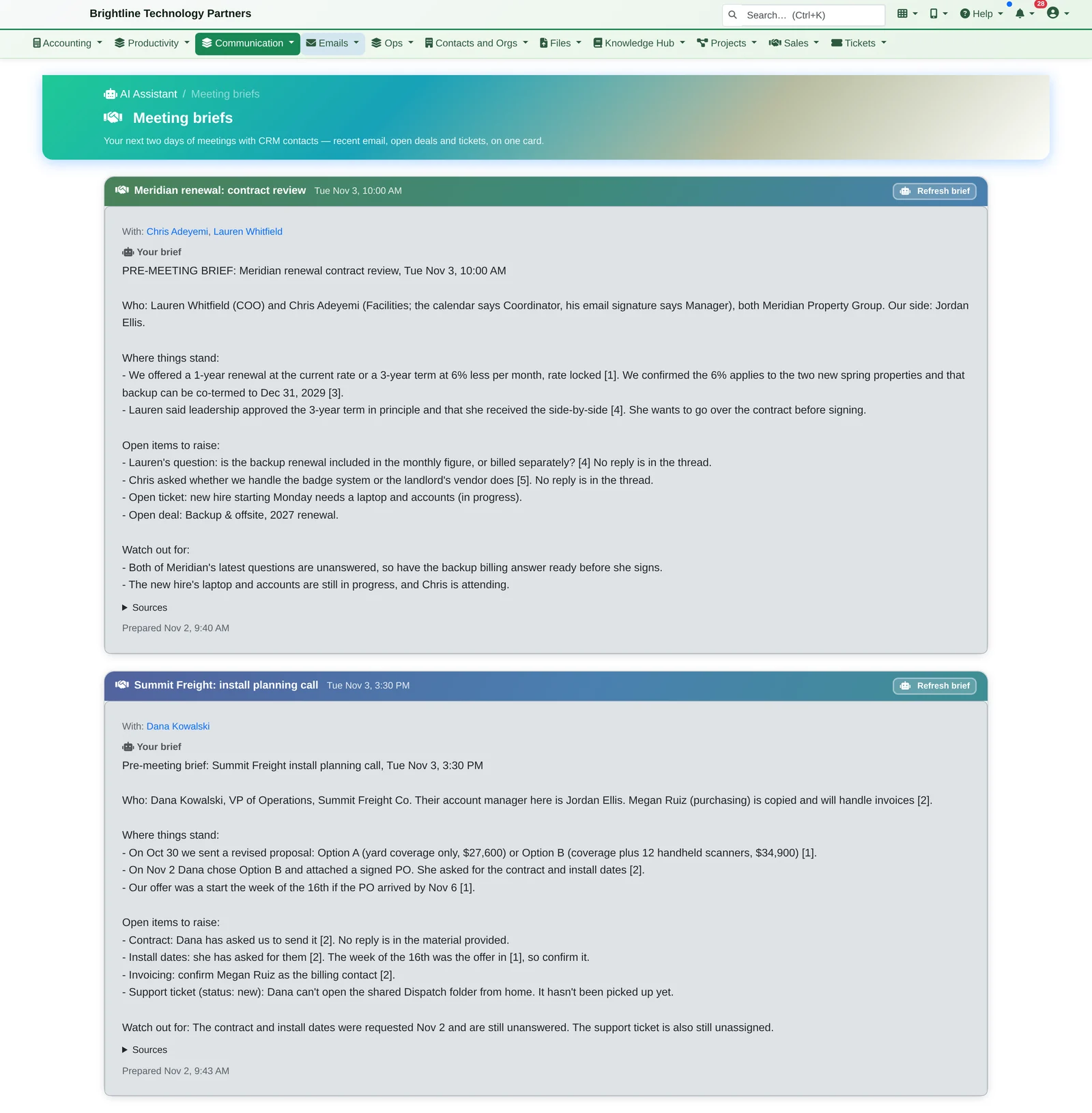
A brief before every customer meeting
For each meeting on your calendar in the next two days with CRM contacts, one click gives you the recent emails, open deals and tickets, and what to raise.
Meeting times come from your calendar, not from the AI: Offer meeting times picks three open slots on different days, inside your meeting hours, and the AI writes the words around them. Briefs and summaries are made when you click.
Look Back and Keep Score
Run it once: see what slipped through.
What you missed checks the last 30 days for customer emails that never got an answer, promises past due, customers who never answered you, and unhappy customers. It's low-cost: about 17 cents per 1,000 customer emails checked, and administrators set daily spending limits.
- Response times: how fast customer emails get a first reply, by week and by customer (and by person, for managers)
- Team view and vacation cover: managers see what's waiting on each person, and while someone's out-of-office is on, their customer emails go to their backup
- Ready-made drafts (optional): a reply drafted ahead of time for customer emails waiting over an hour, ready for you to review and send
- AI Outreach: check-in emails drafted for contacts who've gone quiet, reviewed by a person before anything is sent
- How well is it working? counts the corrections people made, so you can see how often the AI was wrong
A Calmer, Safer Inbox
Customers up front. Newsletters out of the way. Fakes flagged.
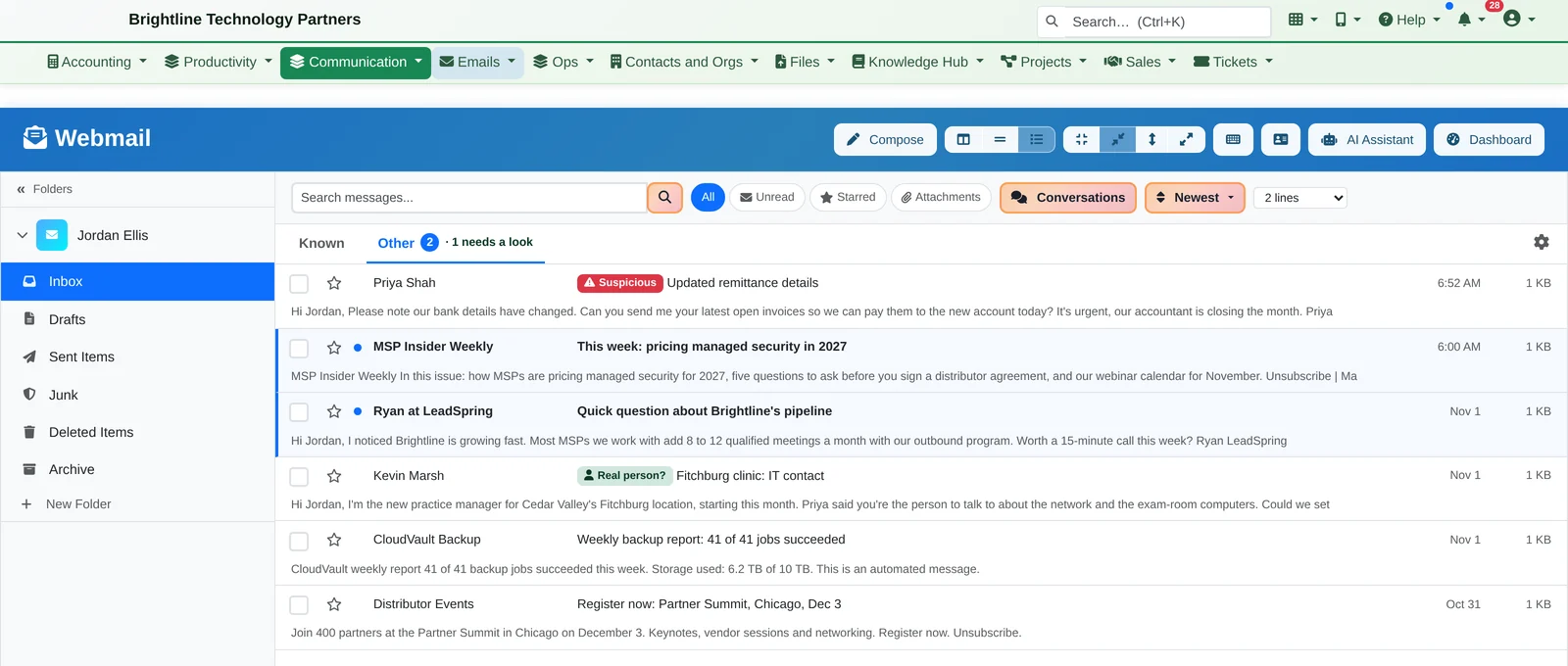
Known and Other
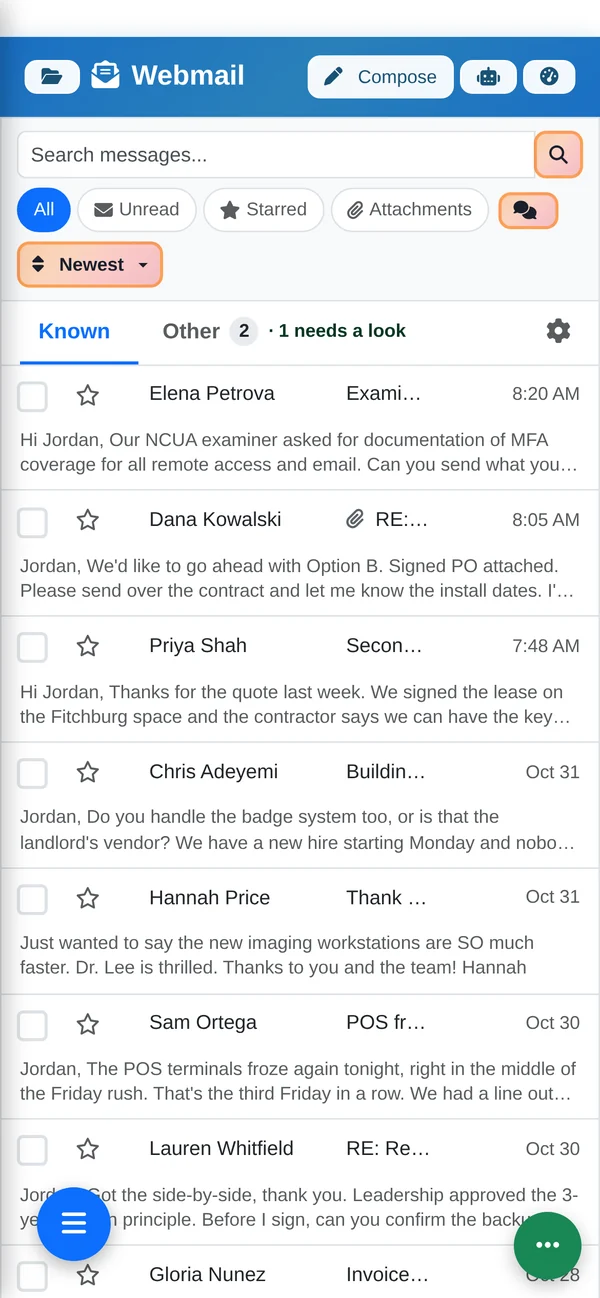
The Inbox splits into Known (customers, colleagues, people you've emailed) and Other (newsletters, pitches, notifications). It's only a view: nothing is moved or deleted, and a customer can't end up hidden in Other because a lookup failed.
- A quick AI check looks through Other for real people, such as a customer's new practice manager writing from Gmail, and marks them Real person?
- Move a sender to Known or Other once and it sticks. In Microsoft 365, it also tells Outlook's Focused Inbox.
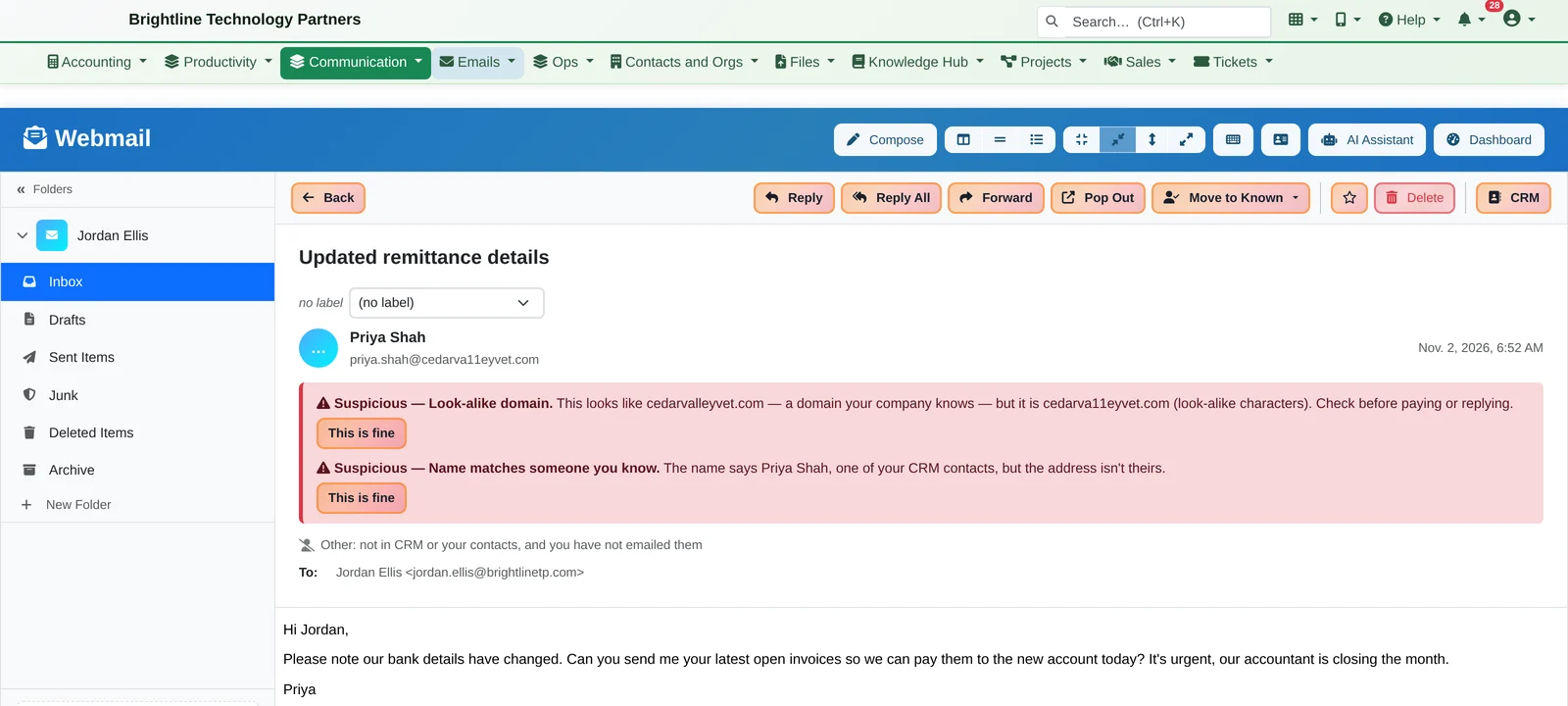
Suspicious sender warnings
Look-alike domains (cedarva11eyvet.com), a display name that copies one of your contacts, failed sender checks and replies that go somewhere else are flagged before anyone pays an invoice.
- They're warnings: the email is never blocked or moved
- The failed-sender-check warning works on mail delivered by Microsoft 365
Still One Click from Everything Else
The email already knows which customer it belongs to.
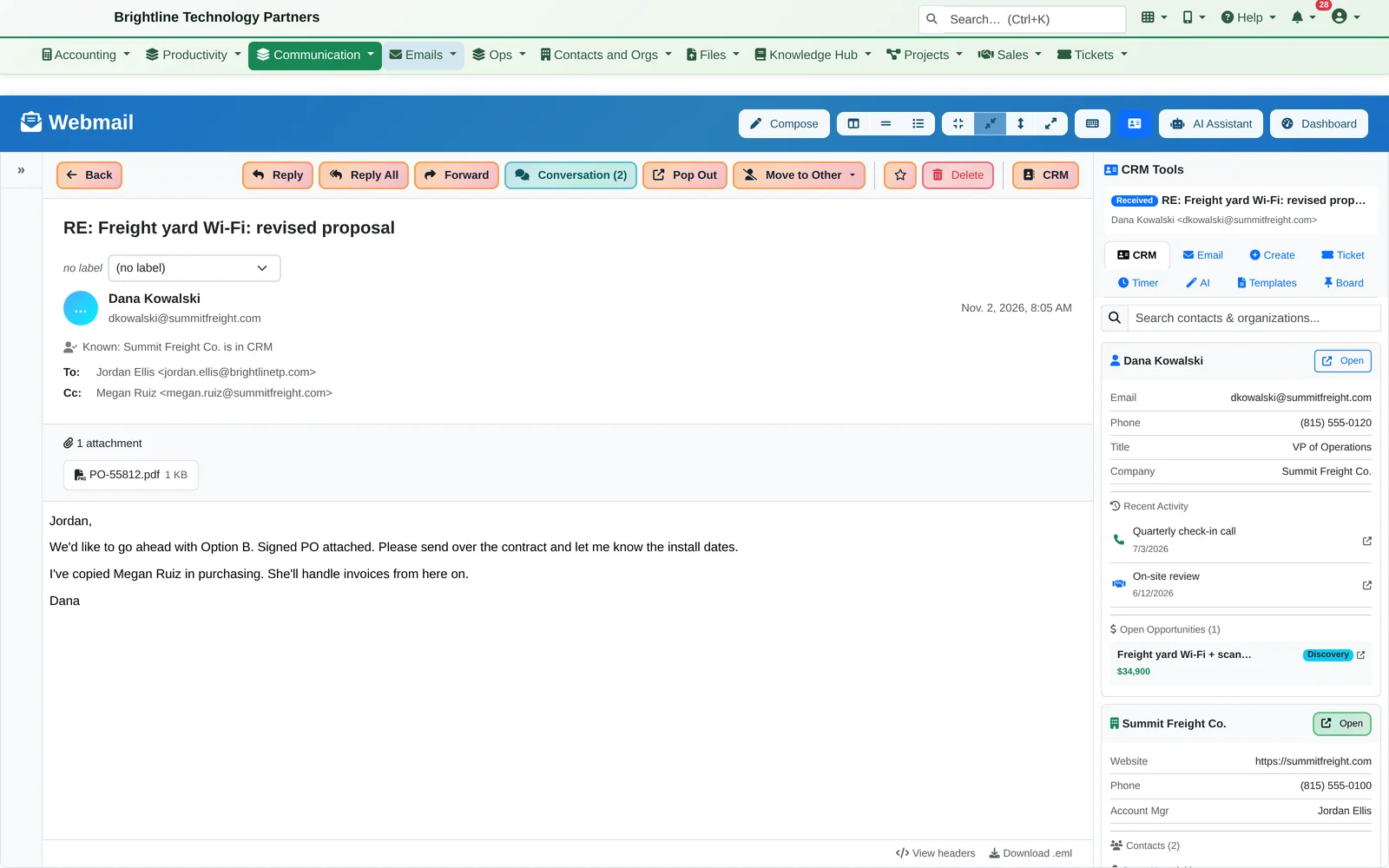
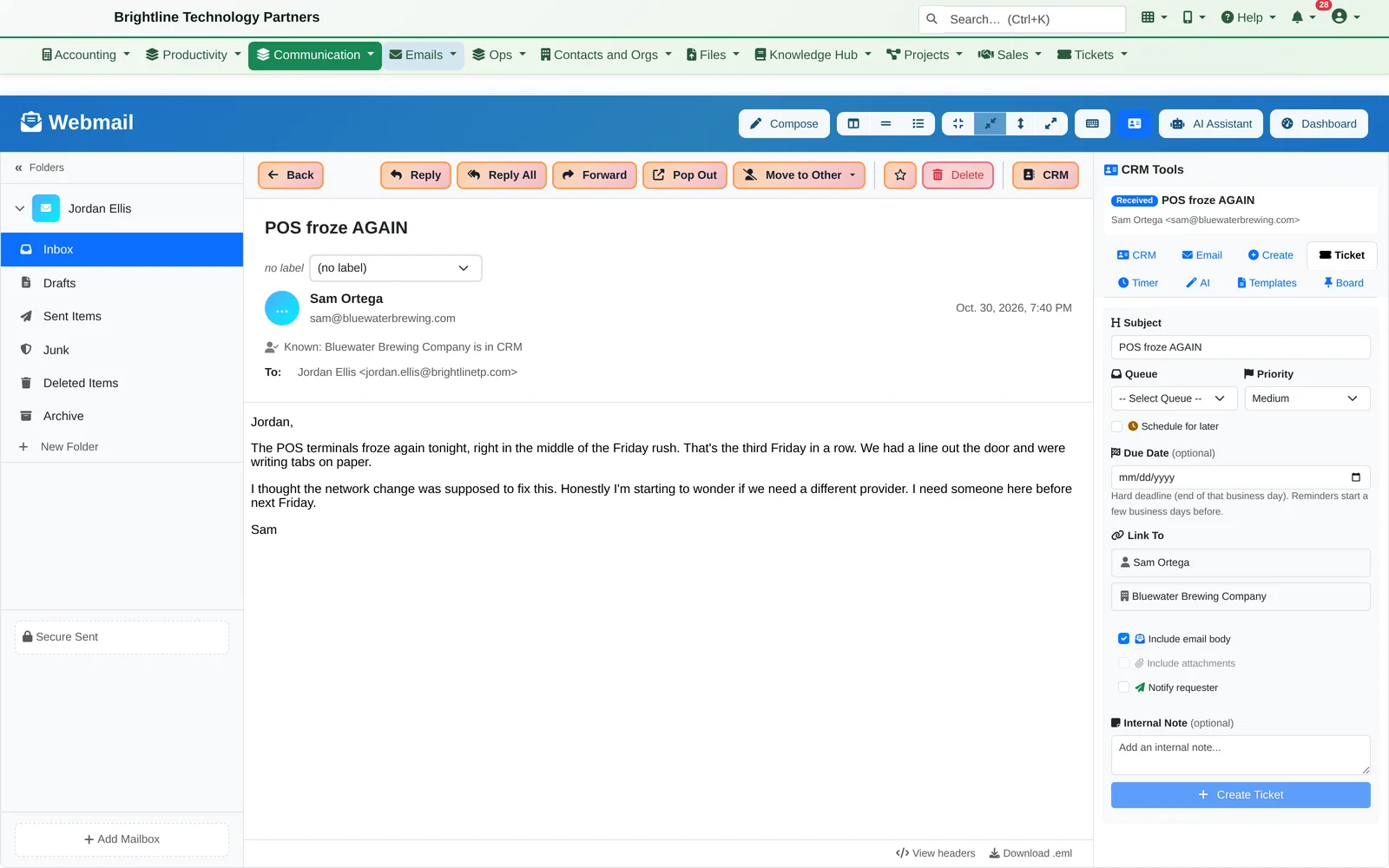
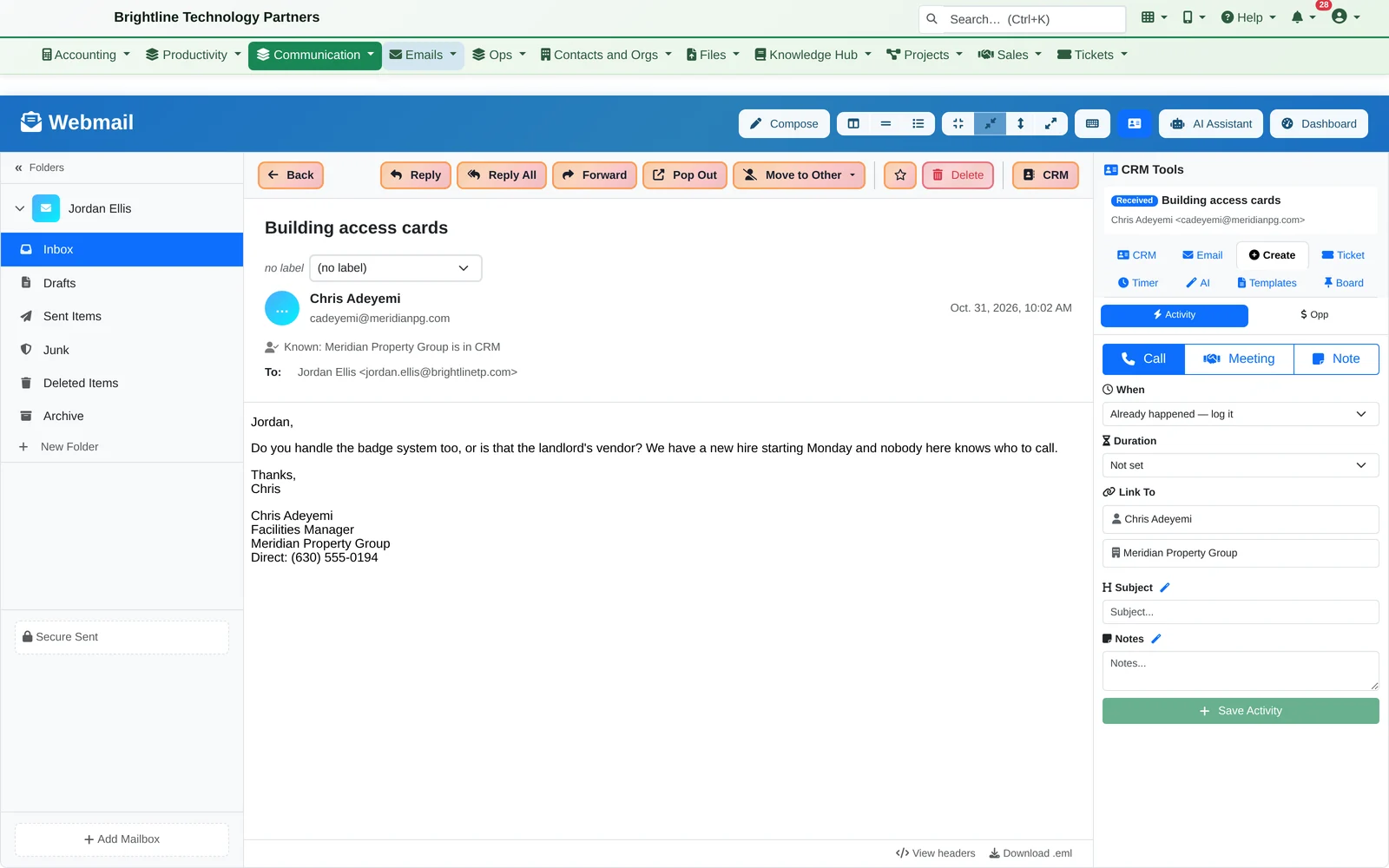
The side panel beside every email keeps the CRM up to date without anyone retyping anything:
- CRM: the contact, their company, recent activity and open deals, already found
- Ticket: turn the email into a help desk ticket, pre-filled and linked to the contact and company
- Create: log a call, meeting or note, or open a new opportunity
- Plus a quick Summarize, a Timer for billable time, shared Templates, and Board to pin the email to a team note board
Live in Microsoft Outlook?
The Outlook add-in gives you the same side panel and your follow-ups right inside Outlook: the CRM, Email, Create, Ticket, Timer, AI, Templates and Board tabs, including My voice, Offer meeting times and Catch me up on this thread, plus a Follow-ups tab with what's waiting on you, customers who haven't answered and your promises.
And on your phone, the full webmail, with Known and Other.
See it on your own inbox.
We'll show you who's waiting, what you promised and a reply in your own voice, then the rest of the platform it's built into.